How to use your Android phone as a Google TV remote
How to use your Android phone as a Google TV remote
We’ll give you all the details you need to know about transforming your Android mobile device into a Google TV remote.

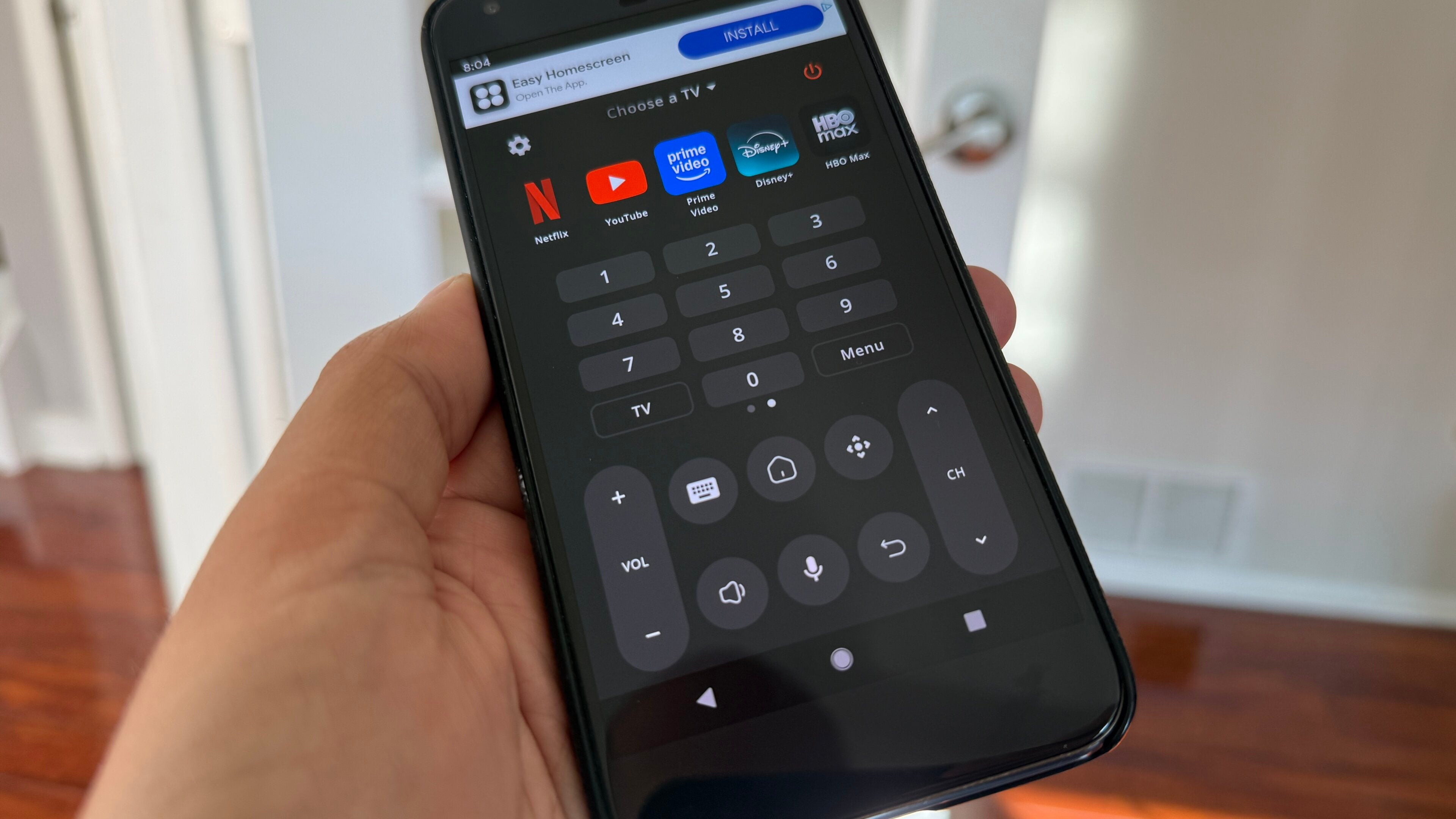
As one of the largest tech companies in the world, Google has major operating systems for both smartphones and streaming devices to its name. Google owns one of the top two phone operating systems in the world, Android, and has also created the Google TV operating system for the Google TV Streamer 4K and other devices.
But do these devices work well enough together to allow you to use your Android phone as a remote to operate your Google TV smart TV or streaming player? We’ll explain everything you need to know below!
What you need to know about using an Android phone as a Google TV remote

Can you use an Android phone as a remote for Google TV?
Yes! As long as you have the appropriate apps downloaded, you can turn your Android phone into a Google TV remote to help you stream TV shows and movies, live channels, and use all the other features of your Google TV-powered device.
If you want to use your phone as a Google TV remote, make sure you have the latest version of the Google Home or Google TV app. On your phone, you’ll need Google TV mobile version 4.27.8.93 or later.
How to set up remote control for Google TV on your Android phone
There are a couple of different methods available to set up your phone as a Google TV remote. We’ll explain both methods, so you can choose whichever is more convenient.
To set up your virtual remote from the Google Home app:
- Turn on your TV and Google TV device.
- On your Android phone, open the Google Home app.
- Choose the device you want to control to turn the virtual remote on or off.
To set up a virtual remote with the Google TV app:
- Open the Google TV app on your Android phone.
- Seek the Connect TV button near the bottom-right of the screen.
- Choose the device you want to connect to.
- Put the code that appears on your TV screen into your phone.
- Tap pair.
You can also add the TV remote to your Quick Settings on an Android phone to access it quickly.
What controls will an Android remote for Google TV have?
The Google TV virtual remote on Android phones has all the controls of the physical Google TV remote. It has a D-pad and selector button, back and home buttons, a play/pause button, and a microphone button.
You can use Google TV’s virtual remote on Android devices to navigate around TV apps with swipes, control playback, access settings and bookmarks, change inputs, and watch live and on-demand streaming apps.
Can you use your Android remote to search with Google Assistant?
Absolutely. Once you open the virtual Google TV remote on your Android phone, you’ll see a blue microphone button on the screen. Just press and hold it to ask questions or enter commands to control your Google TV, just like you can with the physical remote.
Why you should use your Android phone as a Google TV remote
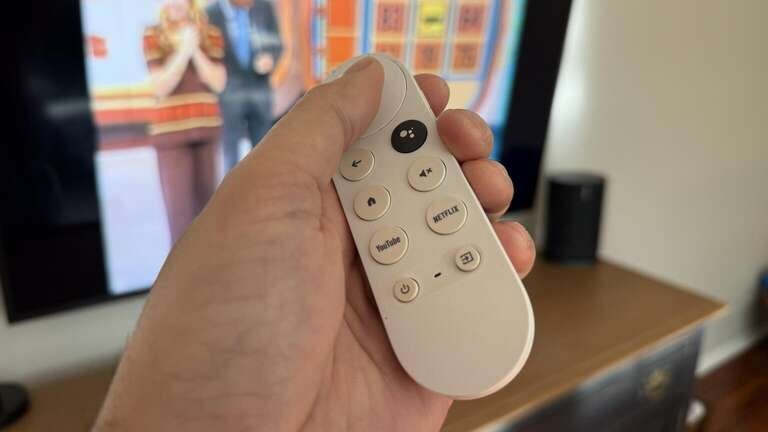
Many may find that using their Android phone as a Google TV remote is more convenient than the actual remote that comes with the streaming player or smart TV. It’s a lot harder to lose your phone than your remote, because of its size, if nothing else. And that size also makes it easier to use the remote itself, cutting down on accidental button presses.
Transforming your phone into a Google TV remote also allows you to type in login credentials and any other text using your phone’s keyboard — far easier than entering such information one letter at a time on your TV screen. If you find the physical Google TV remote suits your needs well enough, all well and good! But if you’re seeking an alternative, remember you can always use an Android mobile device as a Google TV remote instead.