How to cast from Android to a Google TV
How to cast from Android to a Google TV
We’ll explain everything you need to know about casting the image on your phone or tablet to your Google TV screen.

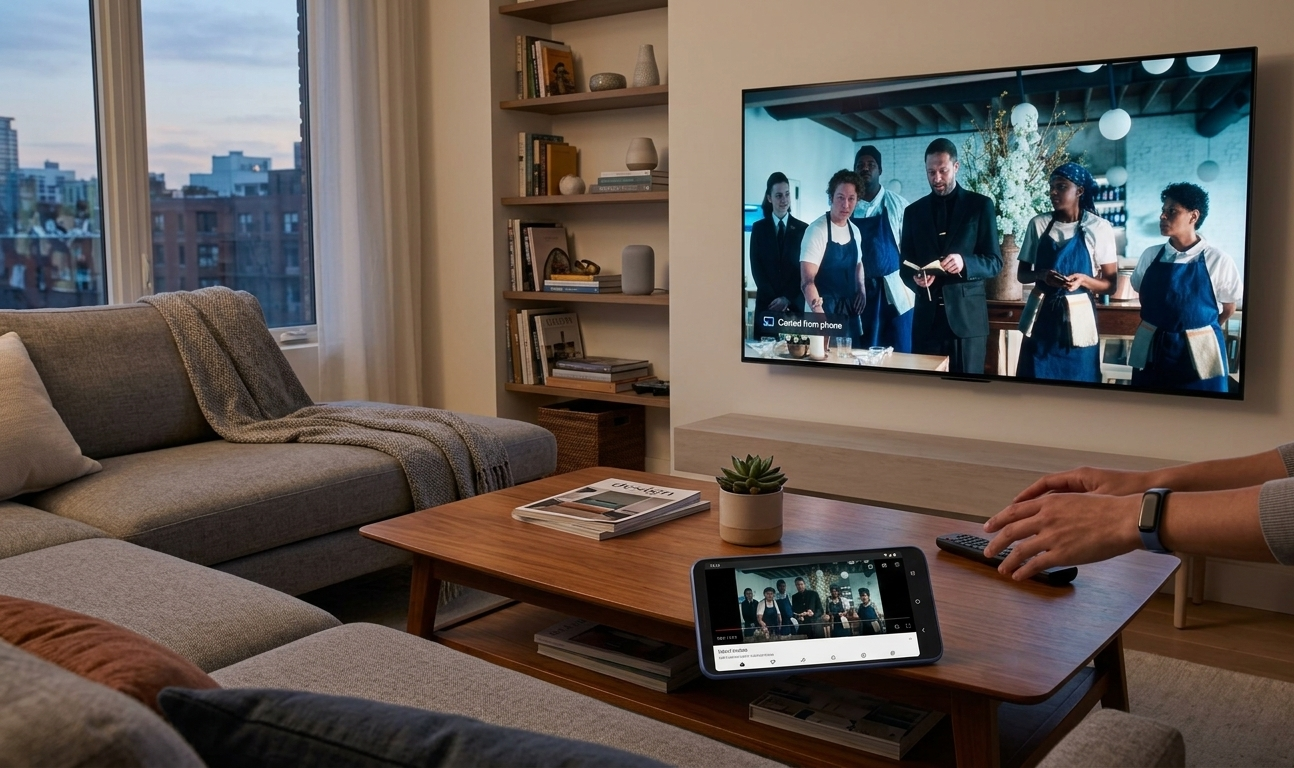
One of the coolest things about the increasing interconnectivity of smart home devices is the ability to transfer video from one screen to another. Devices in the Google and Android ecosystems are made to work together and offer a wide range of cross-connection features.
What about screen casting? Can you transfer video from your Android phone, tablet, or Chromebook to the screen on your Google TV device? We’ll give you all the details you need to know about using this popular feature with Google TV and Android devices below!
What you need to know about casting from Android mobile devices to Google TV

Can you cast from Android devices to Google TV?
Yes! You can easily cast video from your Android mobile device to a Google TV streaming player or smart TV. Better still, the instructions for casting from Android to Google TV are device-agnostic, so you won’t have to worry about trying to find a different set of directions for casting from your phone and casting from your tablet.
How to cast from Android to your Google TV
To cast video from your Android phone, tablet, Chromebook, etc.:
- Ensure the casting device and your Google TV are connected to the same Wi-Fi network.
- Open the app with the video you want to cast on your mobile device.
- Start playback, then select the Cast button in the playback controls.
- On your mobile device, select the name of your TV.
- When the Cast icon changes color, you’ve successfully connected.
How to stop casting from Android to Google TV
To end your casting session, open the playback screen on your mobile device, select the Cast icon again, then click Disconnect.
Why you should cast from your Android to Google TV
Casting is an excellent feature to use, as it allows you to send video from your mobile device to the biggest screen in the room. Unlike screen mirroring, which duplicates the entire phone screen, casting only transfers video from one app to the TV screen.
That allows the caster to continue browsing on their phone while they watch their chosen video on the TV screen. Casting offers another big advantage over screen mirroring: better display quality, since casting typically streams video directly from the internet-connected source. Mirroring, on the other hand, can include annoying freezes.
Casting also allows the user to save their phone or tablet’s battery life. Since the video playback is transferred to the big screen, instead of using the entire phone screen, battery use is significantly reduced. It’s a great alternative to using your device to watch videos and draining its battery if you have a compatible smart TV available. You can even put your mobile device’s screen to sleep and continue casting in many situations.
Sending your Android device’s video to the big screen also makes it much easier to share with a group. Why force your friend group to crowd around your mobile device’s small screen when everyone can sit comfortably around the TV and watch whatever it is you want to show them?
Can you replace your streaming device with casting?
While casting can negate the need for a connected streaming device in some situations, anyone but the most casual TV watchers will still want a connected streaming dongle to watch TV at home. If you don’t watch much TV, or usually watch videos on YouTube, and only occasionally want a bigger screen to stream on, casting can be a good solution to watching videos on the big screen without having to pay for a connected streaming device.
If you like your TV and movie streaming, however, we still think getting a dedicated streaming player is the way to go. Casting is convenient, but it still takes up your Android device’s memory and battery while you do it. Connected streaming players include a mountain of features that are unavailable to casters, such as free streaming channels, the ability to sort apps on an easy-to-use interface, and more.
Can you cast from one Android device to multiple Google TVs at once?
Yes, you can cast from one Android device to multiple Google TV-equipped devices by creating groups in the Google Home app. This will allow viewers to stream audio on multiple Google TV devices from a single Android source. Note, this does not work for casting video to multiple Google TV players, only audio.
- Open the Google Home app on your Android device.
- Select the Add icon.
- Choose Create speaker group.
- Select all Google TV devices (and any others) you want to include.
- Follow on-screen prompts.
- Open your favorite audio streaming app, tap the cast icon, and select the device group you’ve set up.
Can you cast from your Google TV to an Android device?
No, Google’s casting technology is a one-way street. You cannot cast the image from your Google TV device’s screen to an Android mobile device.
Troubleshooting issues casting from Android to Google TV
If you’re having trouble casting from your Android device to your Google TV, follow the steps below to ensure you’ve got everything set up properly.
Make sure casting is enabled on your Google TV
- Power on your Google TV
- Select All settings
- Navigate to apps, then select See all apps
- Find the app Google Cast
- Select Enable if the app is turned off.
- To reboot your device, go to Settings, then System, then Restart.
Ensure your Google TV and Android are connected to the same network
- From the Google TV home screen, open All settings.
- Open Network & Internet, then check your connection against your Android device’s
Update your Google TV to the latest software
- Navigate to All settings from the Google TV home screen.
- Open System, then navigate to About, then System update
- If an update is available, follow the on-screen instructions to install