How to personalize the Google TV home screen
How to personalize the Google TV home screen
We’ll explain all the customzation options available with Google TV devices, and how to use them!

If you’ve purchased your first Google TV device, but aren’t satisfied with the way the operating system presents information to you, don’t panic. New user interfaces always take a little time to get used to, but you can also change up your Google TV’s user experience in multiple ways to tailor it to your preferences!
What kind of customization options does Google TV offer? We’ll explain everything you need to know to personalize the Google TV home screen, including how to rearrange apps, hide specific apps from appearing in search results, and more. Get all the details from our easy-to-follow guide!
What you need to know to customize the Google TV home screen

How to customize apps on Google TV home screen
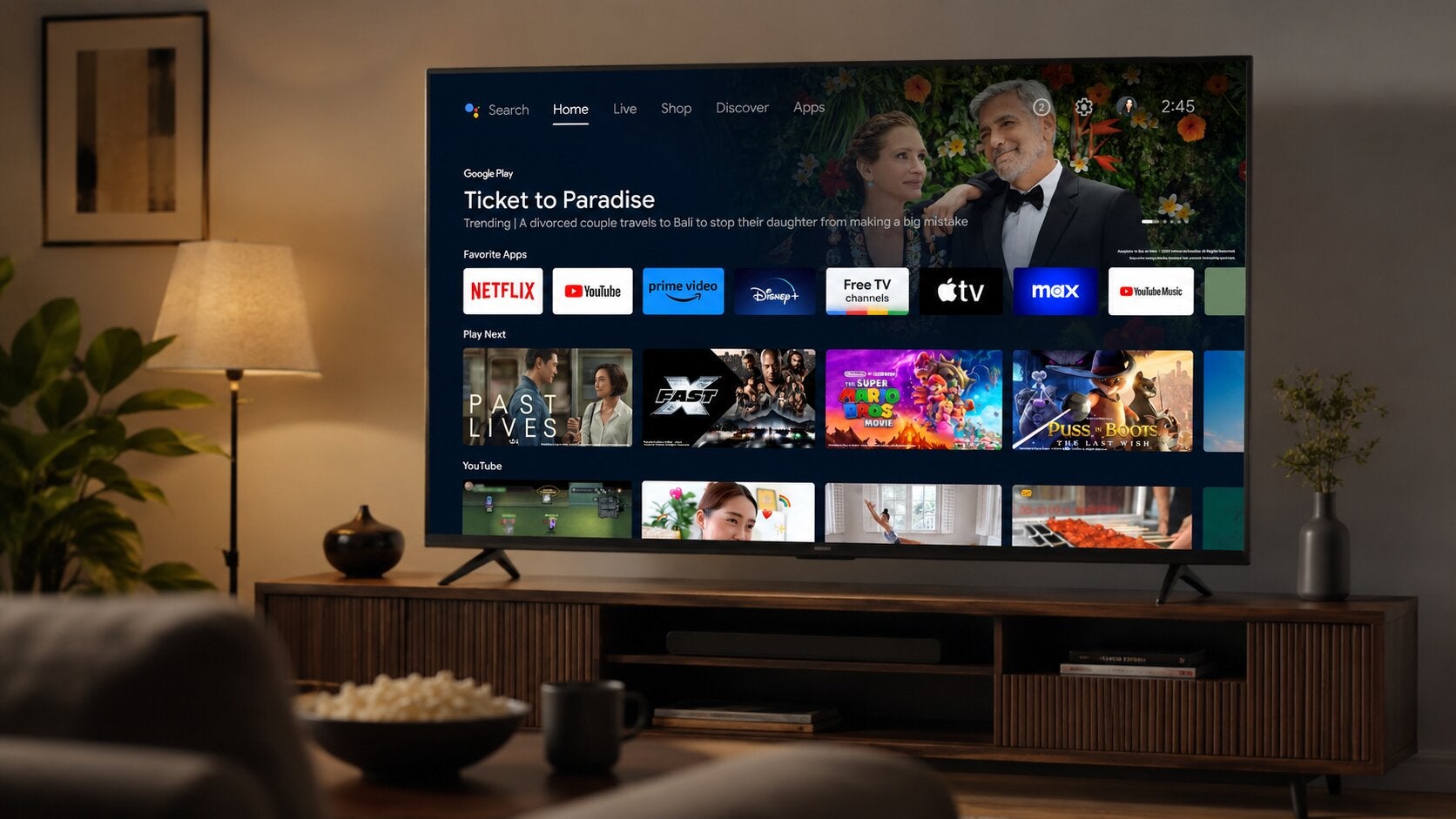
One of the first things any Google TV owner should do when they pull their device out of the box is customize the apps appearing in the Your apps row. This section is prominently placed at the top of Google TV’s For You tab, and lets you jump into your chosen apps with limited scrolling around.
To switch around the apps in the Your apps row on Google TV’s home screen:
- Scroll to the right of the Your Apps row.
- Click See All. Your chosen apps will display at the top of the screen.
- Navigate to an app you want to remove and long-press OK.
- Click Move.
- Scroll down to find the bank of available apps.
- Choose the app you want to move into the Your Apps row.
- Long-press and click Move.
How to customize channels in Google TV live guide
The Google TV live guide doesn’t include full customization options, but viewers can favorite channels to see them appear at the top of the channel guide each time they use the device. To select favorite channels on your Google TV:
- Navigate to the Live tab at the top of the screen.
- Scroll to the channel you want to favorite.
- Select it, and a star will show up to confirm the choice.
- Head back to the top of the screen to select it from your favorites.
Using the favorite channel feature makes scrolling the Google TV live guide much easier. As the guide is packed with channels, it’s definitely a useful feature. Viewers can also filter their view by using the left-hand menu in the live guide to see channels only from certain subscriptions or apps.
How to block certain streamers from displaying details on Google TV
The Google TV interface offers several layers of customization and even allows viewers to hide information from any chosen app from appearing in search results or menus. This lets parents hide installed apps they don’t want kids finding out about, or keeps nosy friends from asking questions about your favorite streamers.
To keep a given app from appearing in the Google TV interface:
- Scroll to the top of the Google TV interface.
- Scroll right until you hit Settings.
- Navigate to Accounts & Sign In.
- Click Streaming TV.
- Choose Your Services, and choose the services you want to hide.
How to see only apps on Google TV
It’s always nice to get content recommendations from your streaming device, but the never-ending rows of TV show after movie after documentary can get to be a little much after a while.
If you want to limit the information on your screen to only installed app badges:
- Scroll to the top of the Google TV interface.
- Scroll right until you hit Settings.
- Navigate to Accounts & Sign In.
- Click Streaming TV.
- Click down until you arrive at Apps only mode to toggle on or off.
Can you customize the tabs at the top of the Google TV home screen?
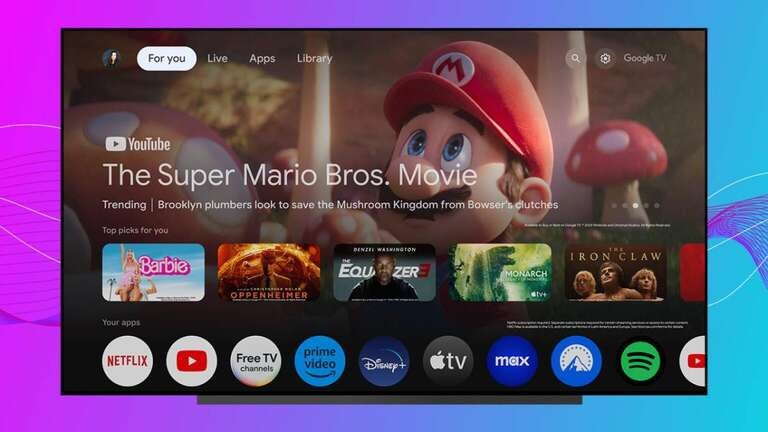
No, Google TV will always show you the Search, For You/Home, Apps, and Library tabs at the top of the screen, and there is no way to remove them from your navigation. These are key system-level guides that help customers move through essential parts of the user experience, so they cannot be hidden.
Does the Google TV remote have customizable buttons?
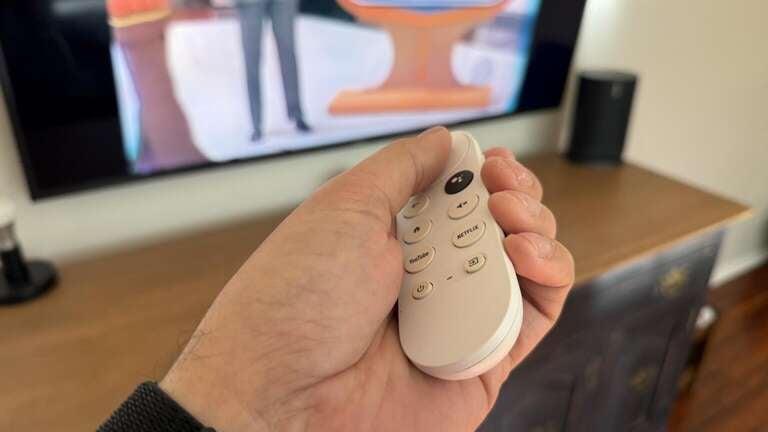
Many Android TV and Google TV devices, such as the Google TV Streamer and Onn streaming players, have a remote button stamped with a star icon, which indicates it’s programmable. Customers can use these buttons as app shortcuts, switch HDMI inputs, and more.
To program the button:
- Power up your device.
- Go to Settings, then Remotes & Accessories.
- Choose Set up remote buttons.
- Scroll to the Customizable button, and follow on-screen prompts.
Alternatively, you can long-press the start button to open a quick setup shortcut.
How to disable autoplay on the Google TV home screen
While some viewers might love the use of autoplay to automatically start showing them more details about the show or movie they’re hovering over with their cursor, others (myself included) don’t like the TV playing a video without being asked. Autoplay can also slow down the user interface of any streaming device operating system, including Google TV.
To disable autoplay on Google TV:
- Scroll to the top of the Google TV interface.
- Scroll right until you hit Settings.
- Navigate to Accounts & Sign In.
- Click Streaming TV.
- Head down to autoplay and toggle it on or off.
How to enable SafeSearch on Google TV
If you live in a family with kids, the ability to use SafeSearch is critical to ensuring your children never find streaming content on the Google TV interface that you don’t want them watching.
To turn on SafeSearch with Google TV:
- Head to Settings in the top-right corner.
- Find Accounts & Sign In.
- Choose Streaming TV.
- Scroll until you find SafeSearch to toggle on or off.
Viewers can also set up a pin with SafeSearch to ensure it cannot be turned on or off without permission.
Why you should customize the Google TV home screen
Using the customization options above will allow you to feel as if your Google TV-powered device is truly your own. You don’t have to simply sit back and feel like Google TV is pushing content recommendations you don’t want to watch on you — take control and decide for yourself what you want the view to look like.
You can literally save yourself dozens of hours each year by taking a little time to arrange the Your Apps row the way you want it. There’s no need to stumble around your Google TV interface looking for the Netflix or Prime Video apps when they’re easily placed in the row for quick access.
Some viewers may love getting content recommendations from their Google TV interface, as it can be really hard to pick which streaming TV shows and movies to choose next. But other viewers may feel that never-ending recommendations are simply an effort to market to them, or that non-stop tile carousels packed with shows and movies can be overstimulating. Whatever the reason, having the ability to hide recommendations is a highly useful feature.
Customization features are also great for parents with kids. Streaming services often come with scant parental controls, and those that have strong ones force the user to set them up before they’re active. Using Google TV’s customization features can help keep little hands from finding titles or streaming services you’d rather not have them watching without you.
Use the personalization options we’ve laid out above to make your Google TV-powered device feel like it’s truly yours. Watch TV your way, and spend less time trying to move through a user interface that feels like it was designed for mass appeal and more time using your favorite apps on your Google TV player or TV.