How to insert, change batteries in your Google TV remote
How to insert, change batteries in your Google TV remote
Everything you need to know to keep your Google TV’s remote powered and working perfectly.

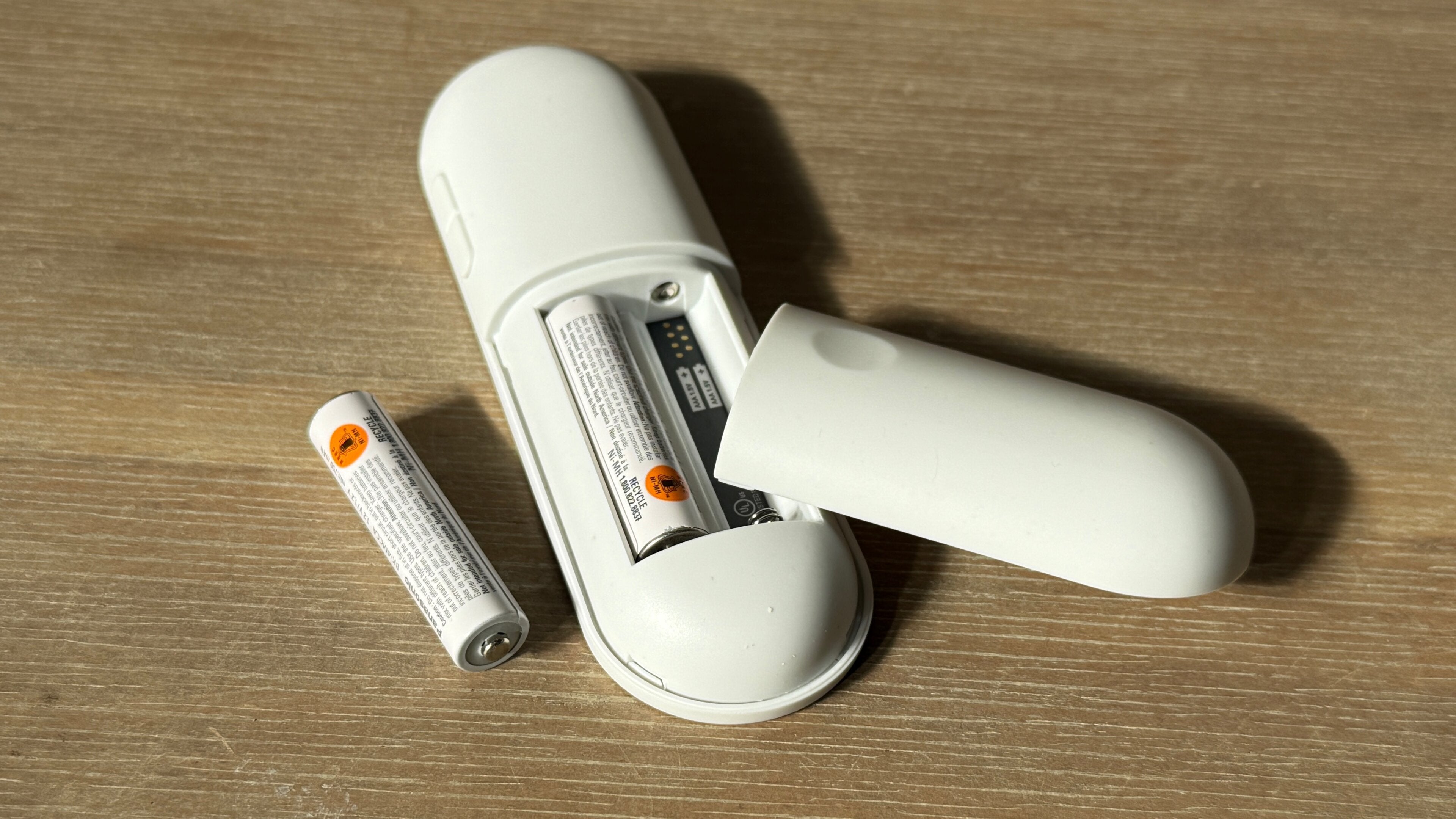
There’s a lot about the TV-watching experience that has changed in the past 10-20 years, but one thing that has stayed more-or-less the same is using batteries to power remote controls. Apple TV’s Siri remote now uses an internal rechargeable battery, but most other device remotes are still powered by replaceable alkaline batteries.
That includes the Google TV Streamer 4K, the latest-generation streaming player equipped with the Google TV operating system. If your Google TV Streamer 4K’s remote isn’t working the way it’s supposed to, it may be time to change the batteries! We’ll explain everything you need to know about inserting and replacing the batteries in your Google TV remote below.
What you need to know to change the batteries in your Google TV remote

What size batteries do Google TV remotes take?
Google TV Streamer 4K remotes take two alkaline AAA batteries. You can choose to purchase rechargeable batteries for your remote if you wish, leaving fewer used batteries that you have to throw out. Using rechargeable batteries isn’t required for Google TV remotes, however — as long as you’ve got two AAA alkaline batteries, you’re good to go.
How to insert batteries into a Google TV remote
To insert batteries into your Google TV remote:
- Turn over the remote so the backplate is facing you.
- Press your thumb down onto the dimple in the battery cover.
- Push downward to slide the cover off.
- Press down on the top of each battery, and pull it out.
- Push each new battery into its compartment — the flat (negative) terminal should be pushed against the spring on the bottom of the remote.
- Replace the battery housing cover.
When is it time to change the batteries on your Google TV remote?
If your Google TV remote is experiencing performance issues, such as sluggish execution of commands, failure to carry out tasks, etc., it’s a clear sign that the batteries are running out of power and need to be replaced. Standard alkaline batteries will offer a life of three to six months in a streaming remote, depending on how heavily the remote is used, of course.
In addition, many Google TV devices will offer an on-screen warning while watching that your remote’s batteries are dying. This useful feature works a lot like the gas warning light in your car, giving you a heads-up that your batteries are dying while you still have time to replace them.
How to check the remote’s battery level on Google TV
To check the battery level of your remote in your Google TV’s interface:
- Power on your Google TV.
- Navigate to the Settings menu.
- Scroll down to Remotes & Accessories.
- Choose the Google TV remote.
- Check the battery level on the right side of the screen.
Using this feature on your Google TV periodically ensures you’re never caught unawares with a low battery warning.
Where to buy new batteries for your Google TV remote
Owners can use any brand of alkaline AAA battery commercially available to power their Google TV remote, including Duracell and Energizer. Shop for batteries online at Amazon, Best Buy, Target, and Walmart, or other retailers, or find them at physical stores like grocery stores, gas stations, hardware stores, big-box retailers, etc.