Cast your phone to the big screen and watch your world unfold on Roku or Fire TV
Cast your phone to the big screen and watch your world unfold on Roku or Fire TV
Bring your phone to life on TV with quick mirroring magic on Roku or Fire TV

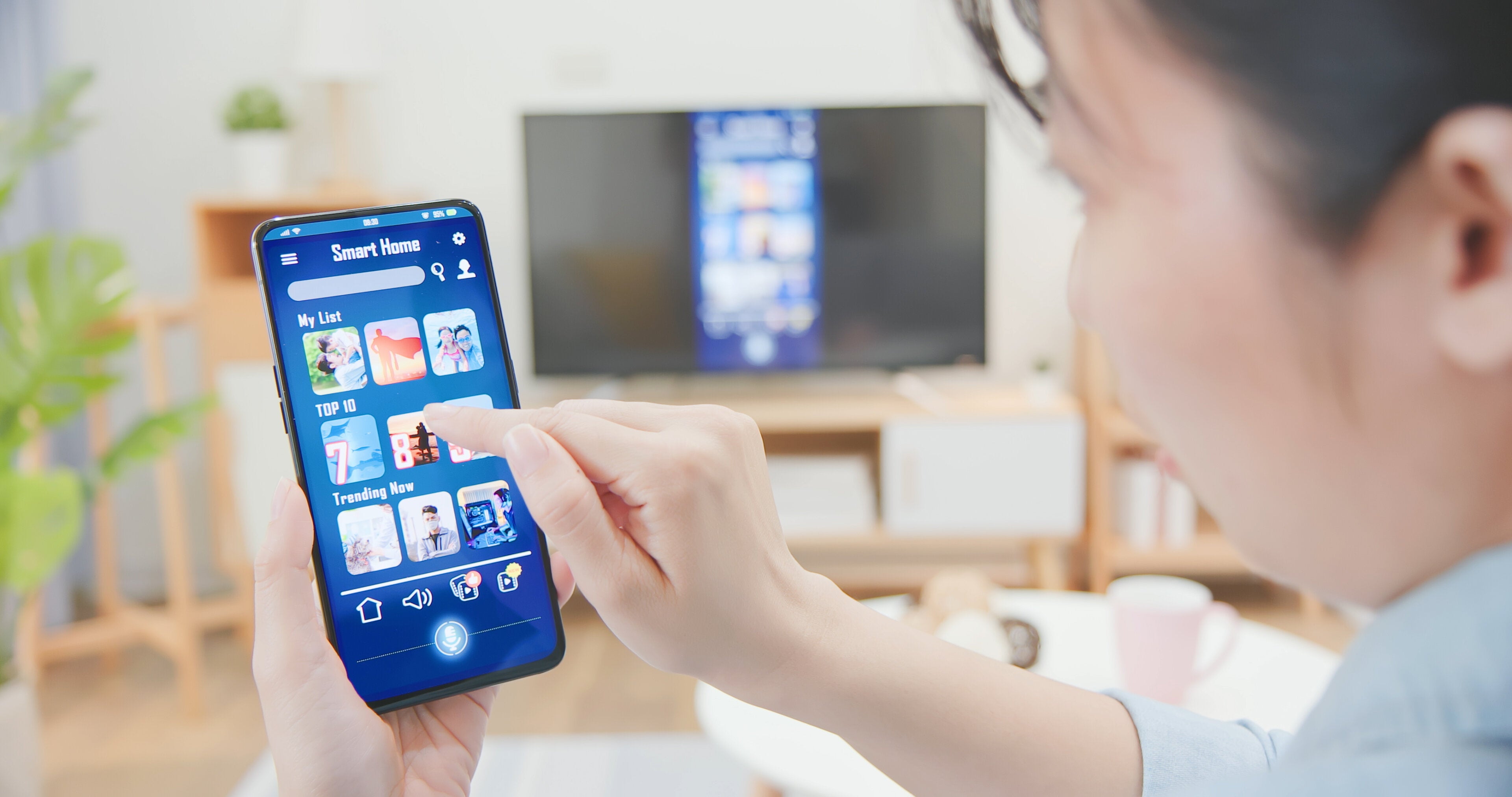
Streaming devices like Roku and Fire TV have made watching content easier than ever, but screen mirroring takes it to another level. With just a few taps, your phone or tablet becomes a command center for your TV, putting every app, photo, and video right in front of you in stunning clarity.
It’s a quick, wireless way to share anything, from vacation photos to live sports, with zero cables and maximum style. This feature seamlessly blends convenience and technology, making it one of the most useful tools hiding in plain sight on your favorite streaming devices.
Here’s a step-by-step guide on how to mirror your phone or tablet on your Roku or Fire TV and bring your content to life on the big screen.
What you need to know to mirror your device to your smart TV
Connect everything to the same Wi-Fi network
Before diving in, ensure that your Roku or Fire TV, as well as your phone, tablet, or computer, are all connected to the same Wi-Fi network. Screen mirroring depends on this connection to sync your devices smoothly. Once everything is linked, you’re ready to mirror.
How to mirror from an Android device to Roku
Many Android phones include a built-in mirroring option. Depending on your device, it might be called Smart View, Cast, Wireless Display, or Screen Mirroring.
Here’s how to do it:
- Pull down your Android device’s status bar
- Tap Smart View (or the equivalent option on your phone)
- Select your Roku device from the list
- When prompted on your Roku, select Allow or Always allow
Once connected, your phone’s screen will appear on your TV. You can browse apps, play videos, or show off your latest vacation photos in full size.
Tech tip: Want to change the name your Roku displays during pairing? Go to Settings > System > About and adjust the device name and location.
How to mirror from an Android device to Fire TV
Fire TV devices also make Android mirroring easy. Here’s the step-by-step:
- Turn on your Fire TV and press and hold the Home button on your remote for about three seconds
- In the menu that appears, select Mirroring
- On your Android phone, open Settings > Bluetooth & Device Connection > Connection Preferences > Cast
- Tap the three-dot menu and toggle Enable Wireless Display
- Wait for your Fire TV to appear, then tap its name to connect
Your Android screen should instantly appear on your TV. If it’s stuck in portrait mode, open Quick Settings and turn off the orientation lock to allow rotation.
How to mirror from a Windows 10 PC to Roku
Windows users can also mirror their screen for presentations, streaming, or gaming.
Follow these steps:
- Open the Action Center from the taskbar
- Select Connect
- Choose your Roku device from the list
- Confirm the mirroring request on your Roku screen by selecting Allow
If you can’t find the Action Center, open Settings > System > Display > Connect to a wireless display to find the same option.
How to mirror from a Windows 11 PC to Roku
Windows 11 users have a slightly different shortcut:
- Press Win + K on your keyboard to open Quick Settings
- Click Connect to a wireless display
- Choose your Roku device from the list.
- Approve the connection on your Roku screen
Once the connection is established, your PC’s desktop appears on your TV. It’s perfect for streaming browser content, slideshows, or online meetings.
How to mirror from iPhone, iPad, or Mac using AirPlay
Apple devices use AirPlay to connect to Roku. Most modern Roku TVs and streaming sticks include AirPlay support.
To mirror from an iPhone or iPad
- Make sure your Roku device supports AirPlay and is connected to the same Wi-Fi network
- Swipe down on your iPhone or iPad to open Control Center
- Tap Screen Mirroring
- Select your Roku device from the list.
- If prompted, enter the AirPlay passcode displayed on your TV
Your iPhone or iPad screen will now appear on your TV. You can also share music, movies, or photos directly from supported apps.
To mirror from a Mac
- Click the Control Center icon in your Mac’s menu bar
- Select Screen Mirroring
- Choose your Roku device to start sharing your desktop
Confirming and managing the mirroring request on Roku
Each time a device tries to connect, Roku shows a screen mirroring request. Using your Roku remote, you can:
Always allow: Automatically accept future connections from this device
Allow: Approve the current session only
Block: Deny this connection
Always block: Prevent this device from ever connecting again
Once you approve the request, the mirrored screen will appear. Use your phone or computer to navigate, control playback, or pause content.
To disconnect, press the Home button on your Roku remote or stop casting from your phone or computer.
Does my Roku support screen mirroring?
Most Roku devices do, but a few older models do not. Here’s a quick breakdown:
- Roku Express: Supported on models 3960, 3930, and 3900, but not on model 3700
- Roku Express+: Supported on models 3931 and 3910 (HDMI only)
You can check your model by going to Settings > System > About on your Roku.
Does my Android device support screen mirroring?
Most modern Android devices running Android 10 or newer support mirroring, except Google-branded phones like Pixel models running OS 6.0 or later.
Common mirroring terms include:
- Smart View
- Quick Connect
- SmartShare
- AllShare Cast
- Screen Casting
- Wireless Display
If unsure, check your device manufacturer’s website or search for “screen mirroring” with your phone’s brand and model.
Other ways to share content
If screen mirroring isn’t available or compatible, there are alternatives:
- Apple AirPlay (for iOS devices)
- Casting via supported apps like YouTube or Netflix
- HDMI adapters for wired connections
These options also provide seamless playback without needing to mirror your entire screen.
Tech troubleshooting tips
If you have trouble connecting:
- Ensure both devices are on the same Wi-Fi network
- Restart your Roku or Fire TV and your phone
- Check for system updates on both devices
- Disable VPNs that might interfere with local connections
Turn your TV into a smart screen
Screen mirroring is one of those features that feels futuristic yet is instantly natural once you try it. Whether you’re streaming music during a party, showing off photos from your latest trip, or playing mobile games on a larger display, it transforms the way you connect your devices. Roku and Fire TV make it simple, reliable, and fast with no cords, no complicated setup, just seamless syncing between your phone and TV.
Mastering how to mirror your phone or tablet on your Roku or Fire TV opens up a whole new way to enjoy your content, and once you start, you’ll wonder how you ever streamed without it.