Got a new Google TV streaming device? Here’s how to set it up!
Got a new Google TV streaming device? Here’s how to set it up!
Google TV is one of the most-liked operating systems on the market, but setting up your device can be a little technical!

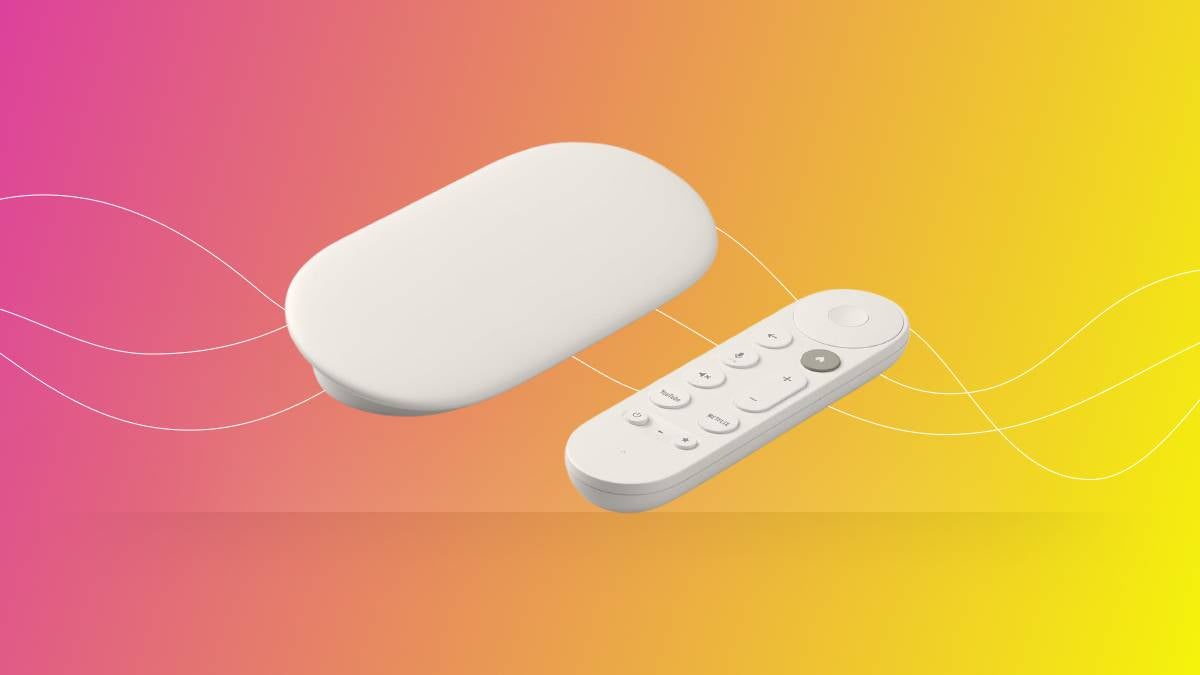
Whether you’ve gotten a new Google TV streaming device for the holidays, your birthday, or you bought it yourself because of the operating system’s great reputation, you’ve got a very capable streaming player that will allow you to watch all your favorite shows and movies.
Google TV adds a few extra steps to the setup of its devices, however. If you’re lost on how to get your Google TV streaming player up and running, check out the handy guide below for a quick and easy way to get your device working properly!
Everything you need to know about setting up your Google TV streaming player
Step-by-step setup instructions for your Google TV streaming player
Google TV Streamer
- Download the Google Home app on your phone.
- Make sure you have a Google account set up.
- Plug your device into an available HDMI port on your TV.
- Turn on the TV and switch to that input.
- Plug in the power adapter for your Google TV device (if any).
- Wait for your remote to pair. It should happen automatically, but if the screen says “Start pairing,” press and hold the Back and Home buttons on the remote until the light begins to blink.
- Follow on-screen prompts to open Google Home on your phone.
- Tap Devices > Add > Google Nest or partner device Google Nest or partner device.
- “Choose a home” or “Add another home.” Tap Next.
- “Looking for devices…” will appear. If the Google TV Streamer is plugged in, “Google TV Streamer found” will show on the phone screen.
- Answer “Yes” when asked if you want to set up the Google TV Streamer.
- Scan the QR code on your TV.
- Wait for the connection process to finish.
- Scroll down to read the Terms of Service and Google Privacy Policy. Tap Accept.
- Choose which room the TV is in. Tap Next.
- Select the Wi-Fi network. This should be the same one the Google TV Streamer is connected to. Enter the network password when prompted. Tap Next.
- “Sign in with your Google Account.” Tap Continue. Perform 2-step verification if prompted.
- Follow the steps on how to set up and use Google Assistant on your TV until you reach “Setup here is finished,” then continue with the TV and remote.
You can also set up a Google TV Streamer without the Google Home app if you choose. Simply follow the instructions above through step 6, then:
- Click “Set Up on TV” at the bottom of the screen.
- Connect to Wi-Fi.
- Sign into your Google account, and accept the terms of service.
- Follow on-screen prompts.
Google Chromecast
Steps for setting up a Google Chromecast are essentially the same.
- Plug your Chromecast into an available HDMI port, and connect any power cables to an outlet.
- Switch to the right HDMI port on your TV.
- Set up your device using the Google Home app.
What streaming services can you watch with Google TV?
Google TV’s interface supports almost all of the top streaming apps available on the market. You’ll be able to watch Apple TV, Disney+, Hulu, HBO Max, Netflix, Paramount+, Peacock, Prime Video, YouTube, and plenty of other streamers with your Google TV device.
Live TV streaming services like DIRECTV STREAM, Fubo, Philo, Sling TV, and YouTube TV are all easy to watch on your Google TV player as well. As long as you’re subscribed to the streaming app in question, there’s a very good chance you can watch it on Google TV.
Can you customize the Google TV interface?
It’s very easy to move apps around in Google TV’s Your Apps row. Simply navigate to the app you want to move and hold the Select button on your Google TV remote until a menu pops up. From there, you can move the app in question wherever you want! Google TV also offers a Reorder tile to allow you to move your apps around.
Can you watch 4K shows and movies with Google TV?
There are models of Chromecast with Google TV that support 4K streaming, and the new Google TV Streamer does so as well. As long as you’ve got a 4K-capable TV and the content you’re trying to stream is being offered in Ultra-High-Definition, you can absolutely use your Google TV device to watch in this ultimate screen resolution.
Need extra help?
If you’re having trouble getting your device set up, click here to be taken to Google's website for more support. You can also check out the video below for more details on how to set up the Google TV Streamer.