Fire TV setup made easy — turn your regular TV into a world of instant entertainment
Fire TV setup made easy — turn your regular TV into a world of instant entertainment
Plug in Fire TV, connect to Wi-Fi, and turn any TV into a hub of movies, shows, and music in minutes.

Setting up a Fire TV opens the door to a world of entertainment without the hassle of complicated electronics. With just a few simple steps, an ordinary television can transform into a smart hub for streaming movies, shows, music, and live channels. Designed for ease of use, Fire TV combines modern technology with intuitive controls, making it accessible and fun for everyone. This guide walks through every part of the process, from unboxing to connecting, so that the setup feels smooth, straightforward, and even enjoyable.

Understanding Fire TV
Amazon Fire TV is a streaming device that connects to a television’s HDMI port. It allows access to apps like Netflix, Prime Video, Hulu, and YouTube TV without needing a cable subscription. Fire TV comes in several versions, including the Fire TV Stick, Fire TV Stick 4K, Fire TV Cube, and televisions with Fire TV built-in. They all work similarly, with slight differences in performance and features.
What comes in the box
Each Fire TV Stick or Cube includes:
- The Fire TV hardware device
- A remote control with two AAA batteries
- A USB power cable and power adapter
- An HDMI extender (for tight spaces behind the TV)
- A quick start guide
Before starting, ensure that all the necessary items are in the box and that the television you’ll be using has an open HDMI port.
Plugging in and connecting to your TV
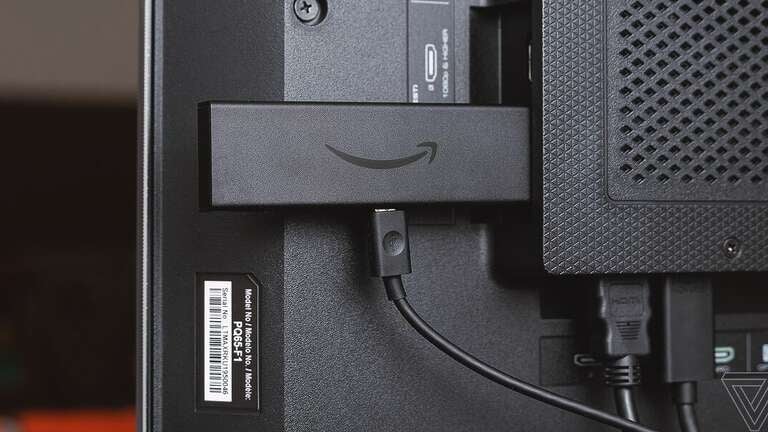
- Plug the Fire TV Stick into an open HDMI port on the television
- Connect the USB power cable to the Fire TV device and plug the adapter into a wall outlet or power strip
- Turn on the television and use the TV’s remote to switch the input to the HDMI port that the Fire TV is plugged into
- A Fire TV welcome screen will appear once everything is powered on correctly
If the TV does not show the screen, double-check that the correct HDMI input is selected and that the Fire TV Stick’s light is on.
Setting up the remote control
The remote should pair automatically during setup. If it does not, hold down the Home button for about 10 seconds to start pairing.
Once connected:
- Adjust the volume or turn the television off and on with the Fire TV remote if your TV supports HDMI-CEC (many modern TVs do).
- If volume control does not work, follow the on-screen prompts to allow the Fire TV remote to control your television’s volume through infrared or HDMI.
To install batteries, slide off the back cover of the remote and insert the included AAA batteries.
Choosing language and connecting to Wi-Fi
The Fire TV setup screen will prompt you to select a preferred language. Select English (United States) or another option with the navigation ring and press the center button to confirm.
Next, select a Wi-Fi network:
- Find the home’s wireless network name (SSID) from the list that appears
- Enter the Wi-Fi password using the on-screen keyboard
- Once connected, the device will check for updates automatically
A strong Wi-Fi connection helps ensure smoother video playback and quicker navigation.
Signing in to your Amazon account
To access apps, make purchases, and personalize your settings, sign in with your Amazon account. If you are already using it for shopping online, use that login.
Follow these steps:
- Select Sign In on the Fire TV screen
- Enter the email and password associated with the Amazon account
- If two-step verification is enabled, enter the code sent to the chosen device
Those without an account can select Create Account directly on the Fire TV to set one up.
Setting parental controls (optional)
Fire TV offers parental controls that can block purchases or restrict mature content. During setup, a prompt appears asking whether to enable them.
- Choose Yes to create a PIN for restricting purchases or adult-rated movies and shows
- The PIN can be changed later under Settings > Preferences > Parental Controls
This feature is helpful for households that share the television with younger family members.
Installing apps and streaming services
Once setup is complete, Fire TV will show a home screen filled with recommended content. To add favorite streaming apps:
- Navigate to Find > Search using the menu bar
- Type or dictate the name of the app (for example, “Netflix” or “Hulu”)
- Select the app and press Download or Get
- Once installed, sign in with the account associated with that service
Apps can be rearranged on the home screen by pressing the Menu button (three horizontal lines) on the remote and selecting Move.
Using voice control
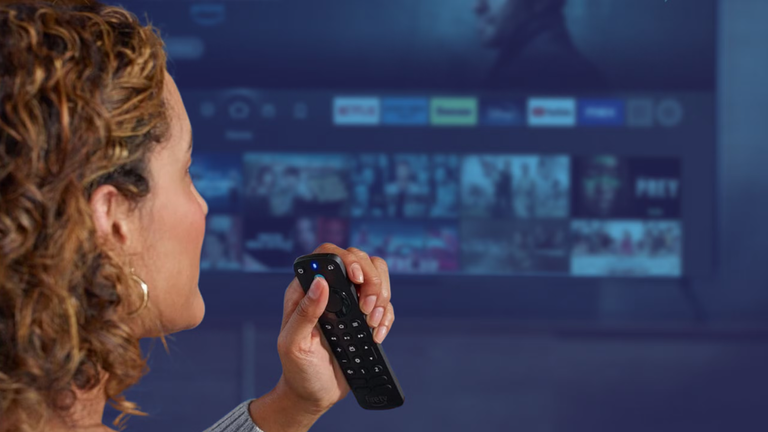
The Fire TV remote includes a microphone button near the top. By pressing and holding it, commands can be spoken, such as:
- “Play The Golden Girls”
- “Open YouTube”
- “Turn the volume up”
This feature can also control compatible smart home devices, such as lights or thermostats, if they are connected through Alexa.
Connecting to sound systems or other devices
Those who have a soundbar or surround sound system can connect it easily.
- If the sound system uses HDMI, plug it into the TV’s ARC or eARC port and ensure HDMI-CEC is turned on in both the TV and Fire TV settings.
- For Bluetooth speakers or headphones, go to Settings > Controllers & Bluetooth Devices > Other Bluetooth Devices > Add Bluetooth Devices and select the name of the device.
Adjusting display and sound settings
To fine-tune the picture and audio, open Settings > Display & Audio.
- Under Display, choose the resolution that matches the television (for example, 1080p or 4K)
- Under Audio, adjust surround sound preferences or switch between stereo and Dolby Digital
This section also allows you to adjust screen savers, sleep timers, and brightness.
Linking Fire TV to live TV channels
Those who have live streaming subscriptions, such as Sling, YouTube TV, or Hulu + Live TV, can add these apps to integrate live channels directly into the Fire TV guide.
- After installing one of these apps, go to Live on the home screen
- Choose Sync Sources to add the channel guide from any subscribed service
This feature helps combine streaming apps and live television into one easy-to-navigate menu.
Troubleshooting common setup problems
- No signal on screen: Confirm the correct HDMI input is selected and the device is securely plugged in
- Remote not working: Replace batteries and hold the Home button for 10 seconds to repair
- Wi-Fi connection fails: Move the Fire TV closer to the router or restart the modem
- No sound: Check TV volume, mute settings, and ensure HDMI or Bluetooth audio connections are active
If issues persist, restart the Fire TV by unplugging it for 10 seconds and plugging it back in.
Tips for smoother performance
- Keep the Fire TV software updated by checking under Settings > My Fire TV > About > Check for Updates
- Periodically clear cache or unused apps under Settings > Applications > Manage Installed Applications
- For faster streaming, connect to a 5 GHz Wi-Fi network if available
- Use a power outlet instead of a TV’s USB port for better performance and fewer restarts
Making every TV moment effortless
With Fire TV fully set up, television becomes smarter, faster, and more fun. Streaming movies, live shows, music, and even weather updates all come together in one easy-to-use hub. The intuitive interface and simple controls make navigating channels and apps straightforward, while voice commands add a touch of modern convenience. What starts as a small device quickly turns any TV into a complete entertainment system, bringing the best of today’s technology to your living room. Fire TV makes enjoying favorite programs, discovering new content, and controlling media easier and more enjoyable than ever.