Get your Roku streaming in minutes and turn any TV into a home entertainment hub
Get your Roku streaming in minutes and turn any TV into a home entertainment hub
Easy Roku setup with step-by-step tips to start watching movies, shows, and music fast


Roku brings streaming power with crisp menus, personalized recommendations, and easy access to thousands of channels. What can look like a complex setup is actually a step-by-step process that’s easy to master. Once connected to Wi-Fi and paired with the TV, the system guides you through intuitive prompts, easy-to-adjust picture settings, linking streaming accounts, and even controls the TV itself with a voice remote.
This guide breaks everything into simple steps, turning a first-time streaming experience into a smooth, confident, and enjoyable start to endless entertainment.
Everything you need to know to set up your Roku streaming device
Choosing a Roku device
Roku devices are available in several models, and picking the right one makes the setup process much smoother. While there are some differences between these devices, all of them will get the job done. Which you choose depends on your specific needs, so let’s break it down by device.
- Roku Streaming Stick - This compact device plugs straight into a TV’s HDMI port and receives power through a USB connection. It works best for TVs with accessible ports and an easy setup.
- Roku Express and standard players - These compact boxes connect to a TV with an HDMI cable and a separate power cord. They sit on a shelf or stand, and their remotes typically rely on infrared, so the device should stay visible to the TV.
- Roku Ultra models - These larger players deliver faster streaming, robust performance, and Ethernet connectivity. They often include USB ports, advanced remotes, and stronger Wi-Fi receivers.
Things to think about before buying:
- Check the number of HDMI ports on the television
- Check if your home network relies on Wi-Fi only or if an Ethernet cable is available
- Consider whether the household uses 4K or HDR
- Look at the size of the entertainment center, since some setups give more space than others
Inside the box
Roku boxes keep things simple. These common items are found inside a Roku box:
- Roku device
- Remote control
- HDMI cable (for box models)
- USB power cable
- Power adapter
- Batteries for the remote
- Quick start guide
Everything in the package plays an important role. The HDMI cable handles video and audio. The USB cable delivers power. The power adapter helps when a TV’s USB port cannot provide enough electricity.
Connect your Roku device to the TV

For Roku boxes (Express, Ultra, standard players)
- Plug one end of the HDMI cable into the Roku player
- Plug the other end into an available HDMI port on the television
- Make note of the port number. TV menus often label them as HDMI 1, HDMI 2, or HDMI 3
For Roku streaming sticks
- Plug the stick directly into an HDMI port
- If the design of the television blocks space, use an HDMI extender to create extra clearance
- Ensure the stick fits securely and does not sag or place strain on the connection
Connect to power

Powering the device often becomes the step that causes the most confusion, yet the process is straightforward.
How to power Roku players
- Plug the USB cable into the Roku device
- Connect the other end to the power adapter
- Insert the power adapter into a wall outlet
How to power Roku streaming sticks
- Attach the included USB cable to the stick
- Insert the other end into either a TV USB port or a wall adapter
- Use a wall outlet if any screen message mentions low power or if the device does not start correctly
Devices that include a small indicator light will glow or blink once power reaches the internal components. That signal shows that the device has begun booting.
Turn on the TV and select the correct input
- Turn on the television using its own remote
- Press the Input or Source button
- Select the HDMI port used for the Roku device
- Wait a few seconds for the screen to show the Roku welcome message
A message that says “No signal” usually means the wrong input was selected. Cycling through the list typically reveals the correct one.
Pairing the Roku remote
Roku devices arrive with one of two remote types. Some use infrared signals, which require a clear path to the television area. Others use wireless signals and include a microphone button for voice search.
If the remote uses infrared
- Insert the batteries
- Point the remote toward the Roku box
- Test the navigation buttons
If the remote uses wireless pairing
- Insert the batteries
- Follow the on-screen prompt to pair the remote
- Press and hold the pairing button if instructions appear
If actions do not register, remove the batteries, count slowly to five, and insert them again. Some remotes detect the device on the second attempt.
Connect to Wi-Fi or Ethernet

An internet connection powers nearly everything on a Roku device:
- Select a language
- Choose Wireless to connect through Wi-Fi
- Pick the home network from the list
- Enter the password
- Choose Connect
- Alternative option: Choose Wired if the model supports Ethernet and an Ethernet cable is available
Roku devices will test the connection. A failure message usually clears once the router and Roku are unplugged for 10 seconds and plugged back in.
Install updates and adjust display settings
Roku devices check for updates automatically. These updates keep apps working correctly and improve performance.
- Wait for the progress bar to complete
- Allow the device to restart if needed
- Open Settings on the home screen
- Select Set Display Type
- Choose Automatic so the Roku can match the resolution to the television
A 4K television requires cables and ports that support HDCP 2.2. If the device displays an error, a different HDMI port may solve it.
Set up the remote for TV controls (optional)
Many Roku voice remotes can control the television’s power and volume. Pairing these features keeps everything on one remote.
- Open Settings
- Select Remotes and Devices
- Choose the remote model
- Select Set Up Remote for TV Control
- Follow the audio test instructions
Some televisions only allow volume control, while others allow both power and volume. Results vary based on the manufacturer.
Activate your Roku account
Roku devices require an account so streaming channels and preferences stay organized.
- Follow the on-screen prompt that shows a QR code or activation link
- Use a phone, tablet, or computer to open the link
- Enter an email address
- Create a password if opening a new account
- Confirm the email by clicking the activation link that arrives in the inbox
- Return to the Roku device screen once confirmation completes
Activation is free. Roku never charges fees for linking a device, so an unexpected fee is a sign of a scam.
Account tips:
- Use an email checked regularly so notifications arrive without delay
- Add a payment method only if apps that charge fees will be used
- Create a PIN to prevent accidental purchases
Personalize the home screen
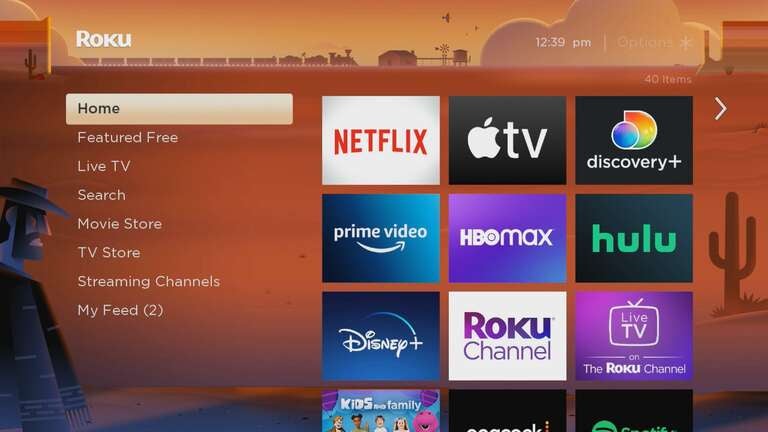
Once activation finishes, the Roku home screen becomes ready to customize.
- Add channels through the Roku Channel Store
- Rearrange channel icons
- Select a screensaver
- Change the theme pack
- Adjust accessibility settings, such as captions or audio guides
A few adjustments make the system feel comfortable and familiar.
Test the connection and explore channels
Testing playback helps confirm that everything runs smoothly.
Try these actions:
- Open the Roku Channel and play a short clip
- Load a popular app such as YouTube or Netflix
- Navigate through the menus to check button response
- Adjust volume using the remote if TV controls were paired
Successful playback with no buffering means the device is operating correctly.
Troubleshooting common issues
Blank screen
- Confirm the correct HDMI input
- Check the power on both the TV and the Roku
- Try a different HDMI port
Remote not responding
- Replace batteries
- Re-pair using the on-screen prompt
- Power cycle the Roku device
Wi-Fi problems
- Restart the router
- Move the Roku device closer to the router
- Remove objects blocking the signal
Activation link not arriving
- Check for spelling errors in the email
- Look in the spam folder
- Request a resend after 30 minutes
Ready, set, stream
Once the Roku device is set up, a simple click or voice command opens a world of entertainment. Menus respond instantly, apps stay organized, and favorite channels are just a button away. The system feels familiar quickly, turning what once seemed like complicated technology into a seamless part of daily life.
Streaming the latest shows, music, and new channels is just a click away. Holding the Roku remote and seeing everything connected, your TV becomes a hub of endless options, making entertainment simple, enjoyable, and personalized.