How to set up profiles on your Google TV
How to set up profiles on your Google TV
Our easy-to-follow guide will have your family navigating their own Google TV profiles like pros.

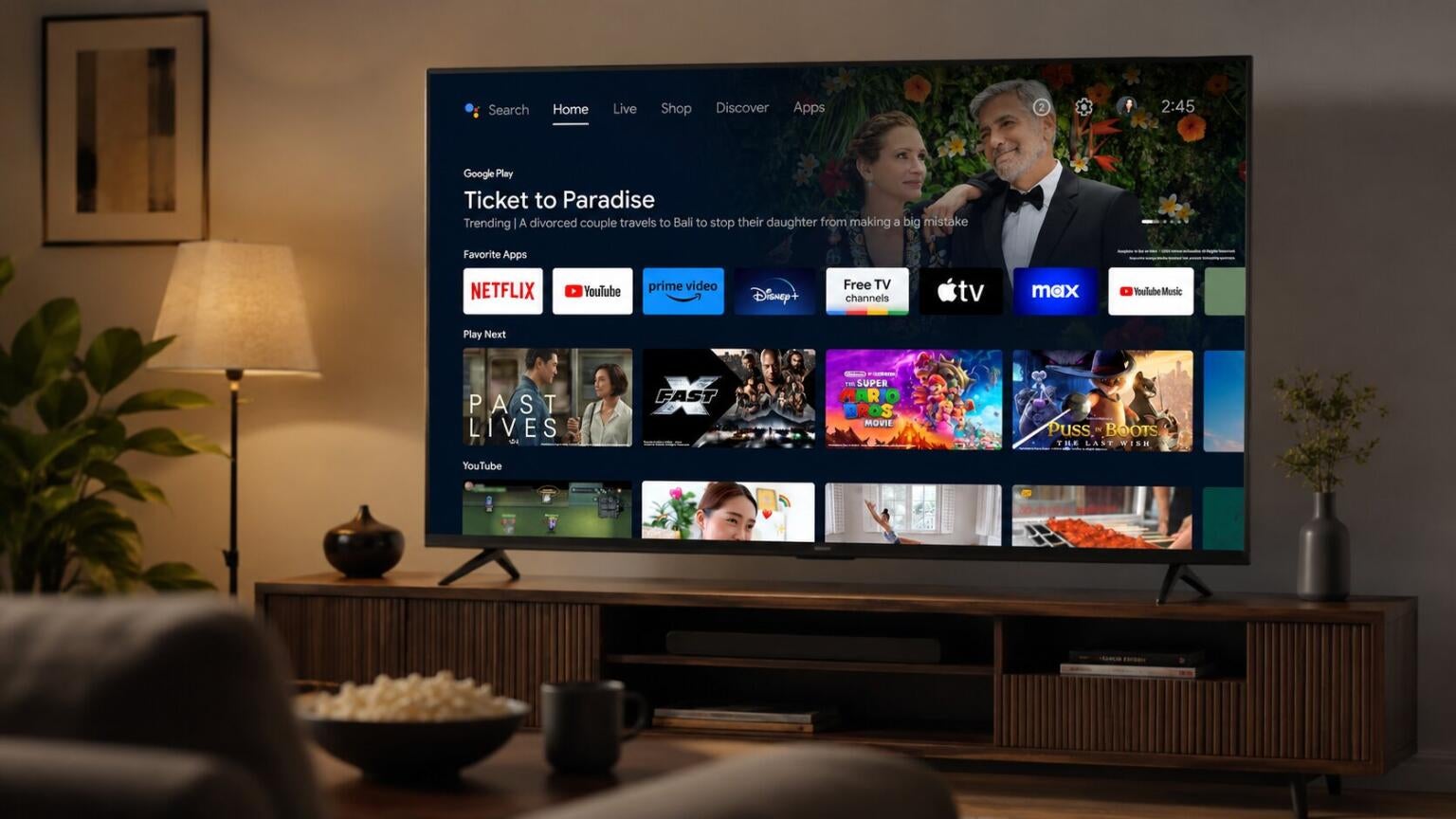
It’s all well and good to have a streaming player all to yourself, but most of us have to share our household electronics with other people, be they roommates, romantic partners, or even kids. Trying to keep track of everyone’s TV preferences on one streaming player profile can get confusing quickly when multiple people are using it.
Most streaming devices allow viewers to establish multiple user profiles to avoid those issues, and it takes just a few minutes to set them up. Taking advantage of this feature lets owners ensure that everyone in the home gets to see personalized recommendations on their own profile, without gunking up the screens of other household members with different TV tastes.
Does the Google TV operating system allow for the creation of multiple user profiles? We’ll explain all the details you need to know about setting up more than one profile on a Google TV device to make the process a breeze!
What you need to know to set up new profiles on your Google TV

Can you set up multiple profiles on Google TV?
Yes! The Google TV operating system allows for the creation of multiple user profiles on a single device, allowing users to tailor their preferences and keep their viewing recommendations separate from those of other members of the household.
How many profiles does Google TV support?
The Google TV operating system supports up to 12 profiles, so families with giant-sized households need not fear that they’ll run out of room on their device before they run out of watchers. Users even get to link their own Google account to their profile for more personalized use.
How to create a profile on Google TV

To create a new profile on Google TV:
- Power up your Google TV device.
- From the Google TV home screen, find your profile picture or initial.
- Select your name, then click Add Account.
- Choose Add an Account, then press down, or scan the QR code on the screen with your phone.
- Sign into the Google Account you want to add.
- Follow on-screen prompts to finish profile setup.
Can you adjust content restrictions with each Google TV profile?
Each Google account linked to your Google TV profile can either be a full-on account for adults or a kids’ profile. The latter allows parents to set a daily time limit for use on Google TV, monitor app activity and installed apps, set up content restrictions, establish a profile lock, and manage watchlists so kids aren’t watching too much, or watching titles that they shouldn’t be.
To set up a kids’ profile on Google TV:
- Go to the Google TV home screen.
- Select Add account, then Add a kid.
- If your child already has a Google Account in your family group, select their picture/icon.
- If your child isn’t in your family group yet, follow on-screen prompts to add them.
- Choose the apps you want to include in their home screen.
- Set up parental controls using on-screen instructions.
How to delete a Google TV profile
It’s easy to delete a profile on your Google TV if desired.
All you need to do is:
- Sign into your Google account on a phone or computer.
- Choose the Google TV you want to remove your account from.
- Click Sign Out.
What are the benefits of using profiles on Google TV?
Google TV doesn’t just allow users to create multiple profiles on a single device — it actually links the Google accounts of all prospective users in the household on the same device. There can be a drawback to this — viewers who want to set up their own individual profile on a Google TV player have to have a Google account already established.
But linking multiple Google accounts to the same Google TV device allows viewers to sign in and sync their Google services to the TV, including their media and activity. This helps everyone in the home keep their viewing history separate from each other, so there’s less confusion about who left off where in which TV show or movie.
Viewers also get to see their personal media in their profile’s Library tab after linking to Google TV, keeping their owned photos and videos segregated from everyone else in the household. Plus, Google TV will generate specific recommendations for each user based on their specific preferences.
Families with kids will definitely want to use Google TV’s profiles feature, as setting up kids’ profiles takes so much of the anxiety out of letting children watch TV. Parents will know that their kids aren’t accessing any programming or streaming services they shouldn’t watch, and can even restrict viewing hours if they wish.
Hopefully, our guide has made it a little easier to set up new profiles on a Google TV device. Doing so can make for a much more personalized experience any time anyone in your household wants to watch TV!