Fast navigation tricks that help any viewer master their streaming device with ease
Fast navigation tricks that help any viewer master their streaming device with ease
Simple, tech-savvy shortcuts that keep streaming fast, organized, and frustration-free.

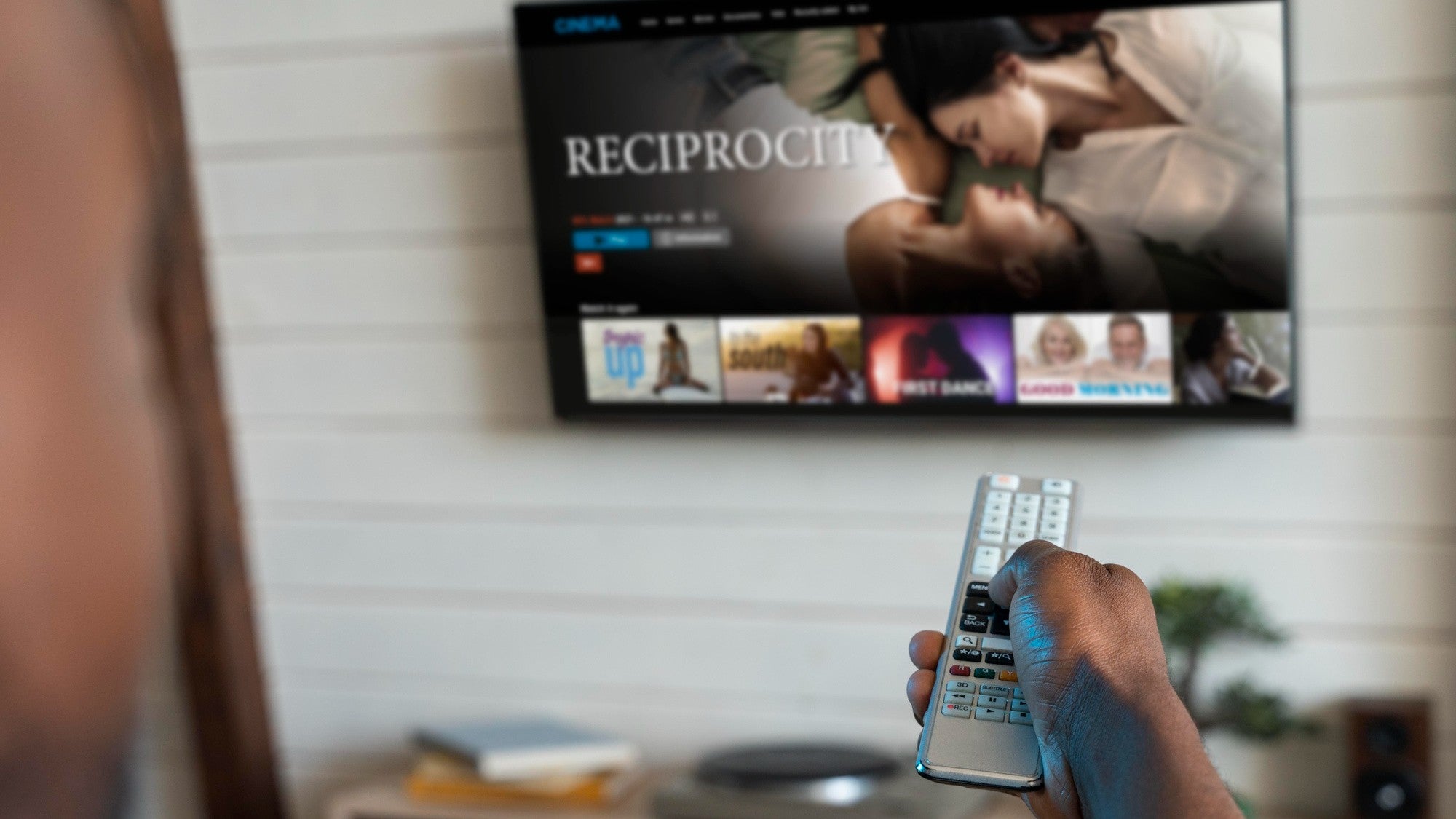
Streaming devices bring an entire world of entertainment to your living room. Movies, TV shows, news, and music all live in one place. Yet, navigating menus, apps, and live channels can feel overwhelming. Creating a streamlined setup turns that digital maze into a simple, stress-free experience. This guide offers hands-on strategies to organize your streaming lineup, rearrange apps for quick access, mark your favorite channels, and optimize the use of remote controls. Each step focuses on making navigation intuitive, so enjoying shows, catching the news, or exploring new content is smooth, easy, and fun.
How to simplify navigation on your streaming device


Organize apps and channels
Streaming devices typically come with dozens of preloaded apps, some of which you may never use. A cluttered screen can make finding your favorites a chore.
Tips for simplifying app navigation:
- Move frequently used apps to the front: Most devices allow you to drag and drop apps so your top picks are always visible.
- Remove apps you never use: Clearing space reduces scrolling and clutter.
- Create folders or categories: Some devices let you group apps into folders like “Movies,” “News,” or “Games.” This keeps everything neat and easy to locate.
Set favorites for live TV
If live TV is part of your streaming setup, marking favorite channels can save time. Instead of scrolling endlessly, a few taps bring the channels you watch most to the forefront.
How to make it easier:
- Use your device’s “Favorites” or “Guide” feature to mark channels
- Assign favorite channels to specific quick-access buttons on your remote
- Reorder channels so the most-watched appear first
These steps keep the channels you love within immediate reach.
Master quick remote buttons
Streaming remotes can be confusing, especially if buttons feature multiple functions. Understanding and customizing remote shortcuts can dramatically simplify navigation.
Quick wins for easier control:
- Program buttons for TV power and volume: Many streaming remotes can control the TV itself, reducing the need for multiple devices.
- Use the dedicated app or voice button: Most streaming devices allow voice commands to open apps, search for shows, or switch channels.
- Assign shortcuts to your top apps: Devices like Roku, Fire TV, and Apple TV let users map a favorite app to a single button for instant access.
Adjust menus and settings
Menus can feel overwhelming if every option is displayed. Simplify settings to make the device feel more approachable.
- Choose a default home screen: Some devices let you select what opens first when you turn on the TV. Start with your favorite app or live TV channel.
- Reduce clutter: Hide apps, channels, or recommendations that aren’t needed.
- Increase text size: If reading on-screen menus is a challenge, most devices allow you to enlarge text and icons.
Use guided search and voice commands
Searching letter by letter is tedious. Voice commands or universal search options make finding shows, movies, and apps faster.
- Say the name of a show, movie, or actor to pull up results immediately
- Ask for specific genres, like “comedy movies” or “morning news.”
- Many devices also support shortcuts like “Play the latest episode of Landman.”
Voice commands reduce menu navigation and make streaming feel more like having a personal assistant guiding you.
Keep your device updated
Updating your streaming device ensures it runs smoothly and remains compatible with the latest apps and features. Skipping updates leads to slower performance or missing out on helpful navigation tools.
- Enable automatic updates so your device installs the latest software without manual effort
- Check for updates periodically in the settings menu if automatic updates aren’t available
- Updates include improvements to menus, remote functions, and streaming speed
Create profiles or user accounts
On TVs shared with family or roommates, setting up individual profiles can make a big difference in navigation. Each person gets a personalized dashboard that keeps favorite apps, channels, and shows in one spot.
- Recommendations are tailored to individual tastes, so there’s no sifting through unrelated content
- Watch history stays private, making it easier to pick up a show exactly where it was left off
- Profiles can simplify parental controls or limit access to certain apps for younger viewers
Having separate accounts keeps the home screen organized, reduces clutter, and makes jumping into streaming faster and more intuitive for everyone.
Stream smarter, not harder
Mastering streaming navigation is all about taking control of your device. Organizing apps into logical layouts, marking favorite channels, using voice commands, and creating separate profiles for each household member streamlines access and reduces clutter. Quick remote shortcuts make jumping between apps or live TV nearly instant, and personalized dashboards keep shows and movies easy to find.
Regularly updating your device and checking for software improvements ensures smooth performance and access to the latest features. With these strategies, streaming becomes a practical, user-friendly experience. Menus are clear, remotes respond predictably, and entertainment is always just a few clicks away.