How to disable motion smoothing on a Hisense TV
How to disable motion smoothing on a Hisense TV
Hisense makes TVs using several different operating systems, so it can be tricky to tell how to turn motion smoothing off.

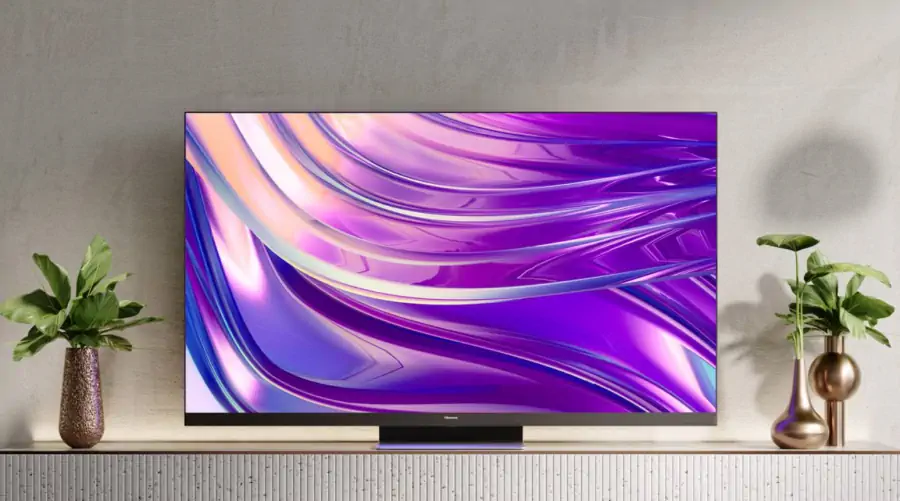
Don’t get me wrong, there is a time and place for motion smoothing. When you’re watching a big sports game or the Macy’s Thanksgiving Day parade, motion smoothing can make you feel like a part of the action without question. But when you’re watching the latest summer blockbuster to be released to your favorite streamer, the last thing you want to see is the soap-opera effect that motion smoothing can create.
Fortunately, most TVs allow you to turn off this setting. If you own a Hisense TV, we’ll show you how to switch off motion smoothing on your set with ease.
How to turn off motion smoothing on a Hisense TV
What is motion smoothing called on Hisense TVs?
If you’re using a Hisense TV with the Google TV operating system installed, you may have to look for two different settings: Motion Clearness and Motion Enhancement.
If your Hisense TV runs on the Roku OS, you’ll want to look for Action Smoothing or a similarly labeled feature.
How to turn off motion smoothing on Hisense TVs
Roku TV
- Press the Settings button on the remote.
- Scroll to Picture Settings.
- Choose Advanced Picture Settings.
- Switch Action Smoothing to Off.
Google TV
- Click the gear-shaped Settings button on the remote.
- Select Display & Sound.
- Choose Picture, then Advanced Picture Settings.
- Switch motion smoothing features such as Motion Enhancement and Motion Clearness to Off.
Is motion smoothing activated automatically on Hisense TVs?
Yes, you will have to enter the settings on your TV and turn off motion smoothing features when you’re first setting up your new TV.
Does disabling motion smoothing on Hisense TVs turn it off permanently?
The motion smoothing setting on your Hisense TV is easy to turn back on if you want to; simply follow the instructions above and switch the feature back to on. Turning it off won’t disable motion smoothing permanently, but it will keep it from being applied to your TV automatically.