UGREEN DXP4800 Pro is the best way to skip services and streaming fees
UGREEN DXP4800 Pro is the best way to skip services and streaming fees
Stream your personal media locally and don’t get stuck paying for services you never use.

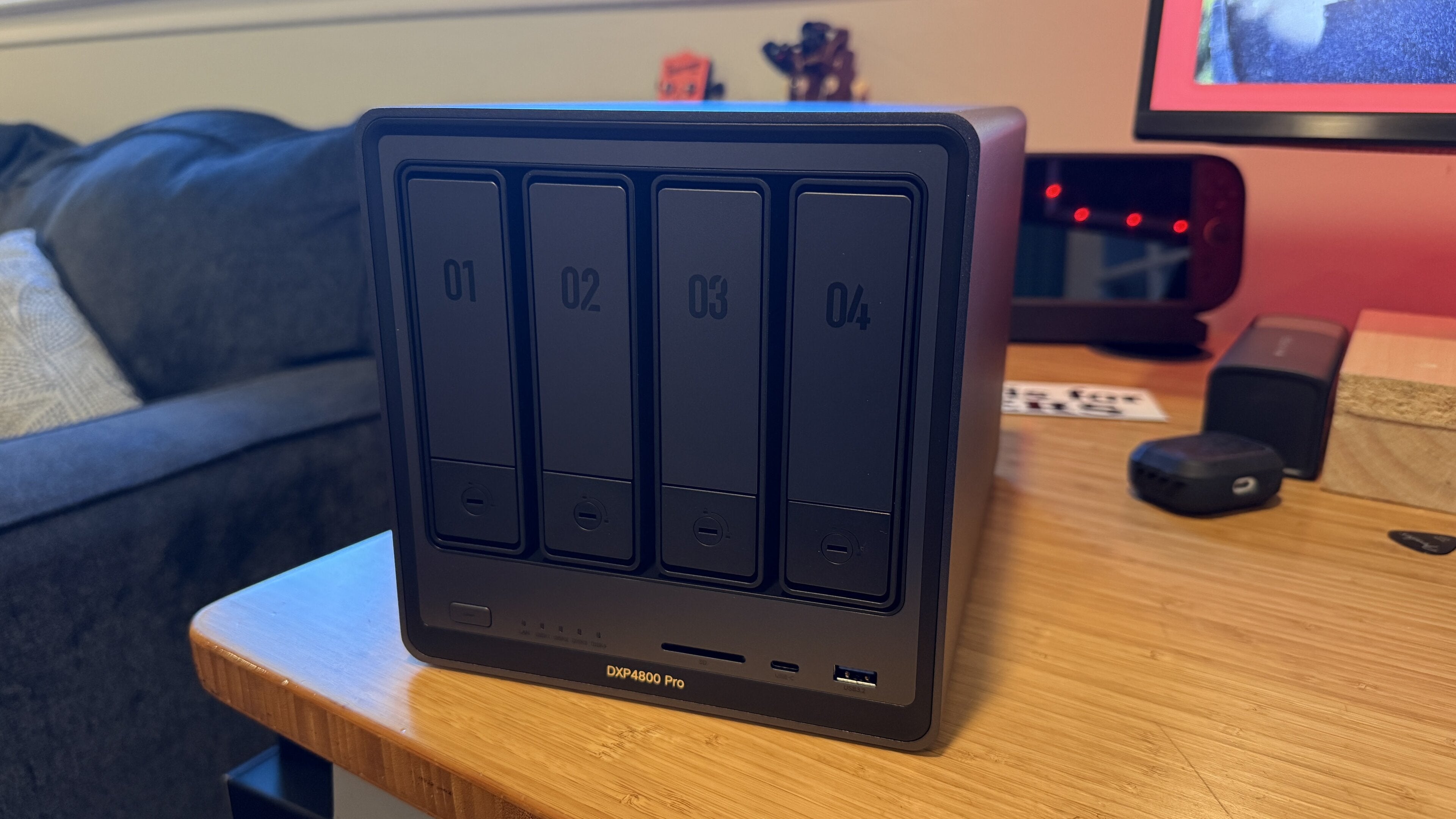
Ever since I worked at a video store way back in the early 2000s, I’ve been hoarding digital media files and keeping them with me, never knowing when I’d need them again. I spent countless hours ripping CDs I had purchased and meticulously organizing them into folders so I could always find just what I wanted. I’d throw them on my iPod so I’d never have to worry about not having whatever music I needed handy. I did the same for DVDs and even benefited from the brief period when studios offered free digital copies with the purchase of the physical disc. I had massive (and now terribly outdated) external hard drives that stored over a hundred movies and a few TV shows that I could never quite seem to live without.
The hard drive stayed in my “save it for later” box over the years, always waiting for just the right moment. A few weeks ago, the moment finally arrived when I was sent a UGREEN DXP4800 Pro NAS to try out, and I knew just what I was going to do with it.
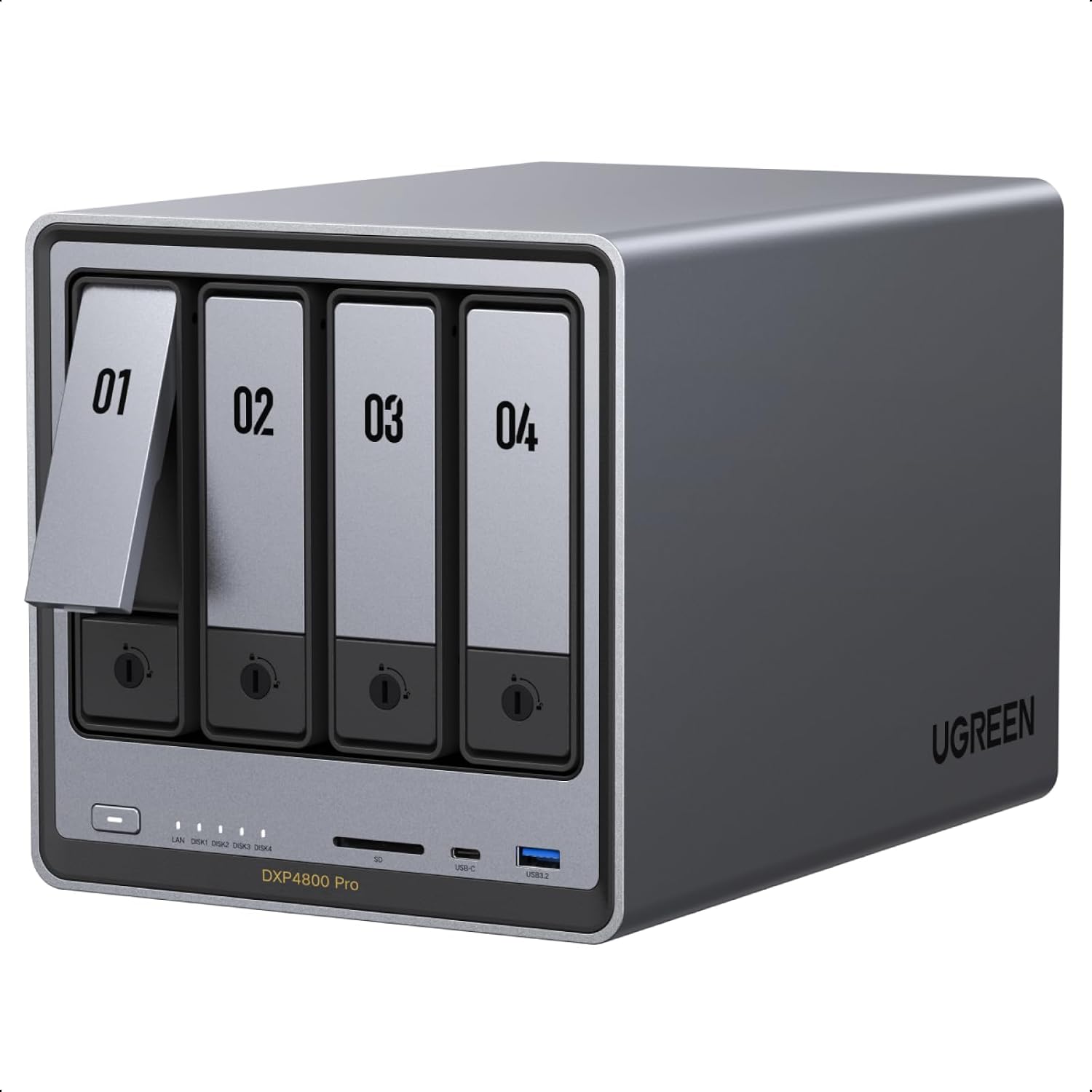
UGREEN DXP4800 Pro NAS
$799
UGREEN DXP4800 Pro as a local media server
What is a NAS?
A NAS — or Network Attached Storage — is essentially a bank of hard drives that lives on your network, allowing you to store massive files or back up data for safekeeping (read more here). It doesn’t stop there, though, as the UGREEN DXP4800 Pro and many other devices offer features well beyond just backing up files. It’s essentially a separate computer with its own operating system that allows you to supercharge your network, run apps, power your smart home, and most importantly, store and stream media locally, no cloud needed. Needless to say, I dug out my old hard drives and put them to work once again.
DXP4800 Pro specs
- Processor: Intel Core i3-1315U (6 Cores / 8 Threads, up to 4.5 GHz)
- RAM: 8GB DDR5 standard (expandable up to 96GB via 2 SO-DIMM slots)
- Drive Bays: 4 x 3.5”/2.5” SATA HDD/SSD bays (up to 32TB per drive)
- M.2 Expansion: 2 x PCIe Gen 4 NVMe M.2 slots (for storage or cache)
- Networking: 1 x 10GbE RJ-45 + 1 x 2.5GbE RJ-45 LAN ports
- Front Ports: 1 x USB-C (10Gbps), 1 x USB-A (10Gbps), SD 3.0 Card Reader
- Rear Ports & Video: 1 x HDMI (4K @ 60Hz), 1 x USB-A (5Gbps), 2 x USB 2.0
- OS / Storage Cap: Pre-installed UGOS Pro on a dedicated 128GB SSD; up to 144TB raw capacity
What’s inside
The UGREEN DXP4800 Pro packs what is essentially a small desktop computer into a sleek four-bay footprint. At its core is a 13th-Gen Intel Core i3-1315U processor — a 6-core chip that easily handles heavy workloads such as Docker containers, virtual machines, media streaming, and real-time 4K video transcoding. Backing that CPU is a generous DDR5 RAM slot layout, shipping with 8GB stock but scaling all the way up to 96GB for memory-heavy setups. If you want to go all-out, you can certainly upgrade, but I’ve found the stock setup to be stellar so far for simple home use.
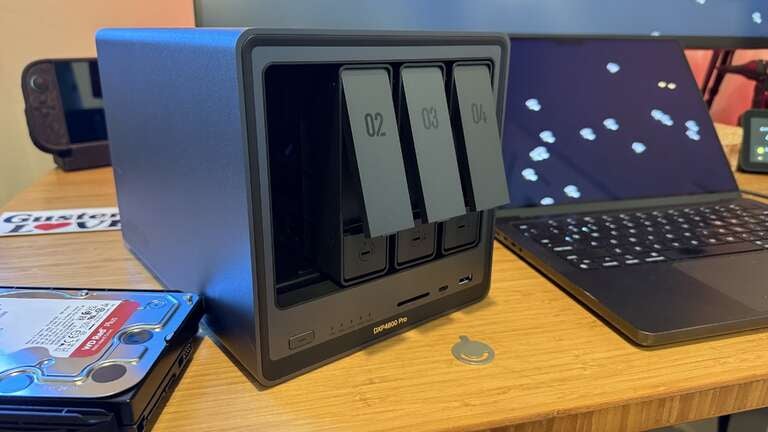
Storage flexibility is where it really shines, and things get a bit nerdy, too. Alongside four SATA HDD drive bays, you get two NVMe slots underneath. You can use those high-speed slots either to build flash pools or to cache your mechanical hard drives, with a massive 144TB of total raw capacity and full RAID support across the board. Again, you can certainly load up on storage or just stick with smaller drives depending on your needs.
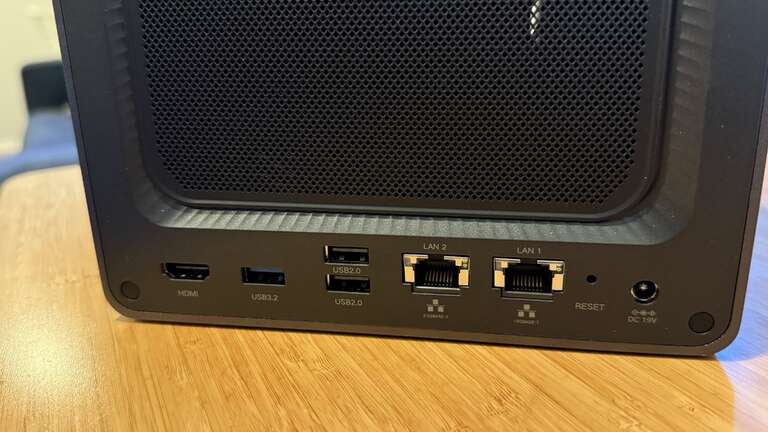
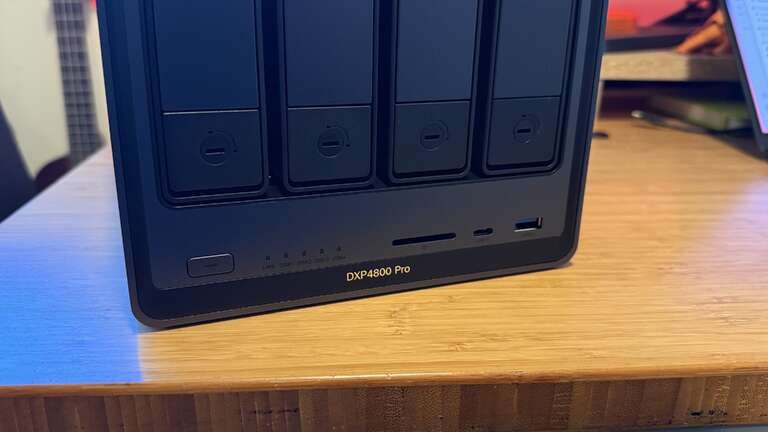
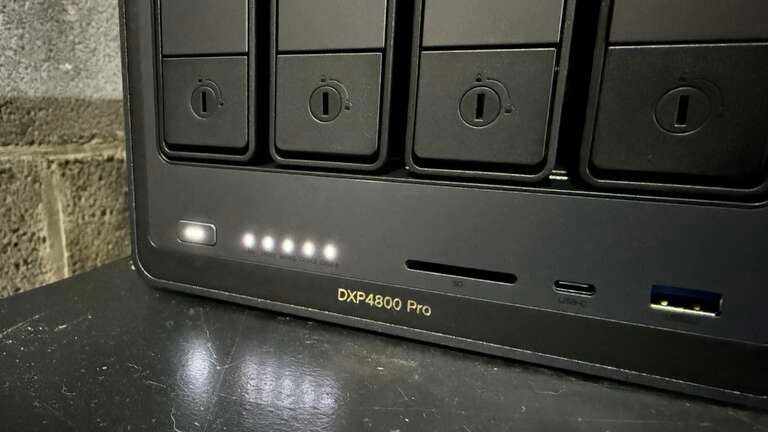
The DXP4800 Pro has all the ports you’ll need for most major tasks as well. A 10GbE port paired with a 2.5GbE port means network speed won’t be a bottleneck for direct video editing or large file transfers. For quick media offloading, the front face features 10 Gbps USB-C and USB-A ports alongside a built-in SD 3.0 card reader, while the back panel adds extra USB ports and an HDMI 2.0 port for direct 4K video output.
Running on UGREEN’s UGOS Pro OS — pre-installed on a dedicated internal drive — the system runs localized AI features like facial recognition and photo searching completely on-device. That means zero subscription fees and no third-party cloud privacy concerns. Better yet, the underlying hardware remains open, giving power users total freedom to run custom VMs or install alternative operating systems on the machine whenever they like.
Initial setup
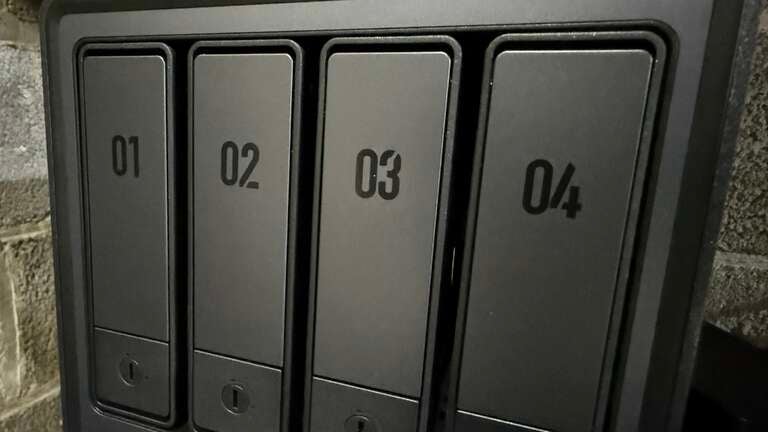
Setting up the DXP4800 Pro is very straightforward and took me less than 30 minutes. After unboxing, the biggest issue was finding a place for it to live that was out of the way and could be connected to Ethernet. I found a nice spot in the basement that ticked all the boxes, and after installing my four 4TB hard drives (the DXP4800 Pro supports up to 144TB total), I started it up and ran the setup process.
UGREEN makes it dead simple to get started once your NAS is online. There’s a website to load up, then the software walks you through the rest of the process. You’ll go through the standard fare of naming the device, tweaking a few settings, and choosing your storage option (more on that here). The whole process took about 30 minutes from start to finish.
I ran the initial setup on my computer, but there’s also the UGREEN NASync app, which works extremely well for managing everything and mirrors the web interface. You can view files, storage, tweak settings, install apps — you name it. It’s great to have such a robust app and not have to jump on my computer every time I want to install a new app on my NAS or play around with settings.
To start, I chose to install a few apps, namely Docker, UGREEN’s own photo backup, and a few other utilities. There is so much to do that I won’t get into here, but I will say the rabbit hole you can go down is large! Trust me, I’ve been there and still am many weekends.
There are so many things you can do, from media streaming to backup to file storage and even powering your entire smart home. There was a time when NAS was simply for storing files, but now there’s so much more they can do. UGREEN makes it easy as well, since there are so many apps available that you don’t need to be very techy to get started with the basics.
Streaming media: Jellyfin vs Plex
The biggest use of the UGREEN DXP4800 Pro for me is streaming local media. I’m sure I’m not the only one of my generation who hoarded digital media, much of it living on old external hard drives just waiting for its time to shine. I have countless movies and TV shows stashed away, and an insanely OCD-organized music library as well.
There are a few ways to stream media from a NAS, but two of the most common are Plex and Jellyfin. Both function in much the same manner, allowing you to access your digital media files and stream them to all of your devices. This lets you build your own media library that lives on your server, and it’s honestly really awesome.
While I did start with Plex, I ended up choosing Jellyfin. The recent price jumps for Plx Pass didn’t sit well with me, and if I was going to go all-in on self-hosting, I didn’t want to worry about paying anything month-to-month. Plex makes you pay a fee to use many of the services you’d want — like remote access, downloads, and even parental controls. I was very much in the mindset that if I was going to try to break free from the cloud, I’d want to fully do that.
Here’s what my main Jellyfin screen looks like:
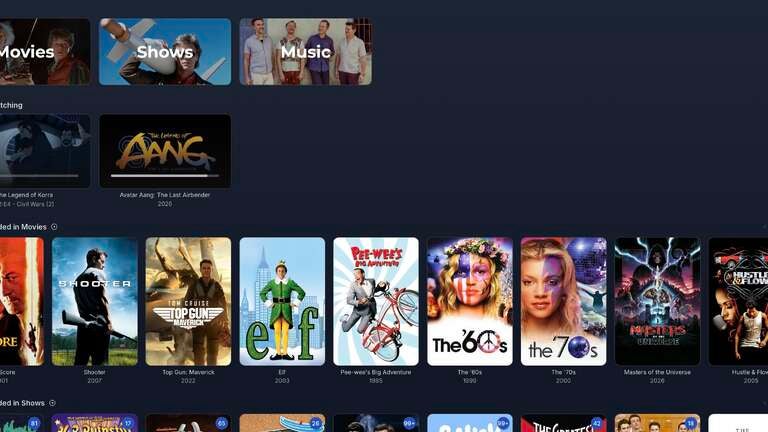
Jellyfin, while initially harder and less intuitive to set up, is a much better long-term solution that keeps me completely cloud-free for my personal media stash. It has all the same features as Plex— if not more — and doesn’t require any sort of subscription. You can easily load up all of the digital media you own — TV shows, movies, and music — and stream away on your TV, phone, tablet, or computer.
There are tutorials all over on how to set it up, so I won’t dive too much further into it here, but you’ll definitely need to set aside a weekend (or two) to do it. If you’re at all techy, then Jellyfin is my suggestion right out of the gate. If you just want to set up and go — and don’t mind paying for extra features — then Plex is much easier to get rolling if you’re just getting started.
Even if you don’t have an arsenal of digital media already, as I did, you can easily convert your physical media (DVDs and CDs) with your computer and some free software. I purchased an inexpensive DVD reader since my computer doesn’t have one, and now I hit up thrift stores and Goodwill for cheap DVDs that I can easily convert and store on my NAS. It’s awesome.
What else can you do with a NAS?
Aside from being an awesome home-media streamer, you can do a ton of other things with a NAS. Many people will just opt for storage and backup. You can store large files (depending on your hard drive capacity) and use the built-in apps to back up photos, for example. Rather than paying for cloud storage, you can easily keep everything securely backed up on your NAS, always there when you need it and out of sight when you don’t.
A mild nerd alert here, but if you really want to geek out, there’s much more you can do with the UGREEN DXP4800 Pro. Beyond basic storage and media streaming, a NAS can act as a fully private cloud server and let you run self-hosted applications. By running Docker or lightweight virtual machines, you can deploy self-hosted alternatives to other popular paid subscription services — not just streaming media. This includes password managers like Bitwarden, personal bookmark managers, or even custom RSS readers.
A NAS can serve as a centralized hub for home automation platforms like Home Assistant or Frigate (a self-hosted, local, AI-powered camera platform), unifying your smart devices, running local automations, and tracking sensors without relying on third-party cloud infrastructure.
A NAS is also an exceptional tool for network management, security, and developer workflows. You can configure it to run network-wide ad and tracker blockers like Pi-hole, instantly protecting every phone, smart TV, and laptop connected to your Wi-Fi without installing software on each individual device. Security-conscious users can transform their NAS into a local surveillance station by recording IP camera footage directly to hard drives, completely avoiding monthly cloud storage fees.
Should you buy the UGREEN DXP4800 Pro?
You might think “A NAS isn’t for me” — but it certainly could be! Even if you don’t want to go down the rabbit hole of setting up a media server or smart home, you can easily set up the UGREEN DXP4800 Pro for simple backup and storage of your important files. Backup your photos and store documents — outside of or in addition to the cloud services you may use already — and have peace of mind that your data is safe on your own personal server. If you really want to protect it, consider a 3-2-1 backup system to ensure you never lose anything again.
I’m a nerd at heart, so I’ve already been hit hard by the allure of the UGREEN DXP4800 Pro. I have a fully functional local media server, a photo backup, and a multitude of self-hosted applications running in the corner of my basement. I’ve been able to cut costs on some services, like cloud storage and camera subscriptions, and I’m learning more every day.
I highly recommend the UGREEN DXP4800 Pro for personal use, even if you’ve never used a NAS before. Setup is quick, easy, and extremely intuitive, and there are tons of tutorials around the web to help you tackle nearly any NAS project you can think of.
Check out the UGREEN DXP4800 Pro and the full lineup of NASync devices at UGREEN.com.
UGREEN DXP4800 Pro NAS
$799
The UGREEN NASync DXP4800 Pro is a 4-bay diskless network-attached storage device that features dual M.2 NVMe SSD slots for high-speed caching or storage, along with dual 10GbE network ports for ultra-fast data transfer speeds. Designed for home and business users, it runs UGREEN’s UGOS Pro operating system, supporting automated backups, media streaming, remote file access, and data security.