How to use your Android phone as a Fire TV remote
How to use your Android phone as a Fire TV remote
We’ll explain everything you need to know about using your Android phone as a Fire TV remote below.

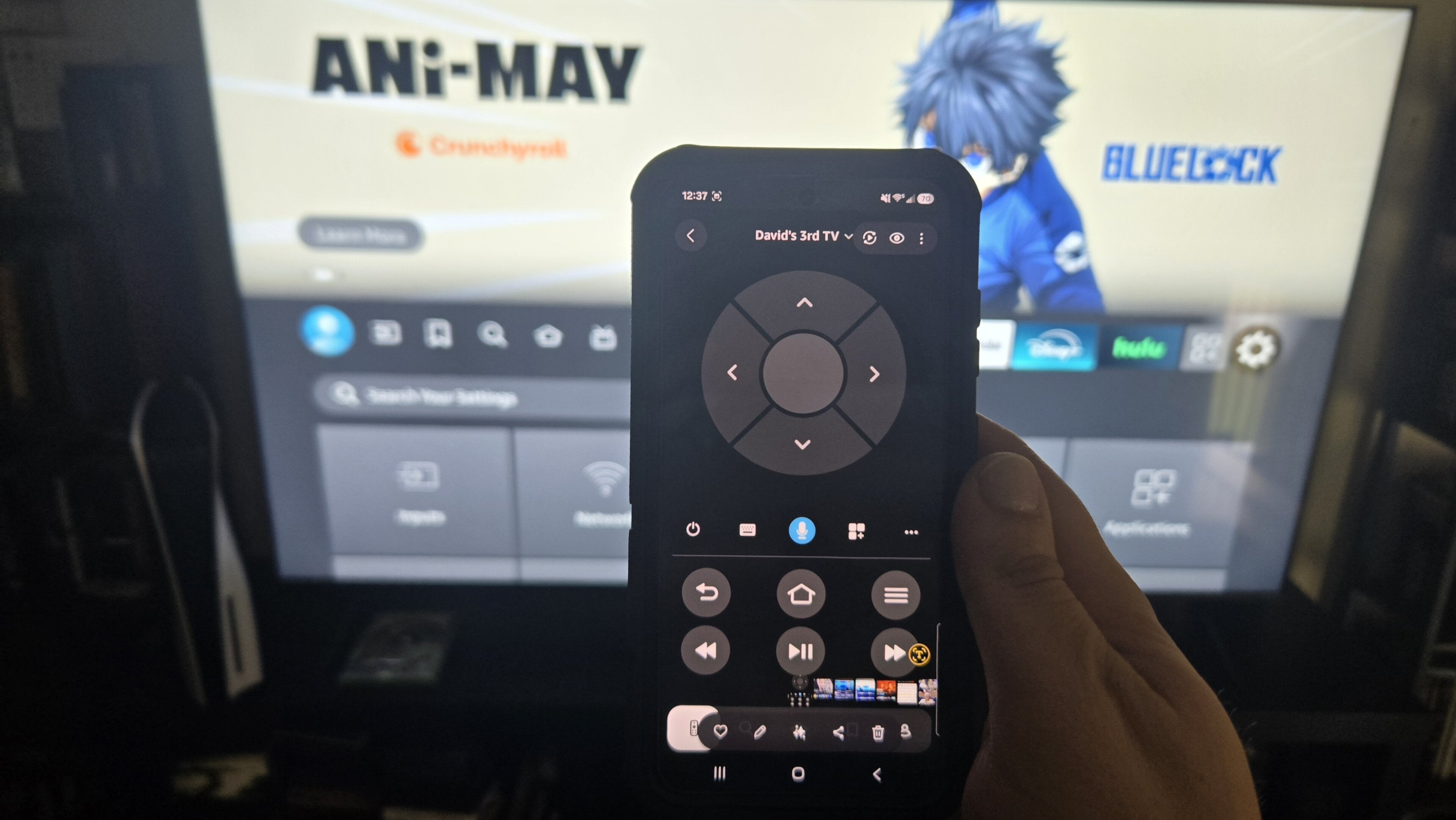
There’s something special about being able to cross-connect your smart electronics like a pro. Making your devices work in concert can give you unparalleled control over your home’s electronics, and you can usually control a large number of these devices through your smart TV.
But do you have to use the remote that came with your Amazon Fire TV’s box to operate the device? Or is there another way? We’ll explain everything you need to know about using your Android phone as a remote control for your Fire TV here.
What you need to know about using an Android phone as a Fire TV remote

Can you use an Android phone as a Fire TV remote?
Yes! You can definitely turn your Android phone into a remote for your Fire TV-equipped smart TV or streaming player. All you’ll need to do is download the Fire TV mobile app, which is free to grab from the Google Play store on a wide range of Android-powered mobile devices.
How to set up remote control for Fire TV on your Android phone
It’s a very easy process to set up remote control for your Fire TV device on your Android phone; you don’t even have to change any settings on your Fire TV to do it. Just follow the instructions below to start using your Android as your Fire TV remote:
- Ensure your phone and the Fire TV are connected to the same Wi-Fi network.
- Open the Fire TV app on your Android.
- Sign into your Amazon account.
- Select the remote icon at the bottom of the screen.
- Pick your TV from the list that pops up.
- Follow on-screen prompts to finish pairing.
What controls will an Android remote for Fire TV have?
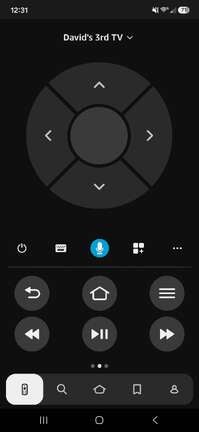
The Fire TV remote on an Android phone offers all the same buttons that a traditional Fire TV remote does. Users will be able to browse with a D-pad, use the select button to choose, and navigate to Home, back one page, or settings using the appropriate buttons.
The Fire TV remote on Android phones also includes playback and power controls, a shortcut to explore or add apps, a keyboard for typing, and a microphone button if you’d rather browse via speech than using the remote itself. Viewers can even opt for swipe control if they wish, and can enable or disable vibration when using the remote.
Can you use your Android remote to search with Alexa?
Yes, the Fire TV mobile app for Android will allow you to use the Alexa voice search feature. Just press the microphone button on your phone and speak your command or query as you would with a traditional Fire TV voice remote.
Why you should use your Android phone as a Fire TV remote
Using your Android phone instead of a typical Fire TV remote means you’re much less likely to lose track of it. Remotes are always sliding between couch cushions or under coffee tables, especially a comparatively small one like Fire TV’s. Your phone, on the other hand, is likely always nearby, and is too big to get lost quite so easily.
Having your phone set up as your Fire TV remote instead of using a traditional remote is also supremely helpful for typing in streaming app login credentials. The Fire TV remote uses your phone’s built-in keyboard for typing into fields on the screen, which is far less irritating than using the remote to find one letter at a time.
Using the Fire TV remote can also feel a little small in the hand for many users, but an Android phone won’t have that problem. Whether for comfort, ease of use, or in the name of not losing your remote all the time, there are plenty of great reasons to use your Android as a remote for your Fire TV.