Can you cast from Android to Roku?
Can you cast from Android to Roku?
We’ll explain what you need to know about sending the image from your Android phone to your Roku device here.

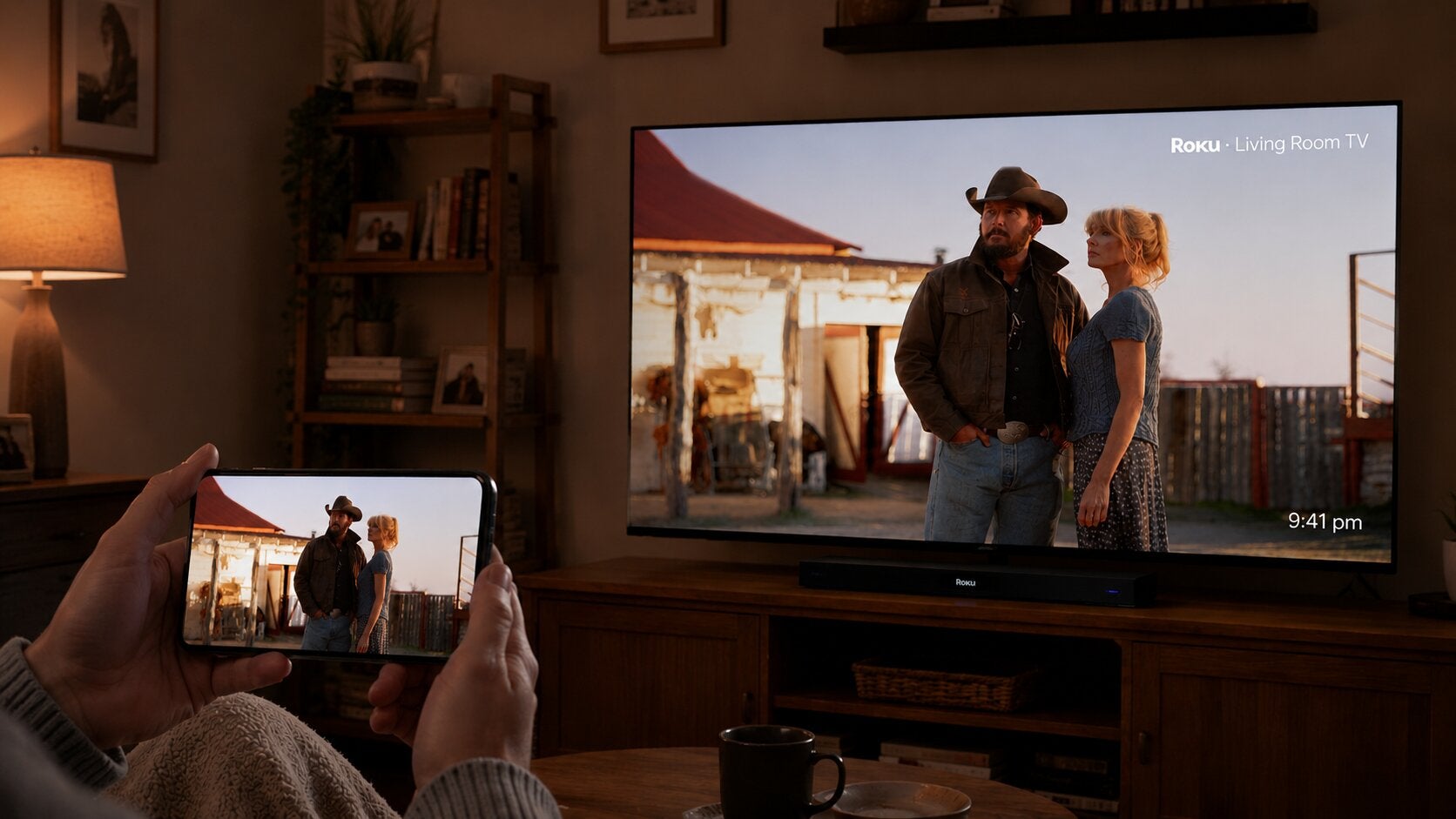
It wasn’t all that long ago that the idea of video phone calls was considered almost implausibly futuristic. But in 2026, everyone carries a video phone in their pocket, and can use that device to watch their favorite TV shows and movies, browse the web, talk to anyone anywhere in the world, and more.
Android mobile devices are designed to work in concert with a host of other electronics, including smart TVs and streaming players that use the Roku operating system. But can you use your Android phone to cast video to your TV screen through your Roku? Find out what you need to know below.
What you need to know about casting from Android mobile devices to Roku

Can you cast from Android devices to Roku?
Roku devices do not support the Chromecast protocol, which has become native for Android mobile devices. That means select models of Google phones, such as the Google Pixel, do not support casting to Roku players.
However, many Android-powered phones support Miracast, allowing for the transfer of video and audio from one screen to another. Miracast is also supported by Roku players, so depending on your manufacturer, you will probably be able to mirror your phone’s screen on your Roku.
Different manufacturers also have different terms for their implementation of Miracast; Samsung calls it Smart View, but other device makers may have a different name and user interface for mirroring via Miracast. In general, if your device runs Android version 10.0 or later, it likely supports screen mirroring.
How to cast from Android to your Roku
First, consult with your Android phone to ensure screen mirroring is enabled. Search for the term screen mirroring or casting in your phone’s settings if you’re not sure how to adjust it on your Android mobile device.
To mirror from a Samsung Android phone:
- Turn on your smart TV and Roku device.
- Connect both devices to the same Wi-Fi network.
- Swipe down on your phone’s status bar.
- Tap Smart View.
- Select your Roku device from the Smart View menu.
- Follow the instructions on your Roku device to allow mirroring.
How to stop casting from Android to Roku
To stop screen mirroring on your Roku device, simply open the Smart View menu on your Android phone and disconnect it from your Roku device. This will stop screen mirroring and allow you to use your devices separately once again.
Why you should cast from your Android to Roku
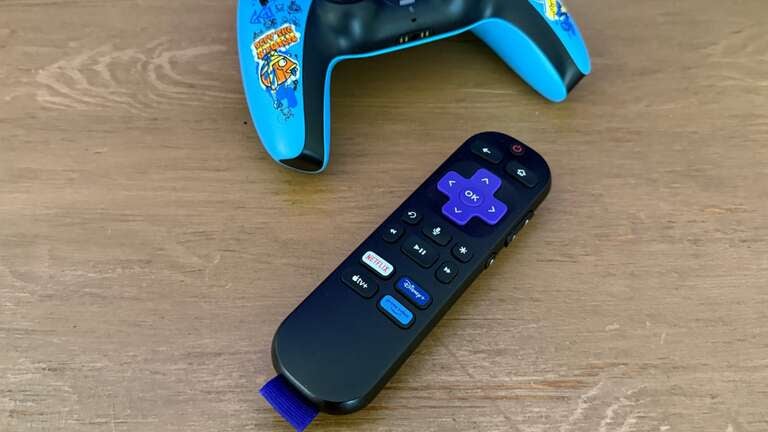
While you may find the functionality of screen mirroring with your Android and Roku devices a bit more limited than using traditional casting methods, it’s still a good way to transfer the image and sound from your phone screen to the TV, if needed.
Screen mirroring will allow you to display whatever is on your phone on your Roku device, giving everyone in the room a chance to share the video you’re streaming, the pictures you want to show off, or even presentations. No need to force everyone to crowd around your tiny phone screen to show off those vacation pictures; let everyone in the room get a good look by mirroring your Android phone’s screen on your Roku device.
Can you replace your Roku with casting?
In the case of an Android phone, customers are better off keeping their Roku device if they have even moderate TV habits. As mentioned, screen mirroring is a bit more limiting than casting, as it acts more like a live video feed of what’s going on with your screen. You can use it to stream video on live TV and on-demand streaming apps, but you’ll have to keep the streaming window in full screen on your phone the whole time.
If you minimize the streaming window to browse the web or check messages on your phone while mirroring, that activity will also show up on your Roku screen. Since Roku players can download and play top streaming apps directly, they’re the better choice for watching TV on a daily basis, as opposed to trying to watch by mirroring content from an Android phone.
Can you cast from one Android phone to multiple Roku devices?
No, native Android mirroring will not allow viewers to cast to multiple Roku devices at the same time.
Can you cast from your Roku to an Android device?
Being able to cast the image or video from your Roku player to your phone would allow you to take whatever you’re streaming on your TV around the house with you without having to switch apps. Unfortunately, there is no way to cast from your Roku to your Android mobile device at this time.
Troubleshooting issues casting from Android to Roku
One of the most common problems viewers might run into while trying to mirror from an Android device is knowing whether or not their mobile device will support it, and what mirroring is called. Each device maker using Miracast to power their screen mirroring tool has a different name for that tool, after all.
SmartShare is LG’s term for its mirroring function, and AllShare Cast is used by older Samsung devices from before the Smart View days. Also keep an eye out for terms like:
- Wireless display
- Display mirroring
- Screen casting
- Casting
If casting is not enabled on your Android phone or mobile device, you will not be able to screen mirror with your Roku player. So, it’s critical to know how to find the screen mirror setting on your Android device, and to do that, you’ll have to know what it’s called.
You can also check to make sure screen mirroring is enabled on your Roku device by:
- Navigating to Settings.
- Scrolling to System.
- Click Screen mirroring.
- Set to Prompt or Always Allow if it’s turned off.
It’s also important to remember that you have to have your Android and Roku devices connected to the same Wi-Fi network in order to use screen mirroring. If you don’t, you will not be able to mirror the screen of your Android on your Roku device.