How to check for software updates on your Fire TV
How to check for software updates on your Fire TV
If your Fire TV’s operating system is running a little slow, it could be time to update the software. Here’s how to check.

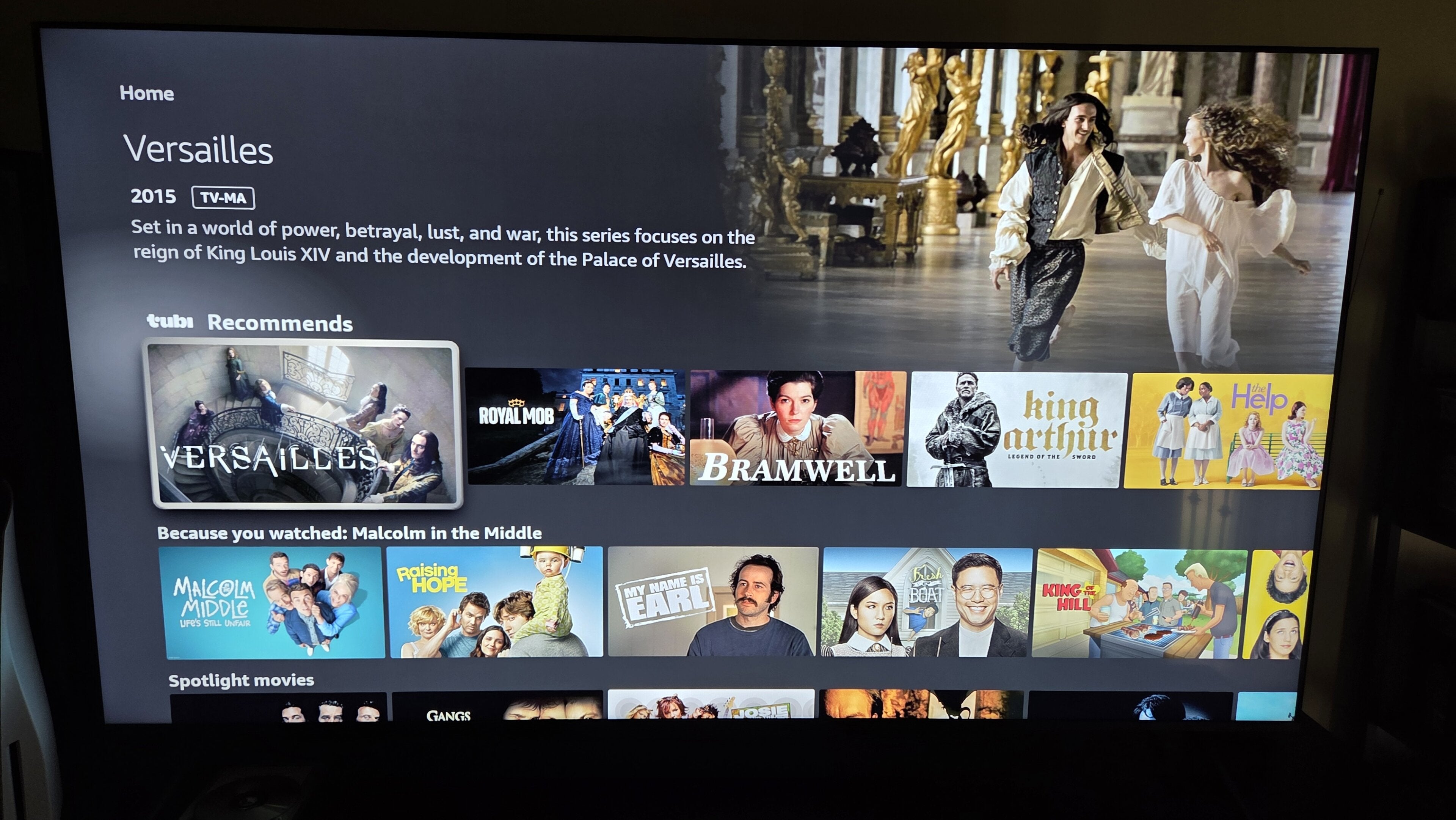
Do you ever stop to think about the software that makes your Amazon Fire TV player able to do the things it does? If not, there’s no reason to feel bad; at its most basic level, software boils down to complex strands of code that comprise and instruct programs, and really understanding how it all works takes an advanced degree or two.
But as computers have for decades, Fire TV’s operating system relies on software to allow viewers to watch TV, download new apps, or do anything else with their smart TV or streaming player. And as time goes by, that software needs to be rewritten and adjusted to make sure it’s still compatible with software from companies that want to share their apps on Fire TV.
If you need to check on your Fire TV’s software version to see if it needs an update, read on! We’ll explain everything you need to know about updating your Fire TV’s software in our guide below.
What you need to know to check and update your Fire TV software

How to check your Fire TV’s software version
To check which version of software your Fire TV device is currently running, all you have to do is:
- Turn on your TV and Fire TV device.
- Scroll to the Settings icon at the far right of the screen.
- Choose Device & Software.
- Click About.
In this menu, you’ll see a wide range of information about your TV or streaming player displayed. You’ll see the software version your device is running, the name of the Amazon Account holder attached to that profile, the storage capacity of your device, and more.
How to update your Fire TV software
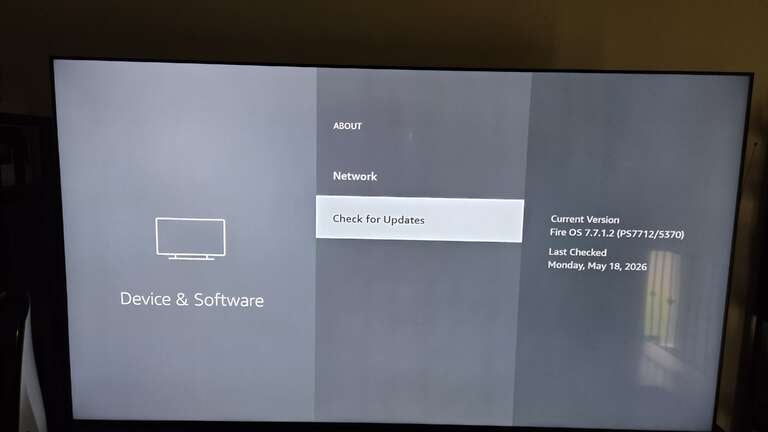
Your Fire TV device should check for software updates automatically, so you don’t have to go digging through settings menus every time you want to make sure your device is up to date. However, if you suspect your TV is running an older version of the Fire TV OS, you can check for updates by:
- Heading to the Settings menu on your Fire TV device.
- Clicking Device & Software.
- Choose About.
- Scroll down to Check for Updates.
Can you disable software updates on your Fire TV?
There’s no way to disable automatic software updates for your Fire TV’s operating system, as these updates are crucial for the continued performance of the device. However, you can disable automatic updates for installed apps with ease on your Fire TV device; simply:
- Go to your Fire TV’s Settings menu.
- Navigate to Applications.
- Scroll to Appstore.
- Turn automatic updates off.
Why it’s important to update your Fire TV software
If your Fire TV device isn’t running the latest version of software, it can cause a host of problems. The user interface can experience glitches and crashes, and worse, your downloaded apps may become incompatible with your Fire TV operating system if the software is too old. That will leave you unable to watch your favorite TV and movie apps, listen to music streaming apps, etc.
Even if your apps aren’t blocked while using an older version of Fire TV software, not updating can cause slowdowns while trying to move around the Fire TV OS, and sluggish buffering times as well. If your Fire TV’s home screen is showing delayed remote responses or similar issues, a software update may well fix the problem.
In addition, failing to use properly updated software can be a security risk. Software updates provide critical security patches, and running older versions of Fire TV software can expose vulnerabilities that hackers can use to infect your device and gain access to sensitive personal information.