How to customize the Apple TV home screen
How to customize the Apple TV home screen
We’ll show you how to rearrange apps and use folders to customize your Apple TV’s home screen.

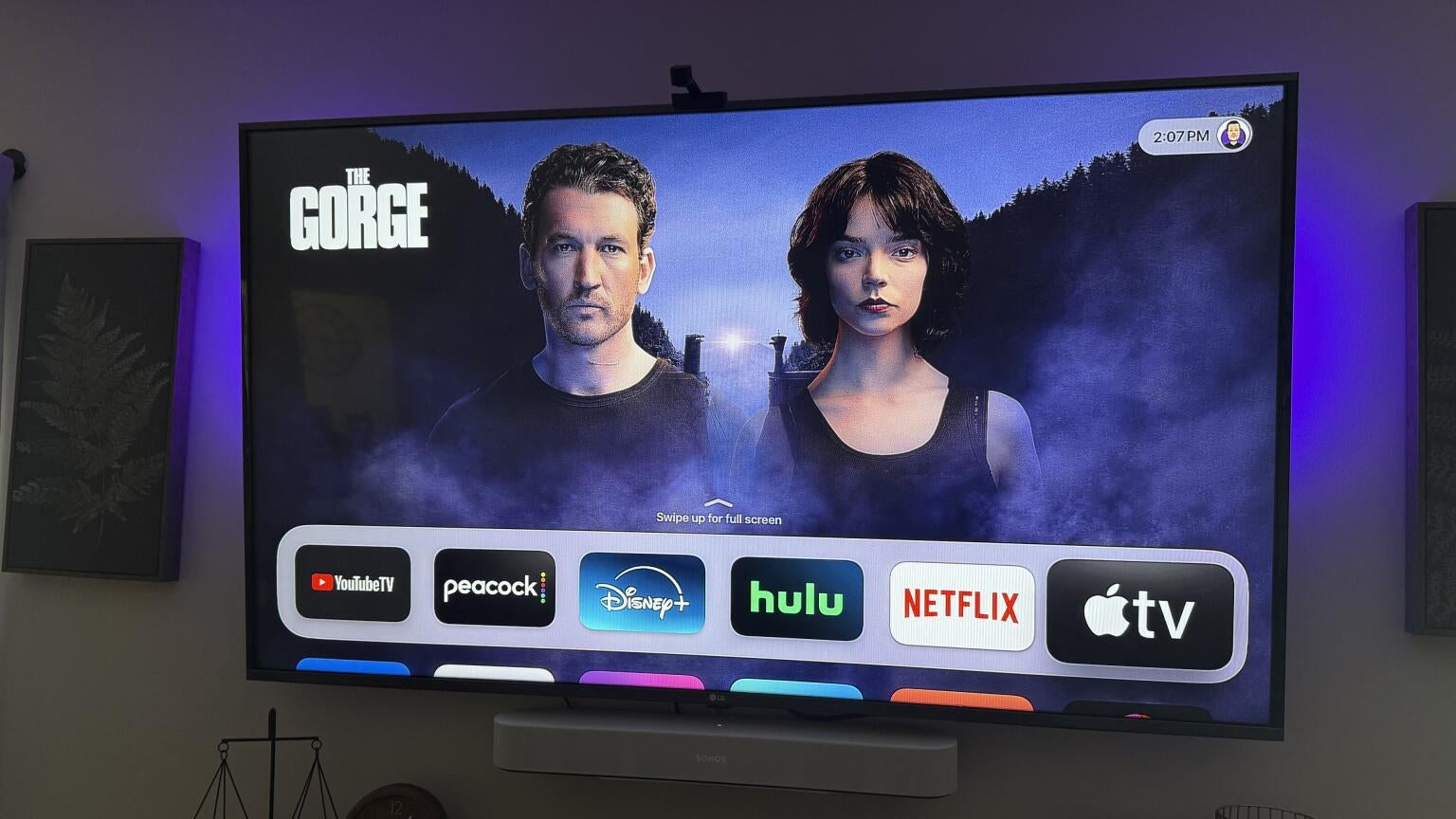
Using an Apple TV still feels advanced and futuristic sometimes, even though the device has been around for quite some time. That can make for a fun experience when you’re navigating the Apple TV home screen, but it can also be a bit frustrating if you’ve never used an Apple device before.
If you want to customize your Apple TV home screen for easy access, adjust it to display age-appropriate content for your family, and more, keep reading. We’ll explain everything you need to know about customizing your Apple TV home screen in an easy-to-follow guide.
What you need to know to customize your Apple TV home screen

How to customize apps on the Apple TV home screen
You can select and move your downloaded apps anywhere you please on your Apple TV screen, allowing you to jump into your favorite streaming services or other apps more quickly. Favorite apps should be moved to the top row of the screen, so that they play a preview of the app’s content when its tile is highlighted.
To rearrange apps on the Apple TV home screen:
- Turn on the Apple TV device and TV.
- Head to the Home Screen.
- Navigate to an app, then press and hold your remote’s clickpad or touch surface.
- Choose Edit Home Screen.
- Drag the app to its new location on the home screen.
- Press the center of the clickpad to save.
How to create folders for apps on Apple TV
If you prefer to organize your apps into folders based on themes for less clutter on your home screen, your Apple TV will allow you to do so.
To create a new folder for your apps:
- Navigate to an app, then press and hold the touch surface/clickpad.
- Click Move To, then New Folder.
- Change the name of the new folder at the top of the screen.
- Press back or Menu to return to your home screen.
When you want to move new apps into folders, you can scroll to that app with your remote, then press and hold the clickpad/touch surface. Then select Move to usher it to the folder of your choice.
You can also delete folders by:
- Navigating to an app in a folder.
- Holding your clickpad/touch surface.
- Select Move to, then Home Screen.
- Repeat the process until each app is removed. The folder will be deleted when the last app is removed.
- Press the clickpad center to save.
Can you disable autoplay on the Apple TV home screen?
If you’d rather not get automatic previews of highlighted apps or content on your Apple TV device, all you’ll have to do is:
- Go to the Apple TV home screen.
- Open the Settings app.
- Scroll to General, then Accessibility.
- Select Motion.
- Toggle Auto-Play Video Previews to off.
Is the ad experience on Apple TV customizable?
You can turn off personalized ads on your Apple TV device, which will prevent the device from tracking your viewing preferences in order to show you more relevant ads. You can’t completely turn off ads on Apple TV, but this will help allay any fears that the device is watching you while you’re watching it.
To turn off personalized ads with your Apple TV:
- Return to the Apple TV home screen.
- Open the Settings app.
- Choose Privacy & Security, and scroll to Apple Advertising.
- Turn Personalized Ads off.
How to enable parental controls on Apple TV
Parental controls will enable you to authorize which profiles can watch, download, or play items from Apple TV search results, as well as purchase any subscriptions or media.
To set up parental controls on an Apple TV:
- Press and hold the TV button on your Siri remote.
- Select the icon displaying a child next to a padlock.
- Go to Settings, then General > Restrictions.
- Enter a four-digit passcode to turn on restrictions.
Once you’ve established and entered your passcode, you can use the instructions above to limit the ability to purchase, restrict access to TV shows, apps, movies, music, or podcasts based on ratings or language, remove the ability to play multiplayer games, or change privacy settings in the Game Center, or change AirPlay, TV Provider, or Location settings.
Why you should customize the Apple TV home screen
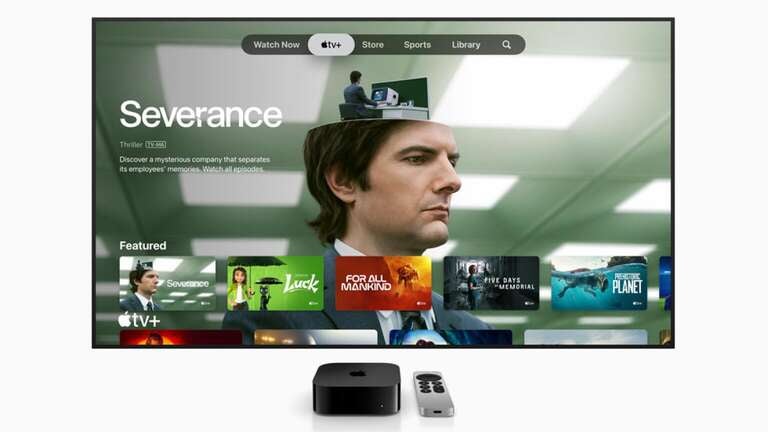
Customizing the Apple TV home screen can mean the difference between having a cold, impersonal experience when you watch TV and feeling like you’re spoiled for choice because all your favorite shows and movies are right at your fingertips.
The ability to rearrange the apps on your Apple TV home screen is above and beyond what many streaming device operating systems offer. Put any app anywhere you want, and organize them into folders to cut down on your digital clutter, if you wish.
Customizing the Apple TV home screen also lets you keep kids away from TV shows, movies, and other content they shouldn’t have access to without prior permission. And it can help you remove yourself from data tracking, so you won’t have to feel like you’re being observed for sales information every time you want to watch something.
Make your Apple TV streaming player truly your own by customizing the Apple TV home screen. Choose your view and your ad experience, and make sure everyone in your home is only seeing the content appropriate for their age group by taking advantage of Apple TV’s numerous personalization options.