How to customize your Amazon Fire TV home screen
How to customize your Amazon Fire TV home screen
Make your Fire TV device truly your own using these handy tips.

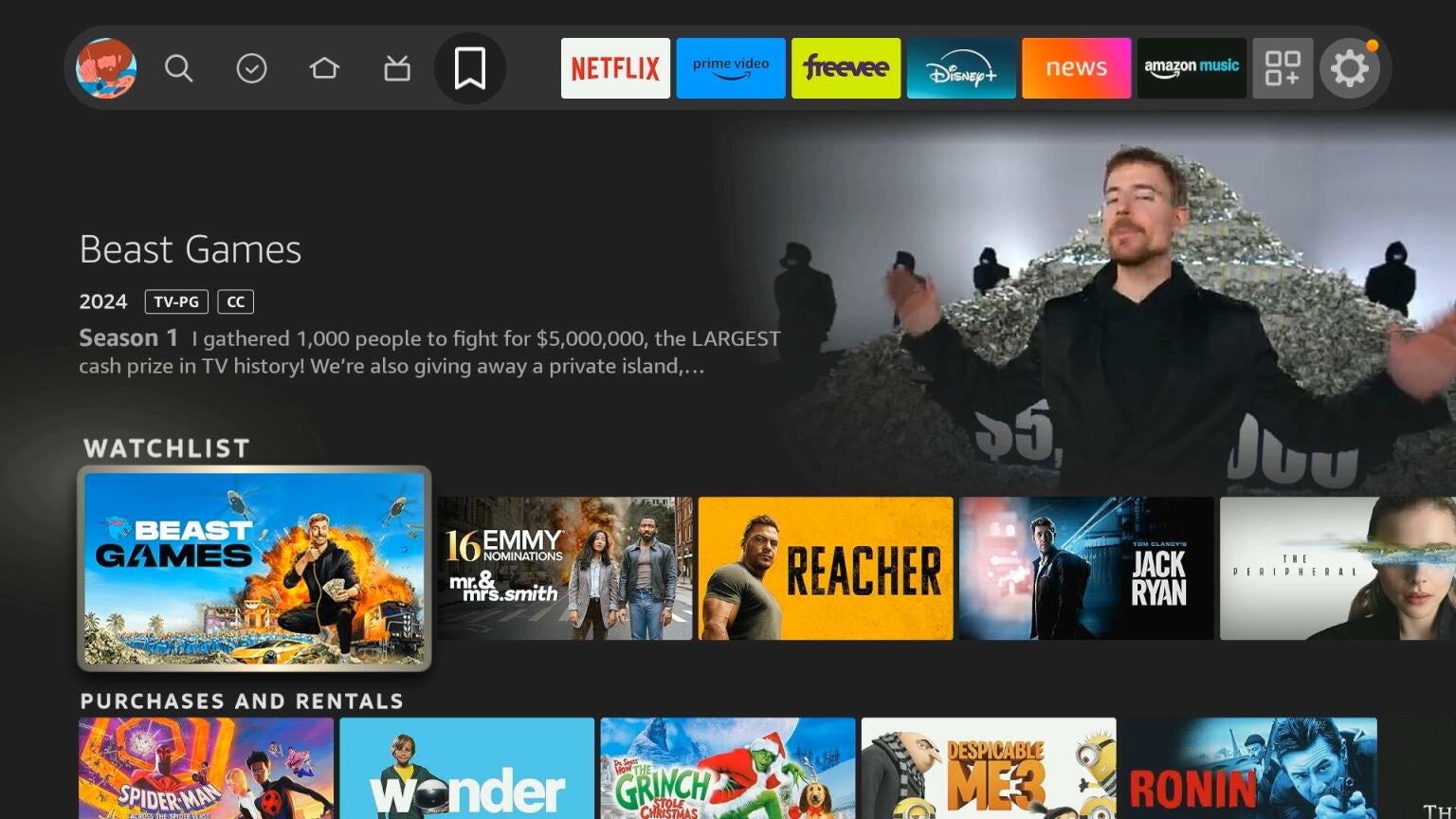
If you’ve purchased your first-ever Amazon Fire TV device, you may be feeling a little lost. Fire TV’s user interface isn’t difficult to use, but if you’ve spent most of your time on an Apple TV or Google TV previously, the Fire TV UX will feel a little different.
Using the customization options available with Fire TV devices will help you make every day’s viewing experience as if it were crafted especially for you. Make things easy for yourself as you whiz around the Fire TV interface by personalizing it as much as you can; learn how below!
What you need to know to customize the Fire TV home screen

How to customize apps on the Fire TV home screen
The Fire TV home screen is not fully customizable, but viewers can choose the apps that appear in the row closest to the top of the home screen. This makes it much easier to jump into your favorite apps on Fire TV, instead of having to search for them or ask Alexa to open them.
To customize apps in the Fire TV home row:
- Turn on the Fire TV device.
- Scroll right until you’re in the home app row.
- Hover over the app you want to change.
You can then move apps around to change them from the order, offload them from your Fire TV profiles, or even uninstall them if you choose.
To add new apps to the Fire TV home row:
- Return to the home app row.
- Scroll right to the Add Apps icon, then down to My Apps.
- Navigate to the app you want to add to the home row.
- Click the three-line button, and then select Move.
- Shift the app into the row; the app last in the row will be automatically removed to make room.
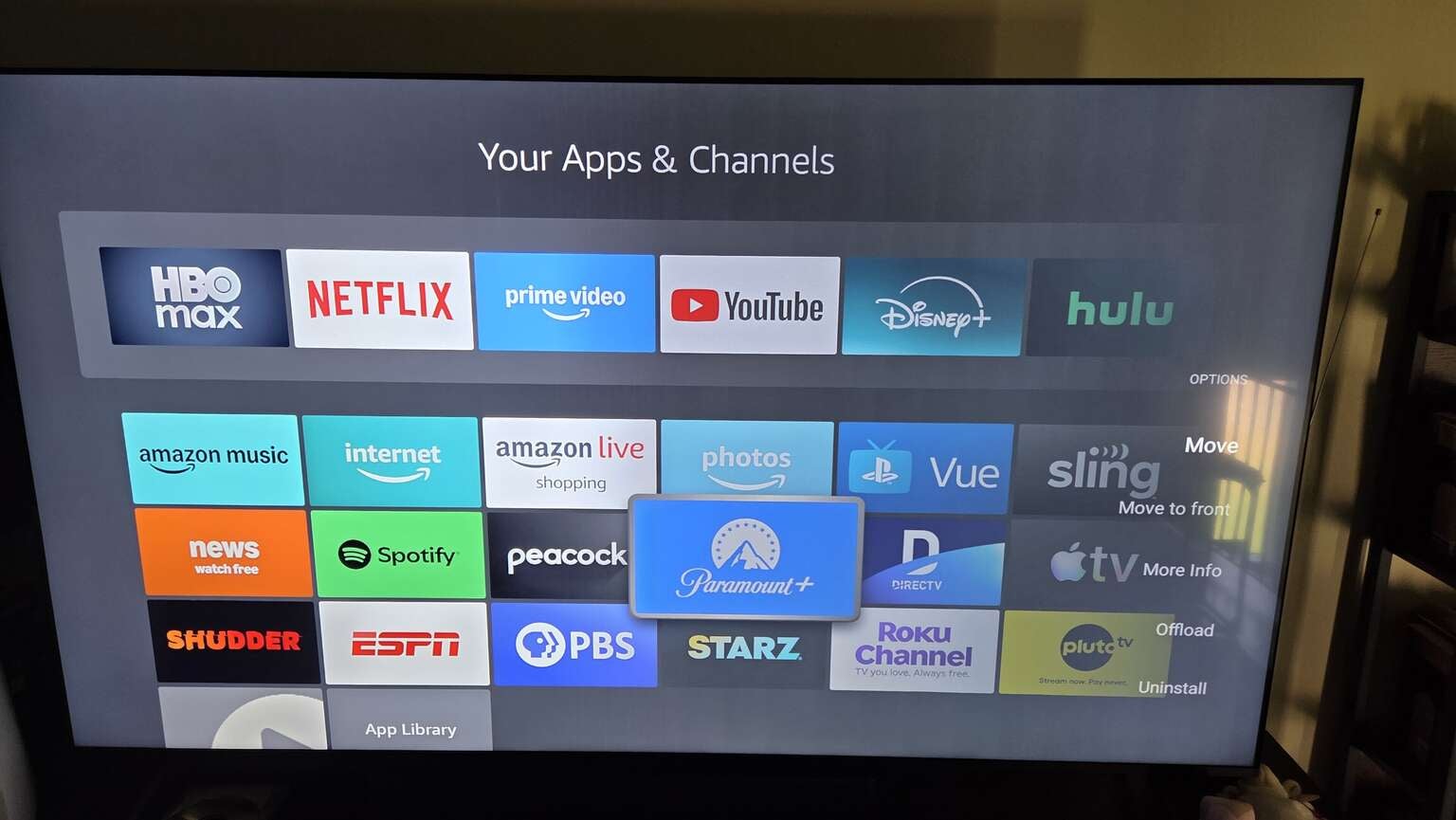
Fire TV simplifies the process of customizing app placement. Click to expand.
Can you customize channels in the Fire TV live guide?
Fire TV streaming devices offer a robust, grid-style live guide that allows subscribers to scroll through channels provided free from Prime Video, Pluto TV, Tubi, and other free streamers, as well as subscription apps like DIRECTV, Peacock, Sling TV, YouTube TV, and others. You can even connect an antenna to a TV with the Fire TV operating system installed and see local broadcast channels in the guide.
This guide isn’t fully customizable; you can’t hide channels from appearing in the full guide, for example. But you can filter the channels you see by source to see channels from only specific apps by scrolling along the row of apps at the top of the channel guide.
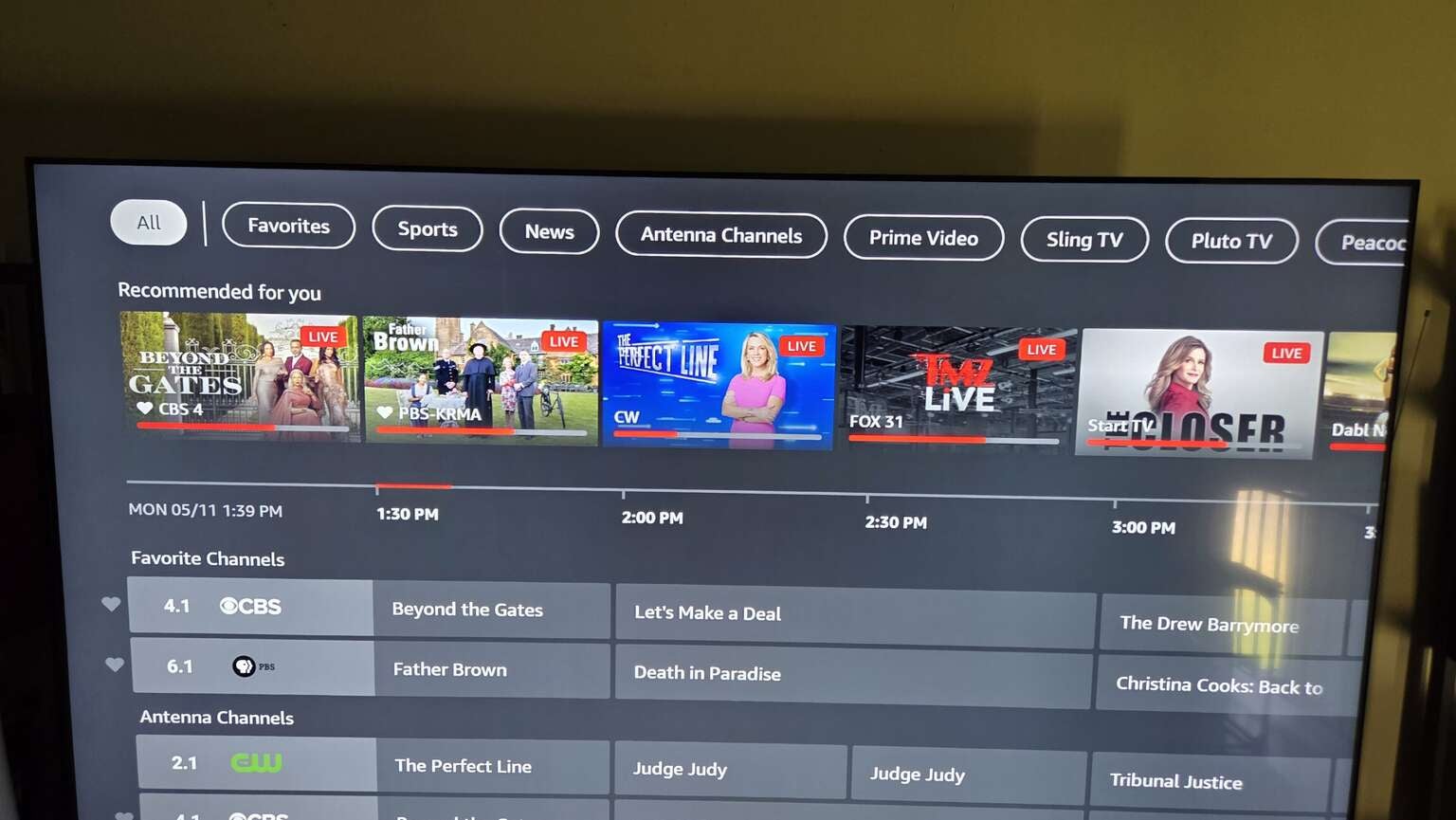
Fire TV’s live guide lets you sort which channels you see by app. Click to expand.
You can also pick your favorite channels that will appear at the top of the live guide, and will be easier to access while watching as well.
To select favorite channels with Fire TV:
- Power on your Fire TV device.
- Scroll to the Live TV app.
- Click Guide.
- Scroll to the channel you want, and click the three horizontal line button on your Fire TV remote.
- Click Add to Favorite Channels.
How to disable autoplay on the Fire TV home screen
Any Fire TV owner knows that turning on the device will activate an automatic video carousel, with ads for titles playing on Prime Video and other content. While these videos can be helpful for those who are unsure of what to watch, others may find them intrusive and annoying.
To disable autoplay on your Fire TV home screen:
- Activate your Fire TV device.
- Make your way to the Settings menu.
- Choose Preferences.
- Scroll to featured content.
- Toggle autoplay audio and video on or off.
Is the ad experience on Fire TV customizable?
You won’t be able to turn off all ads you see with your Fire TV device, but you can choose to customize how much information you share with Amazon and its advertising partners.
You can toggle these settings by:
- Turning on your Fire TV.
- Scroll to Settings.
- Navigate to Preferences.
- Choose Privacy Settings.
Here, you can opt to manage which apps can access your viewing and content information and share it with Amazon, turn off automatic content recognition (ACR), toggle internet-based ads, and revoke Amazon’s permission to collect information relating to the use of over-the-air TV content, and the frequency and duration of third-party app use.
How to enable parental controls on Fire TV
If you live in a household with children, having strong parental controls is important to keep the kids away from TV shows and movies featuring content that isn’t age-appropriate.
To set up Fire TV parental controls:
- Power up your Fire TV device.
- Scroll to Settings.
- Navigate to Preferences.
- Click Parental Controls
- Enter your PIN number to toggle parental controls.
Once active, parental controls will allow Fire TV owners to restrict videos and purchases.
Why you should customize the Fire TV home screen
As the owner of a Fire TV, I can personally attest to how crucial it is to customize the home screen to your liking. Watching TV on a Fire TV will be quite familiar to those who have been streaming TV for a while, but for users who are more used to flipping channels with a simple one-button rocker, there will be some adjustments to make, and customizing your Fire TV will be a must.
Arranging your favorite apps right at the top of the screen is a convenient way to make sure they’re always at hand, and it’s easier to find than Fire TV’s recently used apps row, which can easily get lost in the numberless content carousels the Fire TV home screen includes.
Fire TV devices also offer a huge selection of free streaming channels, so being able to select your favorite channels, see local broadcast channels alongside streaming options, and narrow channel categories down to display options only from specific apps can really help avoid feeling overwhelmed by the number of channels available.
Using your Fire TV’s customization options will help you feel like you’ve optimized your viewing experience every time you turn the TV on. Follow our instructions and set up your Fire TV your way for quicker access to your favorite apps and channels.
You won’t be able to completely control your ad experience with your Fire TV, but you will be able to take greater control over the information your Fire TV sends to advertisers or other companies. For those who are sensitive about the use of their data, using these customization options are a must.