What you need to know to customize the Roku home screen
What you need to know to customize the Roku home screen
Roku’s new home screen is now available, but can you still customize it to your specifications?

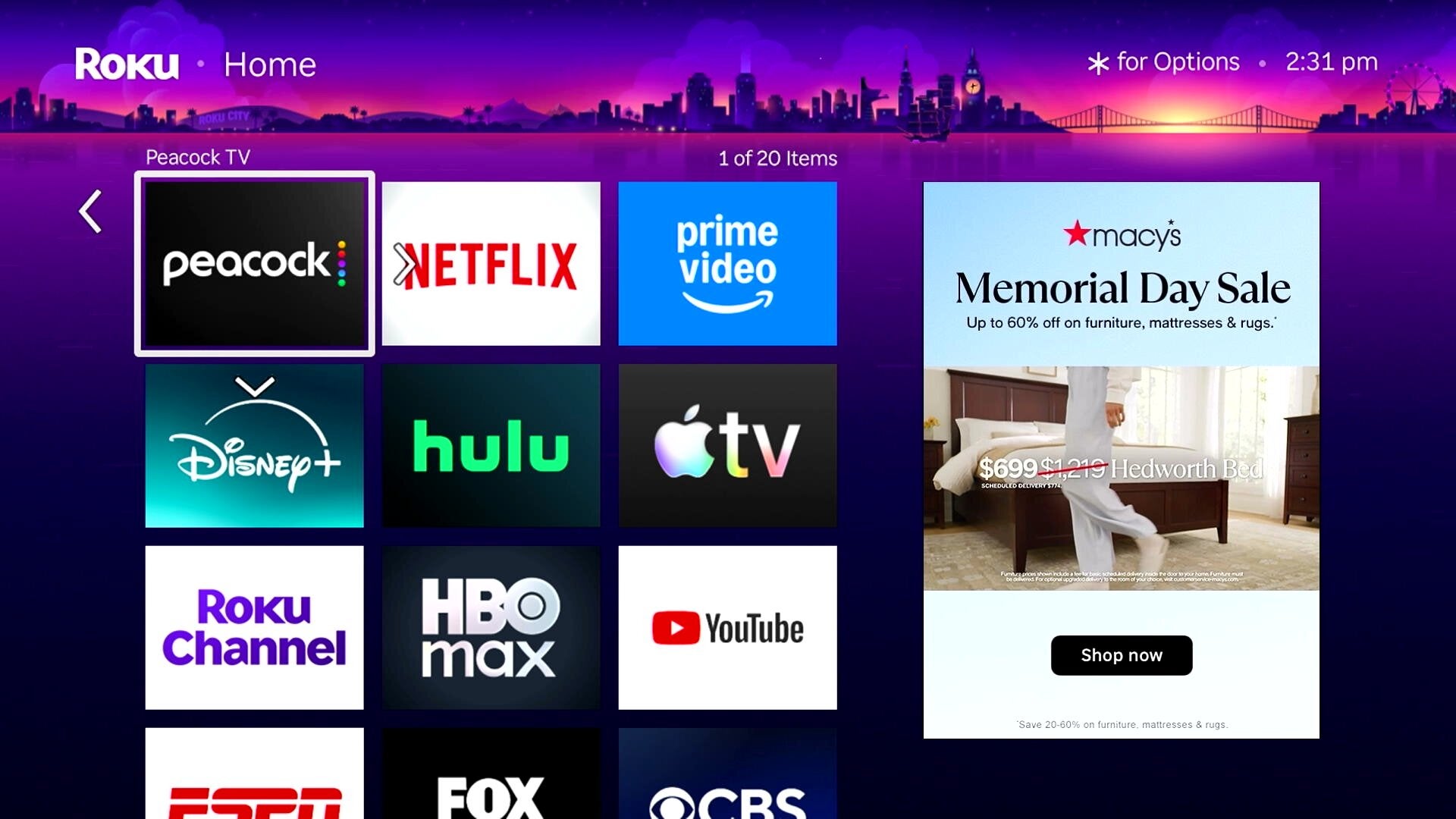
The Roku user interface is so beloved because of how easy Roku’s operating system makes it to access particular TV and streaming apps. The launch of a new home screen experience on Roku devices aims to make every watching session even better, with more discoverable content at users’ fingertips.
But can you switch up the Roku home screen to your specifications? What customization options are available when using Roku? We’ll explain everything you need to know about personalizing the Roku home screen here.
Everything you need to know about customizing your Roku home screen

How to customize apps on the Roku home screen
Roku’s home screen puts an emphasis on helping connect customers to new TV shows and movies via AI-driven content recommendations. But if you’d prefer the algorithm to leave you alone, you can always hide these rows using the following instructions.
- Press the Home button on your Roku remote.
- Scroll to Settings in the left-hand menu.
- Select Home Screen.
- Choose Recommendation rows, and click Hide.
You can also use the Home Screen menu to change the tile size of icons that appear on the Roku home screen. The Home Screen menu is a hub that lets you tailor your Roku experience your way; you can turn app shortcuts on or off, toggle menu items such as Live TV and Featured Free on or off, and adjust wallpapers and other visual themes to your exacting specifications.
There’s also a quick shortcut to removing any app tile from the home screen you want at any time.
Here’s how to remove any app:
- Highlight the app you want to remove.
- Press the Star button on the Roku remote.
- Click Remove.
Using the Star button on the Roku remote can also help you move apps and channels in the Quick Access row, as well as other parts of the Hulu home screen.
Can you customize channels in the Roku live guide?
One of the best things about owning a Roku device is the ability to watch hundreds of free ad-supported streaming TV (FAST) channels from The Roku Channel. This guide can also show over-the-air broadcast channels on Roku TVs with an antenna plugged in.
Viewers can easily filter the Roku Live TV guide to show only the channels they want. You can scroll to the left once in the Roku live guide to see all the filter options you have, with favorite channels at the top, and categories like news, sports, movies, and more available.
To add favorite channels that will appear at the top of your Roku live guide every time:
- Open the Roku live guide.
- Scroll left to favorite channels.
- Click Select to add favorite channels.
- Choose favorites from the channel guide.
You can also edit the favorite channel lineup from this menu, and remove channels at will. You can even hide channels from appearing in the guide by going to the channel options menu (press star on the remote to pull it up) and scrolling to edit channel lineup.
How to disable autoplay on the Roku home screen
If you’d rather not be confronted with autoplay video as you scroll around your Roku home screen, you can easily turn it off in just a few remote clicks by.
Here’s how to do that:
- Pressing the Home screen on the remote button, or scrolling to the left-hand menu.
- Navigating to the Settings Menu.
- Selecting Accessibility.
- Toggling auto-play video off.
Is the ad experience on Roku customizable?
While you cannot completely disable ads on the Roku home screen, you can limit ad tracking and filter sensitive ads, giving you greater control over your privacy and the types of products and services you see commercials for.
To customize your ad experience on Roku:
- Go to Settings in the left-hand menu.
- Select Privacy.
- Scroll to Advertising.
- Change your ad preferences at will.
To turn off Automatic Content Recognition that tracks what you watch and allows Roku to automatically tailor your experience to you, you will have to turn off the “Smart TV experience” in the privacy settings menu.
How to enable parental controls on Roku
Roku owners can use parental controls to restrict purchases and app downloads while kids are watching the Roku Channel, or on Roku’s ad-free streamer Howdy. First, you’ll need to set up a PIN.
Following these directions to set that up:
- Sign in to your Roku account on a browser or mobile device.
- Go to Device settings, and click PIN/Parental controls.
- Create a four-digit PIN number, and set preferences for use.
Roku TV owners can also block live programming by rating by:
- Pressing the Home button on the remote.
- Navigating to Settings, then Parental controls.
- Entering the four-digit PIN.
- Selecting TV tuner and choosing limits.
Why you should customize your Roku home screen
The Roku home screen is one of the most customizable in all of streaming, and viewers would be wise to take advantage of all the options available. You can make every watching experience truly your own by ordering your apps and channels the exact way you want to on its home screen.
Using Roku’s customization options will also help you feel less spied on by advertisers, and can help keep small hands away from content they shouldn’t be watching, or making unauthorized purchases on your Roku account.
Use our recommendations to customize your Roku home screen and place the content you want at your fingertips, without having to wade through endless content carousels and menu layers to find what you’re looking for. Optimize your Roku home screen with just a few easy remote taps!