How to create and edit profiles on your Fire TV
How to create and edit profiles on your Fire TV
We’ll explain everything you need to know about establishing new profiles on your Fire TV, and the benefits of doing so.

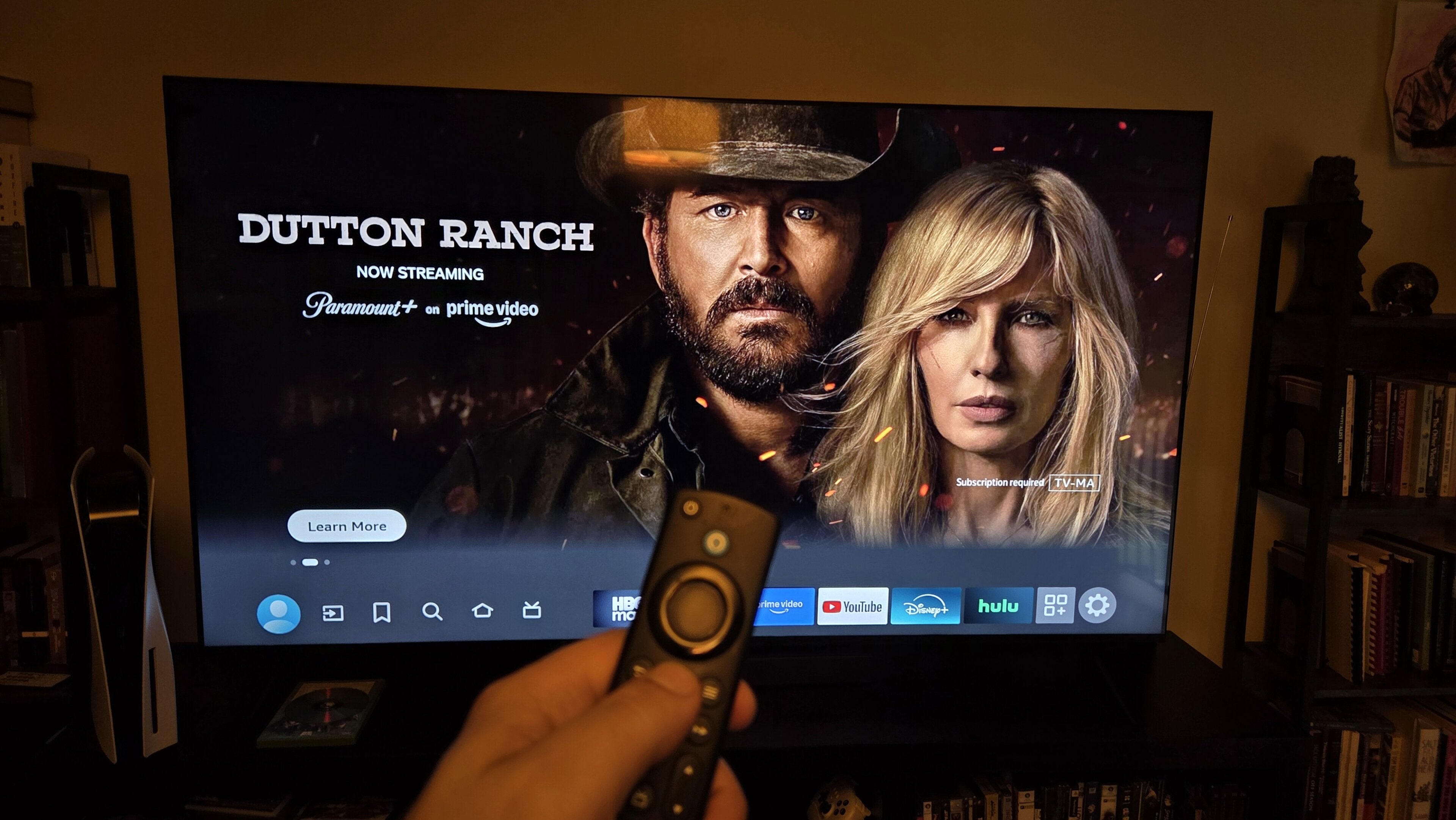
As someone who has owned Fire TV devices for a long time, I know most of the top features that are included, as well as the drawbacks of using Fire TV over other streaming devices. The Fire TV operating system likes to make it easy to find new TV show and movie recommendations, since they’re splashed all over the home page.
But Fire TV builds many of these recommendations on your viewing history, and it also shows you that history, as well as recently used apps, watch progress, and more on its home screen. These details are highly personalized to the individual user, which can make things a bit tricky if you’re sharing your Fire TV with other household members.
Luckily, many Fire TV-equipped smart TVs and streaming players allow users to create multiple profiles on the same device. This is a huge help to families or roommates who want to keep their watchlists and histories from being mixed with those of others in the home, and we’ll show you how to set up profiles on your Fire TV device below!
What you need to know about using profiles on a Fire TV device

Which Fire TV models don’t allow the use of profiles?
If you’re still using an old version of the Fire TV operating system on your TV, or have a first-generation Fire TV Stick, you will not be able to use the profiles feature on your device. Profiles are not supported on:
- Fire TV (1st Generation)
- Fire TV (2nd Generation)
- Fire TV Stick (1st Generation)
How many profiles does Fire TV support?
Fire TV devices will allow owners to create up to six profiles. This will likely be enough for most families and co-living configurations, but people with more than six TV watchers in the household will have to spread individual profiles across multiple Fire TV devices. Up to four profiles on your Fire TV device can be Amazon Kids profiles.
How to create a new profile on Fire TV
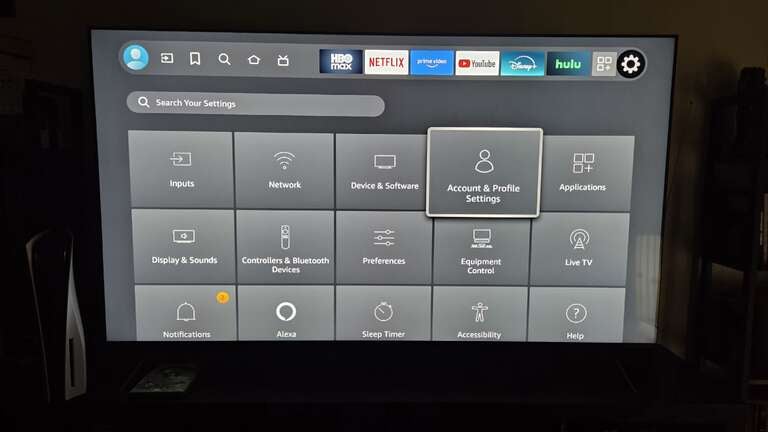
To establish new profiles on your Fire TV device:
- Say “Go to profiles” into your Fire TV voice remote, or open the Settings menu and scroll to Accounts & Profile Settings.
- Select Add Profiles, then New profile.
- Import existing profiles from Prime Video, if available.
- Choose a name and icon for the new profile.
How to set content restrictions on Fire TV profiles
You can restrict the content seen in a Fire TV profile by making it an Amazon Kids profile, if you prefer. Amazon Kids allows parents to customize what their kids are seeing, including choosing the apps and content they can access, protected by a pin that keeps children from wandering outside their profiles.
Some models of smart TV with the Fire TV operating system built in do not support Amazon Kids profiles, nor does the Fire TV Cube. You can set up an Amazon Kids profile in the profile creation screen on your Fire TV device by navigating to Settings > Accounts & Profile Settings > Add Profiles, switching “Is this a Kids Profile” to yes, and following on-screen prompts.
To edit the content your children see in their Amazon Kids profile, head back to the Accounts & Profiles menu, then choose Kid Settings. Pick the profile you want to edit, and you can make choices about the content they see and apps they can access.
How to switch profiles on your Fire TV
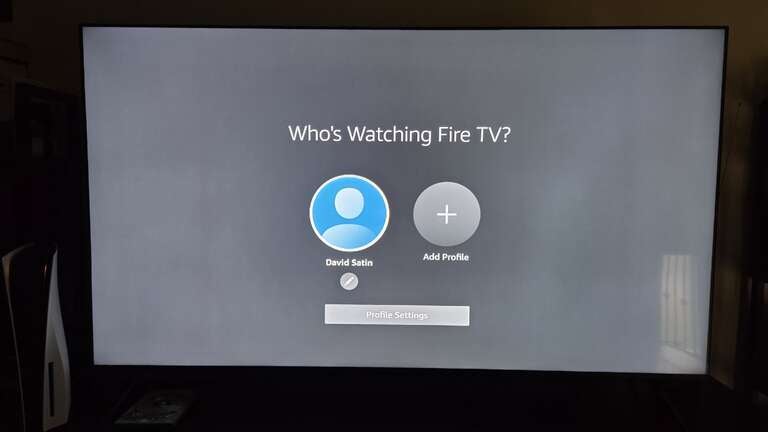
There are a couple of methods for switching your profile on your Fire TV device. First, you can press and hold the voice button on your Fire TV remote and say “Go to profiles” to pull up the profile selection screen. Alternatively, you can:
- Press and hold the Home button on your remote.
- Select Profiles from the menu that pops up.
- Pick the profile you want to switch to.
How to delete profiles on Fire TV
To delete a profile on your Fire TV device:
- Say “Go to profiles” into your Fire TV voice remote, or open the Settings menu and scroll to Accounts & Profile Settings.
- Select Add Profiles, then New profile.
- Highlight the profile you want to remove.
- Click Edit.
- Select Remove.
What are the benefits of using profiles on your Fire TV device?
Using profiles on your Fire TV device unlocks a whole new level of customization for everyone who uses it. A Fire TV profile allows each profile owner to create and track their own watchlists, so everyone can plot out their next viewing session to their own tastes.
But Fire TV profiles aren’t just helpful for creating future watch sessions; they’re also incredibly useful in remembering what you watched last. The Fire TV home page creates a carousel of previously watched titles near the top of the screen, pulling your last stream from participating apps like Disney+, Hulu, HBO Max, and others to help you jump back in where you left off. Using profiles on your Fire TV ensures that your watch history remains specific to you and doesn’t include previous streams from your housemates.
Fire TV also tracks your recently used apps in a content row a little further down the home screen, and being able to keep this row customized to your viewing history is a really helpful feature, especially if shared users have different taste in apps. Plus, setting up individual profiles for each Fire TV user allows Amazon Music lovers to track their history as well.
The more you use your Fire TV profile, the more it can zero in on your specific TV and movie tastes to create ultra-relevant recommendations. Ensuring that all TV users are on their own Fire TV profiles means that everyone in the household is getting the most relevant recommendations possible.
There’s really no reason not to use profiles on your Fire TV device if you share it with others in your home. It’s the best way to ensure that you’re getting an experience that’s customized for you every time you want to watch a TV show or movie, listen to music, browse the web, explore your personal media, or use any of the other top features of a Fire TV smart TV or streaming player.