What you need to know about your Fire TV remote
What you need to know about your Fire TV remote
We’ll explain how to use your Fire TV remote to control every aspect of your streaming experience here!

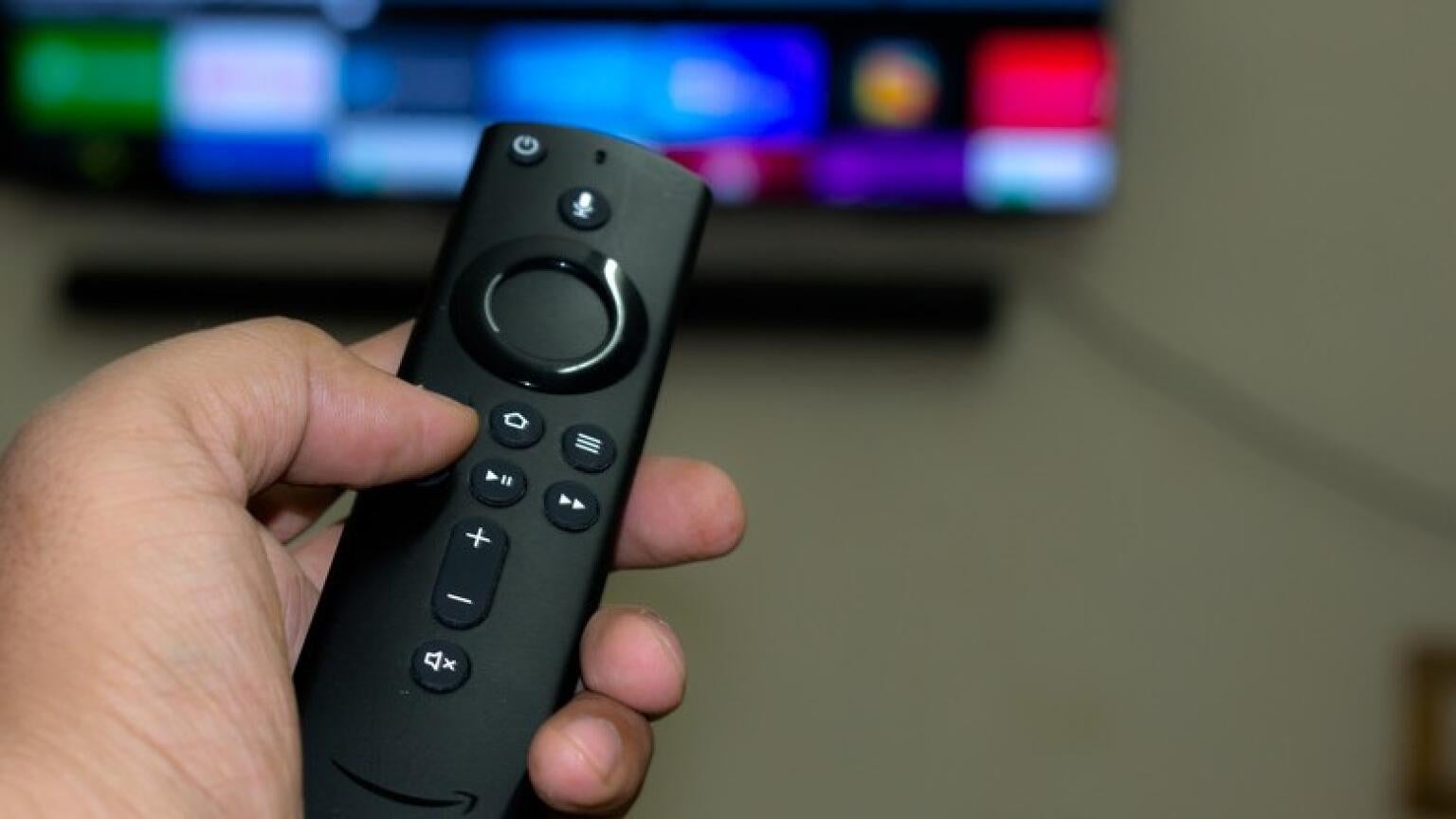
Even the best streaming device is only as good as its remote! A difficult-to-use remote makes watching TV and movies a chore, and having to juggle between three or four remotes can lead to confusion and frustration every time a pause is needed.
The Amazon Fire TV line of streaming players all come with a remote in the box, and fortunately, it’s quite easy to use. We’ll give you the lowdown on the remote’s buttons, tips and tricks for using it, and even troubleshooting options in our user’s guide below!
Everything you need to know about the Amazon Fire TV remote

What buttons does the Amazon Fire TV remote have?

Click image to expand to full size.
The specific buttons on your Amazon Fire TV remote can vary from model to model, but even the most basic models have many of the same controls as the top-of-the-line ones.
How is the Fire TV remote powered?
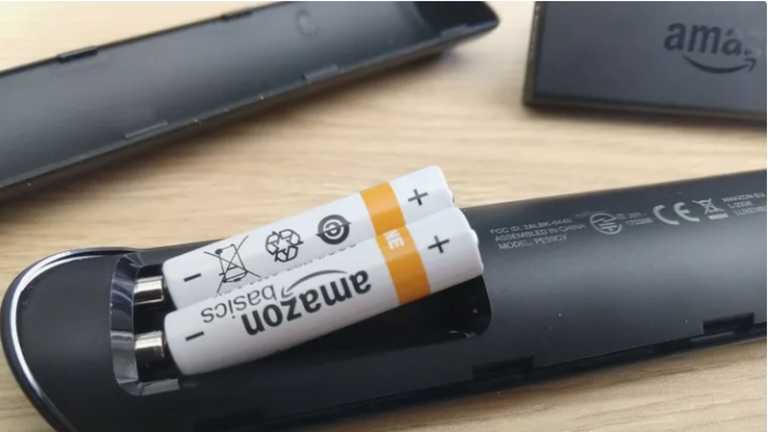
The Fire TV remote is powered by two AAA batteries. It isn’t rechargeable, but it’s easy enough to restore power to the device if it has died; simply pop in a new pair of batteries, and you’re ready to start using your remote once again. Fire TV remotes made for smart TVs using the Fire TV operating system also use AAA batteries.
Each device has a power button and a microphone button, along with a D-pad and a selector button. Holding the microphone button (almost always colored blue on modern Fire TV remotes, even if the icon varies) will allow you to speak to the Alexa voice assistant (more on that below).
The back button allows viewers to go back a single screen, and the Home button will return the user to the Fire TV home screen — not the home screen of the app you’re using. The button with three horizontal lines on a Fire TV remote is for pulling up options/settings menus.
Playback control buttons come next, including buttons for fast-forwarding and rewinding, as well as pausing and resuming playback. Next comes the up-and-down volume rocker, a mute button, and a live TV button. At the bottom of the remote comes app-specific buttons that open Prime Video, Netflix, and other apps with just a single press.
Other Fire TV remote models may have a dedicated, gear-shaped settings button or a picture-in-picture button. Some have customizable buttons that can be programmed to open specific apps or switch inputs as well.
How to pair the Fire TV remote with your device
To pair a Fire TV remote to your device:
- Press and hold the Home button for 10-15 seconds.
- When the indicator light flashes amber, pairing mode has begun.

Look for the indicator light on your Fire TV remote to know that pairing mode is active. Click to expand.
- Follow on-screen prompts to finish pairing your remote.
Does the Fire TV remote include TV or device controls?
Yes, you can use your Fire TV remote to control your TV’s power, volume, and channel controls with compatible devices, or manage your soundbar or other home theater equipment. When connecting your Fire TV, it should automatically detect whether the TV you’re hooking it to is compatible with the Fire TV remote. If it did not, or if you’d like to set up Equipment Control manually, follow these steps:
- Power up your Fire TV device
- Go to the Settings menu
- Click Equipment Control
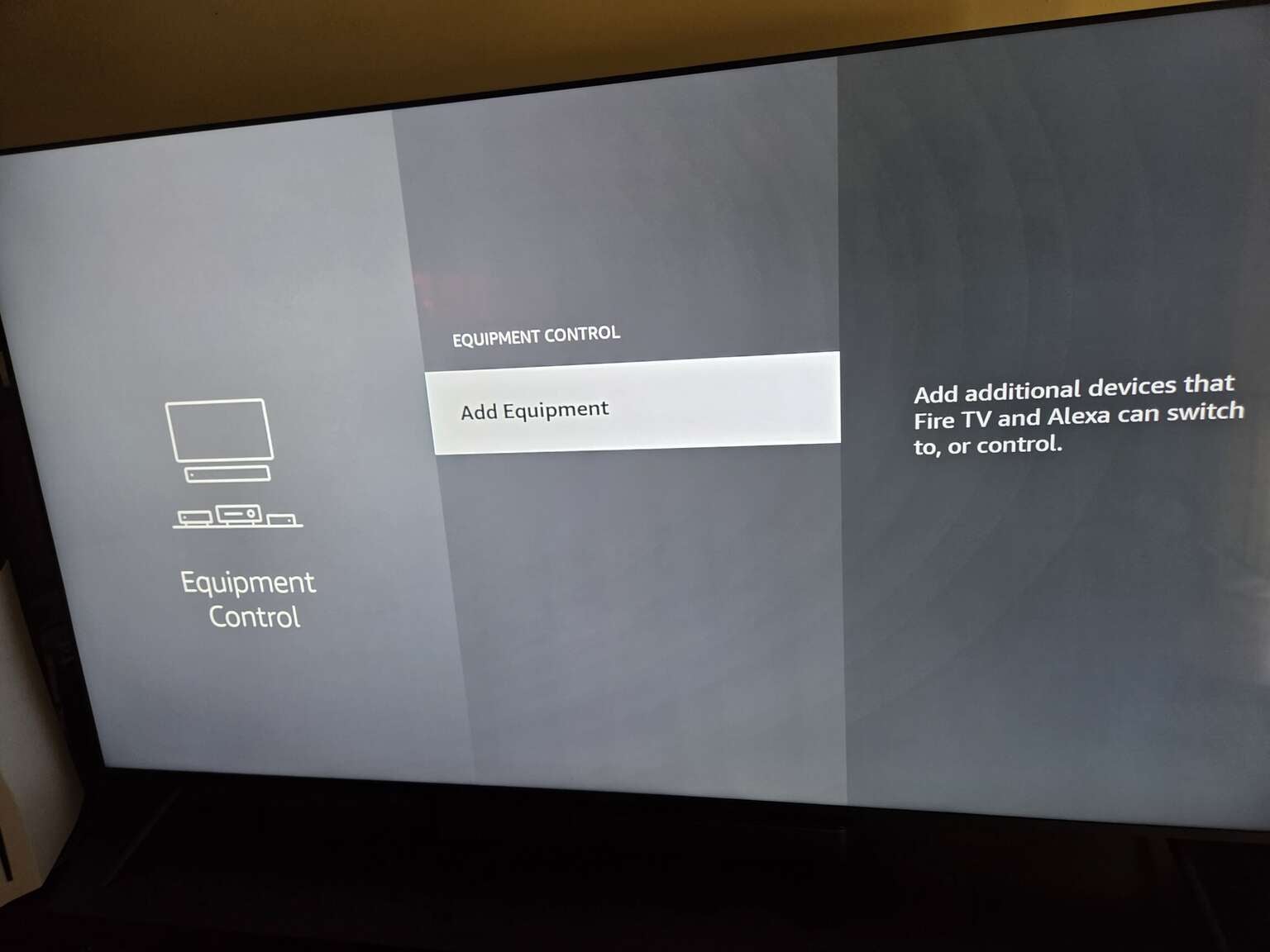
Fire TV’s Equipment Control screen lets you add additional devices. Click to expand.
- Select Manage Equipment
- Select Add Equipment
If you do not see the device you want to add available, it may not be supported by your Fire TV device.
What connection type does the Fire TV remote use?
Fire TV remotes primarily use Bluetooth connection for all things streaming. Using power and volume controls to connect the Fire TV remote to your TV will use an Infrared connection.
Does the Fire TV remote have voice control abilities?
Yes, it does. Customers get basic Alexa voice controls with every Amazon Fire TV stick, including the ability to open apps, search for TV shows and movies, and even connect to smart speakers and other home assistant devices to play music, etc. To speak to Alexa with your Fire TV remote, click the blue remote button at the top of the device and hold it down as you speak, releasing when you finish.
Amazon Prime customers get even more functionality with their Fire TV remote, thanks to the inclusion of Alexa+. It allows for more conversational interactions with the voice assistant, including broad-ranging discussions of favorite TV shows, movies, characters, directors, genres, etc. Alexa+ subscriptions are available to non-Prime subscribers for $20 per month.
Can you use your phone as a remote with Fire TV?
Yes, you can download the Fire TV app on your mobile device and pair it with your Fire TV streaming stick. Simply download the app, and search for nearby devices to pair to your TV, then pair using a PIN. Once done, you’ll be able to control playback of your streaming apps, navigate around the Fire TV interface, and even use Alexa with your phone.
Troubleshooting your Fire TV remote
If your Fire TV remote isn’t working:
- Unplug the Fire TV device from its power supply and HDMI input for 60 seconds.
- Press and hold the Left button on the D-pad, the Menu button, and the Back button on the remote at the same time for 12 seconds
- Release the buttons, and wait five seconds.
- Remove the batteries from the remote.
- Plug your Fire TV device back in, and wait for the on-screen error message regarding remote detection.
- Put the batteries back in your remote.
- Press the home button.
If the LED button blinks blue, your remote is paired successfully. If it does not, press the home button for 10 seconds.
Fire TV remotes also employ a troubleshooting mode that uses a warning light to let customers know when something is amiss. To enter troubleshooting mode, press the Alexa voice button, and wait for the LED to flash. If it does, troubleshooting mode is available; click the Rewind and Right D-Pad buttons for three seconds to activate, then press the Menu button. Press any button on your remote, and use the guide below to determine the issue your Fire TV is experiencing based on the warning light:
- Red, slow blink: Low batteries
- Red, fast blink: Reset your Fire TV remote
- Orange: The remote isn’t paired with your Fire TV device
- White: Make sure the Fire TV device is on. If the problem persists, restart Fire TV
- Blue: No issue with the remote. Try restarting your Fire TV device.e