Google TV vs Fire TV: use our guide to pick!
Google TV vs Fire TV: use our guide to pick!
We’ll give you a rundown of everything you need to know about Google TV and Amazon Fire TV streaming players.

Shopping for a new or replacement streaming device can be fun, but it can also be a little bit intimidating. Switching to a new brand of streaming device, or pivoting away from the cable box for the first time, can lead to anxieties about learning a new user interface. And knowing how to distinguish popular streaming players from each other can be the difference between enjoying your viewing session every time you watch TV and finding it irritatingly difficult.
If you’ve narrowed down your choice to either the Google TV or Amazon Fire TV families of devices, let us help you make the choice. Get a breakdown of each device below, and a direct comparison to help you pick the right player for your streaming needs!
Google TV vs Fire TV: Everything you need to know


2026 device lineups
Google TV
| Google TV Streamer 4K | |
|---|---|
| Audio | Dolby Atmos |
| Video | 4K HDR and Dolby Vision |
| Remote | Google voice remote |
| Storage | 32GB |
| Connectivity | Wi-Fi & Ethernet |
Amazon Fire TV
| Stick HD | Stick 4K Select | Stick4K Plus | Stick 4K Max | Cube | |
|---|---|---|---|---|---|
| Video | 1080p Full HD | 4K Ultra HD | 4K Ultra HD | 4K Ultra HD | 4K Ultra HD |
| Audio | Dolby-encoded | Dolby-encoded | Dolby Atmos | Dolby Atmos | Dolby Atmos |
| Remote | Alexa Voice | Alexa Voice | Alexa Voice | Alexa Voice Enchanced | Alexa Voice Enchanced |
| Storage | 8GB | 8GB | 8GB | 16GB | 16GB |
| Connectivity | Wi-Fi | Wi-Fi | Wi-Fi | Wi-Fi | Wi-Fi & Ethernet |
Comparing remotes
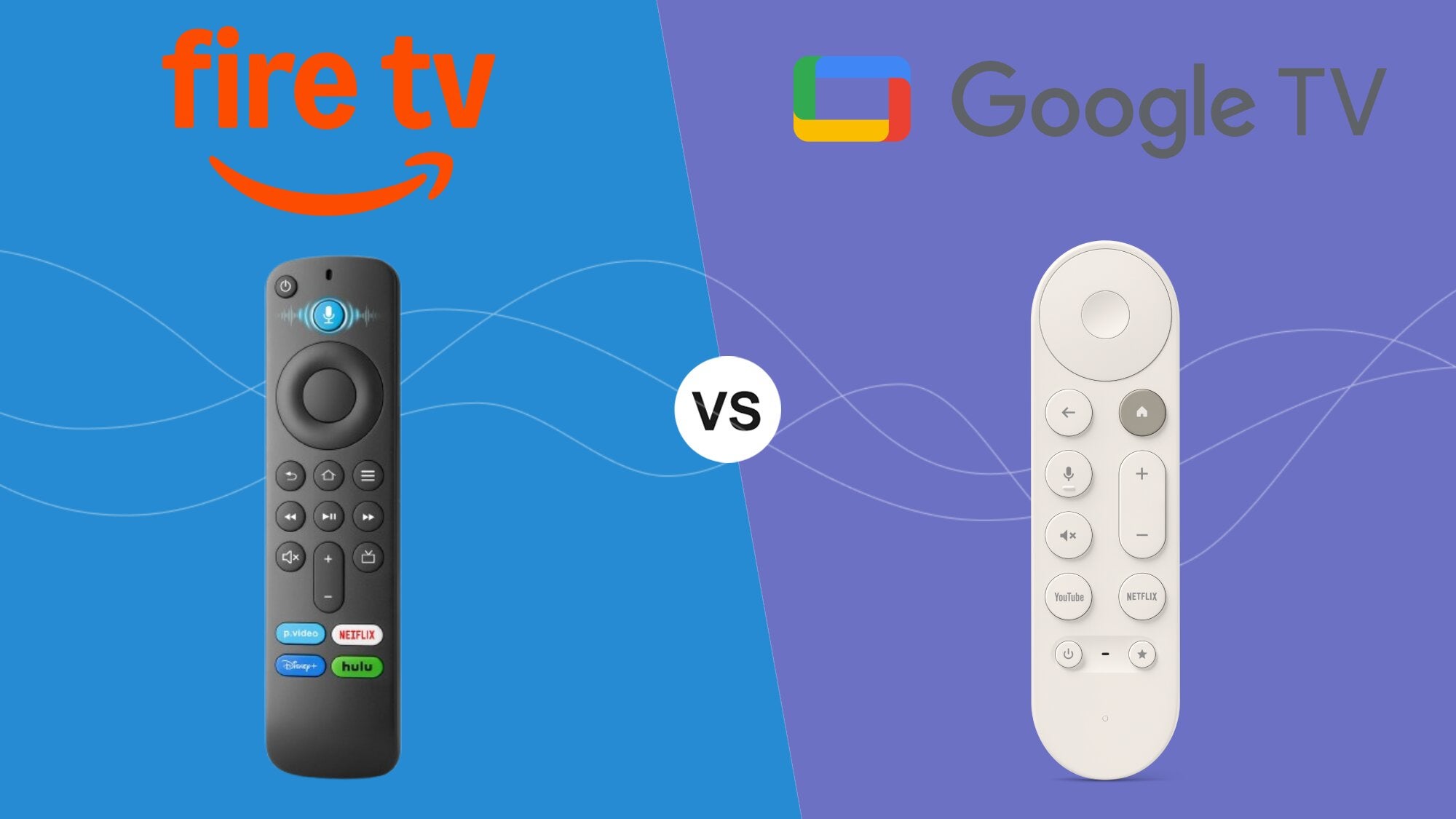
The streaming remote has some similarities with TV remotes of old, but there are also some big differences. Streaming player remotes tend to be smaller and sleeker, following the conventional line of thinking that more technologically advanced devices are usually slimmed down in size.
The Fire TV and Google TV remotes are fairly similar in layout. Each starts with a D-pad at the top for navigation, with a select button in the center. Each has a voice assistant button, volume controls, and home and back buttons as well.
Fire TV remotes usually come with four shortcut buttons, as compared to the Google TV remote’s two. But the Google TV remote has one specific advantage over the Fire TV remote: a programmable shortcut button that you can connect to streaming apps, the input switcher, etc. Only the Fire TV Cube’s Alexa Voice Remote Pro has a programmable button.
The Fire TV Cube’s remote offers one feature the Google TV remote does not: hands-free operation. Users will need to pick up the remote and press the voice assistant button with the Google TV remote, but the Fire TV Cube includes a mic for hands-free Alexa use. Other Fire TV models do not include a hands-free voice remote out of the box.
UI and navigation
The Fire TV user experience won’t let you forget that you’re using a device in the Amazon ecosystem — for good and bad. You’ll see a lot of prominently placed ads for Prime Video titles and other Amazon services in the Fire TV interface, starting with a large hero banner of rotating ads at the top of the screen.
Fire TV’s home screen is all about content. It features rows for recently used apps, as well as a row of tiles featuring shows and movies you’ve been watching from participating apps. There are a ton of recommendations for new apps and titles to stream as well, and a customizable row at the top of the screen that allows users to arrange their favorite apps as they choose.
The star of the Fire TV UX is its Live guide, which allows viewers to see channels from a variety of streaming apps, including Prime Video and Peacock, free streamers like Pluto TV and Tubi. Viewers with a Fire TV-equipped smart TV can attach an antenna and find their local broadcast channels in the guide as well.
Google TV’s Live guide is just as functional as Fire TV’s, collating more than 800 free streaming channels in one place. Local channels are also available there, and viewers will be able to favorite channels to see them at the top of the grid when they click into the live guide.
Overall, Google TV’s interface is a more tech-forward experience. With tabs at the top of the screen separating live TV, Apps, and Library, viewers can filter the type of content they’re looking for before they start to browse. The Google TV experience also allows customers to see only apps on all tabs if they prefer, filtering out the type of content recommendations that Fire TV feels are so important to display.
The Apps tab does exactly what you’d expect: shows you your downloaded apps for easy navigation. The Library tab will display any purchased TV shows and movies, as well as other owned media sourced from connected Google accounts.
In general, the Google TV operating system is highly advanced, but it tries not to leave users feeling overwhelmed. The Fire TV interface offers a very different experience, one that can sometimes feel like an assault on the senses with all the colors and sounds from the app badges and title cards that take up the screen.
Voice capabilities
Google TV devices utilize the Google Assistant AI agent to help viewers navigate the ins and outs of their streaming device. Of course, Google Assistant can be used to perform basic functions like opening apps or switching inputs, but the embedded AI also allows for much more conversational queries.
Google TV 4K owners can ask their remote to generate highly specialized results, such as “Find me romantic comedy movies with a mostly female cast and a road-trip theme,” and be connected to titles that some voice assistants would never think to surface. Google Assistant will also help viewers seamlessly integrate their TV or streaming player with their other Google-run smart home devices.
The Alexa voice assistant that comes with Fire TV voice remotes can perform many of the same functions, but to get the best possible experience, Fire TV customers will want to upgrade to Alexa+. This costs $20 per month on its own, but it’s free for all Amazon Prime members to use.
Like the Google Assistant, Alexa+ allows viewers to converse with it to surface pinpoint-accurate search results, or just for fun if they want. And with Alexa+, Fire TV owners will be able to control Ring doorbell cameras and other smart home devices.
Features
It’s all well and good to know how to use the basic elements of a streaming player, but the real fun is learning how to use the features that aren’t immediately apparent. What are the best features to use to maximize your Fire TV or Google TV session?
Free TV
We’ve discussed the availability of free TV in the Fire TV and Google TV interfaces, but it’s worth repeating. Each platform has a grid-style live channel guide packed with hundreds of free streaming channels, including channels from free streaming apps that can be viewed all in the same place.
Both Google TV and Fire TV will also allow viewers to sort their channel guides to see channels from just one app or source, and let viewers pick favorite channels to appear at the top of the guide. Customers with live TV streaming subscriptions to services like Sling TV and YouTube TV will also be able to see the live channels in their packages within these tabs on Google TV and Fire TV players.
App ecosystems
No need to worry about whether or not your favorite app will be available on Fire TV or Google TV. All of the top on-demand and live TV streaming services on the market make apps for both operating systems. Google TV integrates with most home assistants, but of course, it works best with other Google devices. Its interface allows viewers to turn the Google TV into a smart home command center for their other connected devices.
Fire TV is also best used alongside other Amazon smart home devices, such as Echo speakers. Users can also download Amazon apps like Audible, Amazon Photos, and more to make their Fire TV a one-stop account experience.
One thing to note when choosing between the Google TV and Fire TV devices: Fire TV’s new VegaOS, which is being added to new devices, prohibits the sideloading of apps onto players. If an app isn’t available in the Amazon app store, it can’t be used on these players. Google TV players have not prohibited sideloading.
Gaming
The Google TV Streamer 4K is a capable gaming device for customers with subscriptions to compatible cloud gaming services. It’s easy to hook up a Bluetooth game controller to a Google TV Streamer 4K to play using these apps, and can serve as a replacement for a gaming console for casual players.
Likewise, Fire TV devices allow customers to play any games included with their Amazon Luna subscription. It also supports game controller connection via Bluetooth, and you don’t have to purchase a Luna controller to game — Fire TV players are compatible with multiple game controller brands.
Which should you choose?
There are a lot of similarities between the Fire TV and Google TV experiences. But Google TV is probably more suited for those who take their TV seriously; the customization options of the Google TV interface and the ability to sideload your own apps onto Google TV devices make for a highly sophisticated ownership experience.
But if you’re looking to save money on a streaming device, or just want a dongle for a bedroom TV, Fire TV could be perfect for you. Amazon makes streaming devices at a variety of price points, each with its own capabilities. There’s more choice with Fire TV, even if it provides a less tech-forward user experience.
There are thousands of satisfied Fire TV owners around the United States, and thousands more who love their Google TV device. Both offer very different experiences, but each can help users connect with their favorite streaming content, as well as their smart home devices, very easily.