The first 5 things to do with your new Fire TV streaming player
The first 5 things to do with your new Fire TV streaming player
What should you do with your new Fire TV device when it shows up at your door? Follow our guide to learn all the tips and tricks for an optimized device.

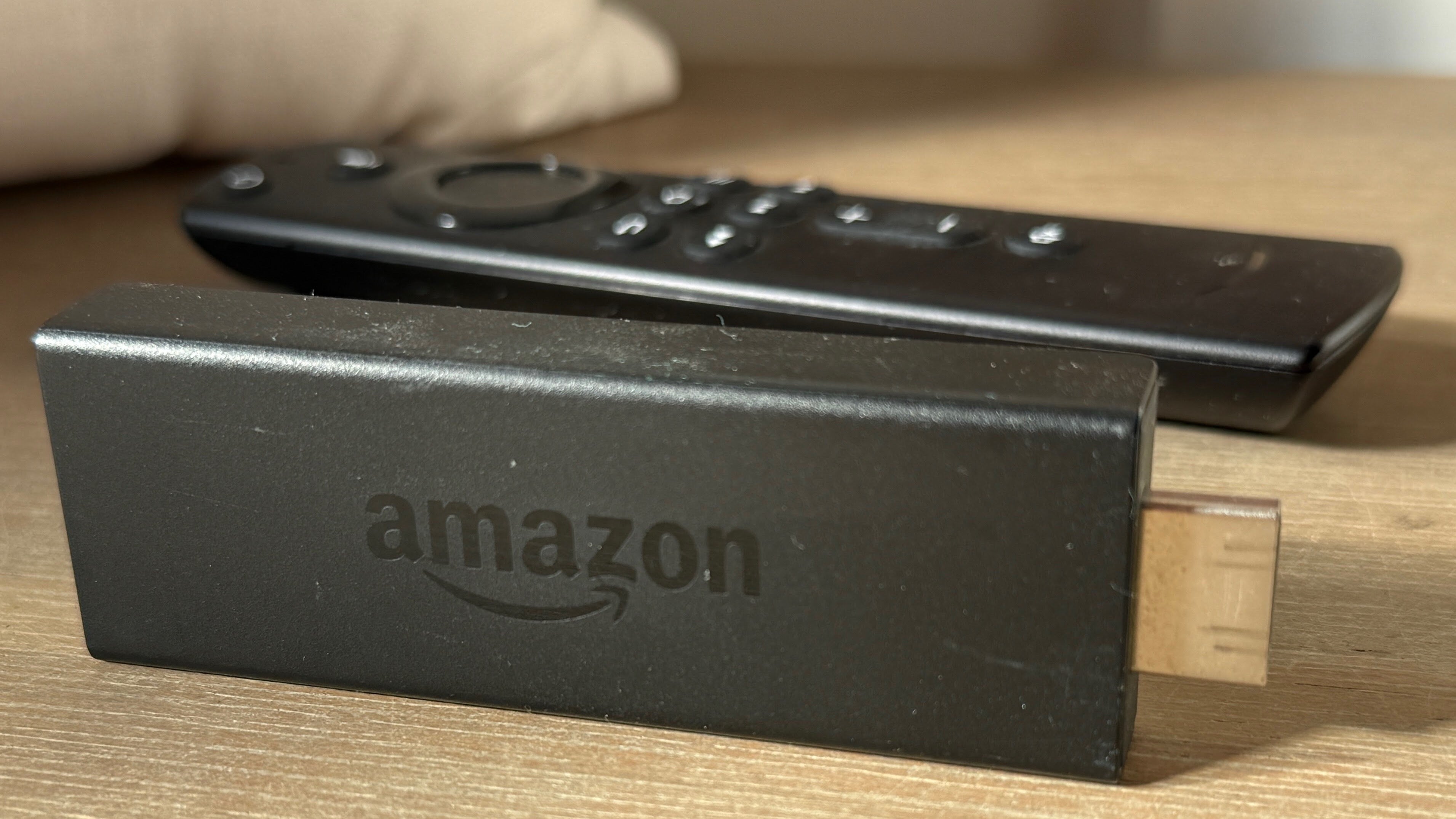
Congratulations on the purchase of your first Amazon Fire TV device! Amazon makes one of the most-used TV operating systems in the United States, and with little wonder; Fire TV streaming players are easy to connect, and once you’ve got it set up, you can download all the top streaming apps in the United States and start watching your favorite subscriptions.
But if you’re a first-time Fire TV owner, you may not know the best ways to optimize your device out of the box. We’ll let you know the best steps to take with your Fire TV player after pulling it out of the box, including some tips you might not find easily on your own!
What you should do with your new Fire TV player first
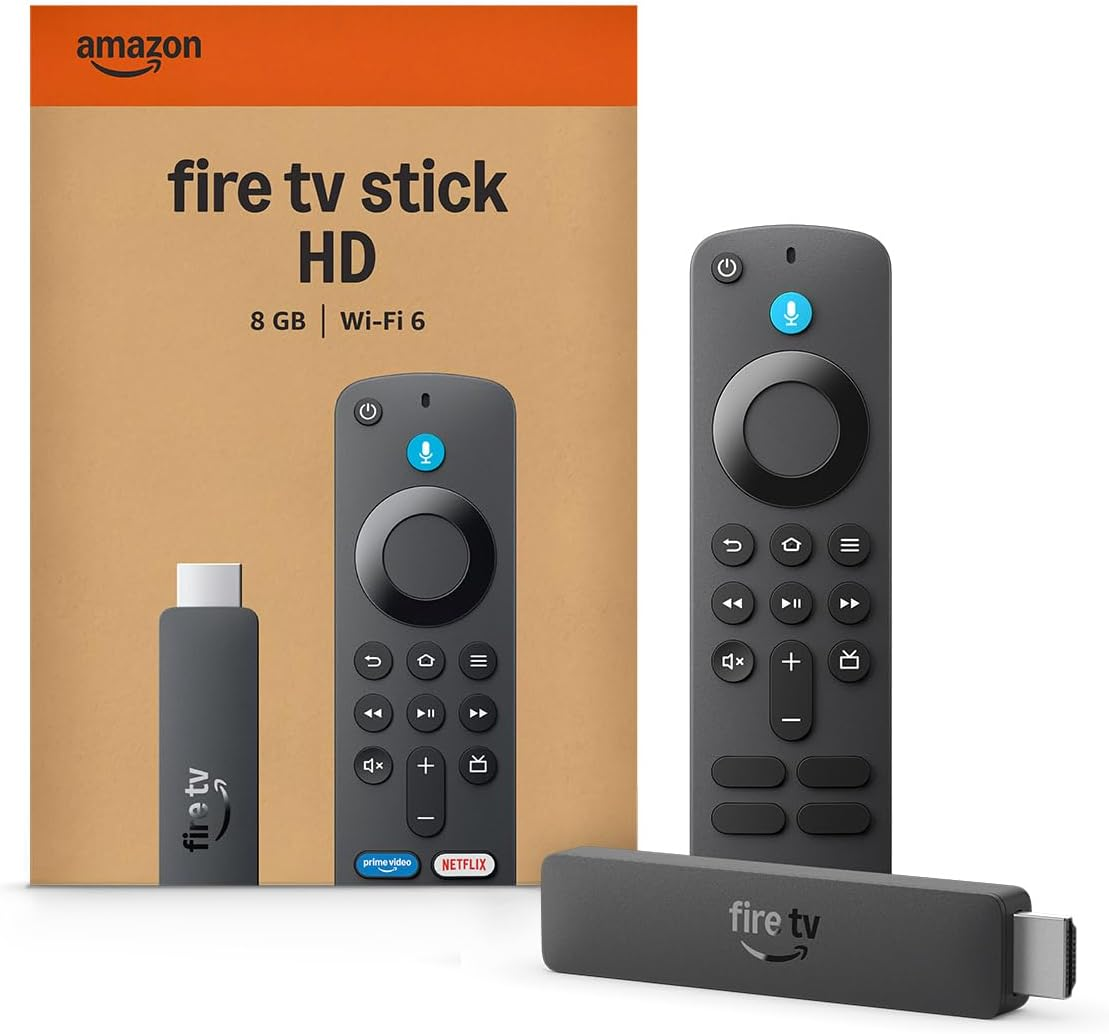
Fire TV streaming players
From $40
Link your Amazon account
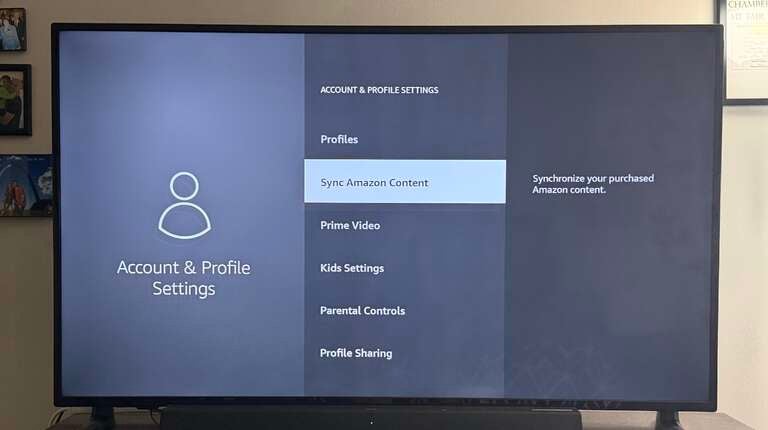
Once you’ve physically connected your Fire TV player to your TV and have chosen the Wi-Fi network to connect to, you will have to link your new streaming device to your existing Amazon account. Follow on-screen prompts to do this; if you don’t have an Amazon account yet, you will be asked to create one.
The benefits of linking your Fire TV device to your Amazon account will become apparent as soon as you head to the Fire TV home screen. You’ll be able to navigate to saved TV shows and movies from your Prime Video account, plus access other Amazon services like Amazon Music quickly.
Familiarize yourself with Alexa+
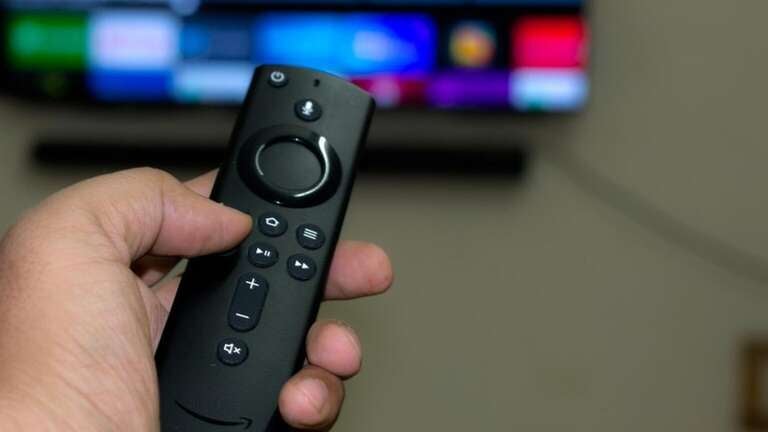
All modern Fire TV devices come with a voice remote, allowing owners to use Amazon’s Alexa+ virtual assistant. Pressing the small blue microphone button at the top of your Fire TV remote will allow you to speak to Alexa, asking it to open your favorite streaming app or find a TV show or movie by title.
All new Fire TV devices now allow users to enjoy the upgraded Alexa+ home assistant. It allows users to speak natural phrases and inquiries to find content, view Amazon Photos, manage smart home devices, or simply begin exploring a new topic with just a question or comment.
Download your favorite streaming apps
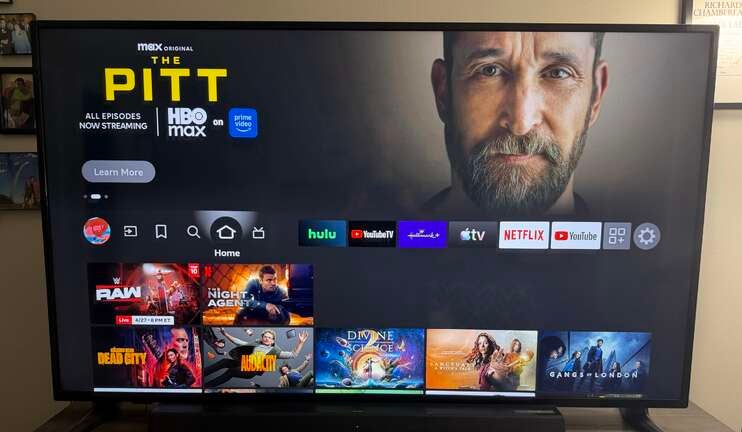
Now that you’ve linked your Fire TV to your Amazon account and learned how to use Alexa, it’s time to download your favorite streaming apps. All the major streaming services in the United States make native apps for Fire TV devices, including Apple TV, Disney+, ESPN, HBO Max, Hulu, Netflix, Paramount+, and Peacock. Live TV streamers like DIRECTV, Fubo, Sling TV, and YouTube TV also make apps for Fire TV.
To download new Fire TV apps:
- Navigate to the Find icon in the home icon row.
- Click App Store — on new Fire TV devices, it’s located in the left-hand menu.
- Go to App Library to browse, or click Search to find an app by name.
- Click the app badge you want to add.
- Click Get to download the app.
Once you have the app you want, you’ll have to log in using your credentials. You can type in your username and password with your Fire TV remote, or use alternate methods made available by the streamer in question, such as a QR code that links to the streamer’s website.
Customize Your Apps and Channels row
Now that your favorite streaming apps are downloaded, it’s time to order them to your liking in the Apps and Channels row. This is found on your home screen, right at the top, so you can start watching your favorite apps as quickly as possible after turning your Fire TV device on.
To customize the apps that appear in Your Apps and Channels, and the order they appear in, scroll to the end of the row, past the last app badge in the rail. then:
- Scroll down to Your Apps and Channels.
- Hover the cursor over the app you want to move.
- Long-press the center button on the remote directional pad to reorder apps.
- Move apps around or replace them at your leisure.
Set your audio and visual preferences
You’re almost ready to start watching your top streaming apps on your Fire TV device, but you’ll want to set your player’s audio and visual settings first.
- Find Settings in the left-hand menu on new Fire TV devices. On older players, scroll all the way to the end of the app rail on the home screen to the gear-shaped Settings badge.
- Scroll down to Display and Sounds.
- Choose Picture, Sound, or Display Settings.
- Adjust to your liking.
If you choose Picture Settings, you’ll have to scroll down to Apps & Video to control the settings for watching streaming apps.
Extras
Download the Fire TV mobile app
Once you’ve got your Fire TV player set up, you might want to consider downloading the Fire TV mobile app for iOS or Android. It includes a virtual remote, which can be a necessity if you misplace your Fire TV remote for more than a few minutes.
The Fire TV mobile app also includes a keyboard so you can type in login credentials more easily, which is especially useful for logging into a streaming app for the first time on your Fire TV device. The app also allows for direct content launching; start a TV show or movie on your phone, then transfer playback to your Fire TV device without having to cast.
Scroll My List
Once your Amazon account is connected to your Fire TV player, you will be able to find your Prime Video watchlist, purchases, and rentals with just a few clicks of your Fire TV remote. This integration makes it much easier to add titles to your list on the Prime Video app or website, then start watching immediately on your Fire TV device. Simply scroll to the bookmark-shaped My Stuff icon in the home row at the top of the screen, or locate the icon in the left-hand menu on new Fire TV devices.
Connect smart home devices
The Fire TV streaming player allows owners to connect compatible smart home devices for greater integration. This includes Ring video doorbell cameras and other security cameras, thermostats, lights, Amazon Echo smart speakers, and more.
To access the Smart Home Dashboard on your Fire TV device, press the voice button and say “Show my smart home dashboard.” This will allow you to manage devices currently connected or add a new device.
Configure live TV
The Fire TV live guide allows viewers to see any live TV channels that are available thanks to a connected antenna, or channels available through their streaming subscriptions. Customers can see channels found from services like DIRECTV, Sling TV, and YouTube TV via the Fire TV live guide.
Start watching!
Now that your Fire TV device is fully optimized for your use, it’s time to start watching! Fire TV’s home screen is easy to navigate, allowing you to discover a new TV show or movie, or pick up where you left off with an old favorite quickly. Browse on-demand content or live TV, and control all your compatible smart home devices with your Fire TV streaming device!
Fire TV streaming players
From $40
Fire TV streaming players bring together your favorite apps, live TV, and Alexa voice controls in one convenient device. Available in HD and 4K models, Fire TV offers options to suit a variety of entertainment needs and budgets.