What to do first with your new Google TV device
What to do first with your new Google TV device
If you just purchased a new Google TV streaming player, we’ll let you know which steps to take when you first unbox it!

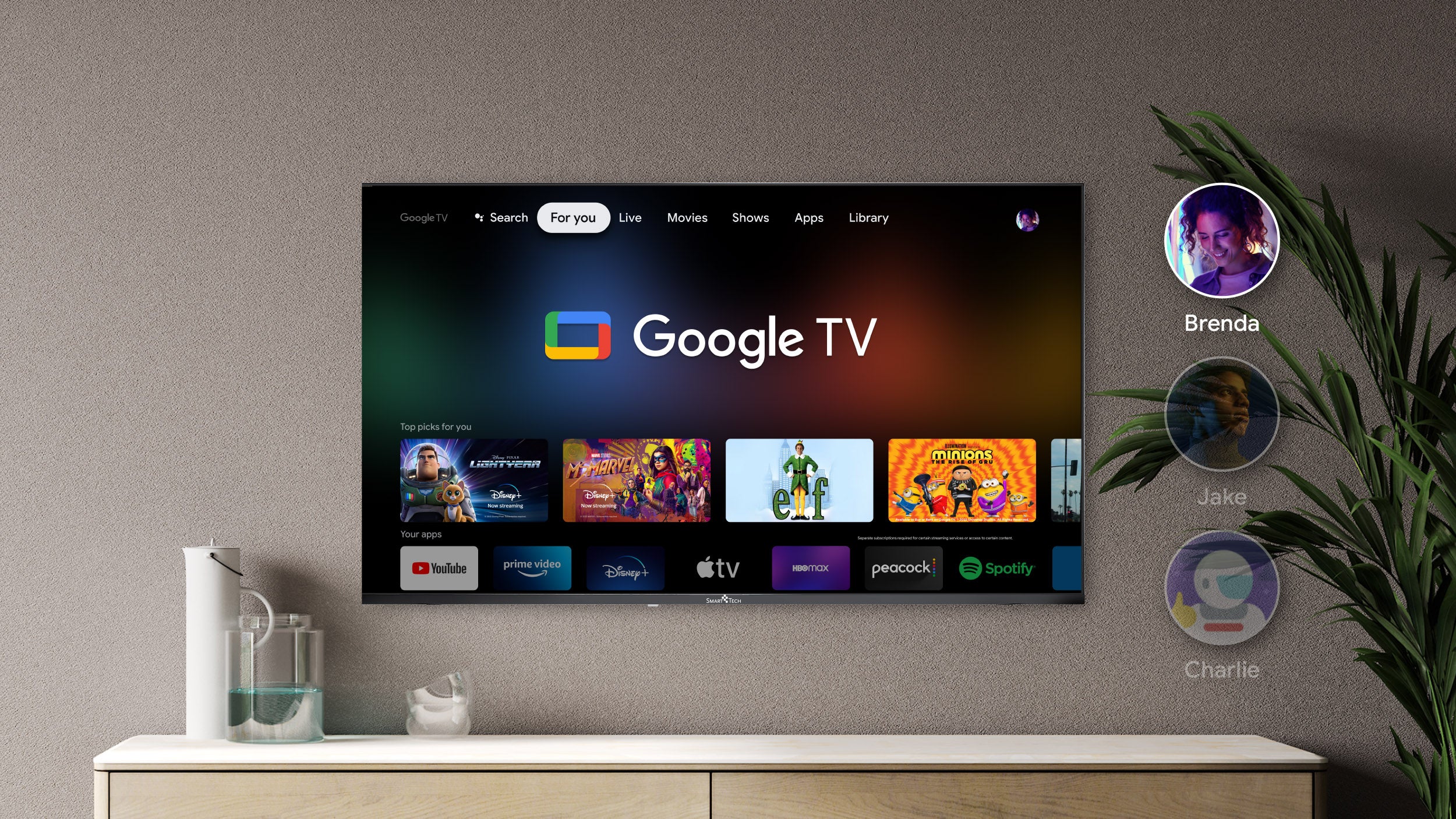
Getting FOMO over the latest streaming devices is very real, especially for us obsessive cord-cutters at The Streamable. So, congratulations on the purchase of your new Google TV device. We love the Google TV operating system, which makes it incredibly easy to watch all your favorite streaming apps, from both live TV and on-demand services.
If you’re new to Google TV and aren’t sure how to get started with your player, keep reading. Our guide will help you get rolling with your new Google TV-equipped streaming player and start watching TV and movies with ease!
What are the first five things to do with your new Google TV?

Link to your Google account
Once your Google TV is plugged into your TV’s HDMI port and its power source, you’ll want to make sure it’s linked to your Google account. This will allow much easier navigation between services with your Google TV, and will personalize your Google TV device by unlocking your YouTube account.
There are two ways to set up a new Google TV device and link to your Google account: use your device’s remote and follow on-screen prompts on your TV, or download the Google Home app and execute the start-up process on your phone. Once you’re done, your customized Google TV experience will be ready to roll.
Get to know the Google Assistant
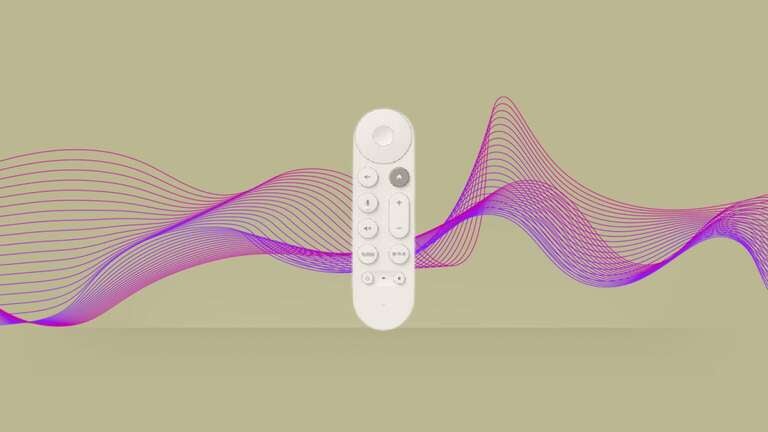
The Google TV voice remote comes with a dedicated button for the Google Assistant, which allows viewers to open apps, adjust volume and other settings, switch inputs, and execute all the other basic commands needed to start a viewing session on your Google TV device.
But the more you use your Google Assistant, the more of a unique experience you can unlock. Google Assistant is powered by AI to learn more about your TV and movie preferences, and it can even help you find answers about the upcoming forecast, get details on local businesses, and display flight details, along with information about TV shows, actors, or sports events.
You can even use your Google Assistant to control your smart home devices, manage tasks like your shopping list, and get reminders from your calendar. The more you talk to your Google TV’s Assistant, the more it can help you.
Download your top streaming apps
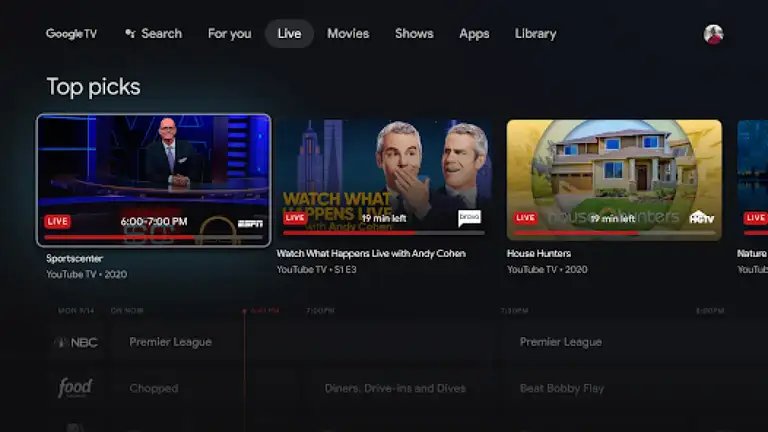
Now that you’re a pro at using Google Assistant to adjust settings and navigate around the Google TV interface, it’s time to download the apps you want to watch on your Google TV player. The good news if you like watching free TV is that Google TV has hundreds of free streaming channels ready to watch as soon as you pull it out of the box, with no set-up required; simply scroll over to the Live guide to start watching.
To download new apps on Google TV:
- Use the Search icon on the home screen, or scroll to the Apps tab.
- Browse for apps in categories, then select the app you want.
- Download the app you’re looking for.
Alternatively, you can use Google Assistant to download and install apps. All you need to do is:
- Press the Assistant button on your remote.
- Say the name of the app you want.
- Follow on-screen instructions to complete the installation.
Customize your home screen view
Google TV’s home screen offers a Your apps row that you can customize to include app badges for your favorite services. Just grab your Google TV remote, and follow these instructions:
- Scroll down to Your apps.
- Highlight the app you want to move.
- Hold your remote’s Select button until a menu appears.
- Select the options you want.
- Finish customizing your view.
Set your audio/visual preferences
Google TV won’t make it difficult to change your audio or visual settings once your device is up and running. Streaming players like Google TV devices offer a superior level of control over your picture and sound quality when you watch. If you want to adjust the settings on your Google TV, all you’ll have to do is:
- Navigate to Settings.
- Choose Display & Sound.
From here, you can adjust your Picture Mode between movies, sports, and more, toggle motion enhancement on or off, tinker with your Dolby Atmos/DTS and surround sound settings, and more. Advanced settings like control over bass/treble from your speakers will make it feel like your Google TV device is truly yours.
Extras
Check out free streaming channels
Google TV integrates more than 800 free ad-supported streaming TV (FAST) channels in its Live guide. The guide will help organize and present these channels in customizable lists, and includes channels from several different providers, including Plex, Pluto TV, Tubi, and more.
If you love watching TV for free, you owe it to yourself to take a deep dive into this guide and see which channels it offers that hold interest for you. The Google TV Live guide can help you save big money by offering so much free TV that you might otherwise have to subscribe to a streamer to watch.
Download the Google TV mobile app
Grabbing the Google TV mobile app will let you watch movies and TV shows on your phone, control your Google TV device — including media playback, turning the TV on and off, and using the Google Assistant for even faster navigation — and enter text to perform searches or enter login information more easily.
You can download the Google TV app on Android or iOS devices, and doing so will give you even greater control over your Google TV player. Cast, connect, and control your Google TV with the Google TV app on your phone and impress friends and family with how modern your new streaming player is!
Start watching!
Following the steps above will have your Google TV optimized for use every time you power it up to stream your favorite TV shows, movies, sporting events, or creator-driven apps. There’s nothing left to do but turn on your Google TV player, open your top app, and start watching.