First 5 things to do with your new Roku
First 5 things to do with your new Roku
Just got a new Roku device and not sure where to start? We’ve got you covered.


Getting a new device is always a fun experience. Whether you’re upgrading from a previous version or trying out a platform for the first time, there’s always the bliss of unboxing, checking out the shiny new hardware, and setting things up just how you like them. A new Roku device is a breeze to set up, whether you’ve had one before or are a new user. With just a few simple steps, you’ll be up and running with access to hundreds of your favorite streaming apps in no time at all.
If you’re a bit wary about the setup process or unsure of what you need to do, don’t sweat it. I’ll dive into the most important first steps you need to take when setting up your new device, as well as a few extra tips and tricks to help you get the most from your new streaming setup. Let’s jump in!

First things to do with your new Roku
Set up and link your Roku account
If you’re just getting started with Roku devices, you’ll first need to sign up for an account, while returning users can use their existing Roku login on this new device.
Logging in is not only part of the process, but it also keeps all your Roku preferences, customizations, watchlists, and more in one place, along with cool features like syncing apps across multiple Roku devices and using the Roku app on your mobile device.
Configure WiFi
Another necessity — unless you’re using an older Roku device like the Roku Ultra or LT with an Ethernet connection — is configuring WiFi. The setup process is pretty simple — when prompted, you simply need to enter your WiFi details, run a quick test, and you’ll be connected and ready to move on.
Your device will automatically connect to the chosen network from now on, and you can easily change the device or password at any time if needed.
Add apps
Of course, no Roku setup would be complete without your favorite streaming apps. During setup, your new Roku device will ask whether you want to install some of the most popular apps, such as Netflix, Peacock, Paramount+, and more. You can choose to do that or not, while also having the ability to add other apps after the process is complete.
To do so, simply use the search menu on the home screen to find the app you’re looking for, and installation only takes a few clicks. There are thousands of apps to choose from, so anything you need should be available.
An additional benefit of linking your Roku account — as mentioned above — is that apps from other Roku devices will automatically install on your new one, so much of the heavy lifting may already be done for you if you’re a previous user or have other devices set up already.
Customize home screen
A small tweak that often goes overlooked is customizing the home screen. While many users just leave things as they are out of the box — maybe not even realizing customization is possible — there are plenty of quick settings that can give you a much cleaner, streamlined home screen experience.
A quick jump into the Home Screen menu under Settings, and you’ll have options for things like Recommendation Rows, Tile Size, Shortcuts, and even what menu items are displayed. I’m a fan of hiding the recommendations, featured content, and daily trivia, but this will be different for everyone.
I do love that Roku makes it easy to hide much of what you don’t care to see on the home screen.
Audio and video settings
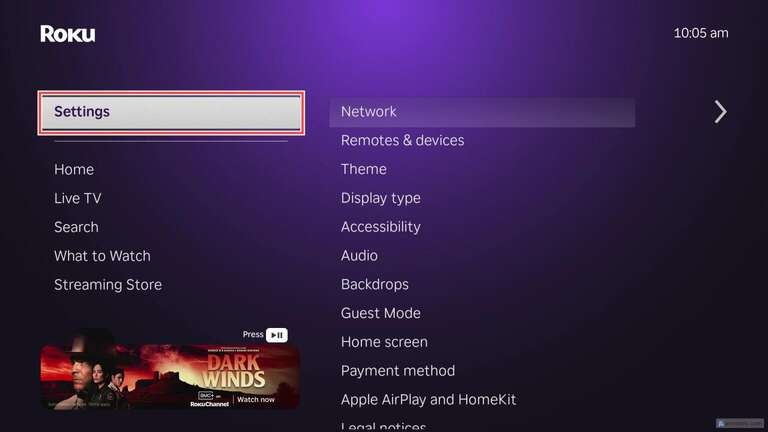
Another often overlooked tweak is the audio and video settings on your streaming device. While in most cases things will work fine if you don’t touch them, you can often make your streaming experience even better by simply moving a few things around. These settings will vary greatly depending on your TV and audio setup (e.g., if you have surround sound or are just using your TV’s speakers), so you should know what you have before making any changes.
For most users, leaving things on Auto will work just fine, but you can specify Dolby or DTS audio, the digital output format, and even the menu volume.
On the video side, your Roku is great at recognizing your display type and recommending the proper settings, but you can also manually adjust them as needed, depending on your setup.
Extras
While these five steps will get you up and running, there are obviously many more things you can do with your new Roku to make your streaming experience even better. Here are a few other quick hits to consider when setting up your new Roku device.
Download the Roku companion app
The Roku companion phone app isn’t a necessity to use your streaming device, but it’s definitely a quality-of-life bonus. Not only can you browse content right on your mobile device, but you can also use it as a remote for your Roku or activate private listening by connecting Bluetooth headphones.
Hide or rearrange apps
Another little one that makes things a bit easier is to hide the apps that you won’t use — like any of the default ones that are just in the way — as well as rearranging to better fit your use. For me, I like to keep the top three to six apps as my most used, then the less-used ones down towards the bottom.
Use shortcuts
Want a quick way to turn off your Roku from the homescreen or easily add apps without digging through menus? You can enable these shortcuts under Settings > Home Screen.
AirPlay and HomeKit
If you have an iPhone or iPad and want to stream to your Roku, you can easily do so with AirPlay. The best part? You don’t really need to do anything other than go to the menu (Settings > Apple AirPlay and HomeKit) and fire up your iOS device.
Stream away!
Once you have these steps sorted out, it’s off to the races, and you can stream your heart out. The initial steps take just a few minutes to sort out, and you’ll honestly never need to dive far into the settings once everything is how you like it.
While Roku doesn’t offer a ton of deep customization, it’s just enough to let you feel like you have some control without making it feel like your own. Happy streaming!