Remote 101: What you need to know about the Google TV remote
Remote 101: What you need to know about the Google TV remote
The Google TV remote makes it simple to browse your favorite streaming apps, and we’ll explain everything you need to know about it here!

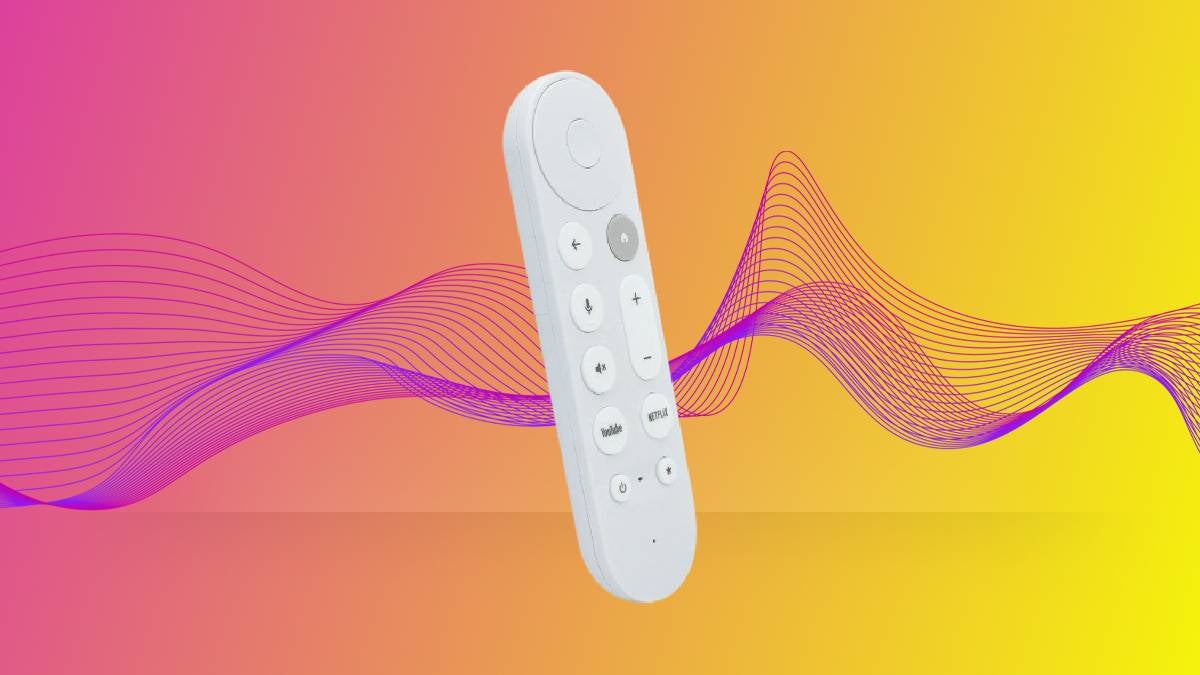
The Google TV Streamer is a powerful streaming device, with Ultra-High-Definition 4K and Dolby Vision, a fast processor, 32GB of storage, and access to more than 800 free streaming channels, among other features.
If you’ve just purchased a Google TV streamer or any other Google TV-equipped device and are just pulling it out of the box, make sure you browse our handy guide to the Google TV remote below. The remote is how you’ll do just about everything with your new streaming player, and we’ll explain all the details you need to know below.
Everything you need to know about the Google TV remote

What buttons does the Google TV remote have?
Google TV Streamer

Click image to expand.
The Google TV remote includes a directional pad (D-pad) at the top of the device, which will be your main navigation method while using the remote. At the center of the D-pad is the selector button. Long-pressing the selector button will pull up details and available actions.
Next are the Back and Home buttons; the back button will take you to the previous screen, whether using an app or still on the Google TV home screen. The Home button returns the user to the Google TV home screen.
The volume controls, mute button, and Assistant/Mic button are next. The volume controls allow you to turn the TV up or down, and the mute button cuts off all audio. The Assistant/Mic button allows the user to talk to Google; hold the button down to ask a question or give a command.
Next come app shortcut buttons that will open the app in question with just a click. The Google TV Streamer remote comes with buttons for Netflix and YouTube. Pressing and holding the YouTube button will allow viewers to create a shortcut to their favorite YouTube app, such as YouTube TV.
Finally, the Power button allows you to turn the device on or off, or put it to sleep. The star-shaped customizable button will create a shortcut for the user’s favorite TV app, change inputs, or open the home panel, depending on their preference.
Google Chromecast
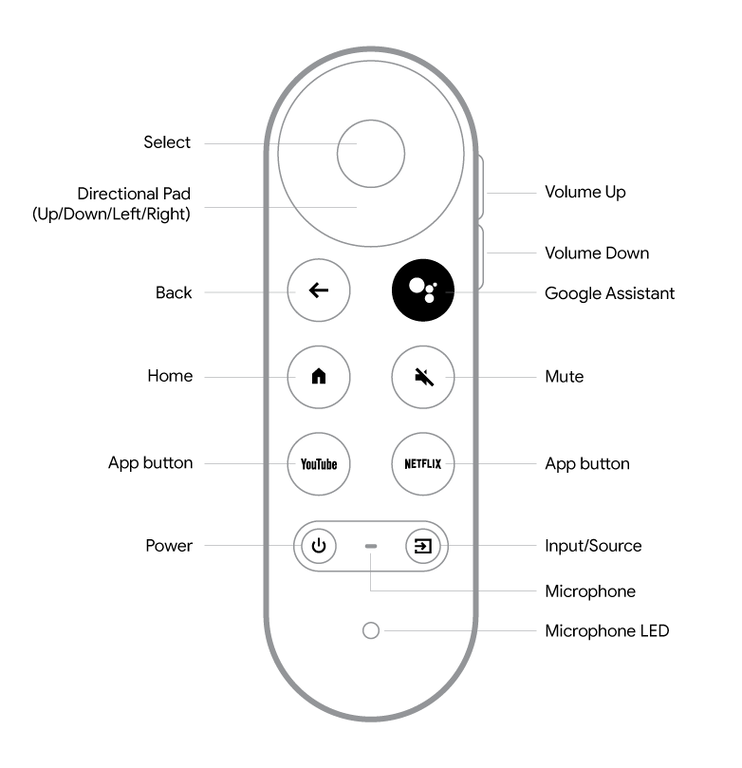
Click graphic to expand.
The Google Chromecast remote has many of the same buttons as the Google TV Streamer, but in slightly different places. The biggest key difference between the remotes is the location of the volume buttons; these are on the side of the Google Chromecast remote, not on its face.
The other main difference is that the Google Chromecast remote does not have a customizable button near the bottom. Instead, it has an input/source button in that location.
How is the Google TV remote powered?
The Google TV remote is powered by two AAA batteries, which means that, unfortunately, it is not a rechargeable device. However, environmentally minded customers can always purchase rechargeable batteries for their Google TV remote if they prefer.
How to pair your Google TV remote with your device
It’s easy to pair your Google TV remote with your streaming device. In fact, many devices come out of the box paired automatically, but if they aren’t, it takes just a few button clicks to accomplish.
To connect your remote:
- Plug in and power up your Google TV device.
- Press and hold the Back and Home buttons simultaneously.
- Listen for a noise/watch for a blinking light to confirm the remote is in Bluetooth pairing mode.
- Follow any on-screen instructions.
Alternatively, viewers can use a remote on the back of select Google TV devices to begin Bluetooth pairing mode, then follow the on-screen instructions to pair their remote.
Does the Google TV remote include TV controls?

Yes, you can control the TV’s volume and power with the Google TV remote if you set it up properly. You’ll want to do this while setting up your Google TV player for the first time. When prompted, click Set Up Remote, and follow on-screen instructions to link your TV controls to your Google TV remote.
What connection type does the Google TV remote use?
The Google TV remote uses a Bluetooth connection to stay paired to the Google TV streaming player.
Does the Google TV remote have voice control abilities?
Yes, both the Google Chromecast and the new Google TV Streamer offer voice control options. Both have dedicated assistant buttons that users can hold to search for TV shows and movies, add and open apps, or even find settings menus on their Google TV device.
In early 2026, Google announced that Google TV would incorporate more AI features from Gemini, including the ability to adjust complex settings, use conversational prompts to find new content, and more via a voice assistant.
Can you use your phone as a remote with Google TV?
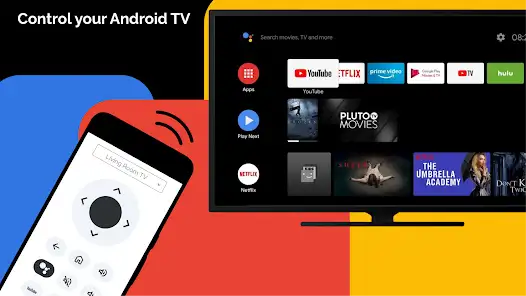
Yes, though you’ll need to download the Google Home app on your mobile device. Once you’ve done this:
- Turn on your TV and Google TV device.
- Open the Google Home app on your mobile device.
- Tap the device you want to control with your phone.
This allows you to type on your TV with your phone’s keyboard, navigate your TV screen with phone swipes, control media playback, switch inputs, and watch TV without having a physical remote in your hand.
How to troubleshoot your Google TV remote
If you are having difficulty with your Google TV remote, try the following steps:
- Remove the buttons from the remote.
- Put them back in, but watch the LED light on the remote as you do so.
- If the light doesn’t flash twice, try removing just one battery and putting it back in.
- If it still doesn’t flash, replace both batteries, leave the remote for 5 minutes, and repeat the steps above.
If replacing your remote’s batteries hasn’t fixed the problem, you may have to reboot your streaming device, unpair your remote, and perform a factory reset. To do this with a Chromecast device:
- Unplug the Chromecast’s power cable, and leave it unplugged for one minute.
- Plug it back in.
- Set up your phone as a virtual remote, if you have not done so.
- On the TV screen, go to your account profile and then Settings > Remotes & Accessories.
- Click Voice remote, then select Forget.
- Remove both batteries from your Chromecast remote and wait five minutes.
- Reinsert both batteries while pressing and holding the Home button.
- Keep holding the button while the LED light turns on and stays solid.
- When the light starts pulsing, let the button go.
On the Google TV Streamer:
- Unplug the power cable from the device, and leave it unplugged for a minute.
- Plug it back in.
- Press the Mute and Select buttons at the same time.
- While both buttons are pressed, wait for the LED to blink white.
- A countdown sound will play after 10-12 seconds.
- Keep holding the buttons until the remote button turns white to complete the reset.
For more troubleshooting topics with your Google TV remote, click here.