What’s the Easiest Way to Cancel a YouTube TV Subscription?
What’s the Easiest Way to Cancel a YouTube TV Subscription?
YouTube TV is a popular live TV streaming service, but if you’re ready to cancel your account, this article will explain how.

YouTube TV is an immensely popular live TV streaming service. At one point in 2024, the service had over 8 million subscribers, and even though that number has fluctuated, there’s still a good chance that YouTube TV is the largest live TV streamer in terms of customers on the market. If you’re a YouTube TV customer who’s ready to cancel your account but aren’t quite sure how to do it, follow the easy guide I’ll lay out for you below!
How to Cancel a YouTube TV Subscription
1. Make Sure You’re Using the Right Device
YouTube TV specifies that in order to cancel your subscription, you should be using a web browser on a laptop or desktop computer. This isn’t to say that you can’t cancel your YouTube TV subscription on smart TV or via the mobile app; you can. However, the process will be a bit simpler if you just log in via the web on a computer.
2. Locate Your Google Account Icon
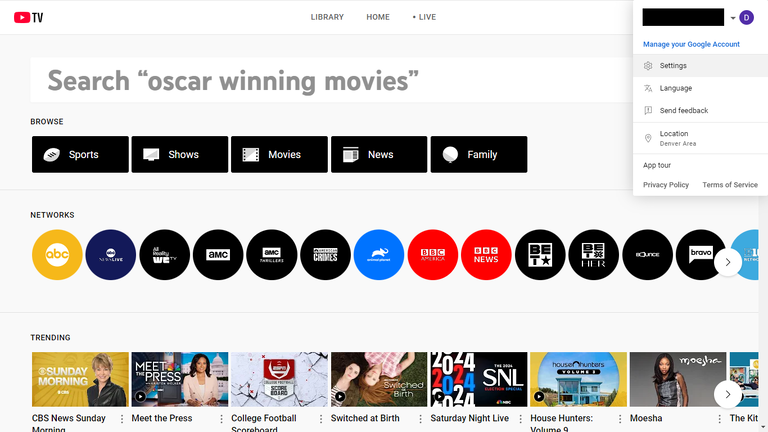
At the top righthand corner of the screen, you should see either the photo you’ve selected to represent your Google account or the default icon — the first letter of your name. Click here, and in the drop-down menu that appears below, click “Settings” next to the gear icon.
3. The Membership Page
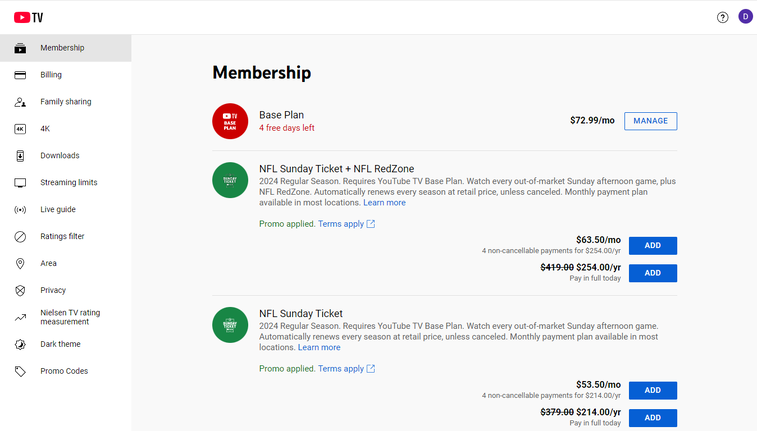
Clicking “Settings” will bring you to the YouTube TV membership page, where you can manage just about everything regarding your plan. This is the next step in canceling your subscription; simply click “Manage” next to your YouTube TV base plan to continue.
4. Pause or Cancel Your YouTube TV Subscription
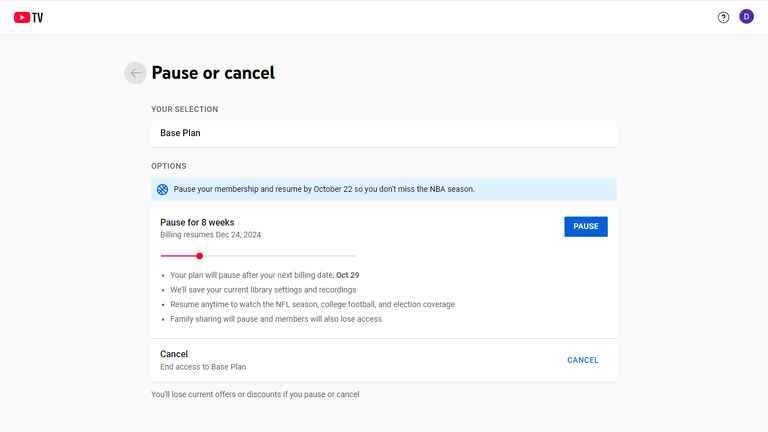
This is the final step in canceling your YouTube TV account. The service will first offer to let you pause your account, which you can do for as few as four weeks, or as many as 24 weeks. If you decide to pause, your recordings and library settings will be saved.
Keep scrolling to find the cancel option, and when you’re sure that you’d rather not simply pause your account, you can click “Cancel” to shut down your YouTube TV subscription once and for all. It’s an easy process, and YouTube TV won’t make you jump through too many hoops to get rid of your account.

YouTube TV
YouTube TV is a live TV streaming service with more than 60 channels for $82.99/month. This plan includes local channels 32 of the top 35 cable channels, and regional sports networks (RSNs) in select markets. The base plan includes more than 100 live channels, including major broadcast networks like ABC, CBS, FOX, and NBC, as well as popular cable channels such as ESPN, CNN, FX, USA Network, and TNT. Local channels are included in most markets, making YouTube TV a full replacement for traditional cable for many viewers.
5. Choose an Alternative (If Desired)
If you are looking to move on from YouTube TV because it doesn’t offer enough content beyond the traditional broadcast and cable channels, then I recommend taking a look at Hulu + Live TV. Not only does it carry nearly all of the major channels that YouTube TV does, but it also comes with the Disney Bundle at no extra cost. That means that in addition to all of the channels that you already enjoy on YouTube TV, you will also get the on-demand Hulu library, all of Disney+’s shows and movies, and ESPN+’s live and on-demand sports programming at no additional cost. Even though the Hulu + Live TV monthly price recently went up — now starting at $83 — it is still one of the best values in streaming.
If you’re leaving YouTube TV because you want more TV choices, check out DIRECTV STREAM. This service starts at $87 per month, but you’ll be able to choose a lot more extras. Want regional sports networks with your account? Simply upgrade to the CHOICE package. Looking for a way to stream top on-demand services for free? DIRECTV STREAM gives new customers three months of Max, STARZ, Paramount+ with SHOWTIME, and more for free!
If, on the other hand, you’re ditching YouTube TV over price concerns but still want access to some top cable channels, Sling TV is the way to go. It offers smaller channel packages of around 40 channels each, but still includes top choices like Bravo, Discovery, ESPN, FX, TNT, and more. Prices for this service start at just $40 per month, but the service almost always offers some sort of discounted rate for the first month.