How to check your Apple TV for software updates
How to check your Apple TV for software updates
If your Apple TV is running a little slow, or you’re missing popular features, we’ll explain how to check for software updates here!

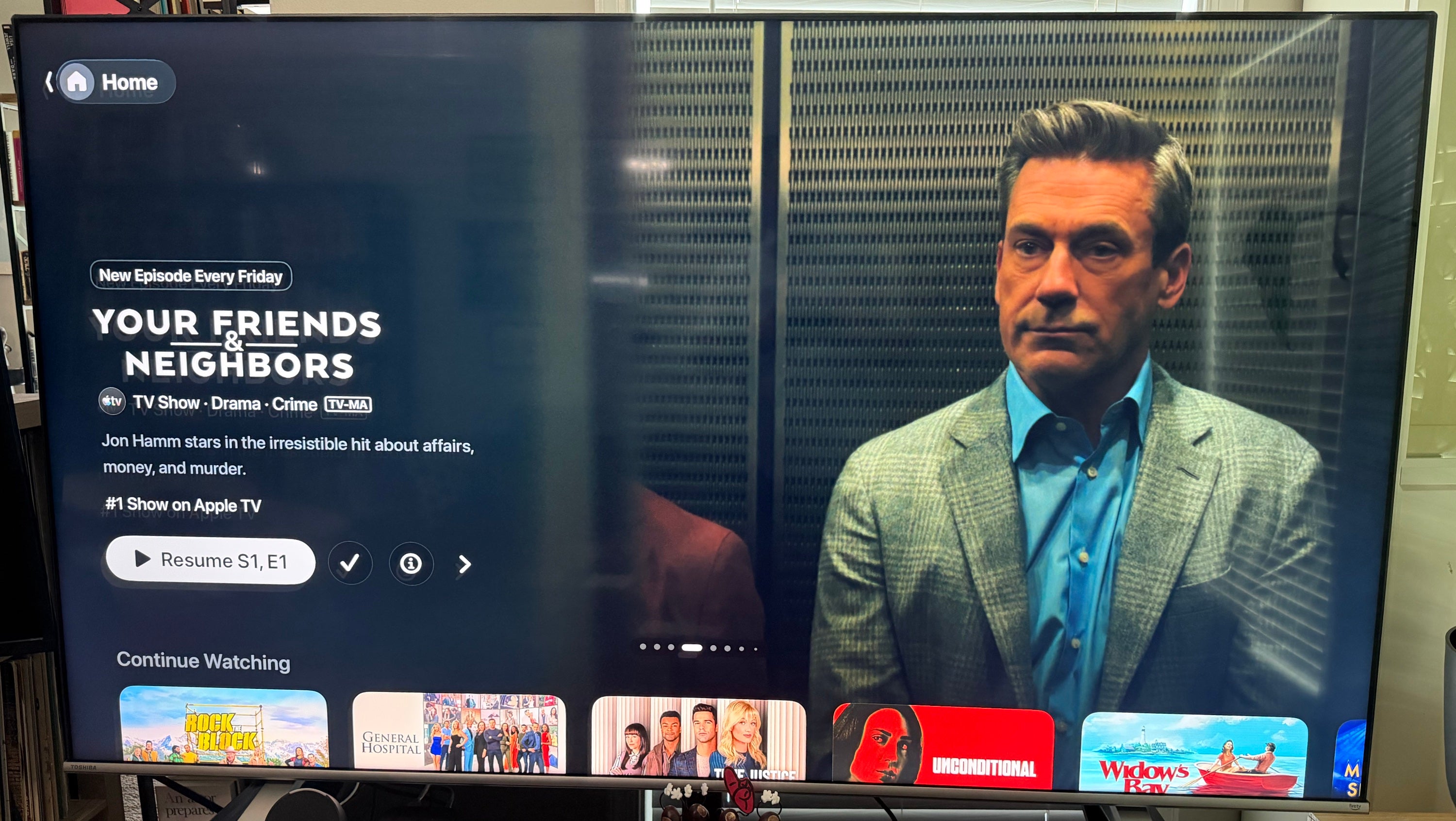
Your Apple TV streaming player doesn’t just wake up every morning and decide to display your favorite streaming apps. It does so because it’s programmed to, with complex software that makes it perform every function.
Apple calls this software tvOS, and it provides constant updates to ensure that fans have all of the most modern features possible. Having the most current software version on your Apple TV is crucial to getting the most out of the device, and running on old software can turn the user experience into a nightmare.
If you’re not sure which software version your Apple TV is using, or thinking it might be time for an update, read on. We’ll explain everything you need to know about checking and updating your Apple TV’s operating system software below.
What you need to know about checking and updating your Apple TV software

How to check your Apple TV’s software version
To double-check which tvOS version your Apple TV is currently running, simply:
- Power up your Apple TV and TV set.
- Open the Settings app.
- Scroll to General
- Tap About.
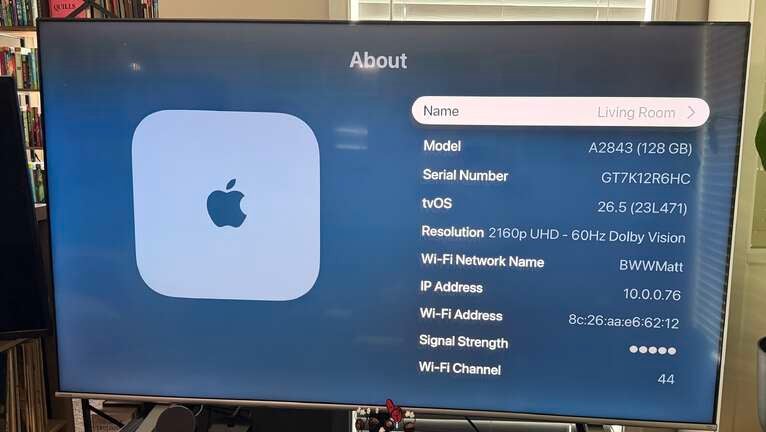
Here, you will see a wide range of key details about your Apple TV device, including its model, serial number, and the version of tvOS you are currently running.
How to update your Apple TV’s software
If you’re running an out-of-date version of tvOS and need to upgrade the software, it’s easy to access the Settings app and update your app.
Here’s all you have to do:
- Go to the Apple TV home screen.
- Open the Settings app.
- Scroll to System.
- Locate Software updates.
- Click Update Software, then follow on-screen prompts.
Make sure to keep your Apple TV connected to the TV set and power source while your device is downloading an update.
Can you disable software updates on Apple TV?
You can choose to toggle automatic software updates on or off with your Apple TV if you want to take more control over exactly when the device imports new software.
To toggle automatic software updates on your Apple TV:
- Navigate to the Settings app.
- Scroll to System.
- Tap Software Updates.
- Toggle Automatically Update.
Why it’s important to update your Apple TV software
Keeping your Apple TV’s software up to date is key for several reasons. First, Apple frequently offers new accessibility options, menu upgrades, and other features with tvOS updates, so neglecting your software version can prevent you from accessing those features.
Running your Apple TV on older software can also be a security risk. Software updates often include critical security updates, so using older versions can leave your device vulnerable to hackers who could acquire sensitive personal information — including payment details attached to your subscriptions.
App compatibility can also suffer if you don’t keep your Apple TV software up to date. Streamers like Disney+, Netflix, etc. run on their own software, and if you don’t have the newest version of tvOS, it may become incompatible with your subscriptions.
The good news is, it’s really easy to make sure you always have the most modern version of Apple TV software possible. Set your device to update automatically, or do it manually whenever a new version of tvOS is released by Apple.