How to pair your AirPods to an Apple TV in just a few steps
How to pair your AirPods to an Apple TV in just a few steps
Whether you want to avoid waking a sleeping baby, or want to experience the best in immersive spacial audio, this is a great option.


A top-tier 5.1 surround sound system is a great way to enhance your home entertainment system with audio the way it was meant to be heard. However, if you have a sleeping baby, studying kids, or a working spouse, that level of audio awesomeness can be a problem. So, if you own both an Apple TV and a pair of AirPods, you are in luck. Thanks to the synergy between Apple products, there is an easy way to enjoy your favorite shows and movies without disturbing anyone else. Whether you are waiting for the latest episode of your favorite show to drop at midnight while the rest of the house sleeps or you want to experience the immersive spatial audio of a blockbuster film, connecting your AirPods to your Apple TV is the perfect solution, and it is an incredibly simple process.
Apple’s ecosystem makes it easy for all of its devices to work together, and pairing AirPods with an Apple TV is no exception. With just a few quick steps, you can enjoy high-quality wireless audio right from your couch. Here’s how to get started.
How to connect your AirPods to Apple TV
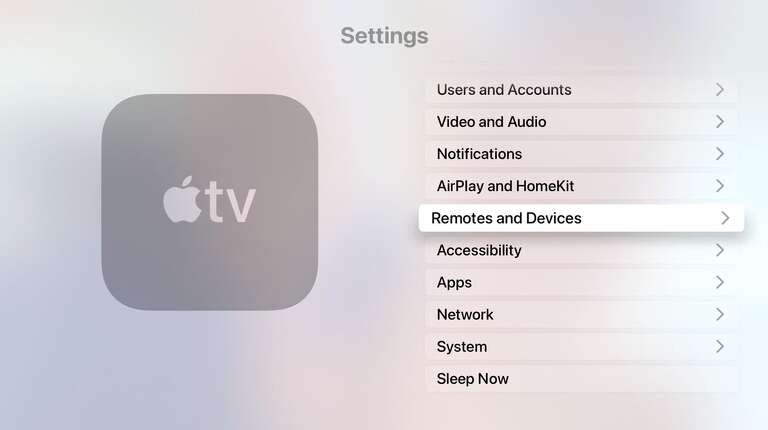
- Start by navigating to the Settings app on your Apple TV’s home screen.
- Select Remotes and Devices
![Apple TV Settings screen]()
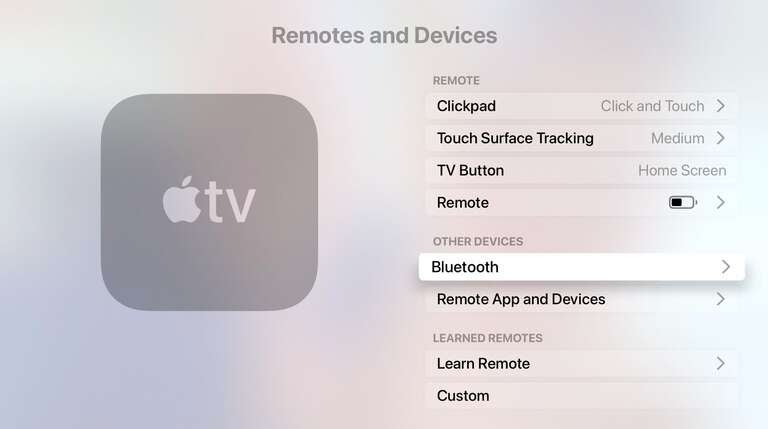
- Find and select Bluetooth. This is where all wireless accessories, including your AirPods, can be managed.
![Apple TV Remotes and Devices screen]()
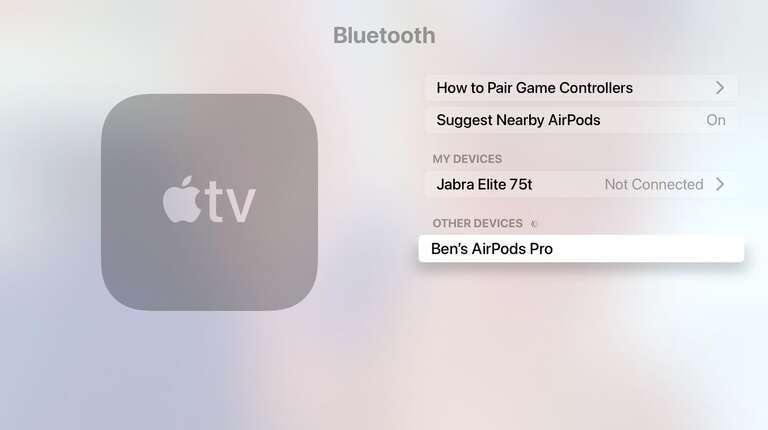
- Enable ‘Suggest Nearby AirPods’
![Apple TV Bluetooth screen]()
- Open your AirPods case
- Select your AirPods and then tap Connect
Enjoy your personalized audio experience
Once your AirPods are connected, you can control the volume using your Apple TV remote. If you have AirPods Pro or AirPods Max, you can also take advantage of spatial audio for an immersive surround sound experience.
That’s all it takes; no tangled wires, no complicated settings. Now you can enjoy crisp, private audio while binge-watching your favorite shows or catching up on the latest movie releases. Happy streaming!