How to add and remove apps from Apple TV 4K
How to add and remove apps from Apple TV 4K
Need to add a new app to your Apple TV device, or offload an unused one? We’ll give you all the help you need.

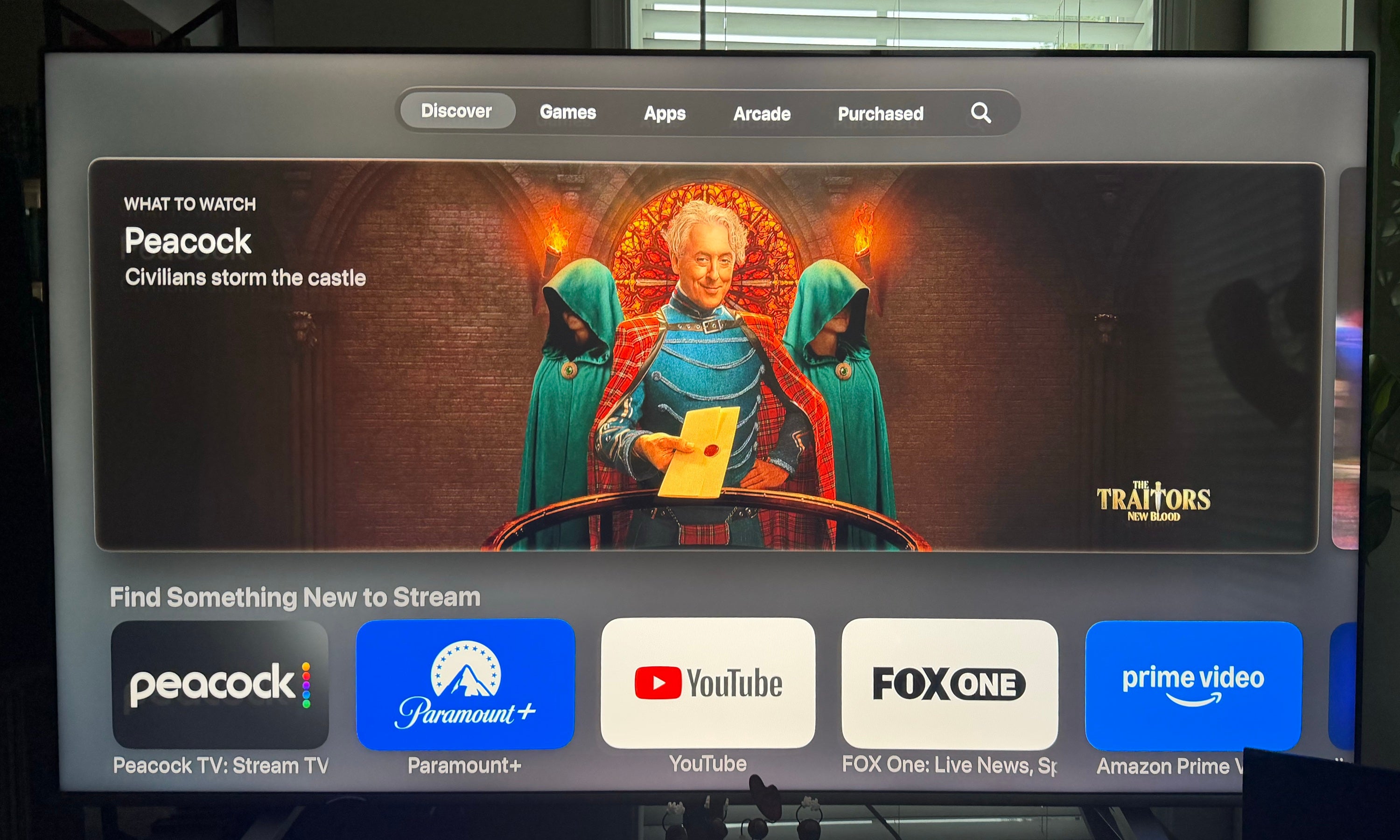
The Apple TV 4K streaming device is one of the most advanced on the market. It offers between 64GB and 128GB of storage (depending on the model), and with the Siri voice assistant, navigating between apps and finding new shows and movies to watch is as easy as pushing a button and asking.
But without having apps downloaded, an Apple TV 4K is little more than an expensive screensaver device. So, how do you find and download apps to watch on your Apple TV 4K? We’ll explain everything you need to know here.
Everything you need to know about adding and removing apps from Apple TV 4K devices
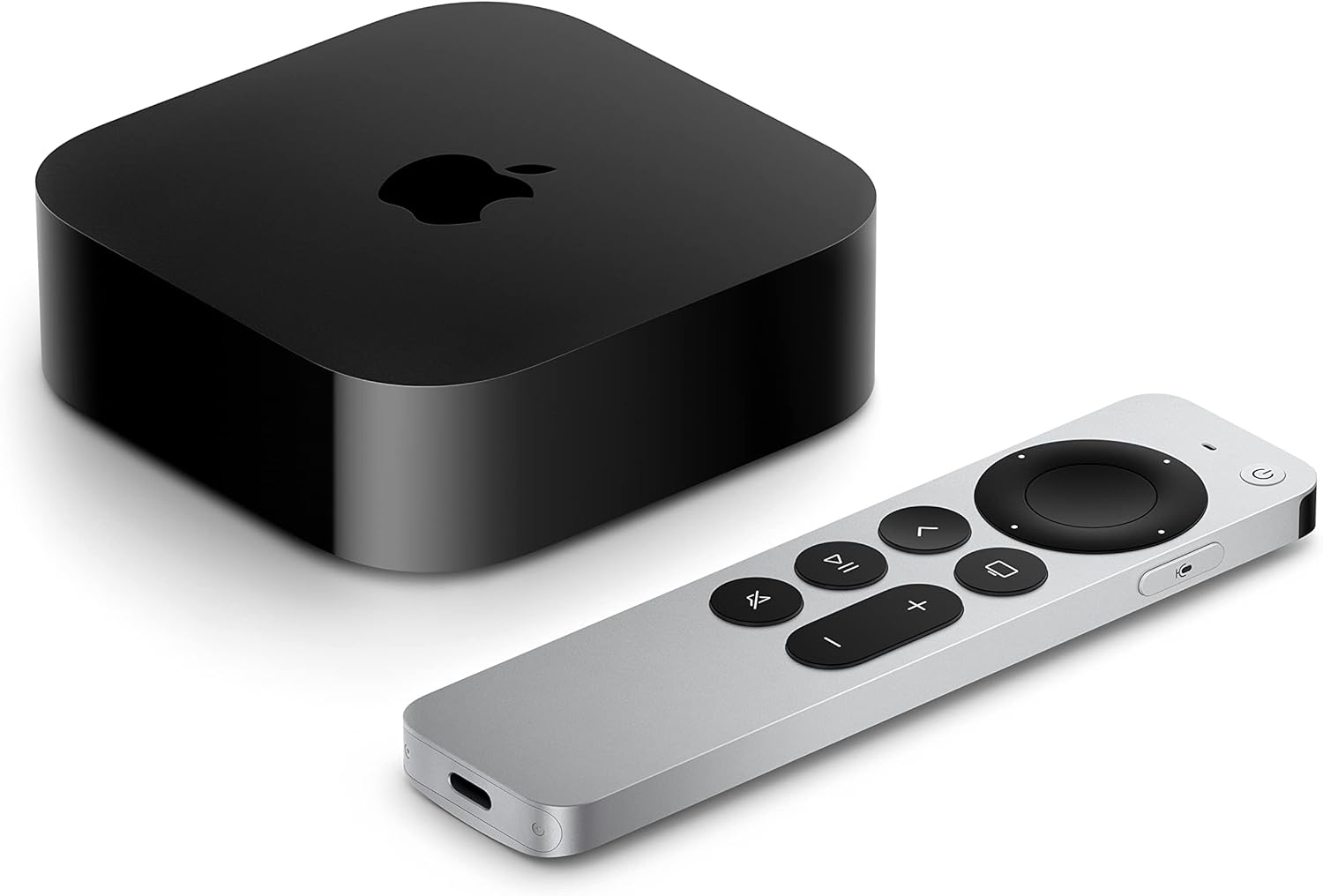
Apple TV 4K devices
Shop now
How to search for apps on Apple TV 4K
There are several ways to find a new app on your Apple TV 4K device. All of them are quite straightforward, allowing owners to download and start watching quickly.
- Go through the App Store: Find the App Store icon on the Apple TV home screen to browse through and search for apps.
- Search by name: Find the magnifying glass icon at the top of the Apple TV menu and type in the app name to pull it up fast.
- Use Siri: Searching for an app by name with the Siri voice assistant will call it up.
How to add an app on Apple TV 4K
Once you have located the app you want on your Apple TV 4K device, simply click Get on the app’s information screen to start downloading it on your device. If the app isn’t free, you will see a price or buy button with the cost; click this to begin signing up and downloading.
At the moment, Apple TV 4K devices do not offer remote download support, so you cannot download an app to the device using your phone. However, you can use your phone as an Apple TV remote to type in the name of the app you want more quickly.
How to check for app updates on Apple TV 4K
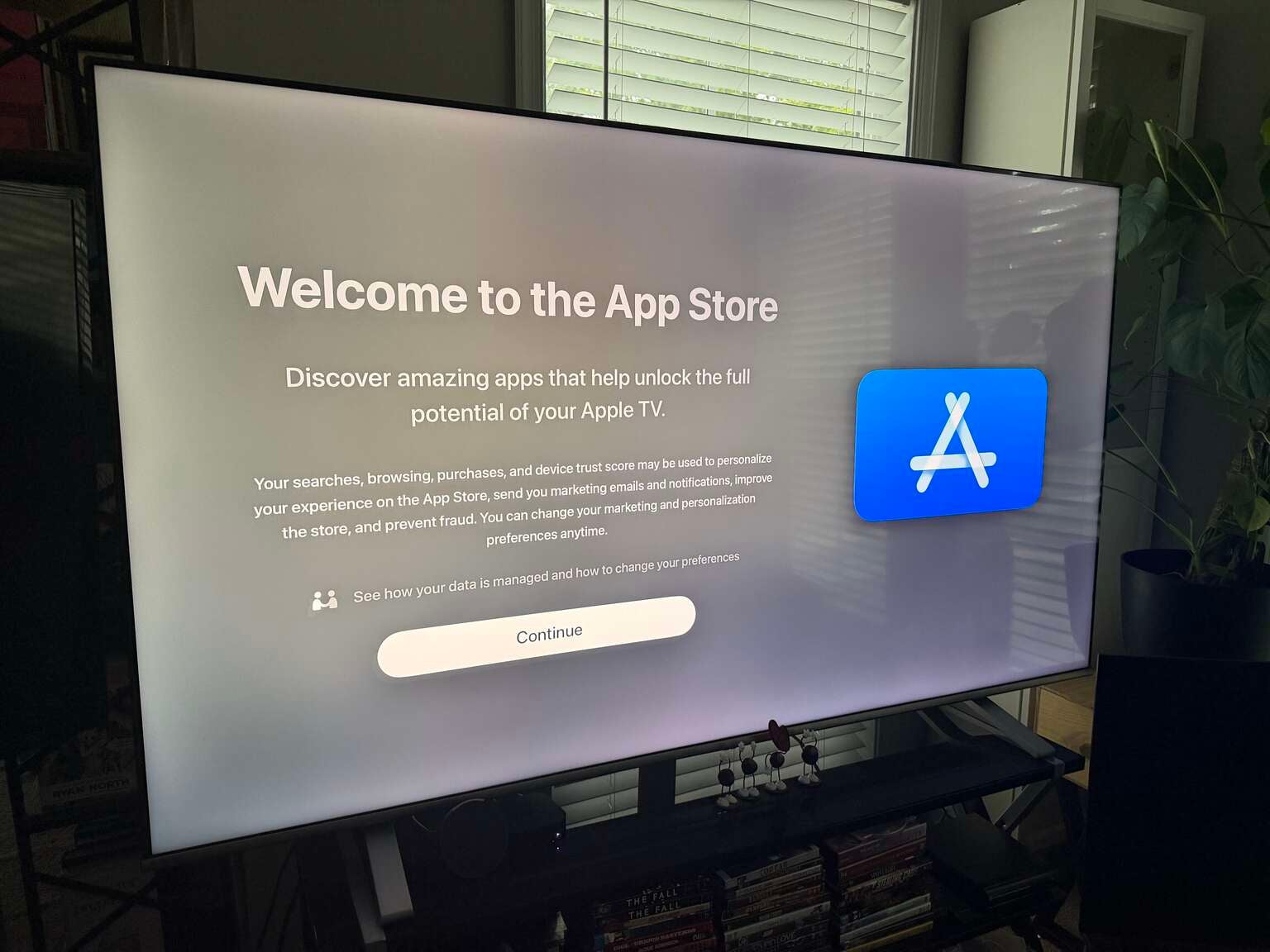
Click image to expand to full size.
To manually check an app for available updates:
- Open the App Store on your Apple TV device.
- Search for the app you want to check.
- Click it, and look for an Update button if one is available.
Apple TV 4K owners can also choose to allow automatic app updates as soon as they’re available. To do so, simply:
- Open the Settings app on the Apple TV 4K.
- Select Apps.
- Scroll to Automatically Update Apps, and toggle to your preference.
How to delete apps on Apple TV 4K
If you’re ready to remove an app from your Apple TV 4K device, there are a couple of simple ways to get it done. First:
- Open the Apple TV home screen, then find the app you want to delete.
- Press and hold the clickpad on the Siri Remote until the app badge starts to wiggle.
- Press the play/pause button to open the options menu.
- Choose Delete app.
Alternatively, you can delete apps from the Settings app on your Apple TV device.
- Open the Settings app.
- Go to General, then Usage or Storage.
- Choose the delete icon next to the app you want removed.
Can you clear app caches on Apple TV 4K?
Unfortunately, there is no way to clear the app cache on Apple TV devices because there is no dedicated Clear Cache button in the tvOS interface. If you want to clear the cache of a given app on your device, delete the app in question, then reinstall it using the steps above.
Apple TV 4K devices
Shop now
The Apple TV 4K streaming player is a highly advanced device that allows owners to watch top streaming apps, navigate using the Siri voice remote, enjoy high-quality video and audio, and integrate seamlessly with other Apple devices. Preorder the 4th Generation Apple TV 4K now; the device becomes available starting Nov. 13.