How to install and remove apps from Google TV
How to install and remove apps from Google TV
What you need to know about adding and removing apps from your Google TV device.

Even the newest cord-cutters probably know that devices like the Google TV Streamer 4K and others that use the Google TV operating system can be used to watch top streaming services like Netflix. But those unfamiliar with the world of streaming may not be as familiar with how these platforms deliver content.
Streaming devices use programs called applications — usually shortened to “apps” — to allow viewers to watch streaming services. But how do you add an app to a Google TV device, or remove apps to make room for new ones? Use our beginner’s guide to find out what you need to know below.
What you need to know about adding and deleting apps from your Google TV device
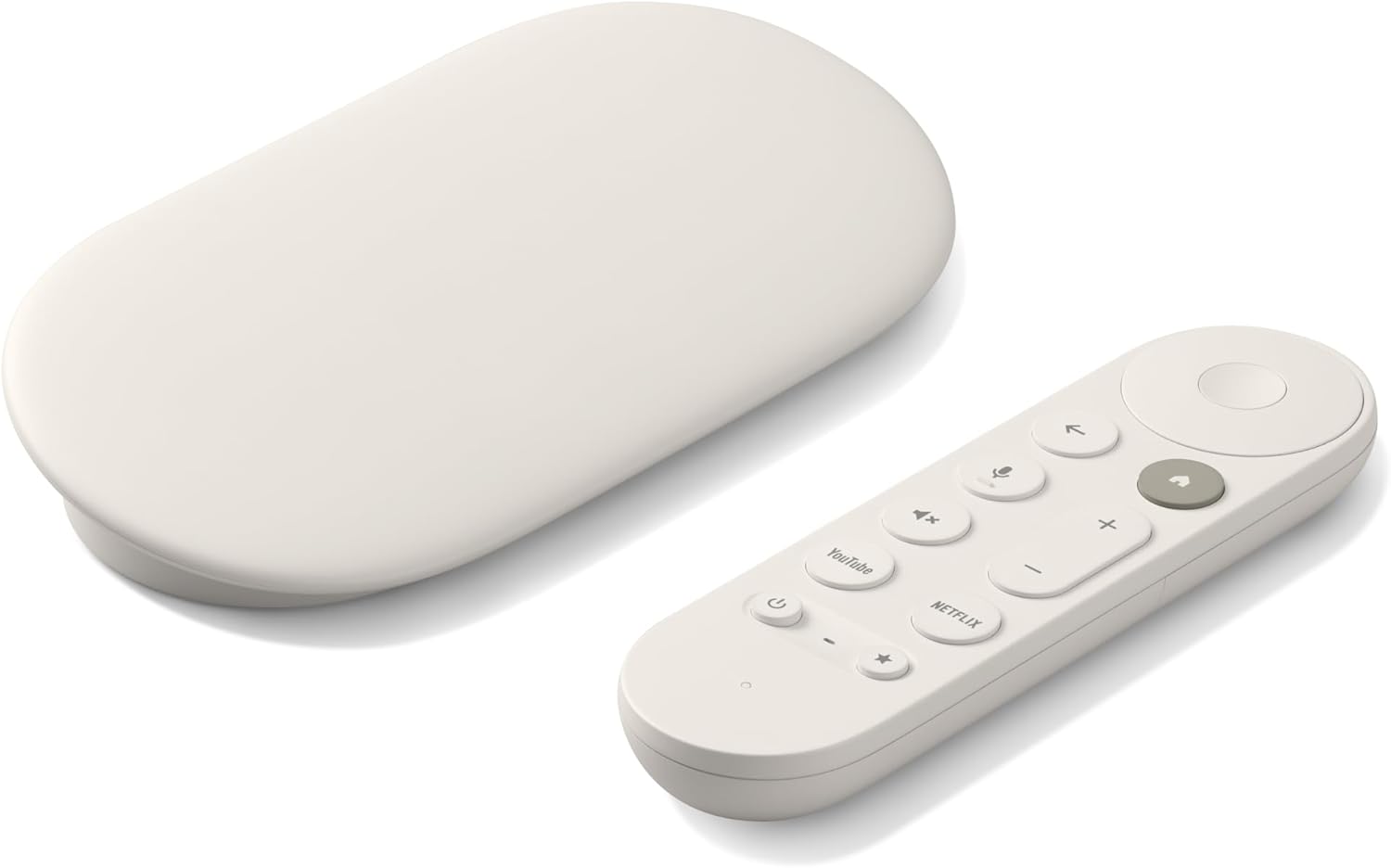
Google TV Streamer 4K
Normally $150
How to search for apps on Google TV
There are several ways to look up new apps for your Google TV device. The simplest is to hold down the Google Assistant button on the device’s remote and speak the app name into the remote itself; this will call up the app for quick downloading.
Alternatively, viewers can scroll to the top of the Google TV home screen to the Apps tab and click. From here, viewers will see recommended apps that they can download to their device, or scroll to the Search for apps section to type in a specific app name.
Pro tip: if you have the Google Home or Google TV app on your Android mobile device, you can use that phone as a remote to make typing in search terms easier.
How to add an app on Google TV
Once you’ve looked up the app you want to download to your Google device using the instructions listed above, click the app badge with your remote to be taken to its details page. Then, click the Install button to begin downloading the app if it’s free. Many apps will require an extra subscription fee to use, but this fee will vary from app to app and service to service.
How to check for app updates on Google TV
- Open the Google Play Store on the Google TV home screen, or by asking for it with Google Assistant.
- Click the profile icon in the top-right corner.
- Select Manage apps & games.
- Scroll to updates, then select Update all or choose the apps you want to update.
How to delete apps on Google TV
- On the Google TV home screen, scroll down to Your apps.
- Hover the cursor over the app you want to delete, then press and hold the OK button on the remote.
- From the pop-up menu that appears, select View details.
- Click Uninstall, then confirm.
Can you clear app caches with Google TV?
Yes, you can clear an app cache on your Google TV device if the app is running slowly or needs to be refreshed. To do so:
- Go to the gear-shaped Settings icon.
- Choose Apps, then See all apps.
- Scroll to the app you want to clear.
- Click it, then select Clear cache.
Alternatively, Google TV owners can clear all cached data on the device at once by going to Settings > System > Storage > Internal shared storage > Cached data, then clearing the cache.
Google TV Streamer 4K
Normally $150
The Google TV Streamer 4K is a high-quality streaming player. It uses the Google TV operating system and allows viewers to download top live and on-demand streaming apps, as well as hundreds of free streaming channels.