How to manage subscriptions through Roku
How to manage subscriptions through Roku
If you’ve signed up for additional streaming services through a Roku platform, we’ll show you how to manage those accounts here.

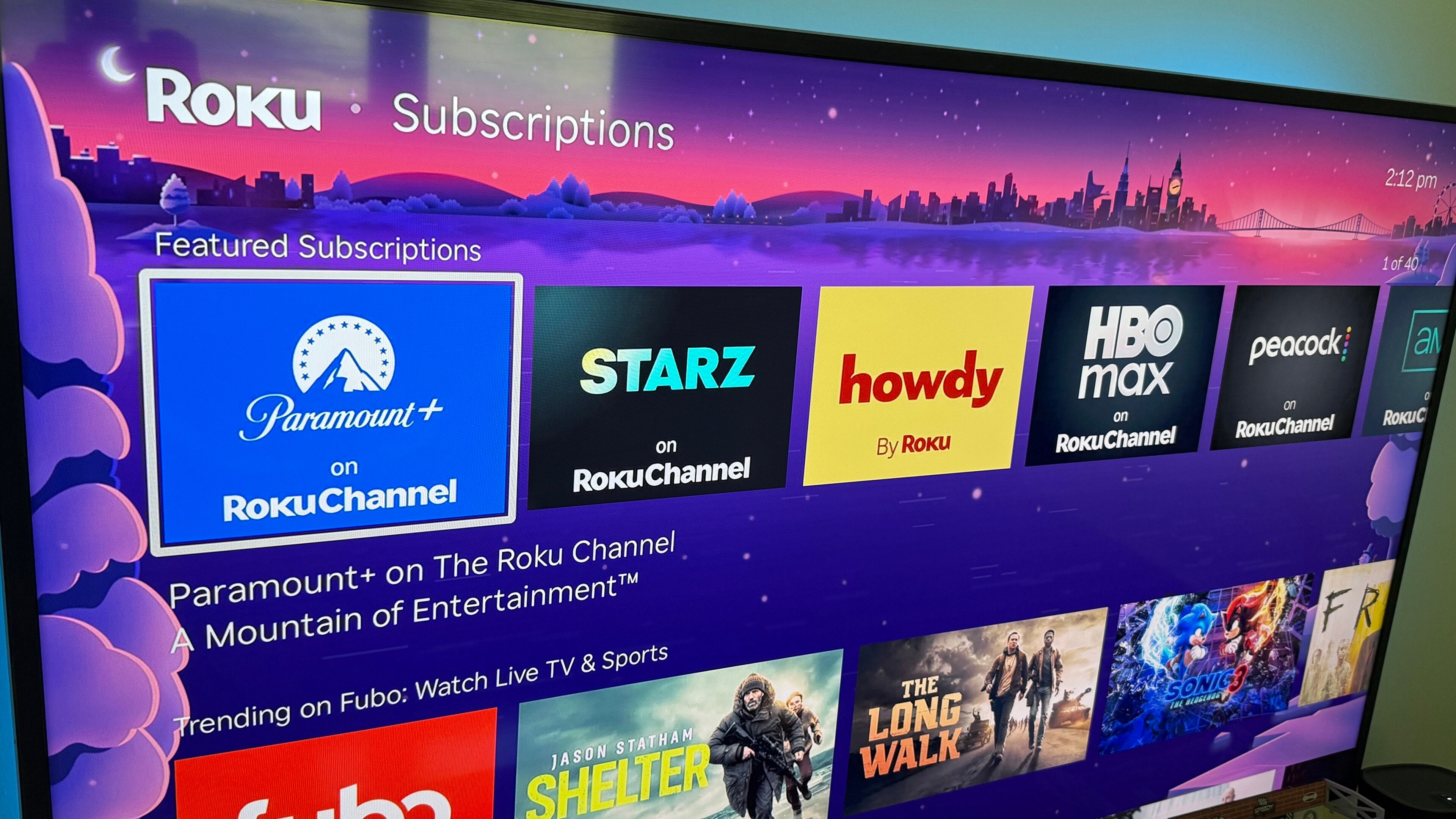
If you’ve got a Roku-made streaming player or smart TV, you already know that it’s much more than just a platform to watch your favorite apps. Roku also allows its customers to subscribe to new streaming services, keeping their bills all in one place and, in some cases, streaming content from these add-on services through the Roku app itself.
So, how do you manage subscriptions purchased through Roku? Which can you cancel directly through the Roku app or website? We’ll explain everything you need to know about managing subscriptions with Roku below.
What you need to know about managing subscriptions through Roku

Which subscriptions can you manage through Roku?
Roku allows customers to manage Premium Subscriptions through its website or on Roku smart TVs and streaming devices. Premium Subscriptions available on Roku include Fox One, Paramount+, STARZ, and others, and they allow viewers to watch content directly through The Roku Channel instead of forcing customers to download a separate app.
Roku Premium Subscriptions are the only type of subscription you can manage through Roku itself. Other streaming services you sign up for through Roku pathways will have to be cancelled or managed through their respective websites or apps.
How to manage or cancel Premium Subscriptions with Roku
On the web
You can manage or cancel Premium Subscriptions through the Roku website on a mobile or computer-based web browser.
- Click the link to go to my.roku.com/subscriptions.
- Scroll to Active subscriptions.
- Select the one you want to manage or cancel.
- Click Manage subscription.
- Turn off auto-renew if you want to cancel.
On a Roku smart TV or streaming player
- Press the home button on your Roku remote.
- Use the arrow buttons to find the service you want to cancel.
- Press Star on your remote.
- Click Manage subscription.
- Turn off auto-renew to cancel.
How to cancel other Roku subscriptions
If you have a subscription to a service like, Disney+, Hulu, or Sling TV, or other major streamers that are not part of the Roku Premium Subscriptions catalog, but are available as Subscriptions through Roku, you will have to cancel that service through its own website or app.
How to manage or cancel Roku Smart Home subscriptions
If you have a Roku Smart Home subscription, you can manage or cancel it most easily through the Roku website.
- Sign into your Roku account.
- Click Manage your subscriptions.
- Scroll to Active subscriptions.
- Click Roku Smart Home.
- Select Manage subscription.
- Uncheck all cameras and doorbells.
- Select Cancel subscription.
How to tell if your subscription is managed through Roku
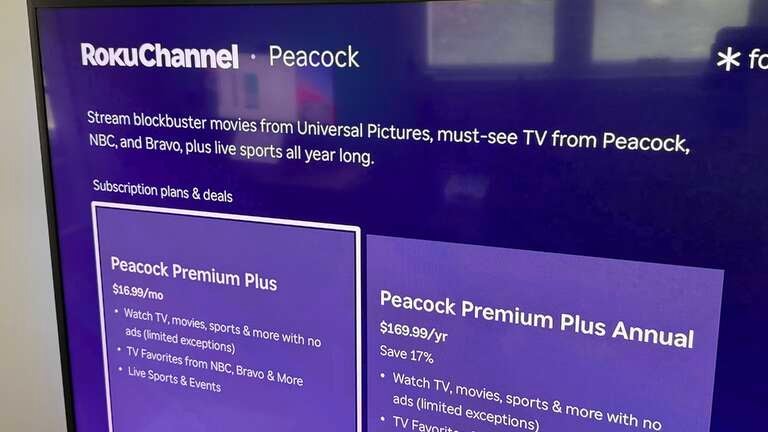
If you’re not sure whether the subscription you want to manage or cancel is billed through Roku, you can check your billing statement for any charges referencing “Roku,” “Roku for ___,” or “The Roku Channel.
You can also head to my.roku.com/subscriptions to see any subscriptions billed and managed through Roku. If the service you’re looking for isn’t there, you’ll want to head to its website or app to cancel.

Roku Channel
The Roku Channel is a free, ad-supported streaming service that offers a broad mix of movies, TV shows, live linear channels, and original programming. Available to all viewers — not just Roku device owners — the service features licensed content from major studios alongside Roku Originals, which include exclusive series, movies, and specials previously produced for Quibi, as well as new original projects developed specifically for the platform.