How to manage premium subscriptions with Google TV
How to manage premium subscriptions with Google TV
If you want to cut down on the headaches of using multiple apps to manage your subscriptions, we’ll explain how much you can do with Google TV here.

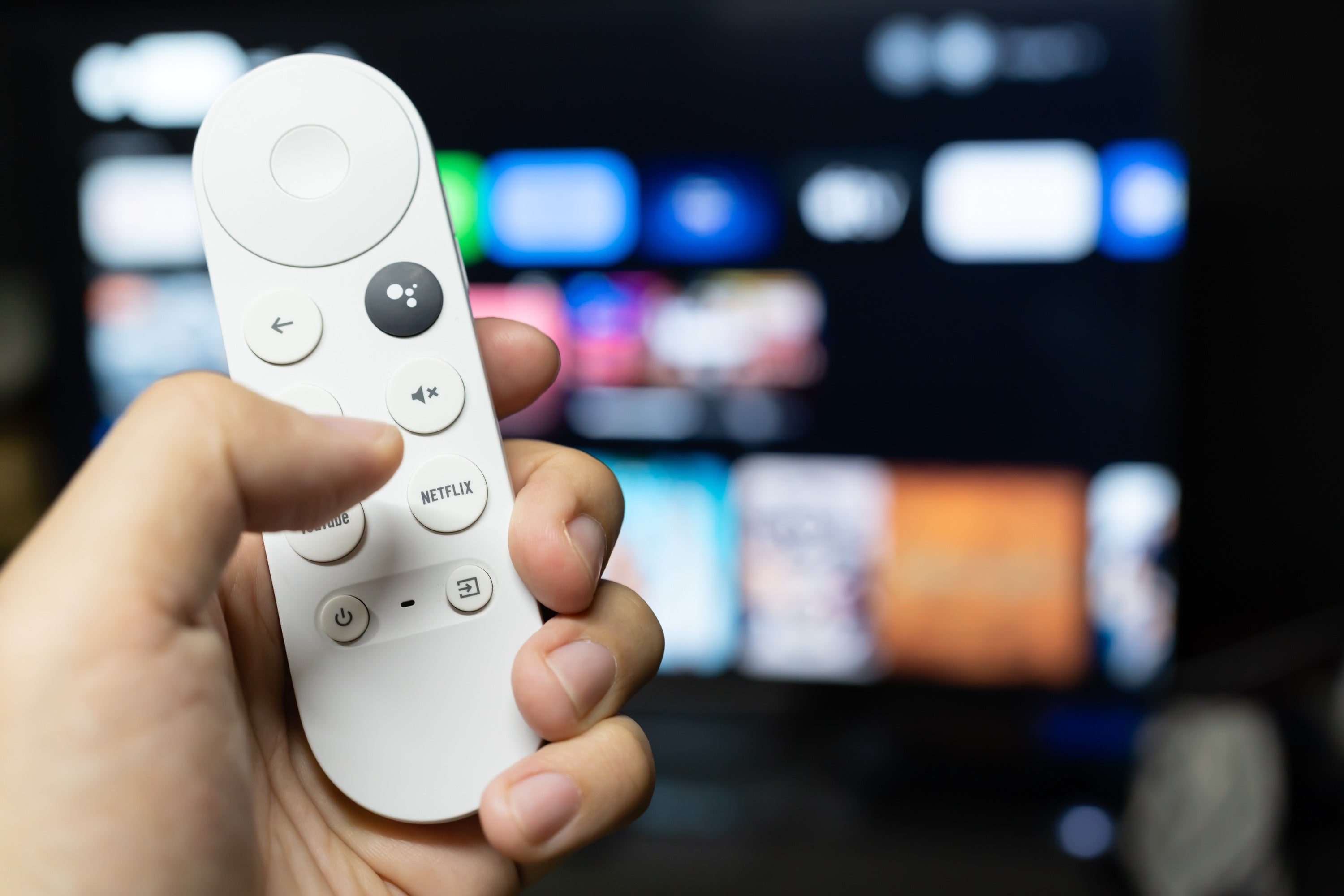
The Google TV operating system allows viewers to download video and music streaming apps, customize their home screen, and more, either directly to their smart TV or to a device like the Google TV Streamer 4K.
But viewers don’t just want to be able to watch all their favorite streamers on one device; they also want to be able to manage their subscriptions through a single portal, instead of having to jump between various apps to upgrade, downgrade, or cancel subscriptions. Does Google TV allow that? Find out everything you need to know below.
Everything you need to know about managing premium subscriptions with your Google TV device
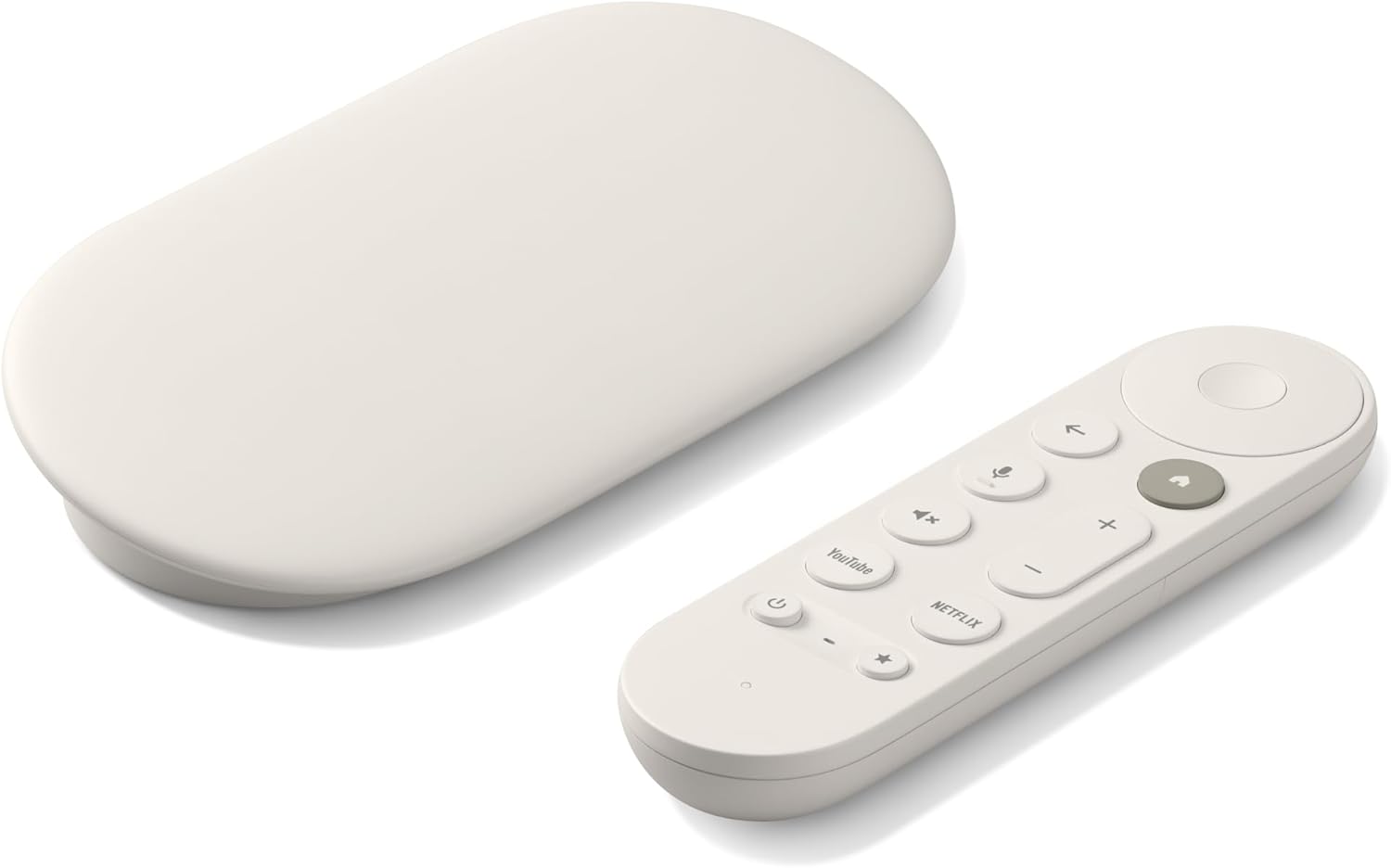
Google TV Streamer 4K
Normally $150
The Google TV Streamer 4K is a high-quality streaming player. It uses the Google TV operating system and allows viewers to download top live and on-demand streaming apps, as well as hundreds of free streaming channels.
How to sign up for subscriptions on Google TV devices
A Google TV device makes it quite easy to sign up for new premium subscriptions. You can search for new streaming subscriptions on a Google TV device either via voice assistant or by typing the name into the search bar with your remote, then look for a “Subscribe & Install” button. This will use the payment method attached to your Google account to sign up for a new account.
Viewers can also download the app they want to use, open it, and look for sign-up options. These will frequently launch a Google Play billing popup that guides you through the subscription process.
Can you manage subscriptions through Google TV devices?
Unfortunately, the Google TV operating system does not allow viewers to manage or cancel subscriptions made through the Google Play Store. Viewers can subscribe to new services with Google TV, but it’s a one-way street, meaning you’ll need a different device to manage those subscriptions.
How to manage streaming subscriptions made through Google
If you used Google Play to sign up for a new streaming subscription on your Google TV, you will be able to manage that subscription easily with a web browser or an Android phone or tablet.
Managing Google Play subscriptions with Android devices
- Open the Google Play Store app.
- Tap your profile icon
- Choose Payments & Subscriptions.
- Tap Subscriptions.
- Manage or cancel the subscription you want.
Managing Google Play subscriptions with a web browser
- Navigate to play.google.com/store/account/subscriptions.
- Log into the Google account tied to your TV.
- Locate your profile icon in the top-right corner of the screen.
- Choose Payments & Subscriptions.
- Click the Subscriptions tab.
- Manage the subscriptions you want to alter.
Why can’t you manage all subscriptions through Google TV?
Google has never given an official reason why it doesn’t allow viewers to cancel subscriptions through the Google TV operating system. There could be numerous factors at play, including preventing accidental cancellations, not wanting to force viewers to use a Google TV remote to try to cancel, etc.
The upshot of using a Google TV device in general is the ease with which it connects to your other Google devices. At the very least, that makes cancelling subscriptions signed up for through a Google TV device a simple process on a browser or Android device; since the accounts are already linked, you won’t have to go digging around too much to surface any subscriptions made through the Google Play Store.
Google TV Streamer 4K
Normally $150
The Google TV Streamer 4K is a high-quality streaming player. It uses the Google TV operating system and allows viewers to download top live and on-demand streaming apps, as well as hundreds of free streaming channels.