Here’s how to rearrange your Roku home screen with ease
Here’s how to rearrange your Roku home screen with ease
Want a cleaner Roku home screen? Follow these simple steps to move apps and create a personalized streaming experience in minutes.


Roku makes streaming easy, but over time, your home screen can become crowded as you download more apps and channels. Organizing them can transform your streaming experience, saving time and reducing frustration when you just want to relax and watch something. Whether you are a fan of binge-worthy series, live sports, or niche streaming services, moving apps on Roku is a quick way to customize your home screen.
How to move apps on Roku
-
Start on the Home Screen. Press the Home button on your Roku remote to display the main dashboard, which contains all your installed apps.
![]()
-
Highlight the App You Want to Move. Use the arrow buttons on your remote to navigate and highlight the app you want to rearrange.
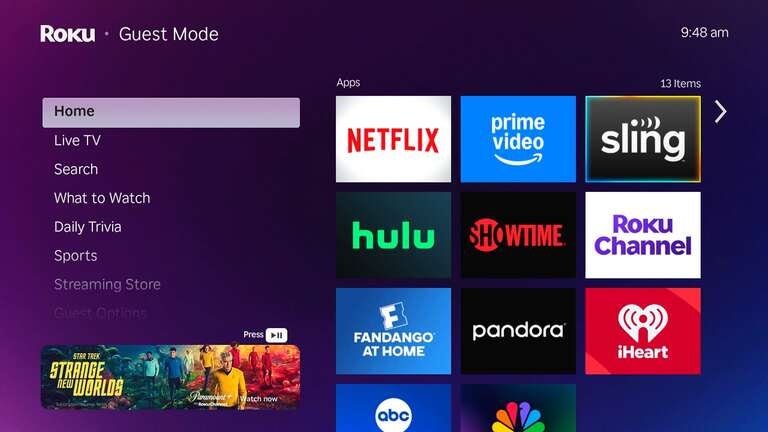

Click to expand image
- Press the Star (*) button on your remote to bring up the options menu for the highlighted app.

Click to expand image
-
To enter moving mode, select “Move App” (or “Move Channel” on some devices) from the menu.
-
Press the arrow buttons to move the app to your preferred position on the screen.

Click to expand image
- Confirm the New Placement by pressing OK to lock the app in place once it is in the right spot.

Click to expand image
- Repeat the Process for Other Apps
Follow these same steps for other apps until your layout feels more organized. Then, you can return to your home screen and enjoy faster navigation with your personalized app arrangement.
Smart Tips for Reorganizing Your Roku Apps
Rearranging apps is more than a cosmetic change; it can make your Roku faster to use and more enjoyable for everyone in your household. Here are some expert tips to help you create a setup that works best for your viewing habits:
-
Place Your Most-Used Apps on the Top Row:
Keep your go-to apps, such as Netflix, Hulu, or YouTube, at the very top for easy, one-click access. -
Group Apps by Category:
Organize your apps into groups such as streaming, live TV, kids’ content, or music to make browsing easier. -
Remove Apps You Never Use:
Delete old or rarely opened channels to reduce clutter and keep your home screen fresh. -
Think About Guests or Family Use:
Arrange apps in a way that makes sense for everyone, especially if kids or visitors frequently use your Roku. -
Keep New or Trial Apps Lower on the Screen:
Place temporary or trial channels toward the bottom until you decide if they deserve a permanent spot. -
Review Your Layout Every Few Months:
As your viewing habits change, revisit your app organization to keep it aligned with what you watch most.
Organizing your Roku is a simple but effective way to improve your streaming experience. With just a few quick steps and some smart placement decisions, you can create a home screen that feels tailored, efficient, and ready for endless entertainment.