Bring a slow or frozen Roku back to life fast with a quick reboot or network reset
Bring a slow or frozen Roku back to life fast with a quick reboot or network reset
Restore Roku streaming instantly with smart restart and reset tips!


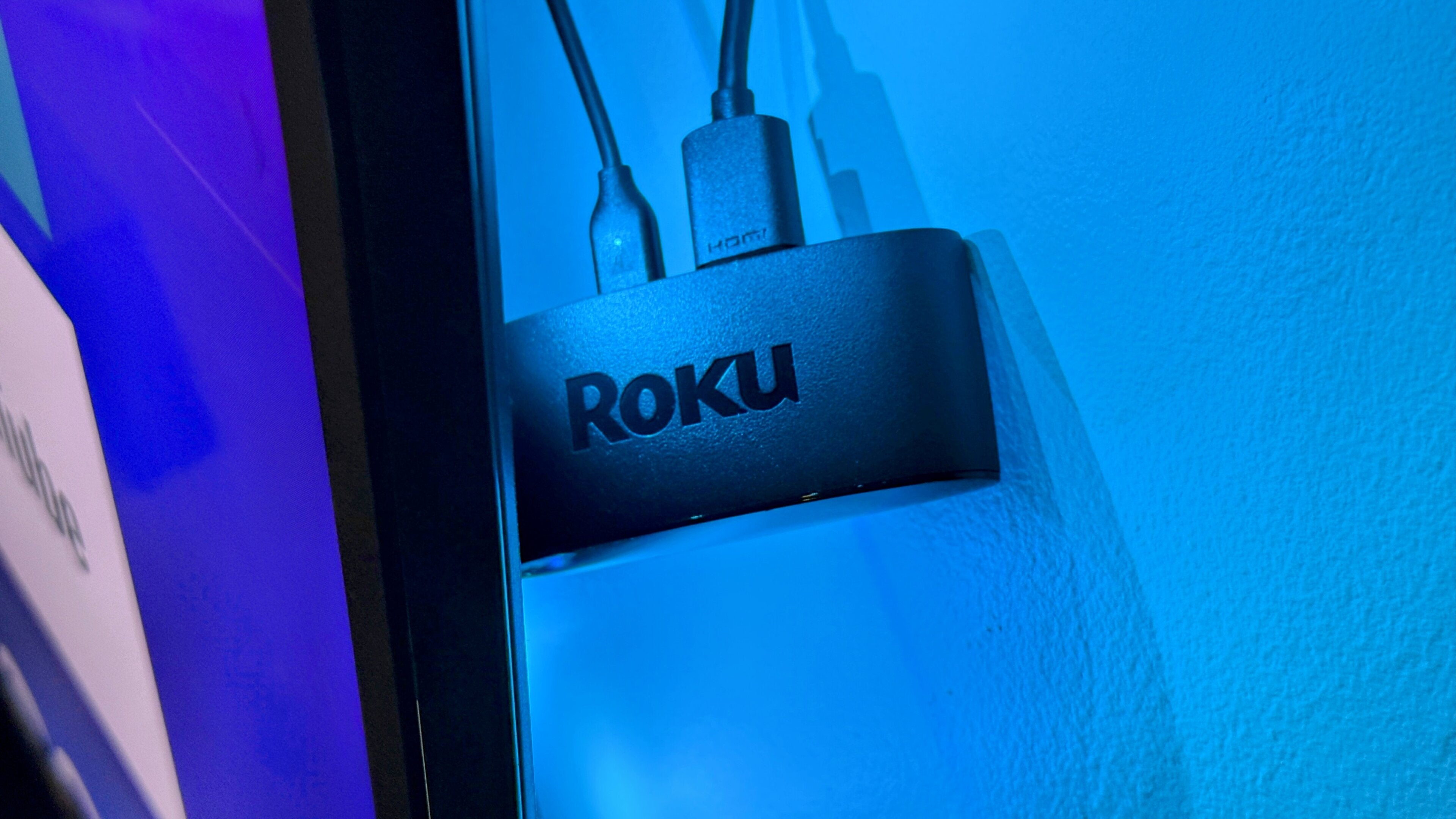
It’s happened to everyone. You’re rolling along with a brand-new stream when suddenly the app slows way down, or freezes up completely. You can’t even get your Roku device to respond, and you feel helplessly stuck watching a blank screen with no way to go forward or back.
Fortunately, there are solutions to a frozen Roku streaming player if it’s running slowly, freezes up entirely, or just needs a good clean slate. Wipe away the digital clutter by resetting your Roku device with the guide you’ll find below, with step-by-step instructions to solve most common problems.
What to do when your Roku device stops working:
Before resetting: Check for simple fixes
Before jumping straight into a restart, it helps to rule out a few common issues. Many problems that appear to be system freezes often stem from issues with remotes, network connections, or HDMI cables.
Replace remote batteries
If the Roku doesn’t respond, start with the remote. Weak or mismatched batteries can cause unresponsiveness that mimics a frozen device. Install new, matching batteries, or recharge the remote if it’s a rechargeable model.
Test the network connection
If playback keeps freezing or the video looks pixelated, test your Wi-Fi connection. Try streaming on another device, such as a phone or laptop. If the same lag appears elsewhere, the problem may be within the network itself. Restarting the modem or router can often stabilize the connection.
Inspect HDMI cables
HDMI cables carry high-speed data between the Roku and the TV. A poor connection or low-quality cable can lead to video flickering or freezing. Try swapping in another HDMI cable, especially if using 4K or HDR content.
If none of these quick fixes solves the problem and the device remains frozen, it’s time to move on to a system restart.
How to perform a system restart
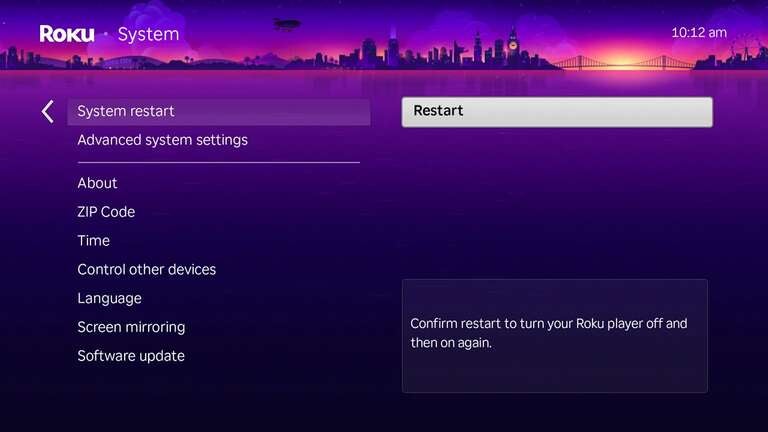
A system restart is the least invasive type of reset and does not erase any settings, channels, or preferences. It reboots the operating system, clearing temporary memory and restarting background services.
Option 1: Restart by unplugging the device
- Disconnect the Roku device from its power source
- Leave it unplugged for at least 10 seconds
- Plug the power cord back in and wait for the Roku to start up
This method works for all Roku players, Streaming Sticks, Streambars, and Roku TVs.
Option 2: Restart from the settings menu
If the Roku can still be controlled with the remote or the Roku mobile app, restart it through the settings interface:
- Press the Home button on the Roku remote
- Scroll to Settings
- Select System
- Choose Power (if available), then System restart
- Confirm and wait for the device to reboot
Once the restart is complete, the Roku should return to regular operation. If the issue continues, a network reset is your next option.
When to use a network reset
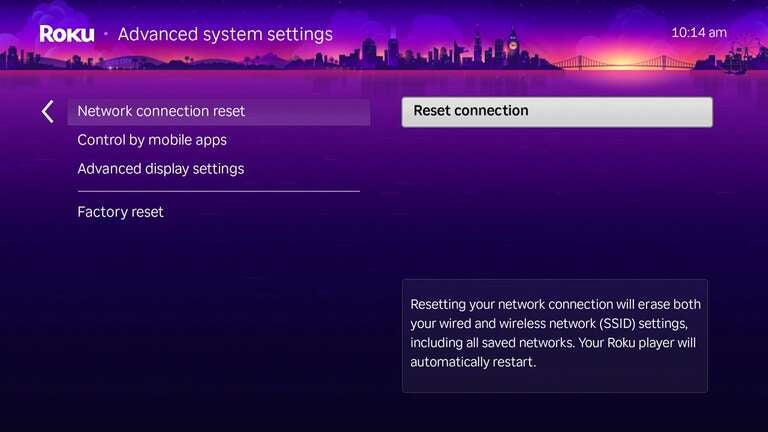
A network reset is useful when multiple streaming channels are failing to load or when a voice remote stops responding, even after new batteries are installed. This process clears saved Wi-Fi networks and allows the Roku to reconnect from scratch.
Steps to reset the network connection:
- Press the Home button on the Roku remote
- Scroll to Settings
- Select Advanced system settings
- Choose Network connection reset
- Select Reset connection
After the reset completes, the Roku will restart automatically. When it powers back on, open Settings > Network to reconnect to Wi-Fi.
When to use a factory reset
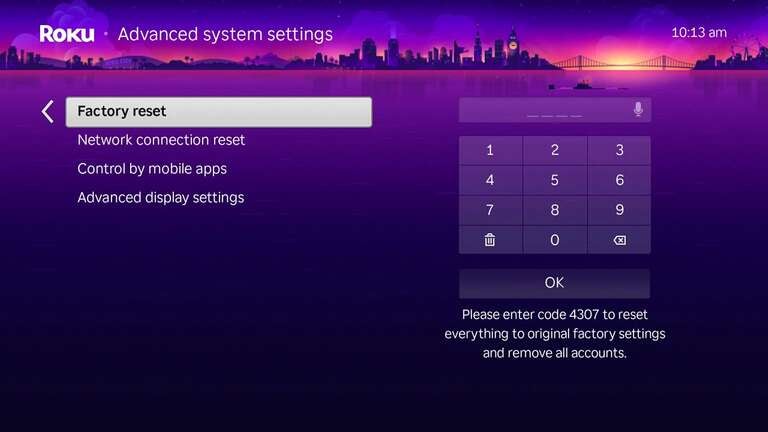
A factory reset should be your “when all else fails” absolute last resort. This will reset your device to how it was out of the box, erasing all of your data, settings, and accounts. Do this only if you’ve tried everything else and still can’t get your Roku working — there’s no turning back!
- Press the Home button on the Roku remote
- Scroll to Settings
- Select Advanced system settings
- Choose Factory reset
- Enter the displayed code and select OK
What to expect after a reset
- System restart: Keeps all channels and account settings intact.
- Network reset: Removes saved Wi-Fi networks but keeps installed channels and apps.
- Factory reset: Wipes all personal data and returns the Roku to out-of-the-box condition. Use this only as a last resort!
Getting back to streaming
Most Roku issues are minor and brief. A quick check of the remote, cables, and Wi-Fi often resolves the issue before a full reset is necessary. But if the system refuses to budge or freezes on the logo screen, a simple restart or network reset can bring it back to life in minutes. Once it reboots, the streams flow smoothly again, ready for that next show or movie without a single glitch.