How to restart your Roku streaming device
How to restart your Roku streaming device
Is your Roku device not working as intended? Oftentimes a simple restart will fix your issue!


If you’re running into issues with your Roku streaming device — connection problems, slowdowns, or anything out of the ordinary — a simple restart might be the solution. Restarting your device helps refresh its system, clear temporary glitches, and re-establish network connections, often resolving common issues without extra troubleshooting.
Unlike a factory reset, a restart won’t erase your settings, apps, or personal preferences, so you don’t have to worry about losing anything. Whether you’re dealing with buffering, unresponsive menus, or other performance hiccups, here’s how to restart your Roku streaming device.
How to restart your Roku streaming device
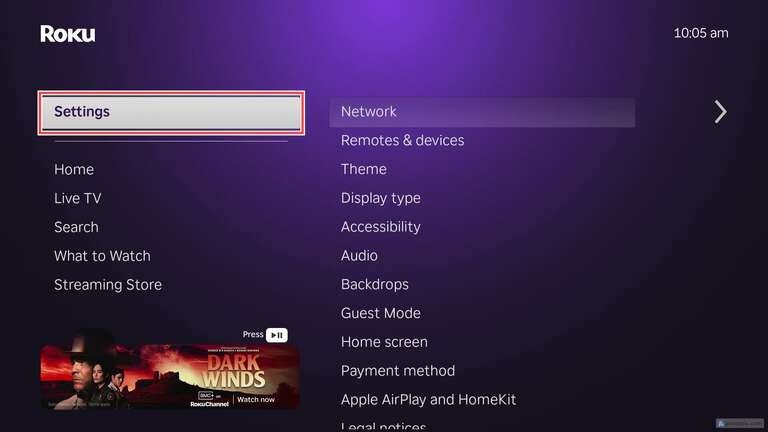
- On your Roku streaming device, press the Home button and navigate to and select Settings
![]()
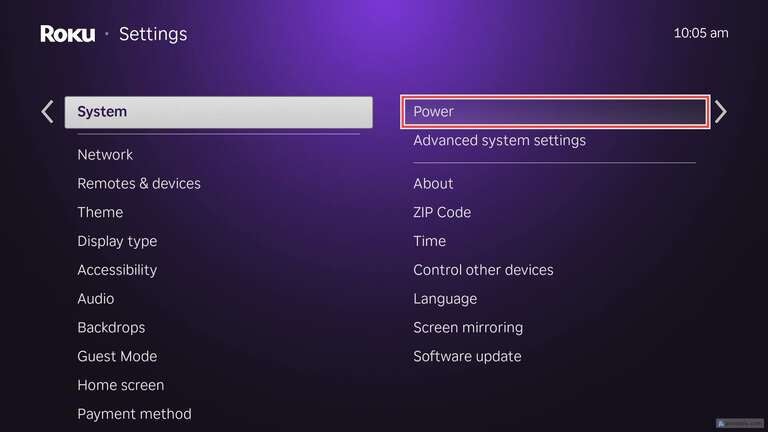
- Scroll to System and select Power
![]()
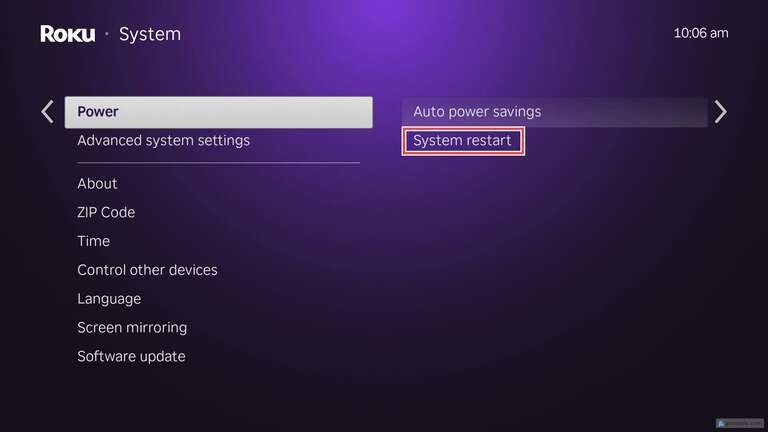
- Select System Restart
![]()
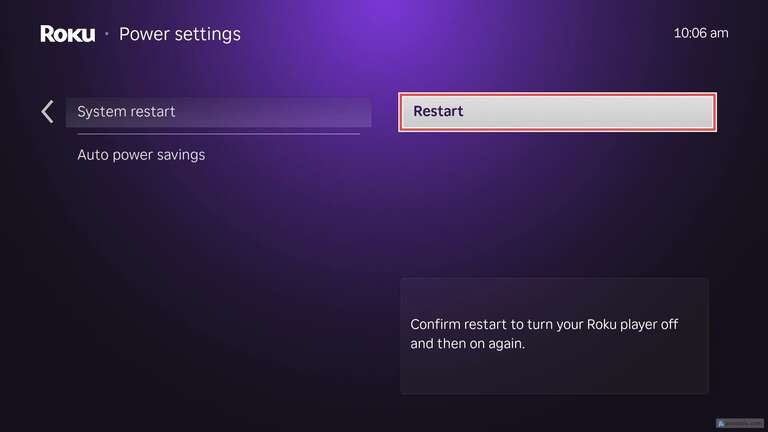
- Select Restart
![]()
Your streaming device will power down and automatically restart within a minute or two. Give it time to get back up and running and connect to your network. Once fully started, check to see if your issue is resolved. If not, you can always seek out more specific help from the Roku community.
Taking a few moments to restart your Roku can save you time and frustration, preventing the need for more complex fixes down the line. If problems persist after a restart, you may need to check your internet connection, update your device, or explore additional troubleshooting steps. But in most cases, a simple restart is all it takes to restore performance and get you back to streaming your favorite content without interruptions.


