Got a new Roku streaming device? Find out how to set it up!
Got a new Roku streaming device? Find out how to set it up!
If you got a Roku streaming player for the holidays, this handy guide will help you set it up with ease!

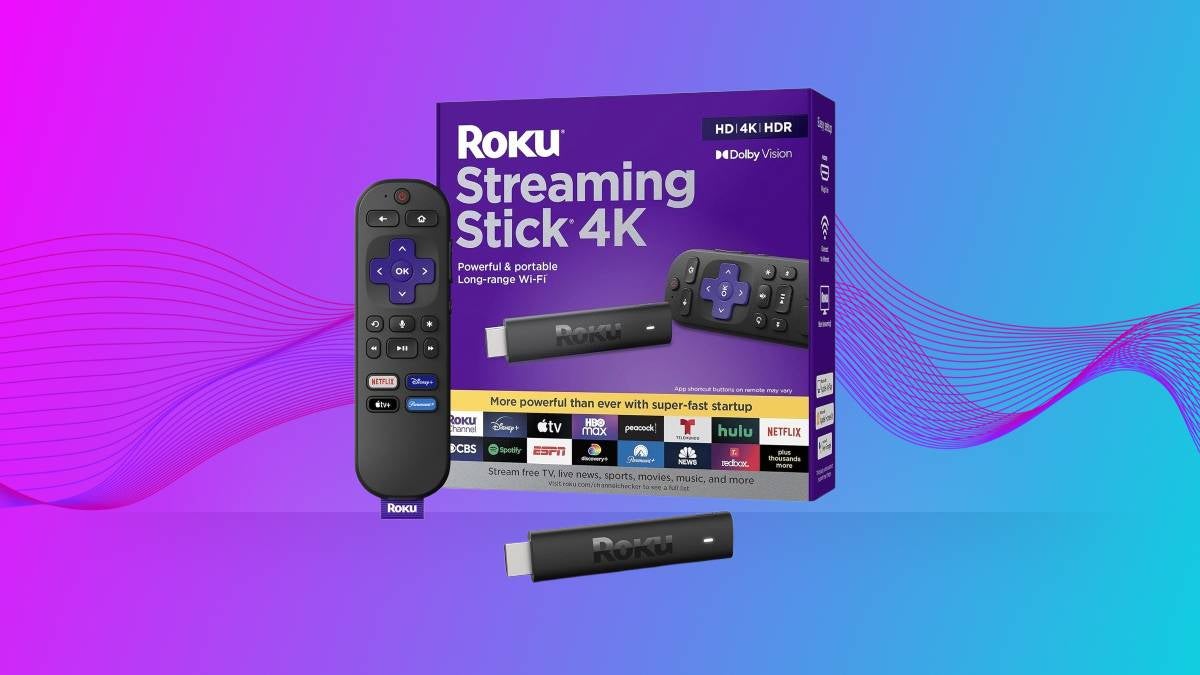
If a new streaming player was at the top of your wish list for the holidays this year, hopefully, the discerning buyer in your life got their hands on a Roku device for you. Roku makes some of the best streaming players out there, and its easy-to-use interface makes it incredibly simple to watch your favorite on-demand services like Apple TV, Disney+, Hulu, Netflix, Paramount+, Peacock, and many others.
If you’re not as technologically handy as some, however, you may not know how to get started with your new Roku player! We’ll go step-by-step to walk you through the setup process and get you streaming as fast as possible with your new Roku player.
Everything you need to know to set up your new Roku streaming player
Step-by-step guide
- Connect your device to your TV on any available HDMI port
- Connect to a power outlet. You can also connect to your TV’s USB port.
- Put your Roku device near your TV (if applicable).
- Turn your TV on and navigate to the input you plugged your new Roku into.
- Put batteries into your Roku remote.
- Follow on-screen prompts from your Roku device.
- Connect to your Wi-Fi through Settings, then Network, then Wireless.
- Create or sign into your Roku account.
- Choose the subscription streamers you want apps for, then download them.
How to customize your Roku interface
Once you’ve got your Roku player ready to go, you can change the interface around to put your favorite streaming apps front and center in your interface. Pressing the asterisk (*) button on your remote will bring up an options menu, then click “Move channel” and use the directional pad to put it where you want it.
Can you watch Roku if you don’t have an HDMI port on your TV?
Modern Roku models cannot connect to your TV if it doesn’t have an HDMI port. Older models of Roku devices may come equipped with red, white, and yellow connectors that hook up to audio/visual ports on the back of older sets.
Does your new Roku player enable 4K content?
There are several models of Roku streaming players that allow you to watch in Ultra-High-Definition 4K. It’s important to note, however, that you won’t be able to watch everything in 4K just because you have a Roku player now.
You’ll still need a TV capable of playing content in 4K, and the content you want to watch must be offered in that resolution. A Roku streaming player can be an important step toward watching top content in 4K, but it’s not all you’ll need to do so.
Where to go for more support
If this guide didn’t help you get your new Roku streaming player set up all the way, you can click here to be taken to Roku's help page. This page should help you answer any remaining questions about your new streaming player.