How to set up your Apple TV device for hassle-free entertainment
How to set up your Apple TV device for hassle-free entertainment
Set up Apple TV easily and start streaming movies, shows, and music in crisp HD or 4K.

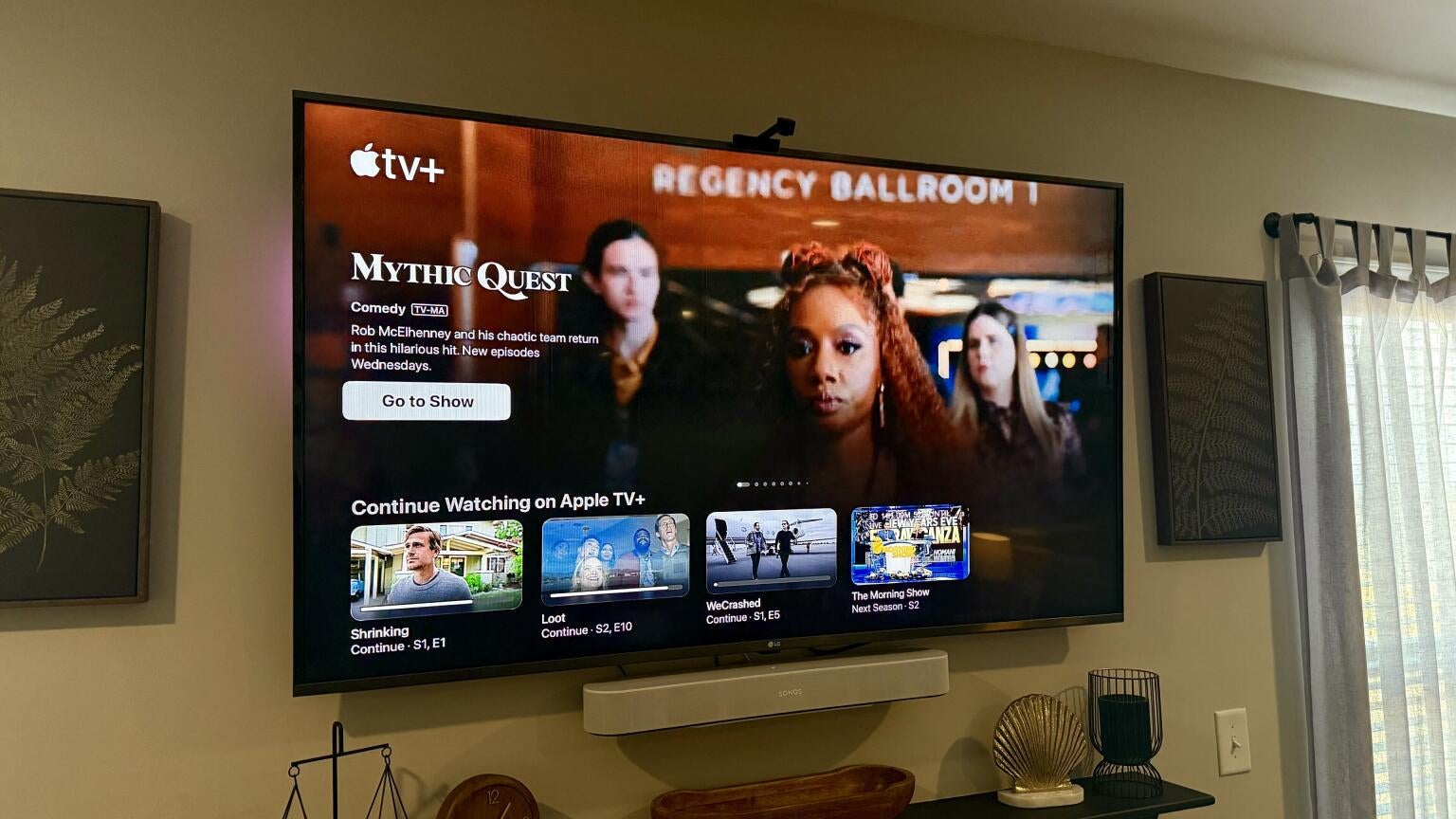
Apple TV turns an ordinary screen into a powerful entertainment hub built for comfort and clarity. The small device connects in minutes, replacing tangled remotes and confusing menus with one easy-to-use system. Clear on-screen prompts guide you through each step, much like a guided tour, rather than a technical task. Once connected, it opens a world of shows, music, and apps in sharp 4K detail, all controlled by a sleek remote and effortless voice commands. It’s a straightforward path to modern streaming that feels familiar, organized, and surprisingly fun.

Everything you need to know to set up your Apple TV:
What is Apple TV?
Apple TV is a small streaming box that connects to a television with an HDMI cable. It uses Wi-Fi or Ethernet to access online services like Netflix, YouTube TV, and Apple TV (the service, not the hardware — confusing, yes). The box doesn’t show live broadcast channels but instead connects to apps that stream shows and movies over the internet.
There are currently two main models: Apple TV HD and Apple TV 4K. Both work similarly, but the 4K version provides sharper picture quality and faster performance. For most households, either model works well depending on the type of TV being used. The latest models typically run around $180, but you can also find older models for cheaper most of the time.
What comes in the box
Before setup begins, check that all parts are included:
- Apple TV box
- Power cord
- Siri remote (Apple’s name for its TV remote)
- Lightning to USB cable (used for charging the remote)
- Quick start guide
An HDMI cable is also required, but it is typically purchased separately. Some TVs have multiple HDMI ports, so it helps to remember which one the Apple TV connects to for later use.
How to set up your Apple TV streaming device
Step 1: Plug everything in

Start by placing the Apple TV near the television. Follow these steps carefully:
- Plug one end of the HDMI cable into the Apple TV and the other into an open HDMI port on the television
- Connect the power cord to the Apple TV and plug it into a wall outlet or power strip
- Turn on the television and use the input or source button on the TV remote to select the HDMI port that matches the Apple TV connection
Once the correct input is selected, the Apple TV setup screen should appear.
Step 2: Set up the Siri remote

The Siri remote controls the Apple TV interface, volume, and even the power on some TVs. It features a touch-sensitive clickpad that works by swiping or pressing, along with buttons for Menu, Back, Play/Pause, and Siri voice commands.
Charging the remote:
The remote charges using the included Lightning-to-USB cable. A full charge typically lasts several weeks. Plug the Lightning end into the remote and the USB end into a charger or computer port.
Pairing the remote:
When the Apple TV starts up for the first time, the remote should connect automatically. If it doesn’t, point the remote at the Apple TV and hold the Back and Volume Up buttons for about five seconds until a message confirms the connection.
Step 3: Connect to Wi-Fi
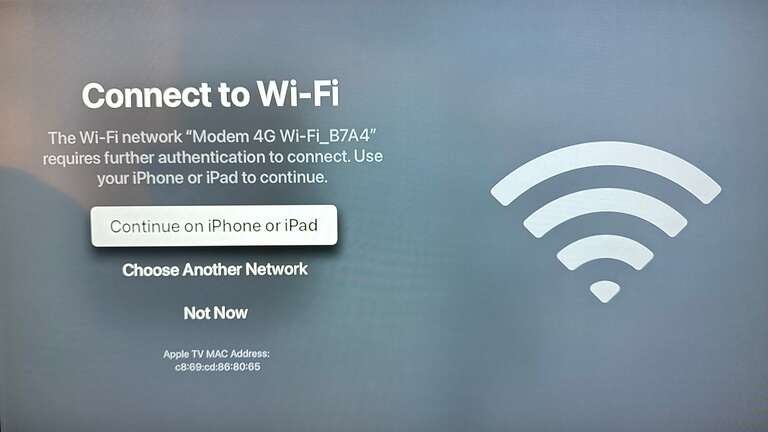
A strong Wi-Fi connection is essential for streaming. On the setup screen, the Apple TV will prompt you to select a Wi-Fi network.
- Select the correct network name from the list
- Enter the Wi-Fi password using the on-screen keyboard
- Wait for confirmation that the device is connected
If the signal seems weak, try moving the Apple TV closer to the router or make sure that no other devices are overloading the Wi-Fi connection.
Step 4: Sign in with or create an Apple ID

An Apple ID is required to download apps, rent movies, and access iCloud features.
If an Apple ID already exists:
- Choose Sign In, enter the Apple ID and password, and confirm
If a new Apple ID is needed:
- Select Create New Apple ID on the setup screen or visit appleid.apple.com on a computer or tablet to set one up before continuing
Once logged in, Apple TV will sync any compatible subscriptions, purchases, or apps linked to that account.
Step 5: Enable Siri and privacy settings
Apple TV offers voice control through Siri, which can be helpful for searching shows or adjusting settings without typing. The setup process asks whether Siri should be enabled. It can be turned off or on at any time in Settings > Siri and Search.
Other optional privacy features include sharing analytics with Apple and allowing location services. These can be adjusted at any time, so it’s fine to skip them during initial setup.
Step 6: Customize your home screen

Once the Apple TV setup completes, the main home screen appears. It’s clean and easy to navigate, with rows of colorful app icons. The top row can be customized to hold favorite apps for quicker access.
Recommended apps to start with:
- Apple TV+: Original shows and movies from Apple
- Netflix: Popular streaming service with movies and series
- Prime Video: Amazon’s streaming platform
- YouTube: Free video content of every type
- Disney+: Family entertainment and Disney classics
- Apple Music or Spotify: Music streaming apps
To move an app, press and hold the clickpad until the app wiggles, then drag it to a new location and click again to confirm.
Step 7: Adjust picture and sound settings
The Apple TV automatically detects the best settings for most televisions, but fine-tuning can enhance the experience:
- Resolution: Go to Settings > Video and Audio > Resolution to choose between 1080p or 4K
- Color balance: Select Settings > Video and Audio > Color Balance to let the Apple TV match the TV’s color profile using an iPhone camera if available
- Audio output: Under Settings > Video and Audio > Audio Output, select the TV speakers or a connected soundbar
For televisions connected to surround systems or receivers, Apple TV can output Dolby Atmos for an immersive sound experience.
Step 8: Add streaming subscriptions
Many popular streaming services require an account and a subscription. Apps like Netflix or Disney+ will prompt for login information once opened. For paid channels through Apple TV, billing is handled directly through the Apple account.
Apple TV also offers “Apple Channels,” allowing users to subscribe to add-ons such as Paramount+, AMC+, or Showtime directly within the Apple TV app itself. These can all be managed under Settings > Users and Accounts > Subscriptions.
Using your Siri remote
Once the basics are set up, the Siri remote can make everyday use simple.
Helpful shortcuts:
- Hold TV button to return to the Home screen
- Press and hold Play/Pause to see the sleep option
- Swipe left or right during playback to rewind or fast-forward
- Hold the Siri button to issue commands like “Play the latest episode of Ted Lasso” or “Open Netflix”
If the remote ever feels too sensitive, the clickpad tracking speed can be reduced under Settings > Remotes and Devices > Touch Surface Tracking.
Using an iPhone or iPad as a remote

In case the Siri remote is misplaced, an iPhone or iPad can serve as a full replacement:
- Open Control Center on the device
- Tap the Apple TV remote icon
- Select the Apple TV name from the list
The screen then becomes a touch controller, complete with volume and navigation functions.
Common troubleshooting tips
Technology doesn’t always cooperate perfectly. These simple solutions fix the most common Apple TV issues:
| Problem | Possible Fix |
|---|---|
| No signal on TV | Check HDMI cable connection and ensure correct TV input is selected |
| Remote not responding | Charge the remote, or re-pair by holding Back + Volume Up for 5 seconds |
| Wi-Fi keeps disconnecting | Restart both the router and Apple TV; try using Ethernet if possible |
| Screen looks dim or blurry | Adjust resolution in Settings > Video and Audio |
| Apps won’t load | Check internet connection and restart the Apple TV |
If problems persist, holding Menu and Home on the remote for 10 seconds restarts the device safely.
Making the most of Apple TV
Apple TV offers more than streaming movies. It also includes apps for fitness, music, podcasts, and even smart home control through HomeKit.
Fun things to try:
- Use Apple Fitness+ for guided workouts
- Display personal photos as a dynamic screensaver using iCloud Photos
- Connect a Bluetooth keyboard for easier typing
- Pair AirPods for private listening
Each new app expands what the device can do, turning a television into a central hub for entertainment and information.
Keeping software up to date
Apple releases updates that improve performance and add new features. Checking for updates once a month keeps the operation running smoothly:
- Go to Settings > System > Software Updates
- Select Update Software if an update is available
- Wait for the Apple TV to restart automatically
Enabling Automatic Updates allows the device to handle this step without reminders.
Effortless streaming for every generation
Apple TV turns any television into a streaming hub that feels natural even for those new to modern tech. Once connected, its large on-screen icons and simple layout make browsing through shows or apps easy. Siri voice commands remove the need for typing, and automatic updates keep everything running smoothly. The remote’s small design includes clear, tactile buttons and a built-in microphone, making control simple and precise.
For seniors, the accessibility features stand out. The system connects with Bluetooth hearing aids, offers VoiceOver narration for screen guidance, and allows text size and closed caption adjustments for better readability. Those who already use Apple products will find the setup familiar and uncomplicated, with crisp 4K resolution, dependable Wi-Fi connections, and organized menus.