How to set up profiles on your Fire TV
How to set up profiles on your Fire TV
Want to create different profiles for each Fire TV viewer in your home? We’ll explain how to do it, and why you should here!

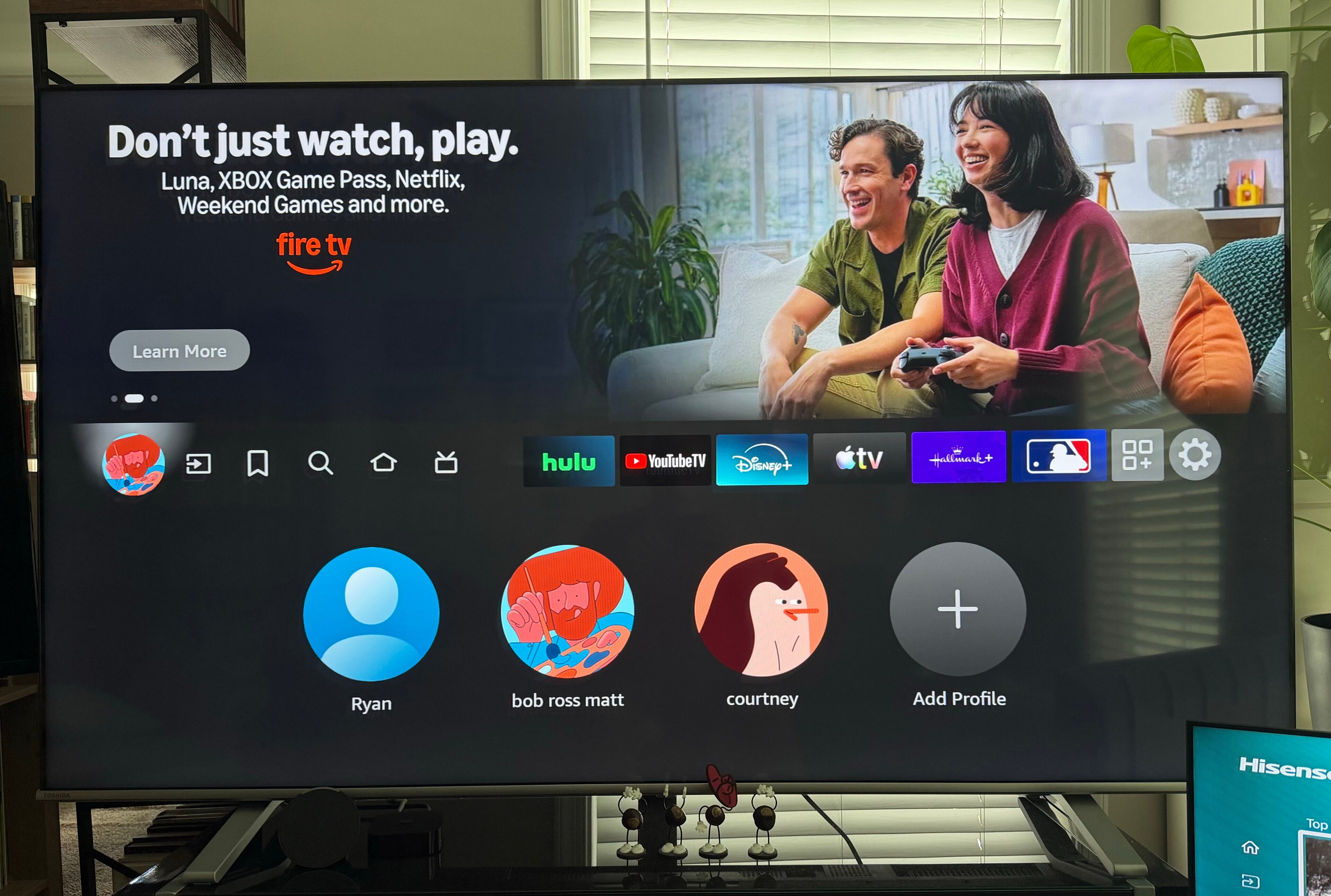
Sharing a household with others can be fraught with small pitfalls that can lead to big annoyances. Having multiple people use the same Amazon Fire TV smart TV or streaming device, for example, can lead to frustrations over buried Watchlist titles and recommendations that may be totally irrelevant to some household members, but those frustrations are easy to avoid. Fire TV devices allow owners to create individual profiles that will allow each household member to enjoy a much more personalized experience. But how do you set up profiles on a Fire TV, and why should you bother? Find out everything you need to know here.
What you need to know about creating profiles with Fire TV
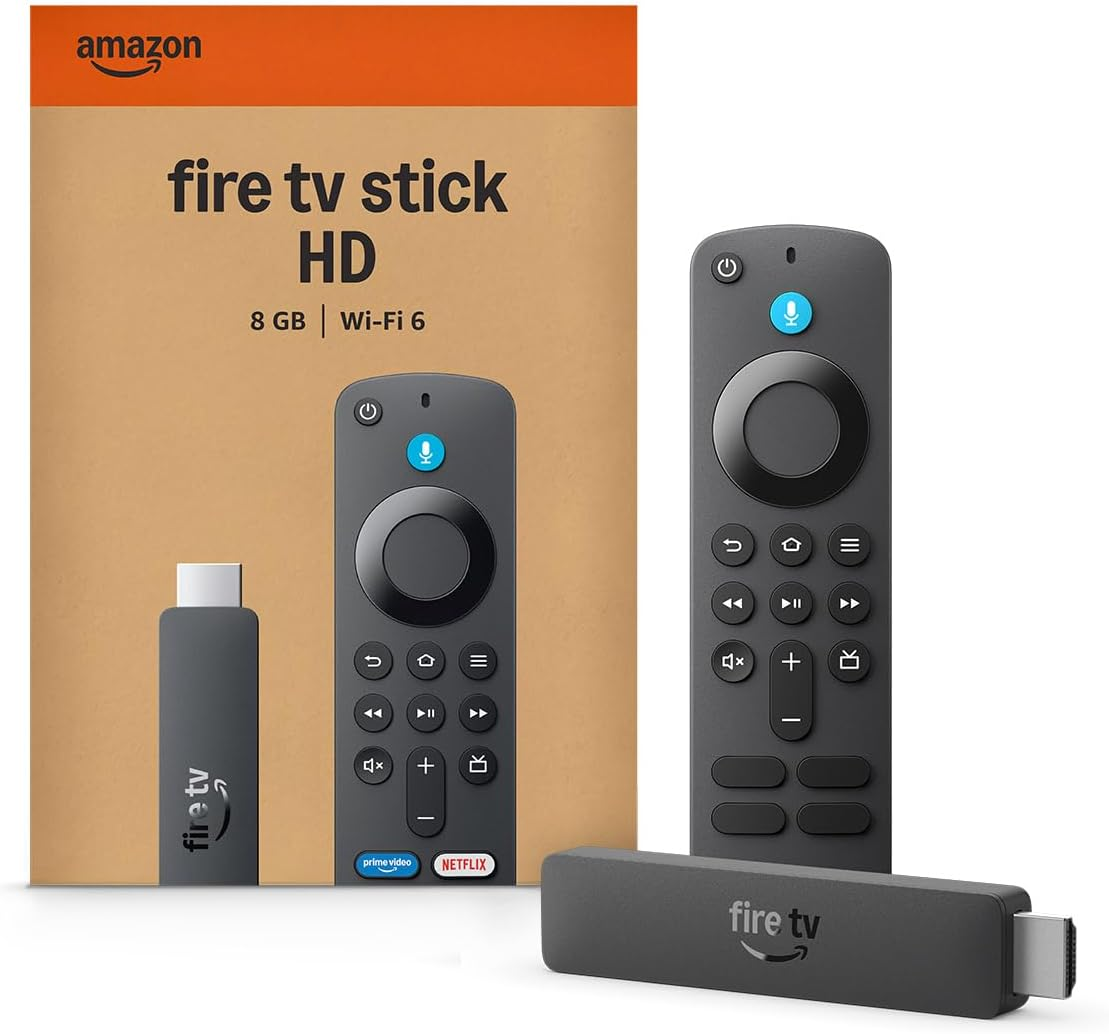
Fire TV streaming players
From $35
Fire TV streaming players bring together your favorite apps, live TV, and Alexa voice controls in one convenient device. Available in HD and 4K models, Fire TV offers options to suit a variety of entertainment needs and budgets.
How many profiles can you create with Fire TV?
A Fire TV smart TV or streaming player will allow owners to set up as many as six individual profiles, and up to four of those can be kids’ profiles. This will allow all but the biggest families or households to set up a Fire TV profile for everyone in the house.
How to create a new adult profile on Fire TV
Creating a new adult profile on a Fire TV device is simple — just make sure your remote has batteries, and your TV is working normally. Then:
- Turn on your Fire TV.
- Scroll all the way to the left of the home screen to your profile icon.
- Click Add Profile.
- Click Create a New Profile.
- Enter the profile’s name and choose an icon for it.
- Click Add.
How to create a new kids’ profile on Fire TV
The instructions for creating a new kids’ profile on Fire TV are essentially the same as creating an adult profile, just with an extra step or two.
- Turn your Fire TV on.
- Go to the profile creation screen and click Add Profile.
- Tap Create a New Profile.
- Toggle “Kid Profile?” to on on the profile creation screen.
- Enter your child’s name and birthday.
- Create a PIN to lock the profile.
- Click Add.
How to edit profiles on Fire TV
If you want to edit a profile’s name or other settings on your Fire TV, you can do so any time by turning on the TV, scrolling left to the profile icon, choosing the profile you want to edit, and clicking the small pencil icon under it.
What parental controls are available with Fire TV kids’ profiles?
When setting up a kids’ profile with Fire TV, the streamer will ask you to create a PIN number for use with that profile. This PIN will prevent children from adjusting any settings or finding their way to adult content on the Fire TV interface.
Parents can also adjust parental controls through the Fire TV menu. To do so, scroll to the gear-shaped icon on the right of the Fire TV home screen, then click Account & Profile settings. Here you can adjust all settings for kid profiles on your Fire TV, including viewing time limits. Scrolling to the Parental Controls menu allows parents to adjust limits on making purchases, launching apps, or watching specific maturity ratings without parental permission.
What is Profile Sharing on Fire TV?
Profile Sharing allows adults in the same Amazon Family to select each other’s profiles on Prime Video and on Fire TV across devices. This lets adults in the same home share Prime Video benefits, in-app purchases, and subscriptions without sharing viewing histories or watchlists.
App preferences remain tied to each user’s profile, but users can visit each other’s profiles to see if there’s anything they’re missing. It’s a great way to see what your partner is watching without having their viewing choices affect the personalized aspects of your profile, such as viewing history or recommendations.
To access Profile Sharing on Fire TV:
- Turn on your Fire TV.
- Scroll to Settings.
- Click Account & Profile Settings.
- Scroll to Profile Sharing.
Why should you create profiles with Fire TV?
If you live in a household with others who use the same Fire TV device you do, creating individual user profiles is a fantastic idea. Each profile will track the user’s viewing history from their specific apps, allowing them to jump back into a given app or title without having to wade through everyone else’s viewing history to find it.
User profiles also let individual viewers create their own watchlists customize the Fire TV home screen by moving apps around, tailoring their individual settings, and seeing personalized recommendations for future watches based on their history. And of course, using kids’ profiles helps parents ensure their children aren’t accessing anything they shouldn’t be while using the Fire TV.
Creating profiles for each viewer with a Fire TV device adds a layer of personalization and control that everyone in the home will be happier for. Cut down on the frustration of sifting through your housemates’ content to find your latest streaming obsession by making use of the profiles feature on your Fire TV device.
Fire TV streaming players
From $35
Fire TV streaming players bring together your favorite apps, live TV, and Alexa voice controls in one convenient device. Available in HD and 4K models, Fire TV offers options to suit a variety of entertainment needs and budgets.