Stop your streamer from asking ‘Are you still watching?’
Stop your streamer from asking ‘Are you still watching?’
Use our guide to learn how you can disable an “Are you watching” notification from your most-used streaming subscription.

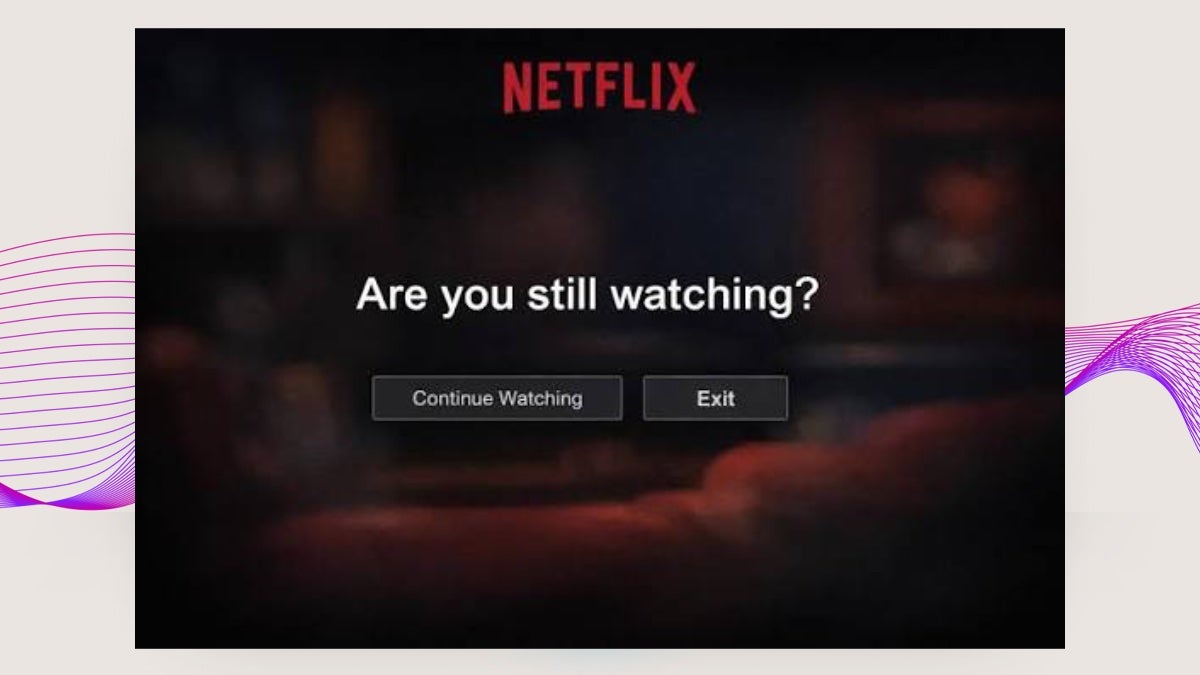
Opinions are sharply divided among streaming subscribers as to whether those “Are you still watching?” pop-ups are a good thing. For some, nothing can derail a binge-watch more than a message from the streaming platform asking if you’re still going or not.
On the other hand, customers who like to fall asleep watching their favorite streaming show are often grateful for these pop-ups, which keep the list of episodes from playing on while the viewer snoozes. Thankfully, streamers that include this feature also allow subscribers to toggle it on or off if desired.
If you’re not sure how to turn off “Are you still watching?” prompts with your favorite streaming service, fear not. We’ll explain which streamers have these messages and how to turn them off in just a couple of easy steps below!
What you need to know about disabling ‘Are you still watching?’ prompts from your streaming service
How much time passes before streamers ask ‘Are you still watching?’
Some streaming services that include “Are you still watching?” pop-ups give viewers concrete information on how long they will have to leave their remote inactive before such a message appears. Netflix, for example, says its prompt comes up any time a viewer watches a few episodes of a TV show or movie without using the remote. That translates to around 90 minutes of inactivity from the viewer before the pop-up appears.
Other streaming services are less clear with customers on specifically how much inactive time has to elapse before “still watching” prompts appear, but in general, testimonials from subscribers and hardware support logs indicate most streamers will show the message after around two to three hours of playback with no remote control use from the subscriber. Since TV episode and movie playback times can vary widely, viewers can expect the specific time interval between seeing “Are you still watching?” messages to vary between sessions, as well.
See a chart of how long it will be before you see an “Are you still watching?” prompt on all the top subscription streaming services in the table below. Once again, remember that these are general time intervals, and the specific amount of time you see between such pop-ups will vary.
| Streamer name | Time between prompts |
|---|---|
| Apple TV | ~4 episodes or 3 hours |
| Disney+ | ~3 to 4 episodes |
| HBO Max | ~3 episodes or 2 hours |
| Hulu | ~2 to 3 hours |
| Netflix | ~3 episodes or 90 minutes |
| Paramount+ | ~3 episodes or 2 hours |
| Peacock | ~3 episodes or 2 hours |
| Prime Video | ~2 to 3 hours |
Can you disable ‘Are you still watching?’ prompts by themselves?
Streaming services use “Are you still watching?” pop-ups because customers who turn on a streaming playlist and walk away are using expensive server bandwidth that streaming platforms have to pay for. Developers use inactivity timers in close coordination with their Autoplay features in most cases, and no major subscription streamer gives viewers a dedicated setting to disable these prompts by themselves.
With most streaming services, customers can work around the issue by disabling Autoplay altogether. Doing so will mean your binge-watch session will include a few more button presses than it normally would, but it will mean seeing fewer “Still watching?” messages, since inactivity timers are triggered when remote use stops or the user otherwise fails to interact with their streaming app or device over an extended period of time.
How to turn off Autoplay on top subscription streaming services
Apple TV
- On any platform, click your profile icon.
- Click Settings.
- Scroll to Autoplay settings.
- Toggle on or off.
Disney+
- Open the Disney+ website on a browser.
- Locate your profile icon.
- Select Edit Profiles, then choose the profile you want to adjust autoplay settings for.
- Scroll to the Playback and Language Settings section.
- Turn Autoplay on or off.
HBO Max
- Head to the HBO Max website.
- Click your profile icon, then Settings.
- Scroll to Playback Settings.
- Disable Autoplay episodes.
Hulu
- Start playback of a title on the Hulu website.
- During playback, click the Settings icon to open the Settings menu.
- Turn Autoplay on or off.
Netflix
- Open the Netflix website.
- Click your profile icon.
- Choose the profile you want to edit Autoplay settings for.
- Scroll to Playback settings.
- Turn Autoplay next episode on or off.
Paramount+
- Navigate to the Paramount+ website.
- Choose your profile icon.
- Visit Account, and scroll to Autoplay.
- Toggle on or off.
Peacock
- Log into the Peacock website.
- Choose the profile icon at the top of the home screen.
- Select the profile you wish to adjust Autoplay settings for.
- Scroll to Autoplay settings.
- Turn it on or off.
Prime Video
- Head to the Prime Video website.
- Click your profile icon, then Account & Settings.
- Click the Player tab.
- Toggle Autoplay settings.
Does turning off Autoplay disable all ‘Still watching’ messages?
Not necessarily. While using Autoplay is one of the easiest ways to start an inactivity timer that leads to an “Are you still watching?” pop-up, turning off Autoplay does not necessarily disable the prompt itself. Disabling Autoplay is the most user-facing option to stop automatic playback and reduce “Still watching?” messages, but viewers may still see them during long viewing sessions.