Learn how to turn on guest mode on your Roku without the hassle
Learn how to turn on guest mode on your Roku without the hassle
Give your guests a seamless streaming experience so they don’t wear out their welcome.


Have you ever had visitors over who want to stream their favorite shows on your Roku device, but you don’t want their viewing habits impacting the carefully curated algorithm on your account? Or maybe you host guests in your home or run a vacation rental and need a hassle-free way to let them watch what they want without risking your settings. This is where Guest Mode comes in. Guest Mode is a built-in Roku feature that allows visitors to sign in to their streaming services, like Netflix, Hulu, or Disney+, while keeping your apps, accounts, and preferences untouched. All of your guests’ information is automatically cleared when their stay ends, leaving your Roku just as you left it.
With Guest Mode, your device becomes more guest-friendly, safer, and easier to manage for shared spaces or temporary users. Below is a simple, step-by-step guide on enabling it, setting it up, and turning it off when the visit is over.
How to use guest mode on Roku
What Is Guest Mode on Roku?
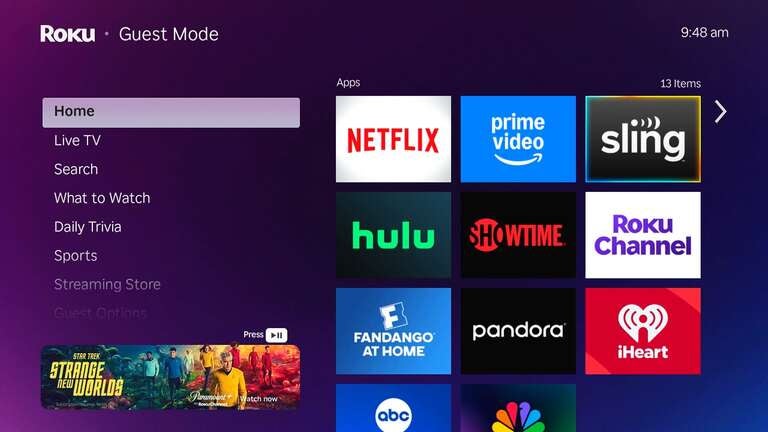
Guest Mode allows temporary users to sign in to their streaming accounts without affecting yours. It is perfect for Airbnb hosts, vacation rentals, or anyone who occasionally shares their Roku. Once a checkout date is reached or the mode is turned off, all guest information disappears automatically.
Why Use Guest Mode?
- Protects your logins: Guests will never see your accounts.
- Offers a better visitor experience: They can stream what they like.
- Automatic sign-out: Clears all guest data when the visit ends.
- Great for rentals: Keeps your device ready for each new guest.
How to use guest mode on Roku
- Start by turning on your Roku device. From the home screen, navigate to Settings on the left menu.
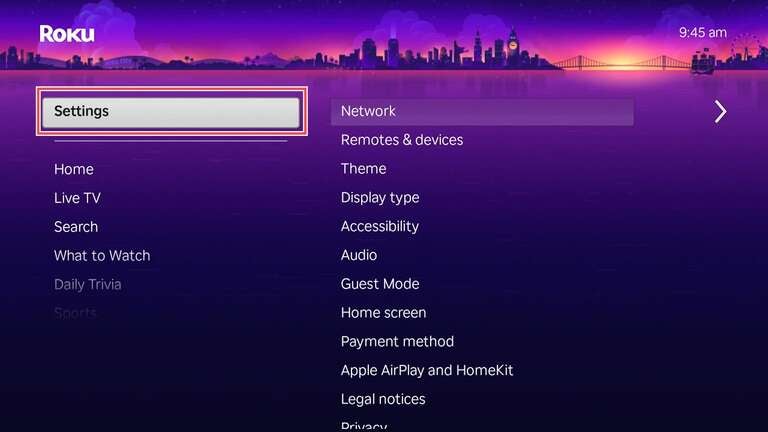
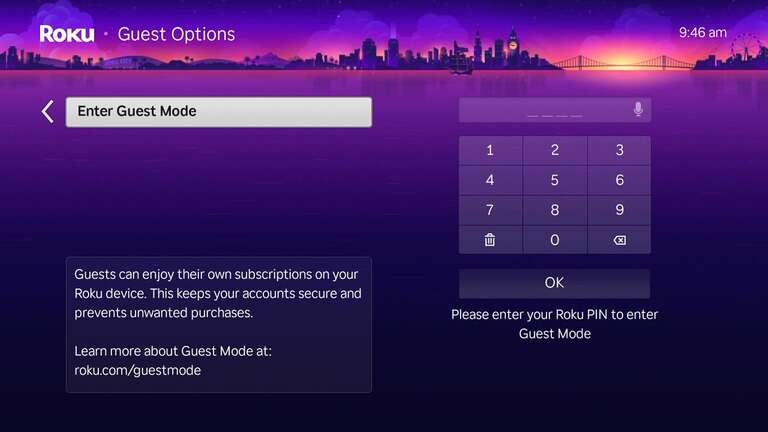
- Within Settings, select System. From there, choose Guest Mode. If you have a Roku PIN enabled, you will need it here (Or you can create a pin: my.roku.com/account/PIN).
-
Select Enter Guest Mode, then confirm your choice. Once enabled, your Roku device will sign you out of all accounts, restart, and switch to Guest Mode, allowing guests to log in to their preferred services.
-
Set a checkout date for automatic sign-out. If you skip this step, you can manually exit Guest Mode later.

Your guests can now sign in to their favorite streaming services without affecting your setup. They can rearrange channels or add apps for their use.
How to turn on guest mode from my.roku.com
- Go to https://my.roku.com/account and sign in with your Roku credentials.
- Scroll down the page to My streaming devices & TVs. This section lists all the Roku devices linked to your account.
- Find the Roku device you want to set up for Guest Mode and click Enable Guest Mode next to it.
- Type in your Roku PIN to confirm your choice, then click to enable Guest Mode.
How to turn off guest mode

- From your Roku home screen, go to Settings.
- Select System, then choose Guest Mode.
- Select Exit Guest Mode.
- If prompted, enter your Roku PIN to confirm. Guest Mode will be turned off, and your regular settings will return.
Be our guest
Guest Mode on Roku is a simple yet powerful way to give visitors a seamless streaming experience without affecting your own settings or subscriptions. Following these steps, you can easily set it up before guests arrive and switch back when they leave, keeping your streaming world organized and hassle-free. Whether you host frequently or just want an extra layer of convenience, this feature ensures everyone enjoys their favorite shows while your preferences remain intact.