How to use Hoopla on Roku devices
How to use Hoopla on Roku devices
We’ll explain everything you need to know about using your Hoopla subscription on a Roku device.

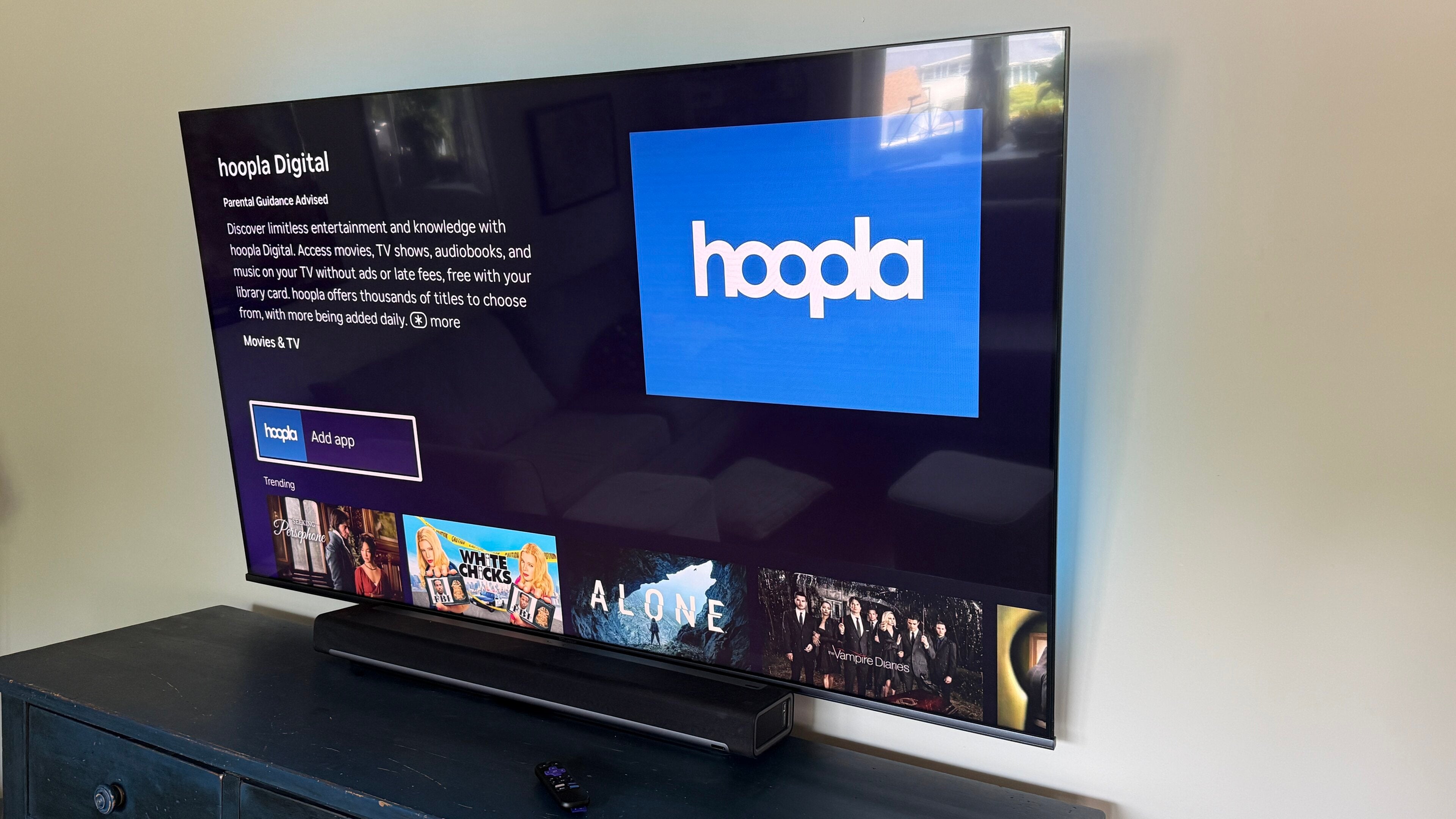
If you’re a library card holder, there’s a pretty good chance you already know about the benefits of a Hoopla subscription. Hoopla lets audiences borrow digital media from participating library districts, including eBooks, audiobooks, TV episodes, movies, comics, and magazines.
That lineup of content may lead you to believe that Hoopla is only available on phones, tablets, and web browsers, but the service can actually be used on smart TVs and streaming players that use the Roku operating system, as well! Find out everything you need to know about using Hoopla on a Roku device below.
Everything you need to know about using Hoopla on Roku
What is Hoopla?
Hoopla is a digital media service that allows users to borrow books, movies, and more content from their participating library system. It’s all free to use, and it gives access to a wide range of popular media from the past and present, including a wide range of new releases.
How to get a Hoopla account
To sign up for a Hoopla subscription, you will need a valid library card from a participating library system. You can get one from your local library, or choose a nationally available library and become a Hoopla member via that route. For complete instructions on signing up for Hoopla, click here.
How to get Hoopla on Roku
Getting Hoopla on Roku is as easy as opening the Roku app store, either with your remote or with a voice command, and searching for the Roku app. Once you’ve got it downloaded, you’ll have to open the app and follow on-screen prompts to link your account to your Roku device.
What media can you use with Hoopla on Roku?
Although the Hoopla app comes with a great mix of content, users can only use a selection of this media on the service’s connected TV app. Content available to stream on the Hoopla app with a Roku smart TV or streaming player includes:
- Movies
- TV episodes
- Audiobooks
- Music
The Hoopla app on Roku cannot be used to read eBooks, comics, or magazines. To access those types of content, you’ll have to download the Hoopla app on a mobile device.
Is it free to use Hoopla on Roku?
Yes! While different libraries enforce different daily and monthly borrowing limits with Hoopla, the service is always free to use on all platforms. That includes Roku and all other connected TV devices.
What are the advantages of using Hoopla on Roku?
Availability of TV and movie titles can vary widely from library to library, but many carry exciting new releases and premium titles from years past as well. What better way to stream these titles than on your Roku device, allowing you to access them on the biggest screen in your home instead of being forced to watch on a tiny phone screen or a computer?
And unlike many other free streaming services, Hoopla streams completely without ads. Plus, there are no waitlists or holds with Hoopla’s borrowing system, so you can choose the title you want to stream, then start watching right away on your Roku device.
You can also use Hoopla's BingePass to get seven days of unlimited access to titles from partner services like Curiosity Stream and Hallmark+.
Get a Hoopla subscription now, and download the app on your Roku streaming device or smart TV to watch all the digitized TV shows and movies your local library provides. Stream it all for free on the biggest screen in your house.

Hoopla
Hoopla is a free streaming service accessible with your library card. The service features movies and TV shows, along with millions of audiobooks, ebooks, comics, and more. The BingePass feature also allows free access to services like Curiosity Stream, iNDIEFLIX Hellosaurus, and Hallmark+.