How to watch free live TV with Amazon Fire TV
How to watch free live TV with Amazon Fire TV
If you own an Amazon Fire TV player, you can stream a large selection of free streaming channels with your device!

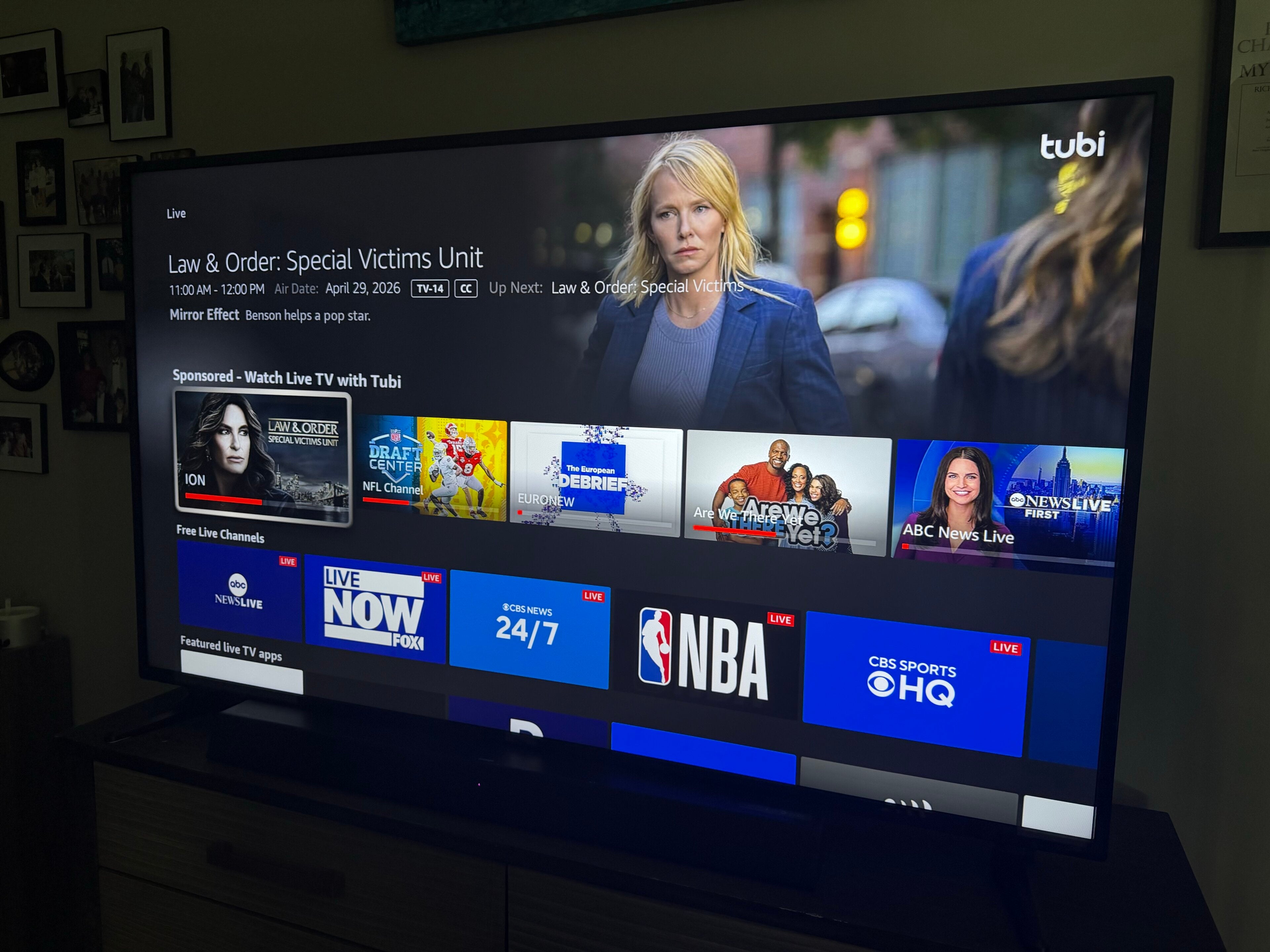
An Amazon Fire TV device allows owners to connect to nearly any model of smart TV, download top streaming apps, and start watching their favorite TV shows, movies, and even live broadcast and cable channels. With just a few clicks of the remote button on a Fire TV device, owners can be watching all their favorite titles.
But many Fire TV owners may not know just how much free TV they get with their device. Customers get access to hundreds of free streaming channels with a Fire TV device, and we’ll explain how to watch these channels, which apps contribute channels to the Fire TV guide, and more.
Everything you need to know about watching free live TV on Fire TV

How to find free TV on your Fire TV

The Live tab is prominently placed in the Fire TV home row. Click to expand.
Finding the free TV on your Fire TV device is very easy. Simply power on your TV and player, and press the home button. Click right on your remote’s D-pad to the Live tab, and you can scroll through rows of channels from different providers by pressing down. Many Fire TV remotes also come with a live TV button shaped like a TV with rabbit ears coming out of the top.
The Fire TV interface will offer tile rails built around themes like sports, breaking news, and even antenna channels if you have an over-the-air receiver connected to a set with the Fire TV operating system installed. You’ll also find channels from specific apps, including Prime Video, Sling TV, Pluto TV, and others.
What’s in the Amazon Fire TV live guide?
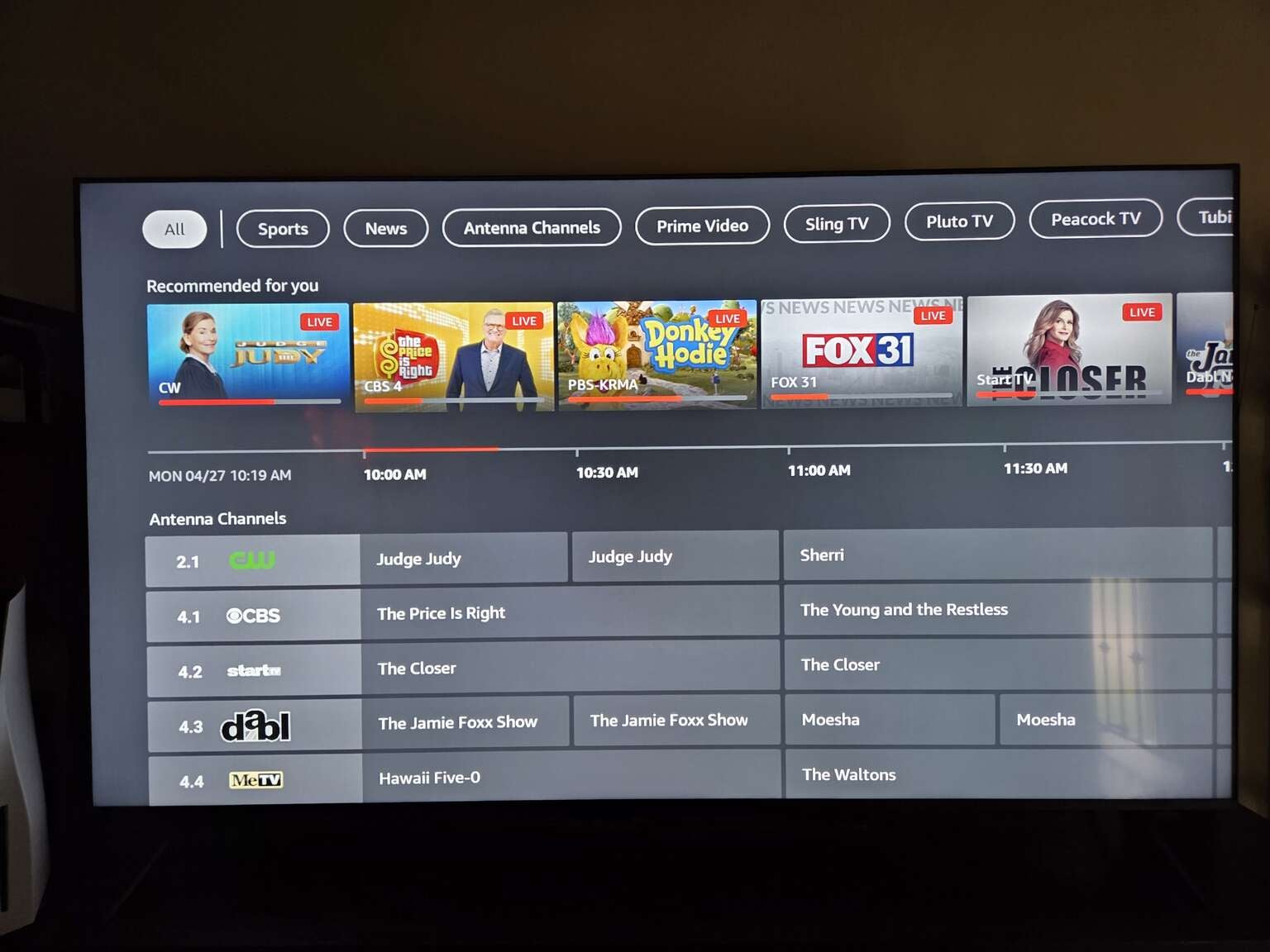
The Fire TV live guide groups free channels from across many apps into one place. Click to expand.
Once you click over to the Live tab on the Fire TV home screen, you also have the option of clicking into the interface’s channel guide. This grid-style guide resembles what you’d once find on an old cable box, and allows viewers to scroll through all the channels granted by their various apps and subscriptions for free.
At the top of the screen, you will see a row of filter options, followed by a carousel of channels recommended for you. If you’ve favorited any channels, they’ll appear just under the Recommended row. From there, you can scroll downward through the channels included with your subscriptions.
How to filter the Amazon Fire TV live guide
If you want to filter your channel view in the Fire TV Live guide, you have a couple of different options. First, you can check out the very top of the screen, where you’ll be able to scroll right and filter channel views by category, including Sports, News, Prime Video channels, Sling TV channels, etc.

Fire TV’s guide makes it simple to filter channels into categories. Click to expand.
Alternatively, viewers can opt to scroll down to a channel in the live guide, then click the three-horizontal-line button on their Fire TV remote. In the menu that appears on the screen, click the Add & Manage channels button to be taken to the sources menu.
Here, you will be able to control which live TV sources show up in your Fire TV’s live guide. You can set favorite channels, as well as browse through all the apps that are contributing channels to your Fire TV guide in this section. Clicking into an app will even let you exclude individual channels from your guide, or all of that app’s channels if you prefer.

With Fire TV, viewers can filter the channel sources that appear in their live guide. Click to expand.
Do you have to install apps to get free live channels with your Fire TV?
As mentioned above, if you have a smart TV set with the Fire TV operating system installed, you can plug an over-the-air antenna into it and see any channels picked up by that antenna in the live guide. This feature is not available when using a Fire TV Stick, however.
You will have to install the streaming apps you want to get channels from in order to watch them on the Fire TV interface; they aren’t available automatically. But once you have apps installed, they will sync with your Fire TV guide, including free options from Haystack News, Local Now, Plex, Pluto TV, The Roku Channel, Tubi, and more.
Can you watch any broadcast and cable channels in your Fire TV guide?
You can, if you have the correct live TV streaming service subscriptions. The Fire TV guide will incorporate channels from DIRECTV, Fox One, Frndly TV, Fubo, Hulu + Live TV, Philo, and YouTube TV, but first you must download the appropriate app and authenticate your subscription using your login credentials.
How to favorite a channel on Fire TV

Click to expand.
To favorite a live channel on Fire TV:
- Power on your device.
- Navigate to the Live tab.
- Click Live Guide.
- Scroll to the channel you want to favorite.
- Press the three-line menu on your Fire TV remote.
- Click Add to Favorites.