How to use your iPhone as an Apple TV remote
How to use your iPhone as an Apple TV remote
Misplaced your Siri remote? We’ll explain how to use your iPhone to control your Apple TV, what it can do, and what it can’t.

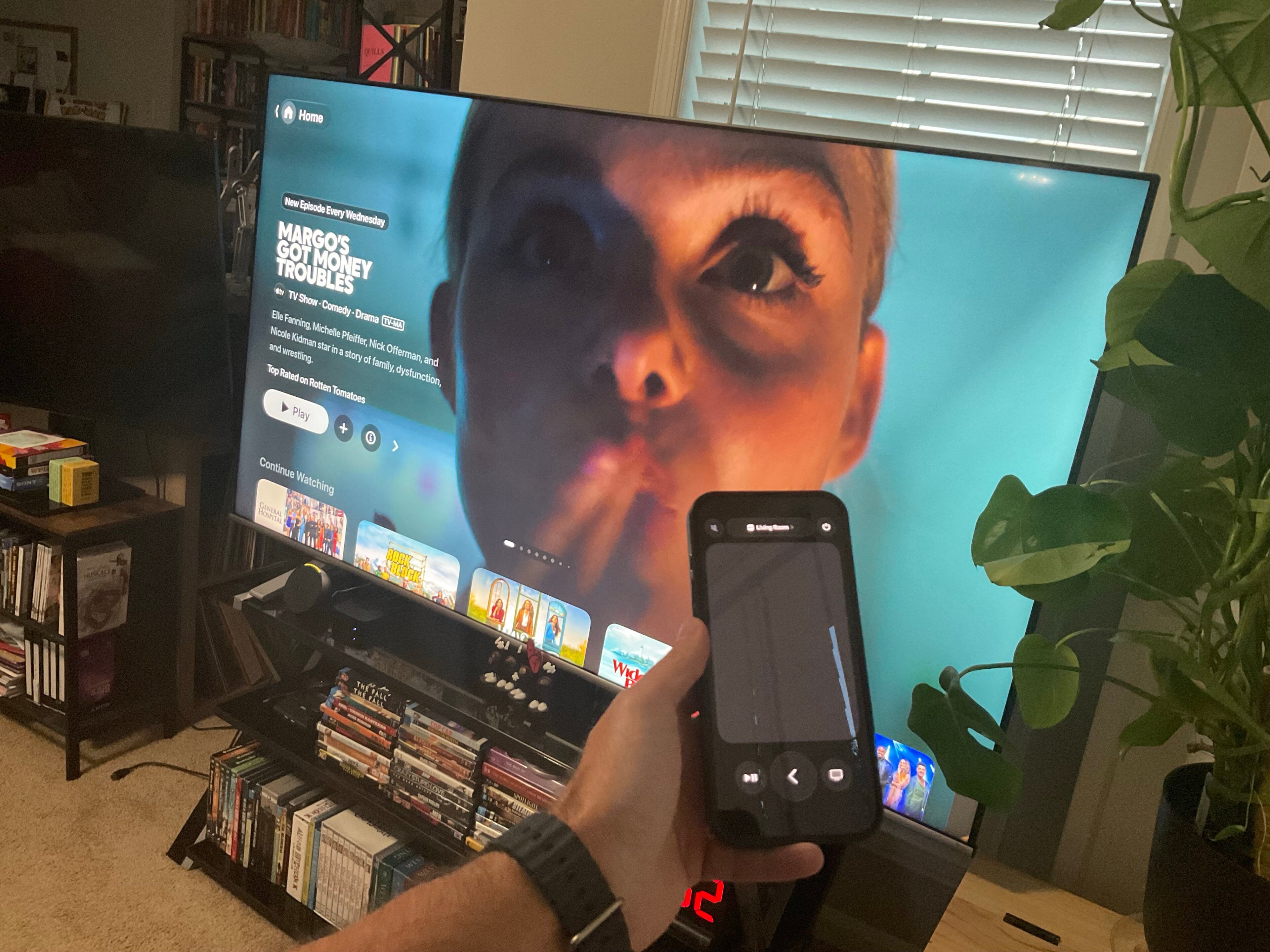
Apple has always put a great deal of effort into making sure its devices seem tech-forward. That includes enhancing the functionality of its products when used together — the ability to use the iPhone as a webcam with Mac computers, or using the iPad as a second display, for example.
Does the iPhone work as closely with the Apple TV streaming player? One of the most handy cross-device integrations streaming devices offer is the ability to use one’s phone as a remote. We’ll explain everything you need to know about pairing your iPhone with your Apple TV to use as a remote control below!
What you need to know about using your iPhone as an Apple TV remote

Can you use your iPhone as an Apple TV remote?
You sure can, as long as you have a compatible Apple TV device. Viewers can use their iPhone or iPad as a remote control with the following devices:
- Apple TV HD
- Apple TV 3rd gen
- All Apple TV 4K generations
- AirPlay-compatible smart TVs
Can you control TV volume with iPhone remote?
Yes, if you have set up your Apple TV with a HomePod, soundbar, or other AirPlay-compatible speakers. Configure this by finding the Apple TV Remote settings in the Control Center. If your Apple TV is not set up with a HomePod, soundbar, or other AirPlay-enabled speakers, you’ll have to use your TV remote’s volume controls
How to set up the Apple TV remote on your iPhone
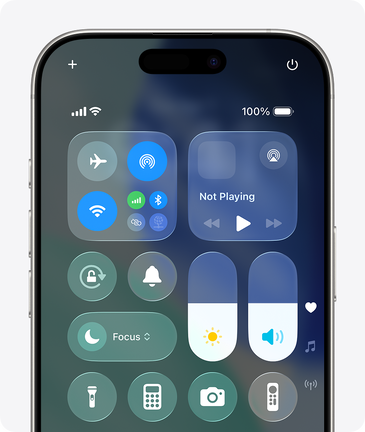
To add an Apple TV remote to your iPhone for the first time:
- On your iPhone, swipe down from the top-right corner to open Control Center.
- Tap Add Controls.
- Choose Add a Control.
- Scroll down to Remote, or use the Search Controls bar to find it.
Once you’ve added a remote to your iPhone, use the instructions below to switch your phone to remote mode.
- On your iPhone, swipe down from the top-right corner to open Control Center.
- Tap the Apple TV remote button.
- Choose your Apple TV or smart TV from the list.
- If prompted, follow on-screen instructions and enter your passcode.
What controls does an iPhone Apple TV remote have?
The iPhone version of your Apple TV remote will offer nearly all the controls you can use on your Siri remote. It has a power button, a mute button, a touch area for navigation, a closed-captions button, skip-ahead and skip-behind buttons, a play/pause button, a large back button, and a TV/control center button. There’s also a button to toggle Apple’s InSight feature on or off.
Can you use your iPhone remote to search Apple TV with Siri?
Yes. If you press and hold the side button on your iPhone while using the Apple TV remote, you can speak a command, search term, or query, then release the button to use the Siri voice assistant on your Apple TV device.
Why you should use your iPhone as your Apple TV remote
Using your iPhone as your Apple TV remote can be incredibly helpful, especially when trying to log into your chosen streaming apps. Trying to enter a username and password with a Siri remote one letter at a time is incredibly tedious, but using your iPhone as the remote will allow you to type using the phone’s keyboard instead.
The Apple TV’s remote is also physically one of the smallest of any streaming player. Using your iPhone as a remote instead gives a much heartier feeling in the hand, and a phone is much harder to misplace than the small Apple TV remote.
Your iPhone can be invaluable as a remote for your Apple TV device if your Siri remote breaks, as well. Apple TV’s in-box remote is usually pretty durable, but even the best equipment will break down after long wear. Never fear, though; your iPhone can step in marvelously if your Siri remote fails on you just as you’ve found a great new show or movie to watch.