How to pair Bluetooth headphones and devices with your Apple TV
How to pair Bluetooth headphones and devices with your Apple TV

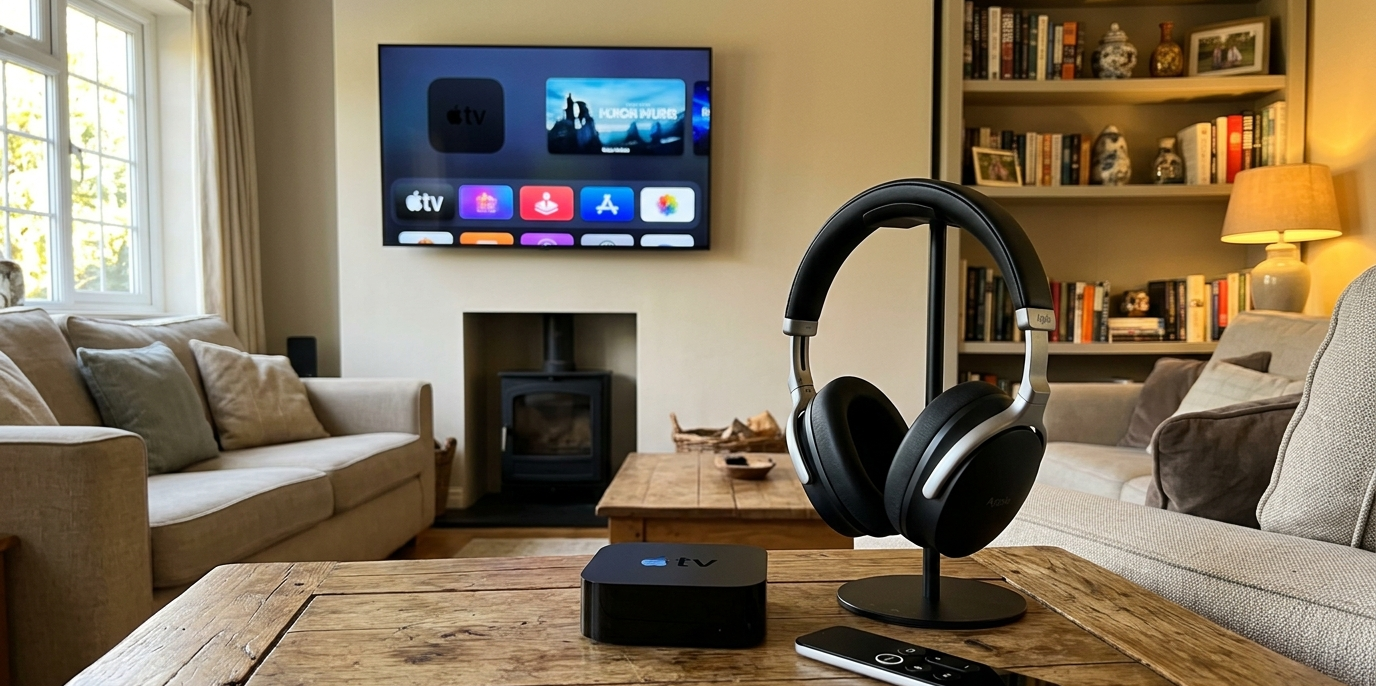
Connecting devices to your streaming player via Bluetooth can make you feel like a tech expert, but that’s far from the only benefit. Using a pair of Bluetooth headphones while streaming with your Apple TV, for example, will allow you to make your viewing experience totally private from an audio standpoint.
You can also connect other devices to your Apple TV player, but will the device make it difficult to connect your favorite headset or device via Bluetooth? We’ll lay out all the details you need to connect Bluetooth headphones and other devices to your Apple TV below!
What you need to know about connecting Bluetooth devices to your Apple TV device

Can you pair Bluetooth devices with Apple TV players?
Yes, Apple TV devices allow owners to connect supported devices via Bluetooth. Apple TV devices came with support for Bluetooth keyboards as far back as 2011, but full Bluetooth accessory support didn’t roll out on Apple TV devices until 2015. All Apple TV and Apple TV 4K devices support pairing with Bluetooth devices.
What Bluetooth devices are compatible with Apple TV?
Customers can use Bluetooth to connect the following types of devices to an Apple TV streaming player:
- Earbuds
- Over-the-ear headsets
- Microphones
- Smart lighting
- Home assistant devices
- Game controllers
- Keyboards/mice
- TV speakers and soundbars
How to connect a Bluetooth device to Apple TV
The process for connecting a Bluetooth device to your Apple TV or Apple TV 4K is quite simple. All you’ll have to do to get it done is:
- Turn on pairing mode for the accessory you want to pair with your Apple TV.
- On the Apple TV, open the Settings menu.
- Navigate to Remotes and Devices, then Bluetooth.
- Look for the device you want to pair in the available device list.
- If prompted, enter a four-digit code or PIN.
Can you listen on multiple Bluetooth devices at once with Apple TV?
Yes, Apple TV owners can pair up to two pairs of compatible AirPods or (amazon: B0C2W1KLSS text: Beats headphones simultaneously on Apple TV 4K devices. Simultaneous listening is not available on Apple TV HD devices and requires AirPods or Beats headphones to work.
To share audio on the Apple TV 4K:
- Press and hold the TV/Home button.
- Navigate to the AirPods icon at the top of the screen.
- Select Share Audio, and follow onscreen instructions.
The best ways to use Bluetooth with your Apple TV
The Apple TV is designed to work with other products from Apple, including iPhones and iPads. Viewers can connect these devices to their Apple TV to make use of their cameras and make calls via FaceTime, transmitting the incoming image to their TV. With a Bluetooth headset, viewers can make the audio from these calls completely private.
Sharing audio with someone else can turn date night into a truly intimate and romantic experience, and can also help viewers keep their movie night audio to themselves if they have roommates and thin walls. And of course, anyone who wants to listen to audio from their Apple TV privately can connect a Bluetooth headset and do just that.
Apple TV owners with an Apple Arcade subscription will relish the ability to connect a game controller to their player, and viewers who want a surround-sound experience can connect an additional speaker via Bluetooth as well. There are myriad devices that can connect to your Apple TV via Bluetooth, helping you upgrade your next watch your way.