Step-by-step instructions to add apps on Roku
Step-by-step instructions to add apps on Roku
Adding apps to your Roku is a necessity. Here’s how to do it!


Before you can start streaming your favorite shows and movies on Roku, you’ll need to add apps and channels — while it can be a bit confusing, these terms are interchangeable when it comes to Roku. Out of the box, Roku only includes its own branded channels and live TV options — everything else, like Netflix, Disney+, and Fubo, must be installed manually. Fortunately, adding channels to your Roku is a quick and straightforward process. Whether you’re looking to stream movies, live sports, or your favorite TV series, you can browse, search for, and install apps in just a few simple steps.
How to add apps and channels to your Roku streaming device
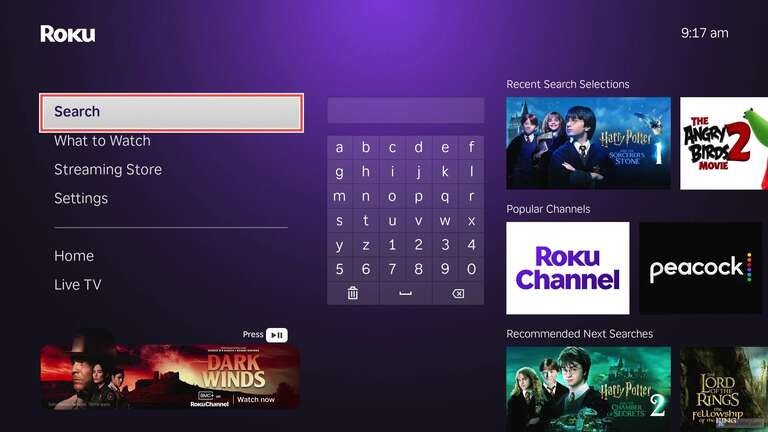
- On the home screen of your Roku device, scroll to and select “Search.”
![]()
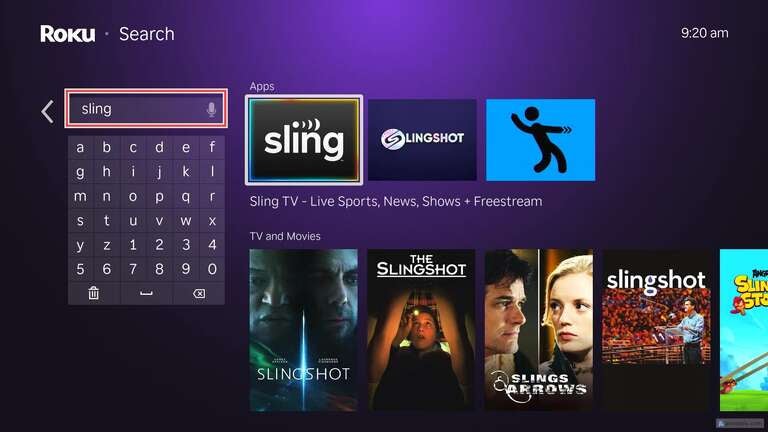
- Enter the name of the app or channel you wish to add.
![]()
- Select “Add app.”
![]()
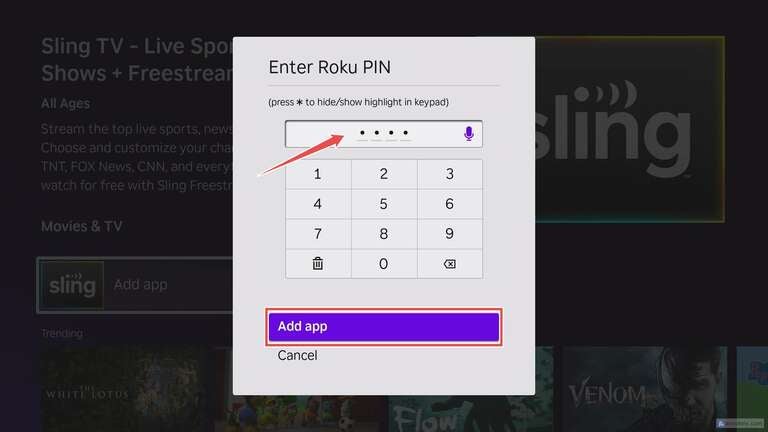
- Enter your Roku PIN and select “Add app.”
![]()
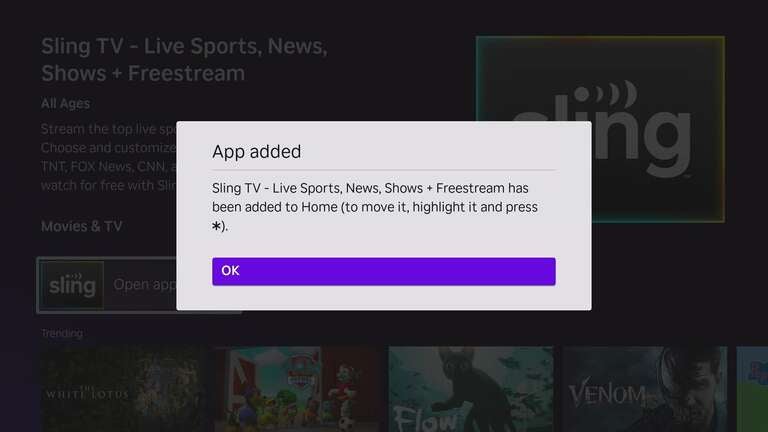
- Wait for the app to install. Once complete, select “OK.”
![]()
- Select “Open app.” and proceed with any necessary account login
![]()
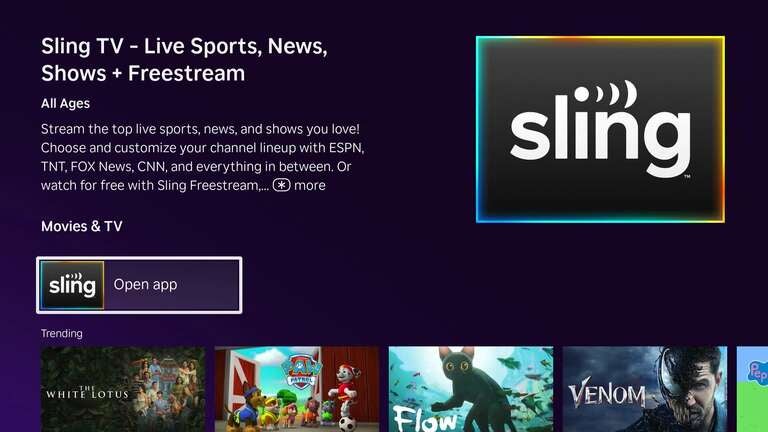
To add additional channels, repeat the process as needed. Thankfully, nearly all of the most popular streaming services are available on Roku, so you should have no problems searching for and adding whatever channels you need.
One of the biggest benefits of adding apps on Roku is that rather than just adding them on a specific device, they’ll actually be added to your account and show on all of your other Roku devices. Apps can also be easily removed if you only want them on specific devices.