How to use your iPhone as a Fire TV remote
How to use your iPhone as a Fire TV remote
Simplify your home theater experience by using your iPhone to control your Fire TV device.

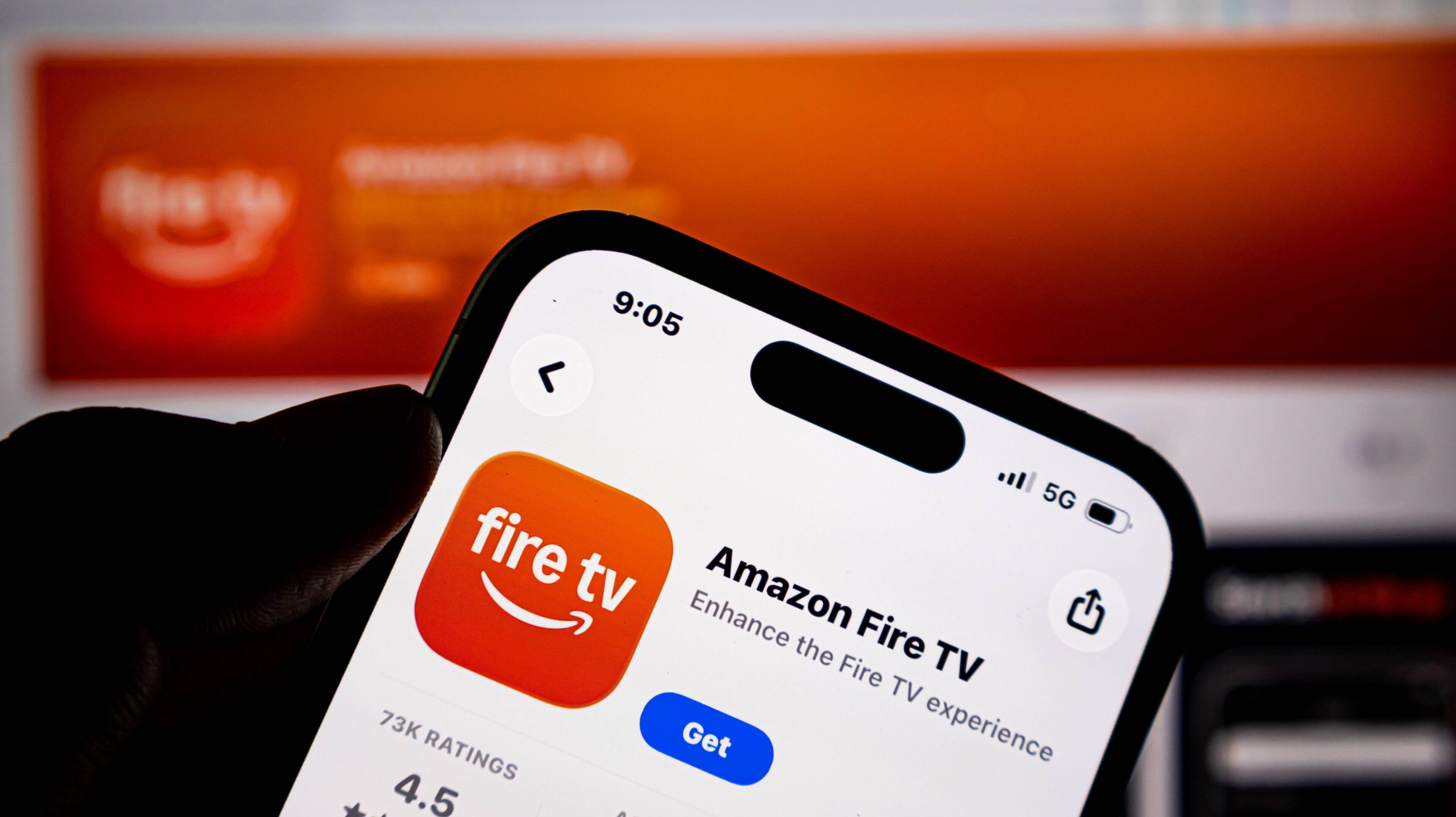
iPhone owners are already used to being able to control a wide range of devices with their phone. An iPhone can connect easily to other Apple smart products and can serve as a control hub, all while letting owners browse the internet, receive texts and calls, and more.
It’s even possible to transform your iPhone into a Fire TV remote, cutting down on the number of devices needed to control your home theater. Find out everything you need to know about using your iPhone as a Fire TV remote below.
Everything you need to know about using your iPhone as a Fire TV remote
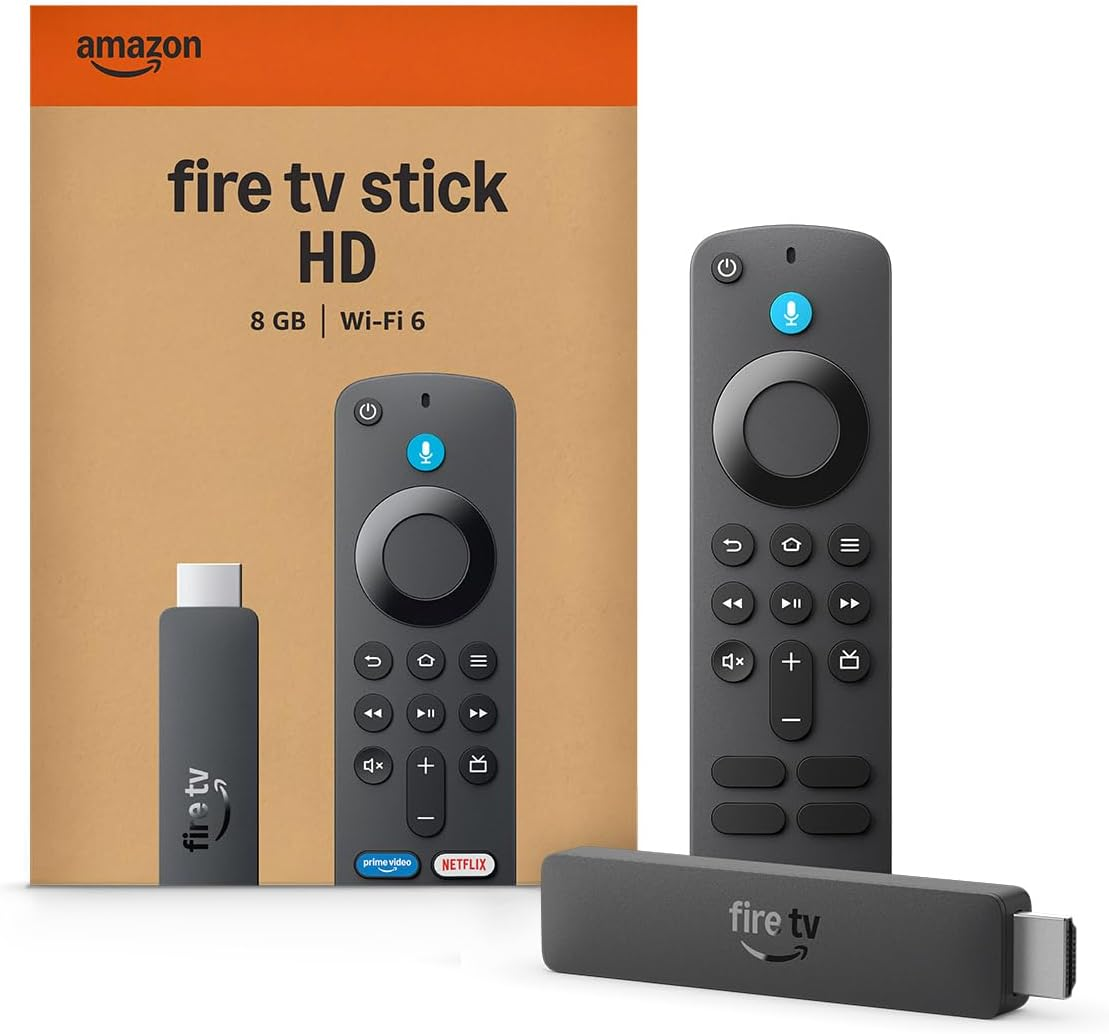
Fire TV streaming players
From $40
Can you use your iPhone as a Fire TV remote?
Yes, you can absolutely use your iPhone as a Fire TV remote. All you have to do is download the Fire TV app for your iPhone, connect your TV, and you’ll be ready to start watching your favorite streaming apps and live TV channels using your Fire TV streaming player.
How to set up your iPhone as a Fire TV remote
Turning your iPhone into a Fire TV remote is a very easy process. You won’t even have to get into the settings on your Fire TV device to do it; with just a few simple steps, your iPhone will be ready to go.
Follow these instructions to transform your iPhone into a Fire TV remote:
- Ensure your phone and the Fire TV are connected to the same Wi-Fi network.
- Download the Fire TV app from the Apple App Store.
- Open the Fire TV app on your iPhone.
- Sign in to your Amazon account.
- Select the remote icon at the bottom of the screen.
- Pick your TV from the list that pops up.
- Follow on-screen prompts to finish pairing.
What controls are available with the iPhone Fire TV remote?
The Fire TV remote on iPhone will allow viewers to swipe around a directional pad for navigation, open settings, and do everything else they can do with a physical remote.
Controls available include:
- Power and volume controls.
- Settings Menu.
- Shortcut panel.
- Back button.
- Home button.
- Voice commands.
- Channel controls.
- A keyboard for text input.
Can you use your iPhone Fire TV remote with Siri?
No, there is no way to route voice commands entered into your Fire TV remote to the Siri assistant that comes built into your iPhone. Any voice commands given to your Fire TV device via the iPhone remote will be executed by Alexa, Amazon’s home assistant.
Why you should use your iPhone as a Fire TV remote
Remote clutter is one of the worst things about having a home theater, but using your iPhone as a remote instead can help cut down on the problem. If your smart TV supports HDMI-CEC, your Fire TV can control the set’s volume and power, and you can route it all through your iPhone.
It’s also much easier to type in your log-in credentials with the Fire TV remote on an iPhone than it is to go one letter at a time using the physical remote and on-screen keyboard. Just use the digital keyboard on your iPhone to enter your streaming usernames and passwords instead, and spend more time watching.
A Fire TV remote may also feel a little small in the hand for some viewers, but an iPhone is much less likely to slip out of one’s grip — or between the couch cushions, for that matter. There are multiple reasons to use your iPhone as a Fire TV remote, and it can truly enhance your viewing session every time you turn the TV on.
Fire TV streaming players
From $40
Fire TV streaming players bring together your favorite apps, live TV, and Alexa voice controls in one convenient device. Available in HD and 4K models, Fire TV offers options to suit a variety of entertainment needs and budgets.