Check out how to add profiles to a Peacock subscription
Check out how to add profiles to a Peacock subscription
Peacock allows you to create a profile for all the different members of your household.


Peacock really does have something for everyone. The streamer has a huge selection of entertainment for adults, including originals, primetime titles from NBC and Bravo, movies from Universal, a selection of NBA, NFL, and other sports games, and even DreamWorks movies and other kids’ titles.
With that in mind, using the profiles feature for users who share their account within their household is a must. Profiles can help you keep your watchlist and viewing history separate from others in the household, which in turn makes the recommendations you see more tailored to your tastes. We’ll explain how to use profiles on Peacock below!
Everything you need to know about using profiles on Peacock
How many profiles can you create with Peacock?
Peacock will allow you to create up to six total profiles with an account. It can be any combination of kid and adult profiles, but the profile of the account owner must be an adult one.
How to add new profiles to Peacock
On the Peacock TV app or website
- When opening the app or site, the profile selection screen pops up.
- Click the Add button.
- Follow on-screen prompts to complete profile setup.
Alternatively, you can press the profile icon on the Peacock homepage and begin setting up a new profile from there.
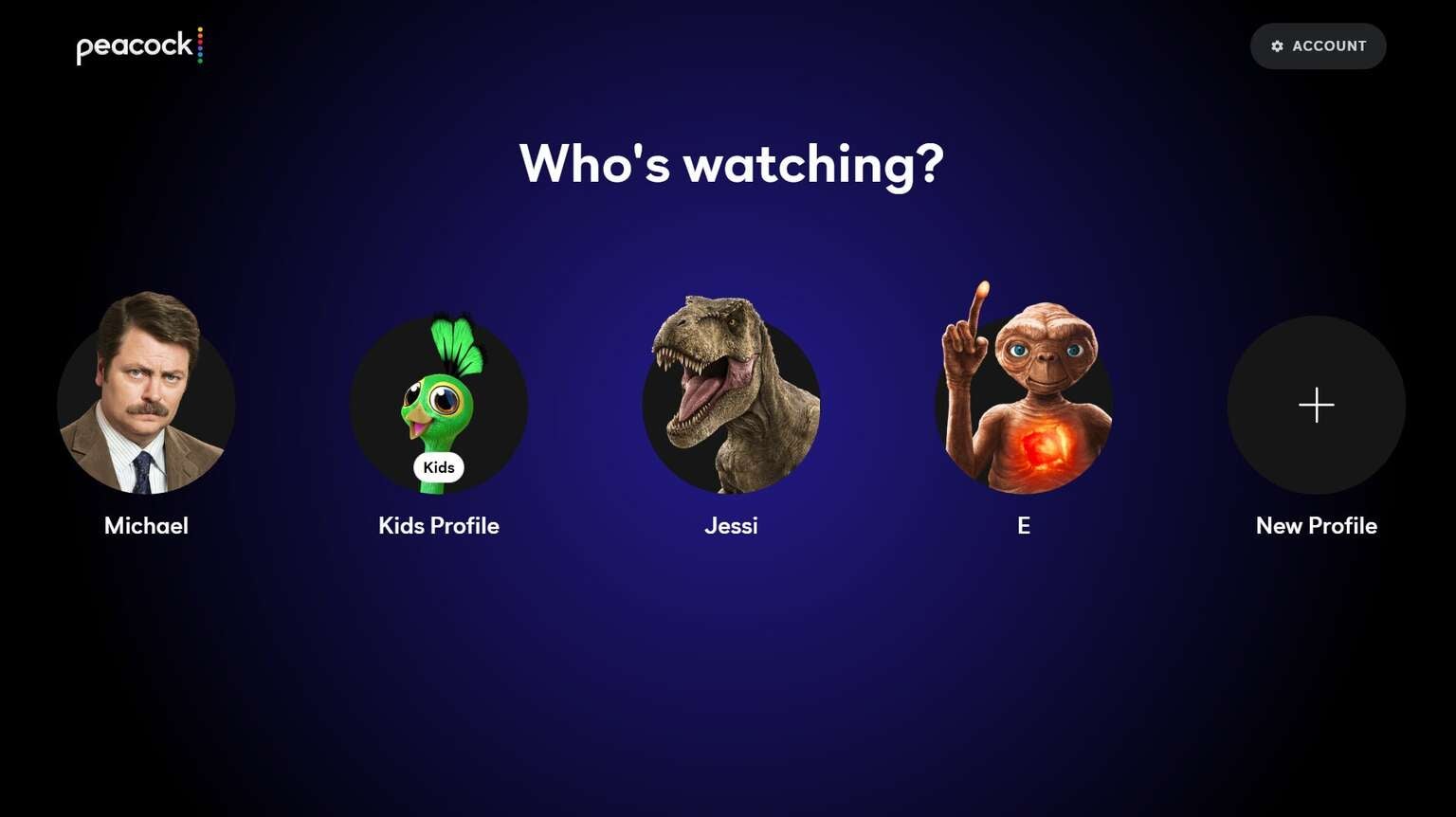
Peacock’s profile selection page makes it easy to create a new profile whenever you want.
When setting up a profile, you’ll be asked if you want to create one for an adult, a kid, or a teen, and to pick an avatar. Set up a name and choose some titles you are most interested in.
Can you transfer your Peacock profile to another account?
No, there is no way to transfer a Peacock profile from one account to another at the moment. If you’re moving out of your Peacock home and plan to set up your own account, you’ll have to start it from scratch.
What parental controls are available with Peacock profiles?
Parents can choose the maturity rating of content seen on Kids profiles with Peacock, and can adjust these settings for younger kids, older kids, and family viewing on the profile. Teen profiles can watch content rated up to PG-13.
In addition, viewers can create a four-digit PIN that prevents children from accessing other profiles.
To update a profile PIN:
- Go to the profile selection screen on Peacock.
- Click the pencil icon under the profile you want to update.
- Click the On/off slider next to the Profile PIN setting, and enter your account password.
- Create your new PIN.
Which settings can you change within Peacock profiles?
Once a Peacock profile is set up, you can adjust the maturity rating, enable PIN protection, change autoplay preferences, or edit the profile name and icon. Just go to the profile selection screen and click the small pencil icon under the profile you want to edit.
Can you delete a profile with Peacock?
Certainly, it’s easy to do. All that’s required is to head to the profile selection screen and click the small pencil icon to edit the profile you want to delete. Scroll down and click the Delete Profile button to free up space for creating other profiles.

Peacock
Peacock is a subscription video streaming service from NBCUniversal that includes original shows, blockbuster movies, and classic television series. Peacock is home to “Yellowstone,” “The Office,” and original hits like “Poker Face” and “Bel-Air.” You can also watch live sports and NBC programming, including the NFL, MLB, WWE, the Olympics, the Premier League, NASCAR, the French Open, college football and basketball, and the PGA Tour. Premium Plus subscribers can stream their local NBC feed in all 210 markets.