How to cast Spotify to a TV or streaming player
How to cast Spotify to a TV or streaming player
If you’d rather cast Spotify than download its app for your connected TV device, we’ll help you get it done here!

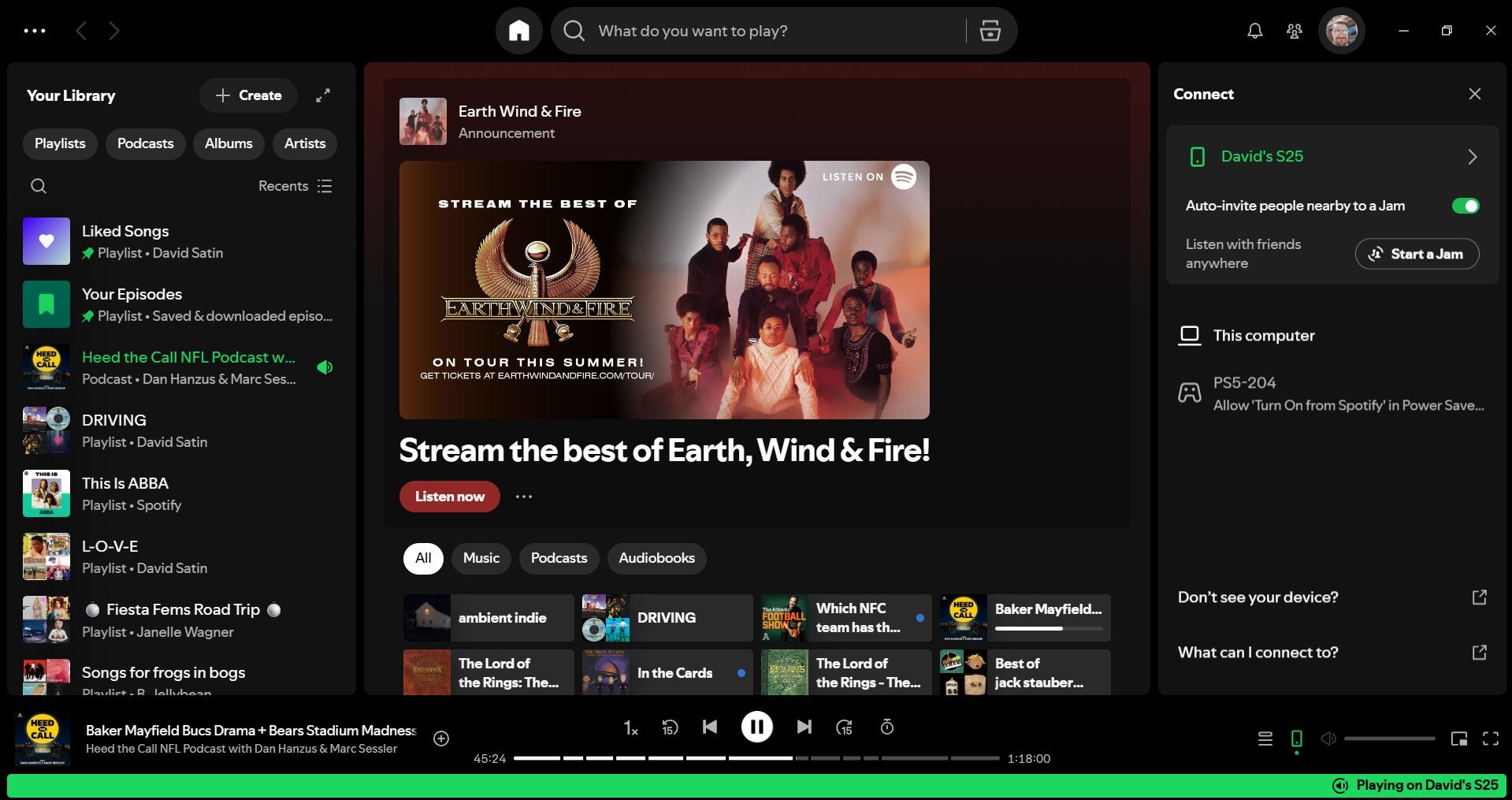
Using modern electronics can feel a bit frustrating at times, with a seemingly never-ending stream of apps to download and learn how to operate. But one of the benefits of this arrangement is that it allows devices to not only talk to each other, but even share audio and video from one screen to another.
If you’re a Spotify subscriber and you’re hoping to be able to use your smart TV or streaming device to play your subscription via casting, keep reading. Our how-to guide will allow you to start casting your Spotify subscription like a pro in no time.
Everything you need to know about casting Spotify to a TV
How to cast Spotify from a mobile device
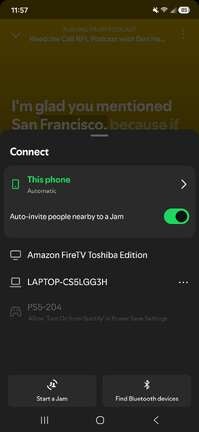
If your smart TV or streaming player supports Google Cast, you can cast the audio of your music or podcast stream directly to it from the Spotify mobile app in just a few taps. When attempting to cast, make sure the two devices you want to connect are on the same Wi-Fi network.
To cast from Spotify to a smart TV or streaming player using Google Cast:
- Open the Spotify app on your mobile device.
- Begin playback of the track you want to cast.
- At the bottom of the screen, search for the speaker icon and tap.
- Choose the device you want to cast to from the list of available options.
Apple mobile device users can also cast to AirPlay 2-compatible TVs and streaming players, such as the Apple TV or newer LG and Samsung smart TV models.
To listen to Spotify via AirPlay on a connected TV:
- Open the Control Center on your iOS device.
- Tap the AirPlay icon.
- Select the TV or device you want to connect with.
- Open Spotify and start listening.
How to cast Spotify from a computer
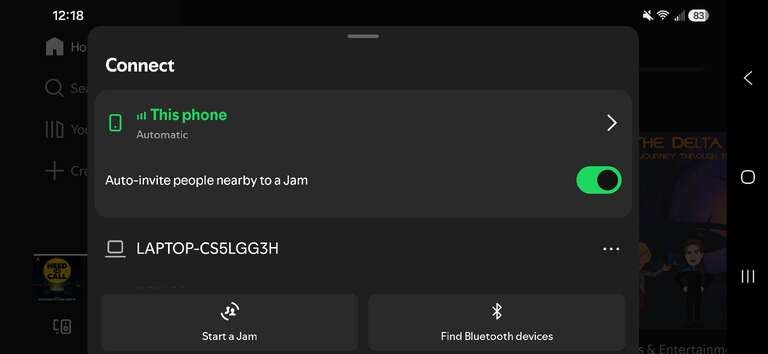
Casting Spotify from its desktop app or a laptop is essentially an identical process to casting from a phone.
Just follow these steps to cast from your computer:
- Open Spotify on your computer.
- Start playback on a track.
- Find the speaker icon in the bottom-right corner of the screen.
- Choose the device you want to cast to.
What devices can you cast Spotify to?
You can cast Spotify to smart TVs and streaming devices that support Google Cast, including:
- Google TV Streamer 4K
- NVIDIA Shield
- Now Smart Stick
- Onn. streaming players with Google TV
- Google and Android smart TVs from Sony, Hisense, TCL, VIZIO, Toshiba, and Philips
AirPlay is supported by all modern Apple TV streaming players. Amazon Fire TV and Roku do not natively support casting, but you can always listen to Spotify on these devices by downloading its app from their respective app stores and linking your account that way.
Why you should cast your Spotify to your TV
Casting Spotify from your phone to your TV allows you to enjoy a higher audio quality from your TV’s speakers. Plus, connecting via Bluetooth compresses audio quality, while casting via your home’s Wi-Fi allows for a higher-bitrate playback. That makes for a cleaner, fuller listening experience all around.
You also get to save your phone’s battery while casting audio to a smart TV or streaming device, since you won’t be using its built-in speaker to listen to Spotify. And casting from your phone to your connected TV device instead of connecting it to a Bluetooth speaker allows for a much larger operational range; Bluetooth usually requires the user to stay within 30 feet of their phone to listen, but casting lets you take your mobile device all over the house to keep listening.