How to add and remove apps from your Fire TV
How to add and remove apps from your Fire TV
Learn everything you need to know about installing new apps on your Fire TV, or removing them if needed.

Having a unified platform like the Fire TV operating system is the superior way to corral various streaming apps in one place. With a Fire TV device, audiences can watch on-demand TV and movies from apps like Disney+ and Netflix, stream live channels from distributors like DIRECTV and YouTube TV, and even listen to favorite music apps like Spotify.
But what’s the process for adding a new app on your Fire TV device? How do you search for new apps, and how do you pull old, unused apps off your Fire TV to make room for a new one? Learn everything you need to know here.
What you need to know about adding and deleting apps from your Fire TV device
Fire TV streaming players
From $40
How to search for apps on Fire TV
The simplest way to search for an app on your Fire TV is to ask Alexa to find it for you. Just press and hold the microphone on the Alexa voice remote, say the name of the app you’re looking for, and your Fire TV will do the rest.
You can also browse for apps in the Fire TV Appstore. To find this, scroll to the right on your home row of icons in the Fire TV interface, then down to Get More Apps. From here, you can browse for recommended sports, news, and entertainment streaming apps, or search for an app by name.
How to add an app on Fire TV
Once you’ve searched for the app you want more information about, it’s easy to add it to your Fire TV.
- Click the app tile you want to add.
- On the app’s detail page, click the Get button.
Once your new app has finished downloading, you can open it from this screen to log into your subscription or get a new one.
How to check apps for updates on Fire TV
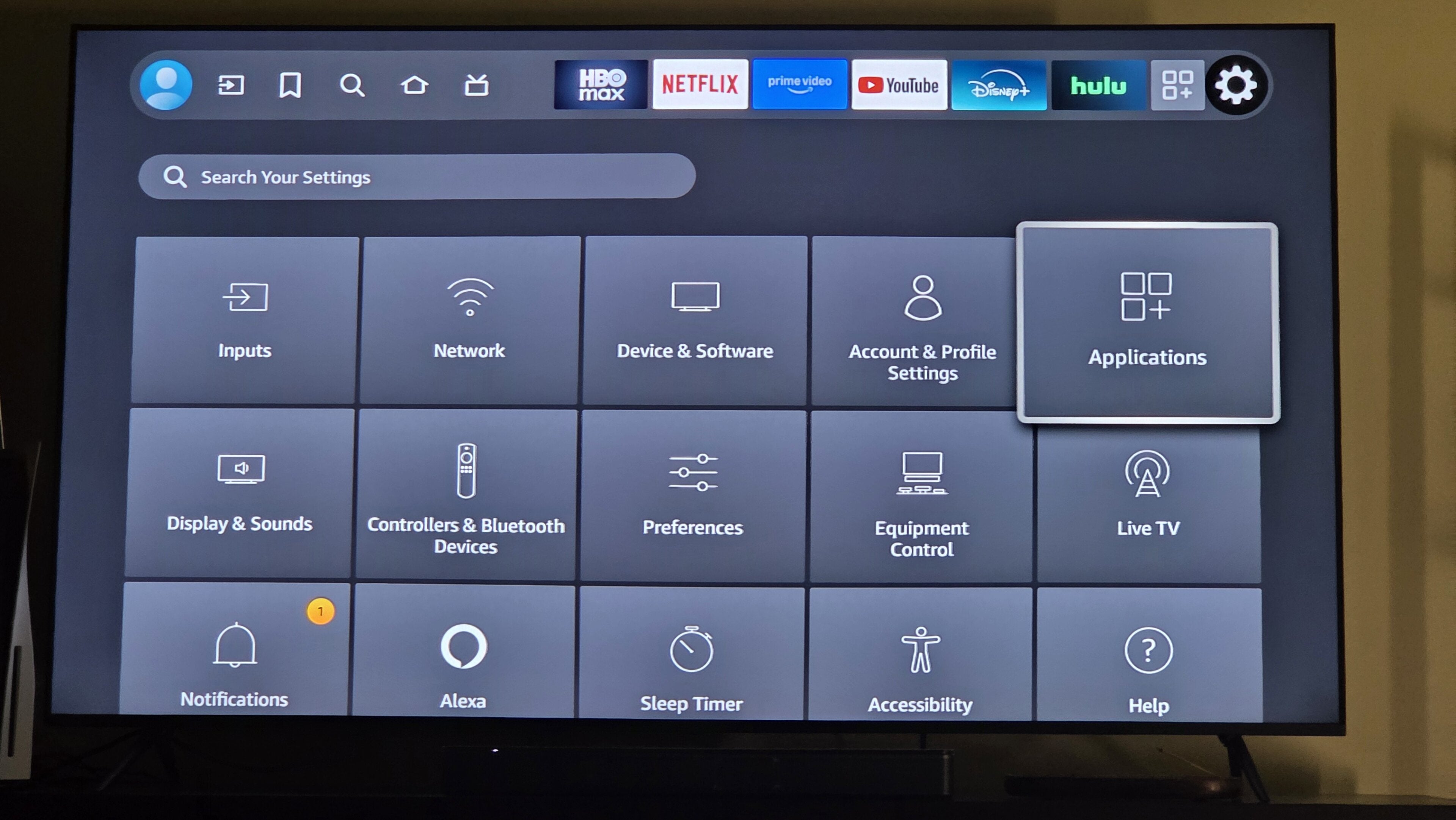
To check for available software updates on your apps on Fire TV, simply navigate to the app badge on the home screen, via search, or in the Applications menu under the Settings tab.
- Hover your cursor over the app and press the three-line button on the Fire TV remote.
- Click More Info.
- If available, click Update.
You can also turn on automatic updates for new apps in the store, so you don’t have to worry about automatically going app by app and making sure they’re all using up-to-date software.
- Scroll all the way to the gear-shaped Settings icon on the Fire TV home screen.
- Click Applications.
- Tap App Store.
- Turn Automatic Updates to On.
How to delete apps on Fire TV
The easiest way to delete any app from your Fire TV is to use the Applications tab in the Settings menu.
- Scroll to the right of the home bar on your Fire TV to the gear-shaped Settings tab.
- Choose Applications.
- Click Manage Installed Applications.
- Scroll to the app you want to uninstall.
- Click Uninstall.
Can you clear app caches with Fire TV?
Yes. If you need to clear the cache of an app that’s running slowly on your Fire TV device, you can easily do so through the Manage Installed Applications menu.
- Open the Settings menu on your Fire TV and choose Applications.
- Scroll to the app you need to manage.
- Click Clear Data or Clear Cache.
You can also use this menu to toggle picture-in-picture settings, clear any preset app defaults, and set app permissions from this menu. It’s a one-stop hub to control every facet of your apps that Fire TV allows you to, so familiarize yourself with it well!
Fire TV streaming players
From $40
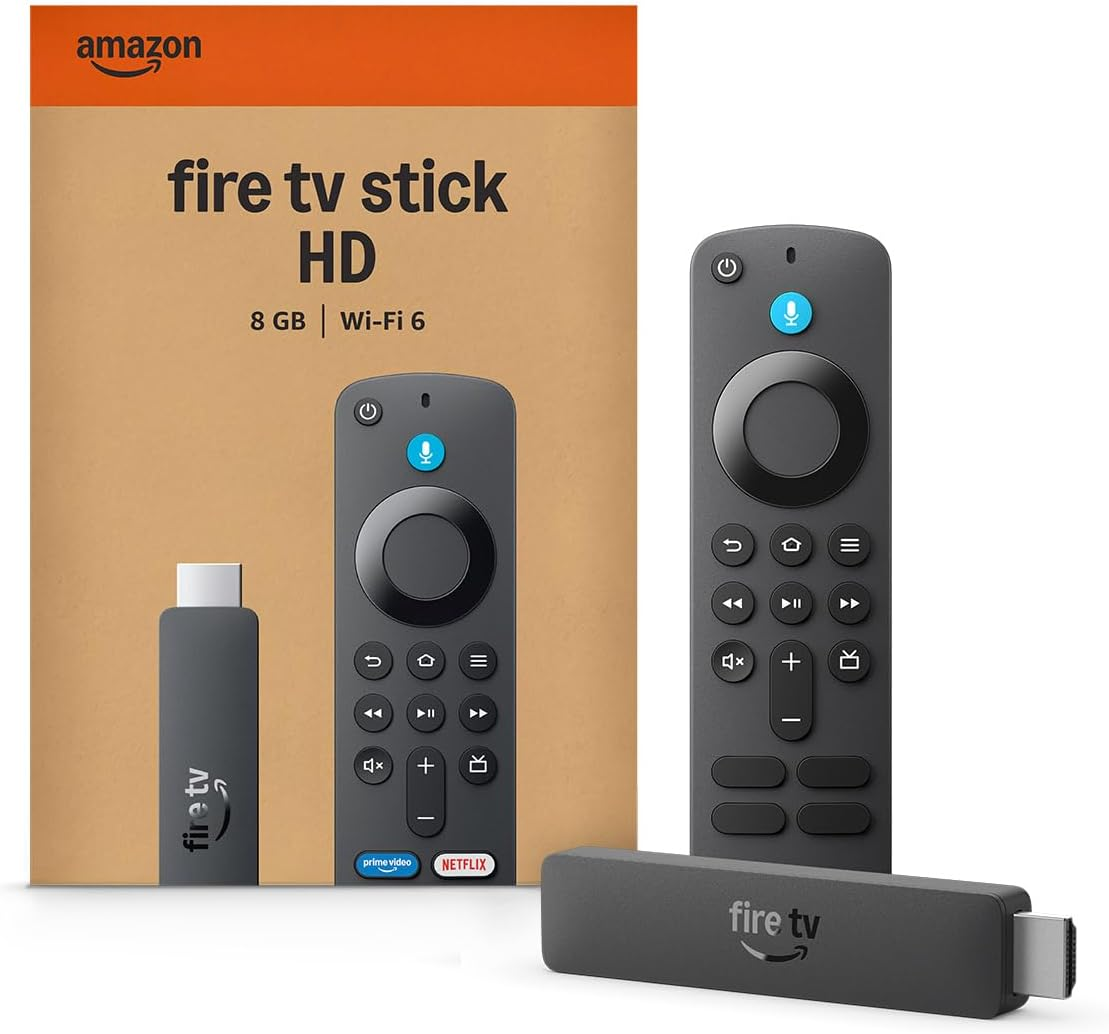
Fire TV streaming players bring together your favorite apps, live TV, and Alexa voice controls in one convenient device. Available in HD and 4K models, Fire TV offers options to suit a variety of entertainment needs and budgets.