How to use the My Stuff feature on Peacock
How to use the My Stuff feature on Peacock
Peacock’s My Stuff allows you to bookmark shows and movies and save them to your own personal playlist.

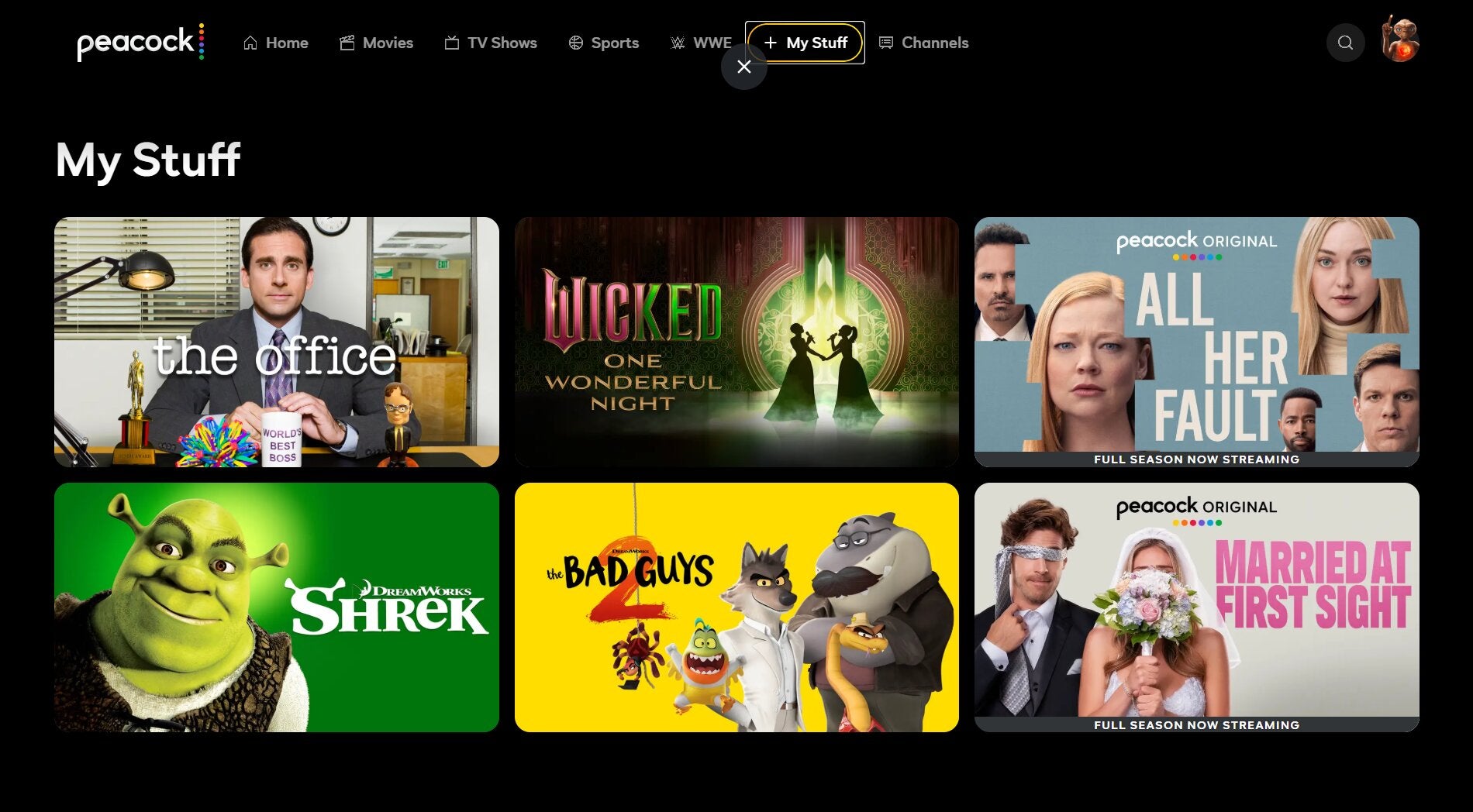
Having a Peacock subscription means that you get access to a wide range of content, including Universal’s most popular movies, comedy, reality, and drama shows from NBC’s past and present, a huge amount of live sports, and, of course, plenty of original titles to browse through.
The streaming service’s catalog is quite extensive, but fortunately, it makes it easy for users to save titles to watch later. Find out how to bookmark shows and movies to your personal playlist on Peacock below!
How to use My Stuff on Peacock
How to add TV shows and movies to My Stuff
If you want to bookmark a TV show or movie on Peacock, the process is a very simple one — whether you want to stream on your smart TV, a mobile device, or on the streamer’s website. Peacock makes the process of adding titles to My Stuff a pretty unified experience, so the following directions should help you no matter which device you choose.
Just go to the details page of the show or movie you want to watch. You’ll see a row of buttons, and within that row you’ll see one that says + My Stuff. Just tap or click this button, and the title will be added to your personal watchlist to be streamed on demand at your leisure.
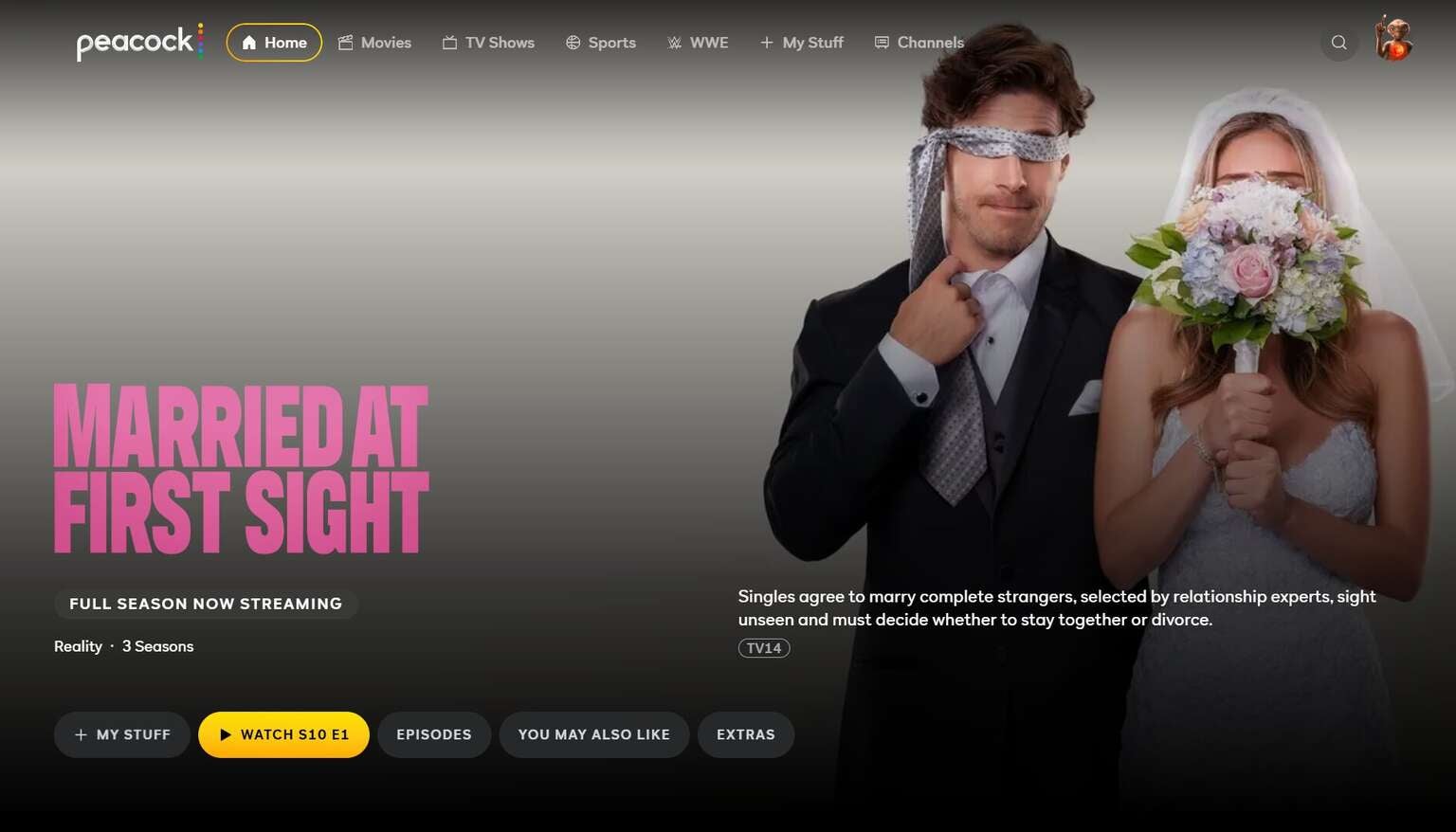
Adding a title to your watchlist on Peacock is as easy as pressing a button. Click to expand.
How to watch titles in My Stuff on Peacock
It’s incredibly easy to watch titles in My Stuff on Peacock, as the streamer offers a dedicated tab in its top-screen menu to allow viewers to head to that section directly. Just look for the My Stuff tab, and you can see all the shows you’ve saved to your personal playlist.
How to delete titles from My Stuff on Peacock
You can remove a TV show or movie from My Stuff on Peacock at any time, but the process can be a bit tricky. What you’ll have to do is go back to the details page of the title you want removed from My Stuff, then find the same button you used to add it to that list. You’ll see the + sign has changed to a check mark; simply push the button again to remove it from My List.

Peacock
Peacock is a subscription video streaming service from NBCUniversal that includes original shows, blockbuster movies, and classic television series. Peacock is home to “Yellowstone,” “The Office,” and original hits like “Poker Face” and “Bel-Air.” You can also watch live sports and NBC programming, including the NFL, MLB, WWE, the Olympics, the Premier League, NASCAR, the French Open, college football and basketball, and the PGA Tour. Premium Plus subscribers can stream their local NBC feed in all 210 markets.